
You've probably been there. You're trying to share event details with someone, and texting seems like the obvious choice. But then you wonder – can you actually send a proper calendar invite through a text message? Will it work like email invites do?
The internet is full of conflicting answers about this. Some people swear it's impossible. Others claim it works perfectly. The truth? It's complicated, but absolutely doable once you know the right approach.
The Big Myth: "Text Messages Can't Handle Calendar Files"
Let's bust the biggest misconception right away. You absolutely can share calendar events via text message. But here's where people get confused – it doesn't work the same way as email invites.
Most people expect to attach an .ics file to a text message like they would to an email. That's not how SMS works. Text messages have severe limitations on file attachments, and many carriers simply don't support them at all.
But that doesn't mean you're stuck. There are several workarounds that actually work better than traditional email invites in many cases.
What Actually Works (And What Doesn't)
What Doesn't Work:
- Direct .ics file attachments via SMS
- Calendar app "share via text" features on most phones
- Expecting the same functionality as email calendar invites
What Does Work:
- Sharing calendar links through text
- Using cloud storage links for .ics files
- Third-party apps designed for text-based calendar sharing
- Modern messaging apps with rich media support
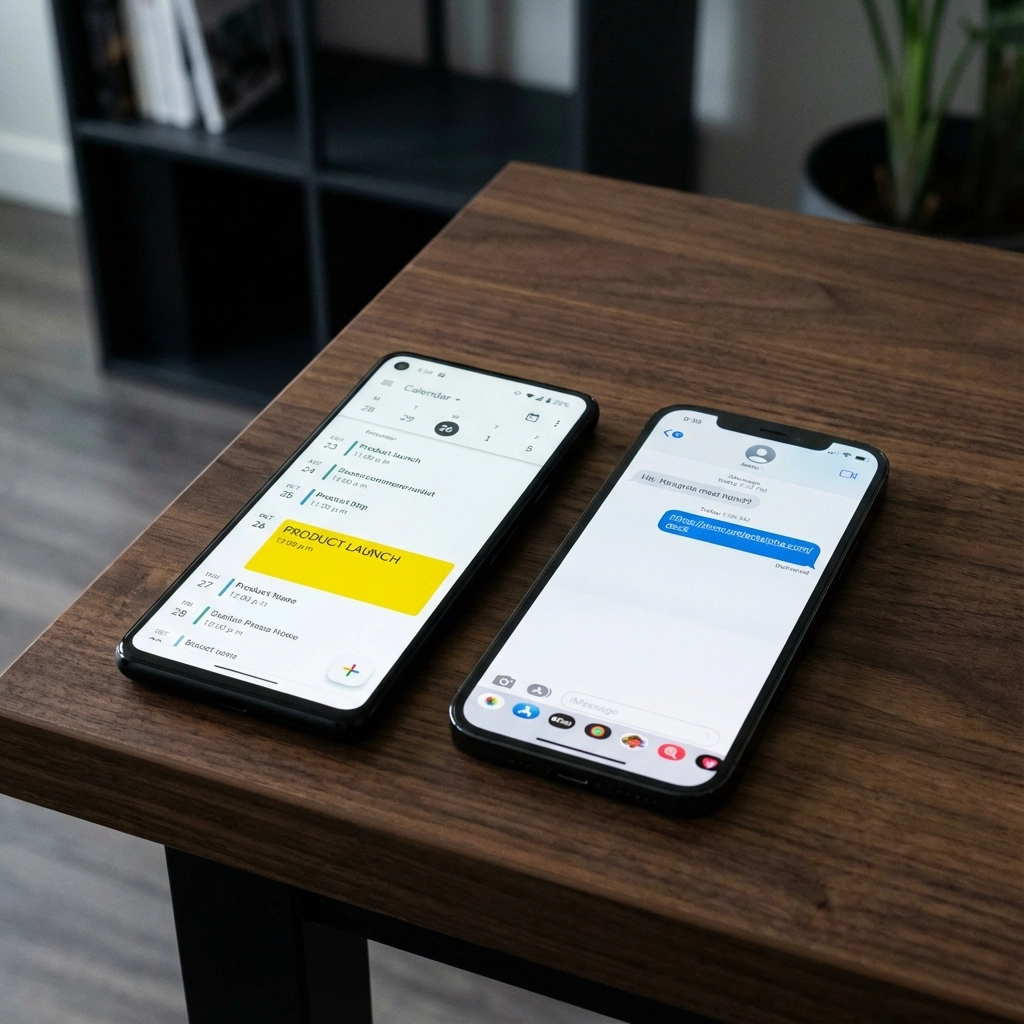
The key is understanding that you're not actually sending the calendar file through SMS – you're sending a link that opens the calendar information.
Tech Requirements: What You Need
Before diving into the how-to, let's cover what you'll need:
For the Sender:
- A smartphone with calendar access
- Internet connection
- Either a cloud storage account (Google Drive, iCloud, Dropbox) or access to your calendar's sharing features
For the Recipient:
- Smartphone with a calendar app
- Internet connection
- Ability to download files or access web links
Compatibility Notes:
- Works between iOS and Android
- Requires recipient to have a calendar app that supports .ics files (most do)
- Some features work better with newer phone models
Step-by-Step: iOS Users
Method 1: Using iCloud Calendar Links
- Create your event in the Calendar app
- Tap the event to open details
- Select "Edit" at the top right
- Scroll down and tap "Add Invitees"
- Add a dummy email address (this creates a shareable version)
- Tap "Done" to save
- Go to icloud.com on your computer
- Open Calendar and find your event
- Click the event and select "Share Event"
- Copy the public link
- Text this link to your recipient
Method 2: iCloud Drive File Sharing
- Export the event from Calendar (use third-party apps like "Calendar Export" if needed)
- Save the .ics file to iCloud Drive
- Open iCloud Drive app
- Long-press the file and select "Share"
- Choose "Copy Link"
- Send the link via text message
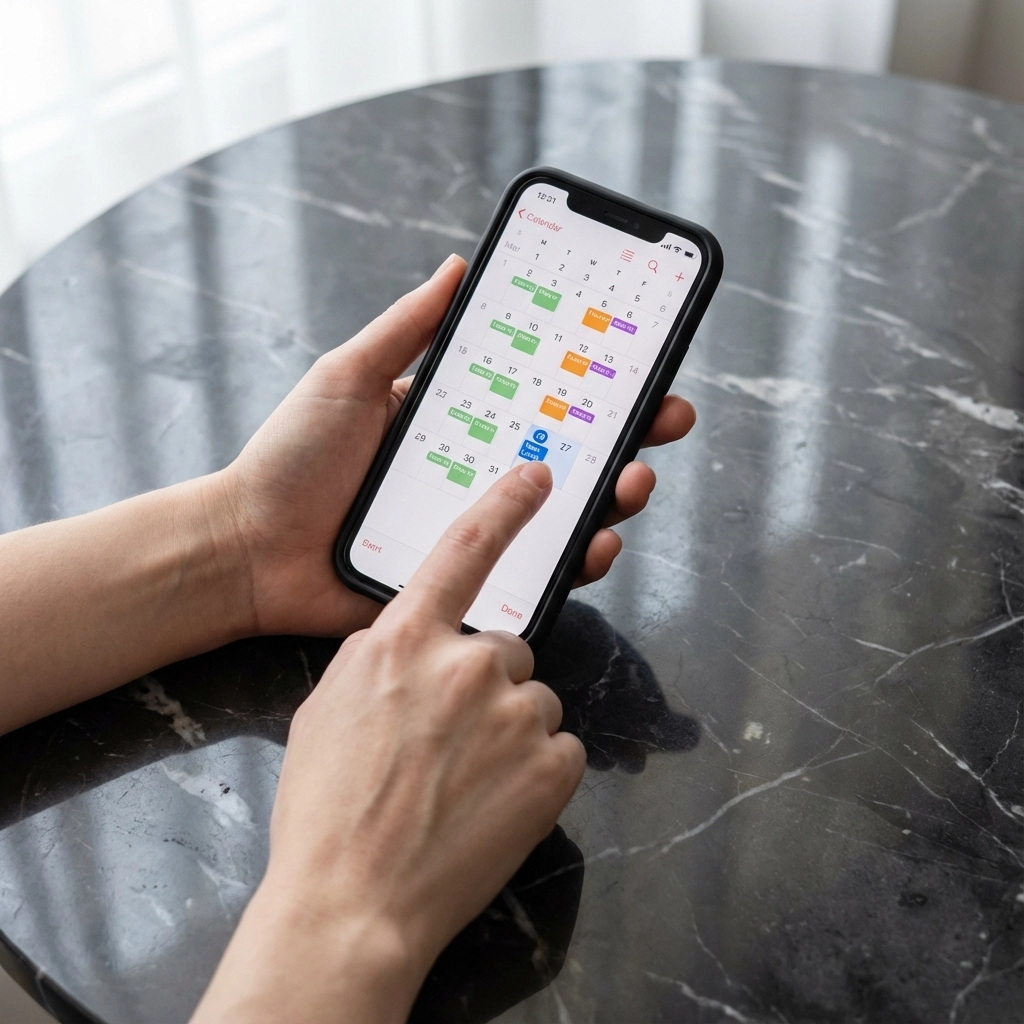
Method 3: Using Shortcuts App (iOS 13+)
Apple's Shortcuts app can automate this process:
- Download a calendar-sharing shortcut from the Shortcuts Gallery
- Run the shortcut with your event details
- The shortcut generates a shareable link automatically
- Copy and text the link to your recipient
Step-by-Step: Android Users
Method 1: Google Calendar Public Links
- Create your event in Google Calendar
- Tap the event to open it
- Tap the edit icon (pencil)
- Scroll to "Add guests"
- Add yourself as a guest and save
- Open Gmail and find the calendar invite email
- Tap "More details" in the email
- Copy the calendar URL from your browser
- Send this URL via text message
Method 2: Google Drive File Sharing
- Export the event as an .ics file using a calendar export app
- Upload to Google Drive
- Set sharing permissions to "Anyone with the link"
- Copy the shareable link
- Text the link to your recipient
Method 3: Third-Party Apps
Several Android apps specialize in calendar sharing:
- CalenMob – Creates shareable calendar links
- ICS Export – Exports events to various formats
- Business Calendar 2 – Built-in sharing features
Common Problems and Solutions
"The Link Doesn't Open My Calendar App"
This happens when the recipient's phone doesn't recognize the link format. Solutions:
- Ask them to copy the link and paste it into their browser
- Include instructions like "tap and hold, then select 'Open in Calendar'"
- Use a URL shortener like bit.ly to make the link more mobile-friendly
"The Event Shows Wrong Time Zone"
Calendar sharing can mess up time zones. Fix this by:
- Including time zone info in your text message
- Using UTC time in the calendar event
- Asking recipients to double-check the time when they add it
"The File Won't Download"
When using cloud storage links:
- Check sharing permissions are set to public
- Verify the recipient has internet connection
- Try a different cloud service if one isn't working
Modern Alternatives That Work Better
Honestly? Traditional calendar sharing via text is clunky. Here are better options:
AI Calendar Tools
Modern tools like Text to Calendar let you convert plain text into calendar events instantly. Instead of fumbling with file exports, you can:
- Type your event details in natural language
- Generate a calendar file automatically
- Share the download link via text
This eliminates most technical hurdles and works across all devices.
Messaging Apps with Rich Features
Consider using:
- WhatsApp – Better file sharing support
- Telegram – Handles calendar files natively
- Facebook Messenger – Rich media support
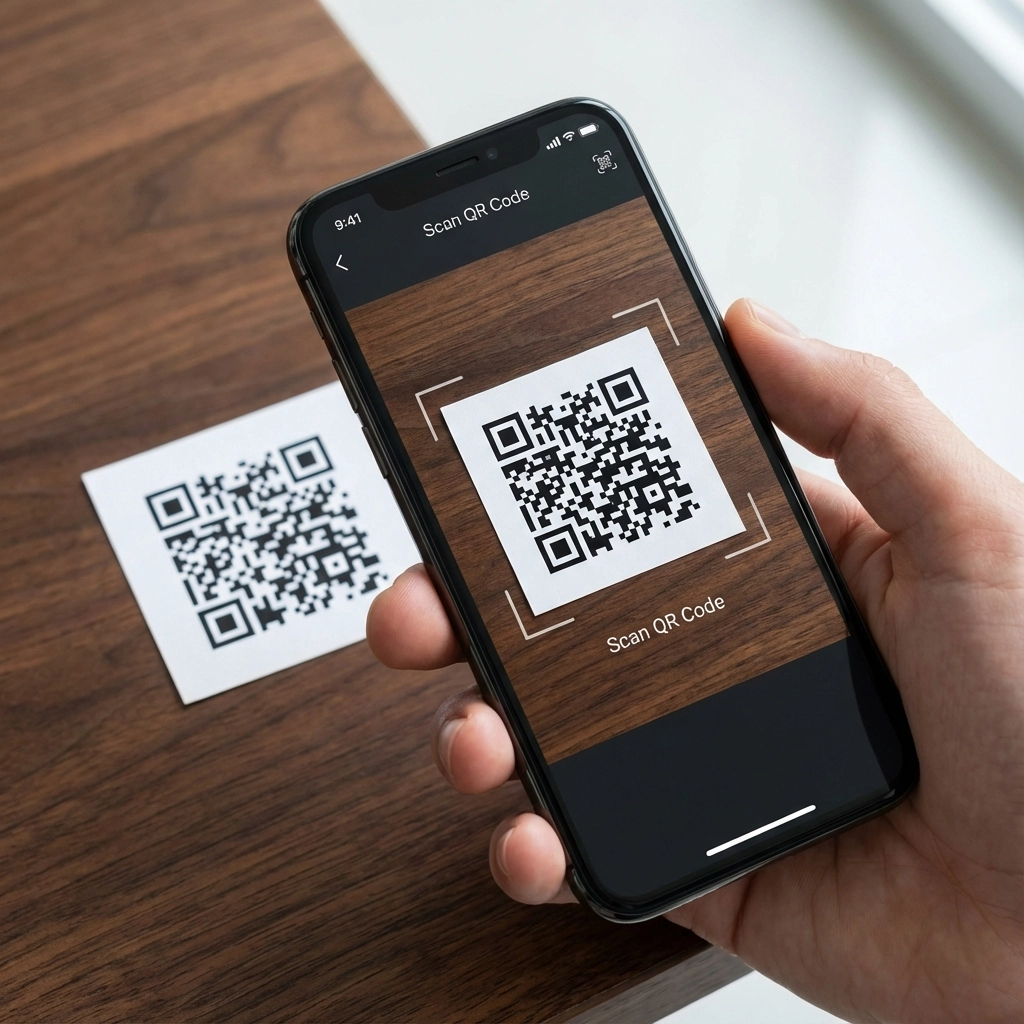
QR Codes for Events
Generate a QR code for your calendar event:
- Create the event in your preferred calendar
- Use a QR generator for calendar events
- Text the QR image to your recipient
- They scan it to add the event
When to Use Text vs. Email for Calendar Invites
Use text when:
- You need immediate attention
- The recipient checks texts more often than email
- You're sharing with someone who doesn't use email regularly
- You want higher open rates
Stick with email when:
- You need detailed event descriptions
- You're inviting multiple people
- You need RSVP tracking
- The event has complex details or attachments
Pro Tips for Better Calendar Sharing
Include Context in Your Message:
Instead of just sending a link, write: "Here's the calendar invite for tomorrow's meeting – tap the link to add it to your calendar"
Test Before Sending:
Always test your sharing method with a friend first. Different carriers and phone models can behave differently.
Provide Backup Details:
Include key event info (date, time, location) in your text message in case the calendar link doesn't work.
Follow Up:
Ask if they successfully added the event to their calendar. Don't assume it worked.
The Bottom Line
Yes, you can absolutely share calendar events through text messages. It just requires a different approach than email invites. The key is using shareable links instead of trying to attach files directly.
While the process involves a few extra steps, it's often worth it for the higher engagement rates and immediate attention that text messages provide. For regular calendar sharing, consider switching to dedicated tools that streamline the entire process.
The myths around text-based calendar sharing mostly stem from people expecting it to work exactly like email. Once you understand the technical limitations and use the right workarounds, sharing calendar events via text becomes straightforward and reliable.
Leave a Reply