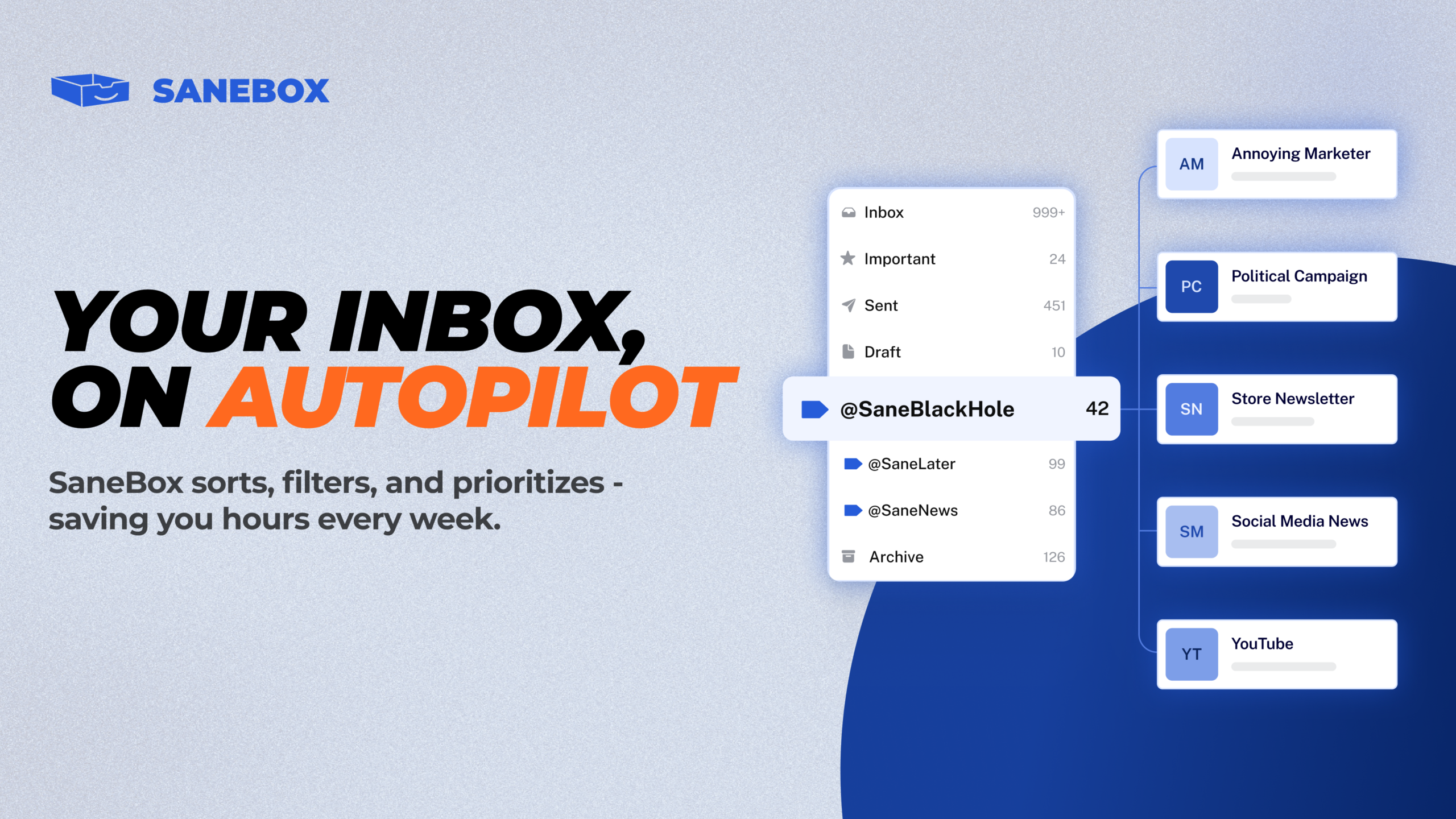
After six months of using SaneBox in my business inbox, I’ve developed a clear opinion: it doesn’t fix every email problem, but it does reclaim time and reduce distraction in a way manual filters rarely do. If your inbox constantly pulls you into low-value tasks, SaneBox can become the system that protects your focus.
Who SaneBox is for
SaneBox is designed for people who are overwhelmed by quantity and variety of messages—newsletters, status updates, promotional mail, and the important human conversations that actually move work forward. If you regularly lose track of critical emails because you get pulled into admin tasks or promotional threads, this tool is worth considering.
How it works and setup
SaneBox runs on the server side and integrates with major providers like Gmail, Outlook, and iCloud. There’s no special app to install and no new email client to learn. You grant permissions, and SaneBox starts organizing your inbox across all devices automatically.
Quick setup benefits
- No plugins or separate apps—works in the email client you already use.
- Automatic filtering begins immediately; I saw almost 2,000 messages moved out of my inbox right away.
- Works across devices without additional syncing—because it operates at the server level.
Key features that actually help
The features below are the ones I use most often and that deliver measurable time savings.
- SaneNews: Collects newsletters and promotional content into a single folder for later skimming instead of interrupting your day.
- SaneLater: Moves automated status updates and non-personal messages out of your inbox so you only see the human conversations first.
- Custom Smart Folders: Create filters like Receipts or Reports to automatically gather recurring types of emails. I added a receipts folder and a reports folder and now those messages never clutter my main inbox.
- Snooze Folders: Drag an email to SaneTomorrow, SaneNextWeek, SaneNextMonth, or a custom snooze to defer follow-up until a time you choose. The message returns to your inbox automatically when it’s time to act.
- NoReplies: Tracks sent emails that haven’t received replies so you can follow up without manually hunting for threads.
- SaneBlackHole: Drag a persistent spammer into this folder and you never hear from that sender again. It’s stronger than unsubscribing or marking as spam for problem senders.
- Email deep clean: If you need to clear space or declutter, you can delete a range of old messages quickly.
Limitations and important considerations
SaneBox is powerful, but it isn’t magic. Here are the things to expect so you don’t get surprised.
- Initial accuracy is around 80–85%. The first few weeks require attention. You’ll need to train the system by moving misfiled emails back into the inbox or into the correct folder. Training is easy and the system improves quickly.
- Not an AI reader or summarizer. SaneBox learns from behavior and patterns rather than reading and summarizing content. It won’t scan your inbox and give theme-based summaries or mark priority threads based on conversation depth. That said, a daily digest shows what was moved and why, which helps you monitor the system’s decisions.
- Adds labels or folders to your email client. If your Gmail sidebar is already crowded with labels, SaneBox will add more. It’s a tradeoff: a few extra labels versus a cleaner inbox.
- Feature gaps compared to a hypothetical ideal. I’d love a system that automatically flags priority threads based on interaction history. SaneBox doesn’t do that today, and few systems do it well yet.
How I set it up (practical tips you can copy)
- Connect SaneBox to your email provider and let it do the initial sort. Expect a large initial movement of messages into SaneNews and SaneLater.
- Check the daily digest each morning for the first 1–2 weeks. Use it to spot anything that was moved incorrectly.
- Create custom smart folders for recurring, low-priority emails you still want to keep—examples: Receipts, Reports, Invoices.
- Train by dragging a misfiled conversation back into your inbox. SaneBox learns from those corrections and improves quickly.
- Use SaneBlackHole for senders you never want to hear from again. It’s faster and more effective than fighting unsubscribe links.
- Use NoReplies to follow up on stalled conversations without manual tracking.
- Run a deep clean if you need to free up mailbox space or remove decades of old messages in one pass.
How much time does it save?
In my experience SaneBox shaved off a couple of hours each week. That’s time I used for higher-value work. The exact savings depend on how noisy your inbox is and how disciplined you are about using the system, but the recurring benefit is consistency: fewer interruptions and fewer opportunities to miss important messages.
Bottom line
If you are already extremely disciplined and enjoy building manual filters, you might replicate some of SaneBox’s behavior yourself. For most of us, automation is about consistency and scale—doing the organizing reliably without thinking about it. For that reason, I kept using SaneBox after six months and wouldn’t want to go back to sorting everything manually.
If you’re curious, there’s often a trial or credit available that makes testing the tool low risk. Try it for a month or two, keep an eye on the SaneNews and SaneLater folders during the first weeks, and you’ll quickly see whether it saves you enough time to justify the cost.
You can use this link to claim your free $15 credits.
Leave a Reply