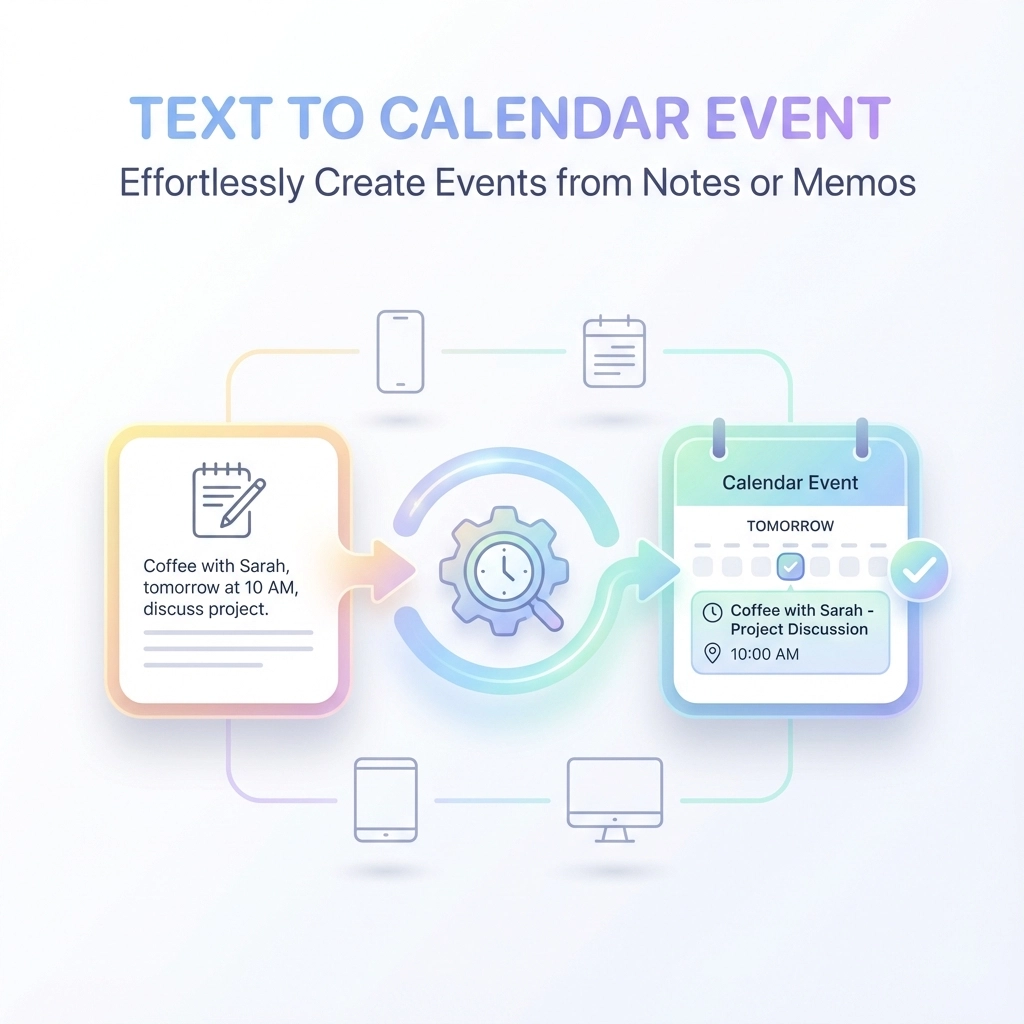
You're staring at a page of meeting notes. Three different client calls scheduled. Two project deadlines mentioned. A team lunch thrown in for good measure. Now you get to spend the next fifteen minutes manually typing each one into your calendar. Date by date. Time by time. Detail by detail.
There's a better way.
Text-to-calendar conversion tools eliminate the tedious copy-paste dance that eats up your day. Instead of transcribing event details by hand, you simply feed your notes or memos into a tool that automatically creates calendar events for you.
What Text-to-Calendar Conversion Actually Does
Text-to-calendar tools scan your written content and identify event-related information. They pull out dates, times, locations, and descriptions, then format everything into proper calendar events.
The process works with any text format. Meeting notes from Word documents. Email threads with scattered scheduling details. Quick voice-to-text memos on your phone. Even handwritten notes you've photographed.
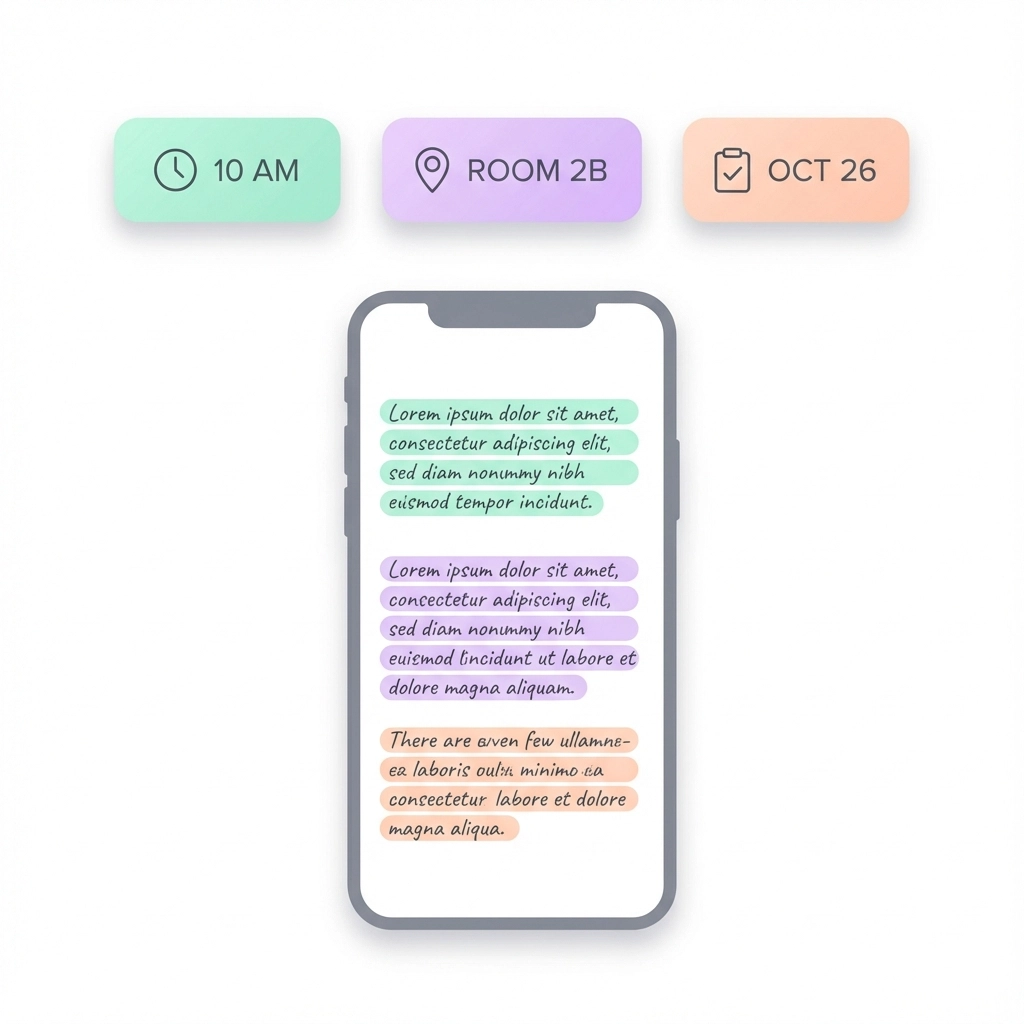
The tool doesn't just copy text blindly. It understands context. When your notes say "client meeting next Tuesday at 3 PM," the system knows to convert "next Tuesday" into an actual date and set the time accordingly.
Who Benefits Most from Text-to-Calendar Tools
Project Managers
You juggle multiple timelines, stakeholder meetings, and milestone deadlines. Your notes contain dozens of scheduling details that need to become trackable calendar events. Manual entry takes forever and introduces errors.
Executive Assistants
You manage calendars for multiple executives while coordinating their overlapping schedules. Meeting notes from one person often contain events that affect another person's calendar. Converting notes to events quickly keeps everyone synchronized.
Consultants and Freelancers
You work with multiple clients who schedule meetings through different channels. Email, Slack, phone calls, text messages. Centralizing all these scattered scheduling details into your calendar manually is a time drain.
Team Leaders
You run regular team meetings where people mention upcoming deadlines, training sessions, or project reviews. Converting these verbal commitments into shared calendar events ensures nothing gets forgotten.
How the Process Works Step-by-Step
Step 1: Gather Your Text Source
Start with any document containing event information. This could be meeting notes, email threads, project documents, or quick memos you've jotted down.
Step 2: Input the Text
Copy and paste your content into the text-to-calendar tool. Most tools accept large blocks of text, so you don't need to separate individual events beforehand.
Step 3: Review Extracted Events
The tool presents a list of calendar events it identified from your text. Each event shows the extracted date, time, title, and any additional details like location or description.
Step 4: Edit if Necessary
Check the extracted information for accuracy. Sometimes the tool needs clarification on ambiguous dates or times. You can edit titles, adjust times, or add missing details.
Step 5: Export to Your Calendar
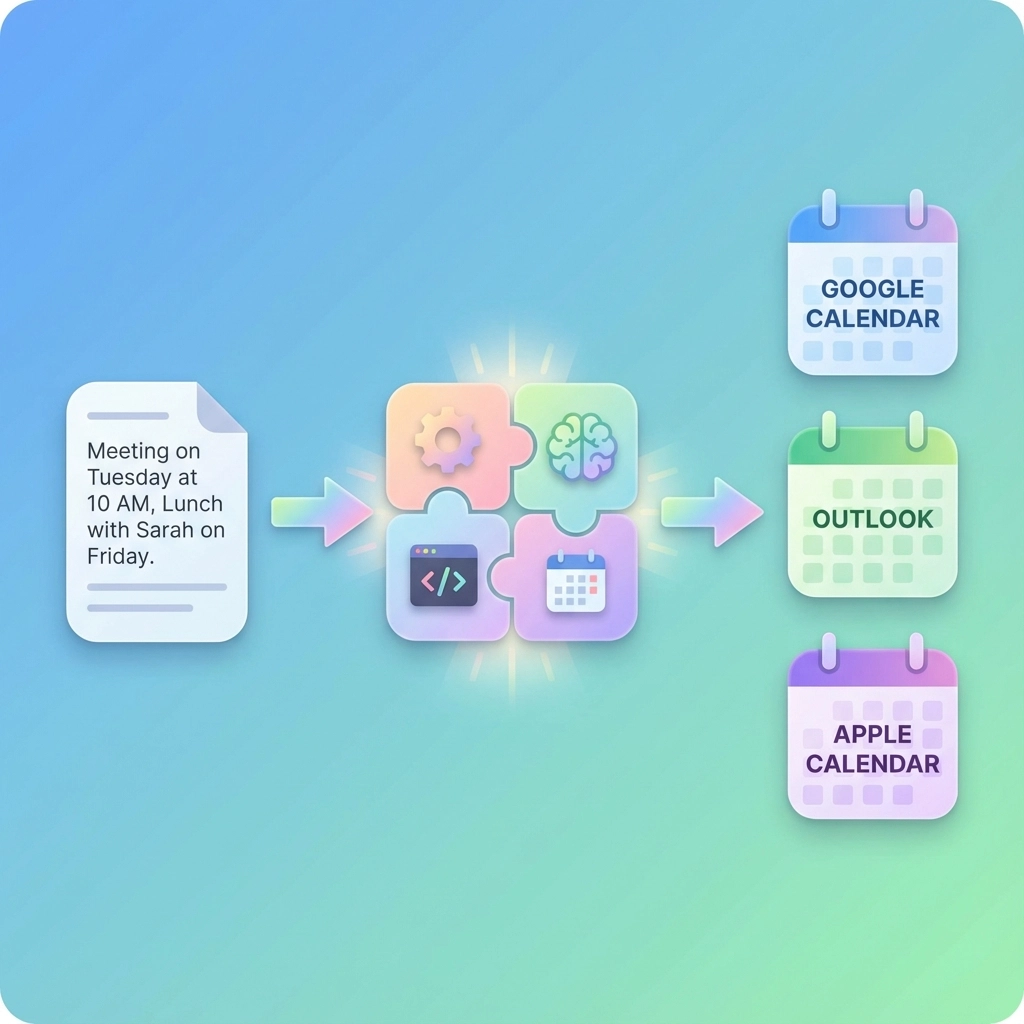
Generate ICS files or direct calendar links for the events. Most tools support Google Calendar, Outlook, Apple Calendar, and other major platforms.
Real-World Examples That Save Hours
Example 1: Project Kickoff Notes
Your meeting notes contain: "Design review scheduled for March 15th at 2 PM in Conference Room B. Development sprint planning on March 22nd, 10 AM. Client presentation draft due March 20th."
Instead of creating three separate calendar entries, the tool converts this paragraph into three properly formatted events with correct dates, times, and locations.
Example 2: Email Thread Scheduling
A long email thread contains scattered references to upcoming events: "Let's meet next Thursday," "Don't forget the quarterly review is the 15th," and "Budget meeting moved to 3 PM on Tuesday."
The tool extracts all scheduling references and converts relative dates like "next Thursday" into specific calendar dates based on when you process the text.
Example 3: Voice Memo Conversion
You recorded a quick voice memo while walking between meetings: "Need to schedule follow-up with Johnson for early next week. Also, the product demo is Thursday afternoon, and we have that vendor meeting sometime Friday morning."
After converting speech to text, the tool identifies the three events and creates calendar entries, even though the original memo was informal and conversational.
Pro Tips for Better Results
Be Specific with Time References
Instead of writing "tomorrow" or "next week," include actual dates when possible. This reduces ambiguity and improves extraction accuracy.
Use Consistent Formatting
If you regularly take notes that become calendar events, develop a consistent style. "Meeting with [Client] on [Date] at [Time]" works better than scattered references.
Include Context Clues
Add location information and meeting purposes to your notes. "Budget review in main conference room" gives the tool more information to work with than just "budget review."
Process Notes Soon After Creation
Convert notes to calendar events within a day or two of writing them. Relative date references like "next Monday" become more accurate when processed quickly.
Double-Check Recurring Events
Tools sometimes miss recurring meeting patterns. If your notes mention "weekly team meeting," you might need to set up the recurring pattern manually after the initial event creation.
Troubleshooting Common Issues
Ambiguous Date References
When your notes say "meeting next Tuesday," the tool needs to know which Tuesday you mean. Always process notes quickly, or include specific dates like "Tuesday, March 12th."
Multiple Time Zones
If you work with remote teams, specify time zones in your notes. "Call with London team at 10 AM GMT" prevents scheduling conflicts.
Missing Time Information
Notes that mention dates without times create all-day events by default. Add time details during the review step if the tool doesn't extract them automatically.
Duplicate Events
Long documents sometimes contain multiple references to the same meeting. Review extracted events to remove duplicates before adding them to your calendar.
Unclear Event Titles
The tool might extract "it" or "the meeting" as event titles when your notes use pronouns. Edit titles during the review process to make them descriptive.
Advanced Features Worth Using
Batch Processing
Process multiple documents at once. Upload several meeting note files and convert all contained events in a single operation.
Template Recognition
Some tools learn from your note-taking patterns and get better at extracting events that match your typical formatting style.
Integration Capabilities
Connect directly with your calendar platform instead of using ICS files. This enables automatic syncing and reduces manual steps.
Reminder Settings
Set default reminder preferences so extracted events automatically include your preferred notification timing.
Making It Part of Your Workflow
Start small. Pick one type of recurring notes: weekly team meetings, client call summaries, or project planning documents: and use text-to-calendar conversion for just that content.
Build the habit gradually. After each meeting or planning session, immediately convert any scheduling details you've captured into calendar events.
Standardize your note-taking approach. When you know you'll need to create calendar events from your notes, write them with conversion in mind.
The goal isn't perfect automation. It's eliminating the tedious manual work that turns simple scheduling into a time-consuming chore. Even if you need to edit extracted events occasionally, you're still saving significant time compared to creating each calendar entry from scratch.
Ready to stop copy-pasting event details? Try our text-to-calendar tool and convert your next set of meeting notes in under a minute.
Leave a Reply