You're staring at a PDF filled with dates, times, and events. Maybe it's a conference schedule, a project timeline, or a school calendar. Now you need to get all those events into your digital calendar without spending the next hour typing each one manually.
That tedious copy-paste routine? There's a better way.
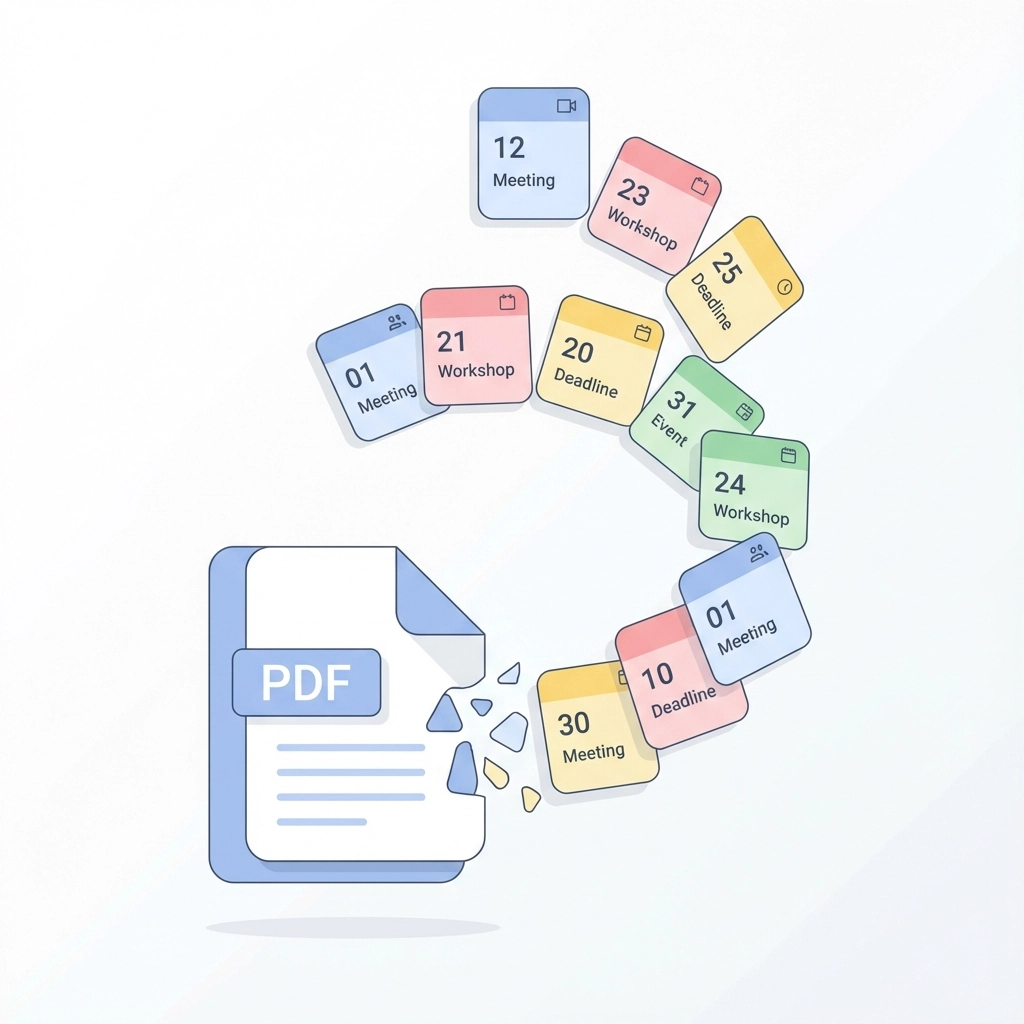
Converting PDF schedules to calendar events used to mean squinting at dates, opening calendar apps, and manually entering each event. Not anymore. Modern tools can transform your PDF into usable calendar entries in under a minute.
The Manual Method Problem
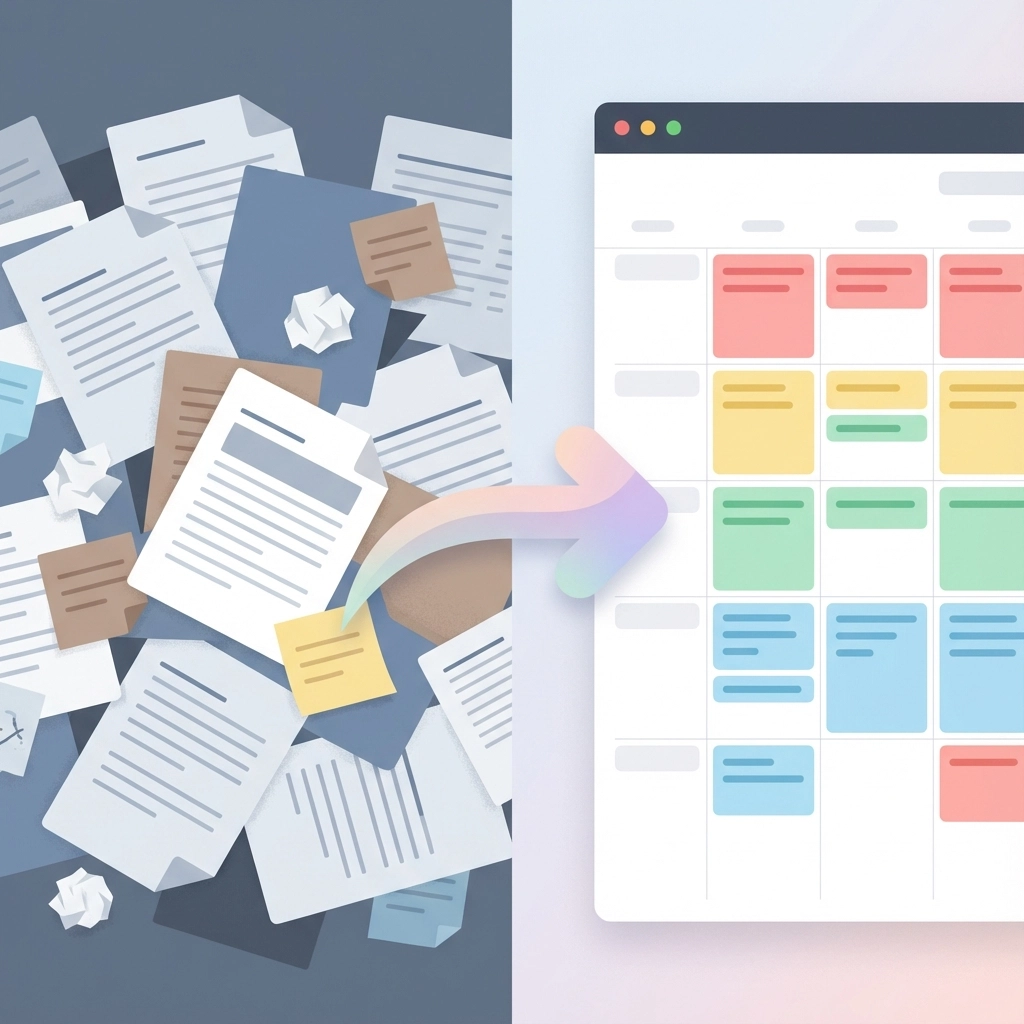
Before diving into solutions, let's acknowledge what you're probably dealing with. You open the PDF, scan for dates and times, switch to your calendar app, create a new event, copy the title, paste it, set the date, set the time, add location details, save, and repeat. For a 20-event conference schedule, that's easily 30-45 minutes of mind-numbing data entry.
Plus, you make mistakes. A missed AM/PM designation here, a wrong date there. Then you're dealing with confused attendees and missed meetings.
Method 1: AI-Powered Text to Calendar Tools
The fastest solution involves tools that read your PDF content and automatically generate calendar files. These systems use AI to identify dates, times, locations, and event titles within your PDF text.
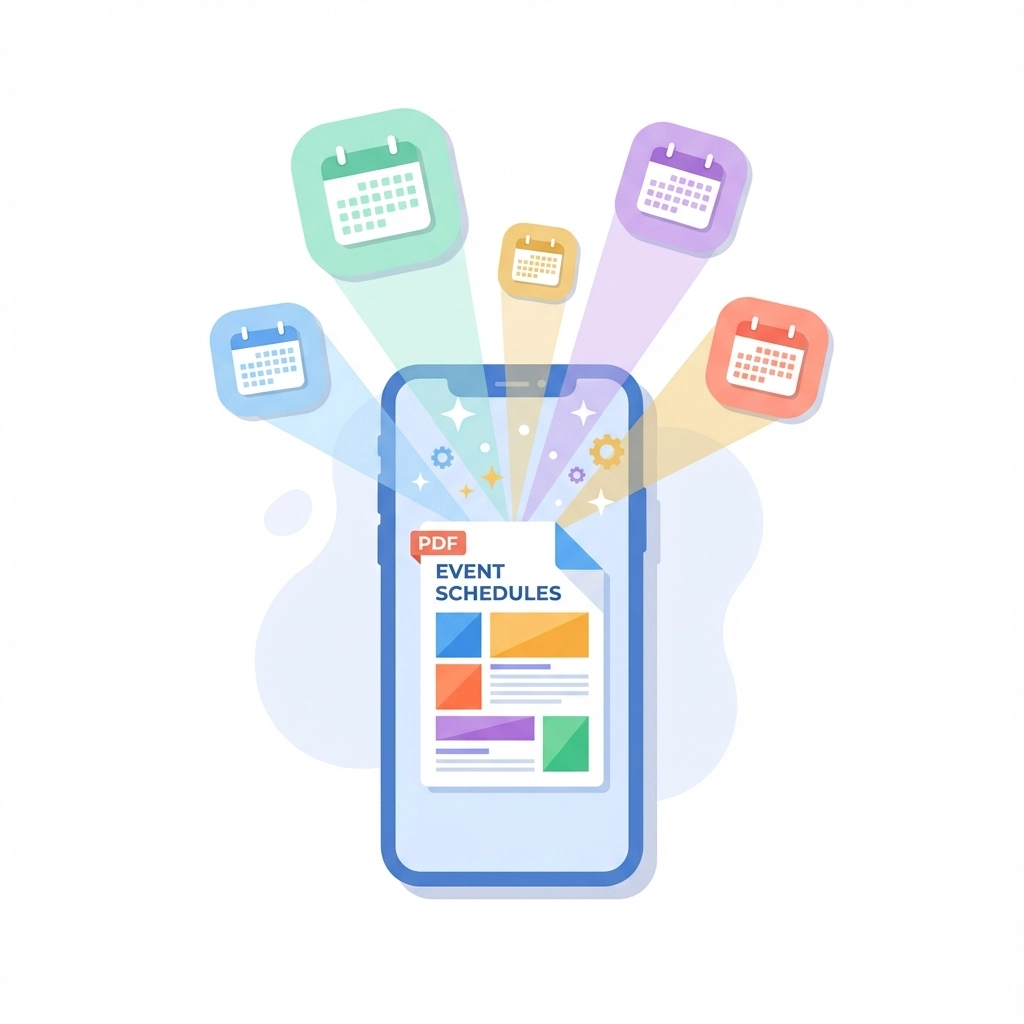
Here's how it works:
- Upload your PDF – Drag and drop or browse to select your file
- AI processes the content – The tool scans for date patterns, time formats, and event details
- Review the extracted events – Check that everything looks correct
- Download or sync – Get an ICS file or direct calendar integration
Tools like Text to Calendar handle this entire process in seconds. You paste your PDF content or upload the file, and the AI extracts all the event information automatically.
Pro tip: Before uploading, make sure your PDF text is selectable (not just an image). If you can highlight and copy text from the PDF, the AI can read it.
Method 2: PDF to ICS File Conversion
ICS files are the universal language of calendars. Every major calendar application – Google Calendar, Outlook, Apple Calendar, Thunderbird – can import ICS files.
The process is straightforward:
- Use a PDF to ICS converter tool
- Upload your PDF document
- The tool generates an ICS calendar file
- Import that file into your preferred calendar app
This method works particularly well for:
- Conference schedules with multiple sessions
- Academic calendars with semester dates
- Project timelines with milestone dates
- Event programs with detailed schedules
When to choose this method: You need maximum compatibility across different calendar platforms or you're sharing the calendar with team members using various calendar apps.
Method 3: Direct Calendar Integration
Some tools skip the file download step entirely and connect directly to your calendar service. This is the absolute fastest method when available.
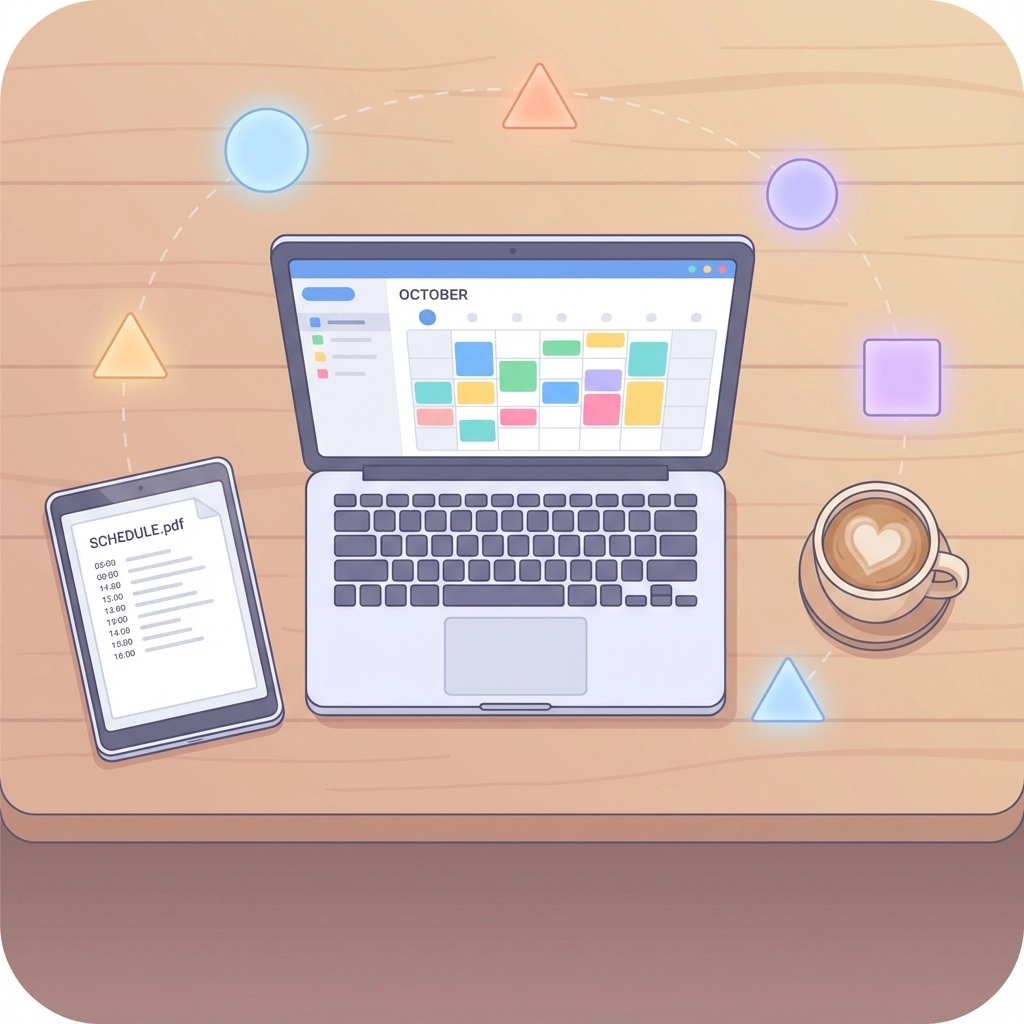
The workflow looks like this:
- Upload your PDF
- Authenticate with your calendar service (Google, Outlook, etc.)
- Review the extracted events
- Click "Add to Calendar"
- Events appear in your calendar immediately
Security note: Only use this method with trusted tools. Look for services that use secure OAuth authentication and don't store your calendar credentials.
Method 4: OCR for Image-Based PDFs
Not all PDFs contain selectable text. Some are essentially images of schedules or scanned documents. For these, you need Optical Character Recognition (OCR) capabilities.
Modern PDF to calendar tools include OCR features that:
- Read text from images within PDFs
- Handle various fonts and layouts
- Process handwritten schedules (with varying accuracy)
- Work with scanned documents
Quality factors: OCR accuracy depends on image resolution, font clarity, and document layout. Clean, high-contrast PDFs work best.
Troubleshooting Common Issues
Problem: Events show up with wrong times
Solution: Check if your PDF uses 12-hour or 24-hour format. Some tools struggle with format conversion. Manually verify a few events after import.
Problem: Location information missing
Solution: Many PDFs don't include detailed location data in a format AI can easily parse. You might need to add locations manually after the initial conversion.
Problem: Recurring events aren't properly detected
Solution: Most PDF to calendar tools handle one-time events better than recurring ones. For recurring events, create the first instance and then set up the recurrence pattern in your calendar app.
Problem: Event descriptions are incomplete
Solution: PDF layouts vary widely. Complex formatting or multi-column layouts can confuse extraction algorithms. Review descriptions and add missing details as needed.
Choosing the Right Tool
Consider these factors when selecting a PDF to calendar conversion method:
Speed Requirements
- Need it done in under a minute? → Direct integration tools
- Can spend 2-3 minutes for better accuracy? → ICS conversion tools
- Complex PDF that needs manual review? → Multi-step tools with editing features
Privacy Concerns
- Sensitive company information? → Look for tools that don't store data
- Personal calendar details? → Use services with clear privacy policies
- Public event information? → Any reputable tool works fine
Volume and Frequency
- One-off conversion? → Simple online tools
- Regular PDF calendars? → Tools with batch processing
- Team use? → Services with sharing and collaboration features
Advanced Tips for Better Results
Prepare your PDF: If possible, use text-based PDFs rather than scanned images. Text-based PDFs provide more accurate extraction.
Check date formats: US format (MM/DD/YYYY) vs. international format (DD/MM/YYYY) can cause confusion. Verify the tool handles your region's date format correctly.
Review time zones: If your PDF doesn't specify time zones, make sure you're converting to the correct one for your calendar.
Batch processing: For multiple PDFs, look for tools that can process several files at once rather than converting one at a time.
Quality Control After Conversion
Even the best tools aren't perfect. After converting your PDF to calendar events:
- Spot check dates and times – Verify a few random events match the original PDF
- Confirm critical events – Double-check important dates like deadlines or key meetings
- Add missing details – Fill in any location, description, or attendee information that didn't convert
- Set appropriate reminders – Add notifications based on event importance
Integration with Team Workflows
For team use, consider how your converted calendar fits into existing workflows:
- Shared calendars: Import into a team calendar that everyone can access
- Project management tools: Some tools can export to project management platforms beyond just calendars
- Meeting scheduling: Ensure converted events don't conflict with existing meetings using calendar overlay features
Converting PDFs to calendar entries doesn't have to be a time sink. With the right tools and approach, you can transform a 30-minute manual task into a 30-second automated process. Whether you need a quick one-time conversion or a regular workflow solution, modern PDF to calendar tools deliver the speed and accuracy that busy professionals need.
For the fastest, most reliable conversion experience, try Text to Calendar – designed specifically for turning any text content, including PDFs, into properly formatted calendar events in seconds.
Leave a Reply