You get an email with meeting details. Date, time, location, everything you need. But somehow, you forget about it because it's buried in your inbox instead of your calendar where it belongs.
Sound familiar? You're not alone. The average professional receives 126 emails daily, and important meeting details get lost in the shuffle. Converting email invitations to calendar events isn't just about organization, it's about never missing another important meeting again.
The Quick Solution: Direct Import Tools
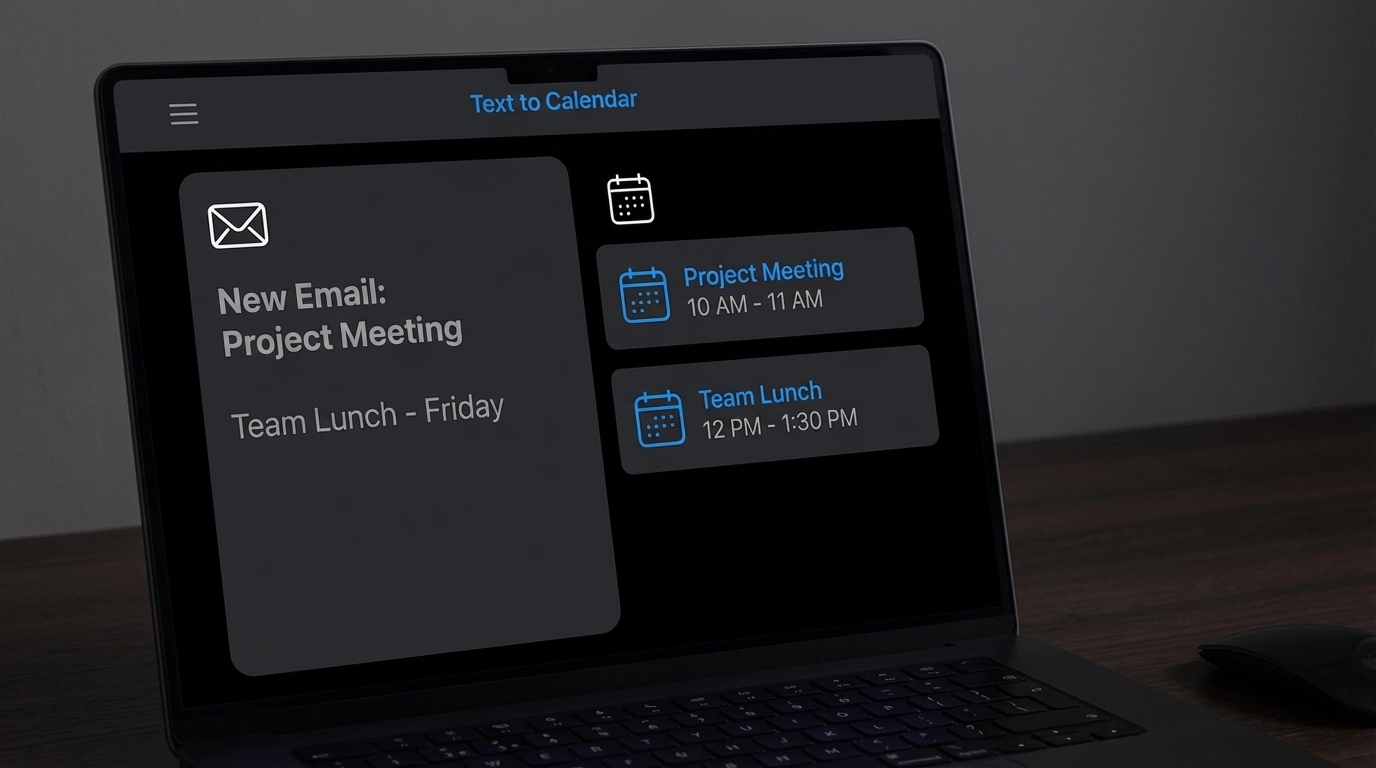
Before diving into manual methods, here's the fastest way to handle this. Copy your email content and paste it into Text to Calendar. Our AI extracts all the meeting details and creates calendar events that export directly to Google Calendar or Outlook.
No manual copying. No missed details. Just paste, review, and export.
Google Calendar: Three Methods That Actually Work
Method 1: Gmail's Smart Detection
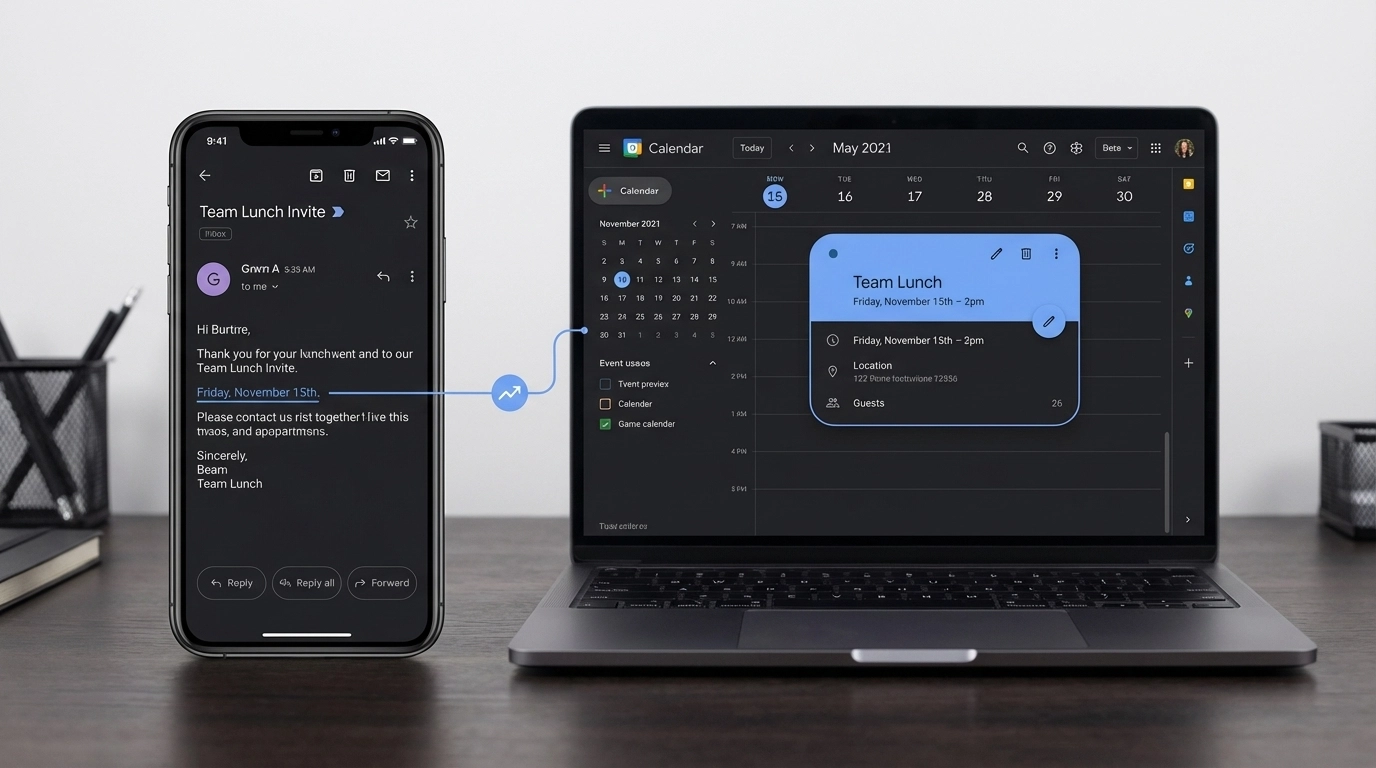
Gmail's AI automatically recognizes dates and times in your emails. When it finds meeting details, you'll see them underlined.
Step-by-step process:
- Open the email containing meeting details
- Look for underlined dates and times in the email content
- Hover over the underlined text
- Click "Add to Calendar" when the popup appears
- Review the event details in Google Calendar
- Adjust time zone, notifications, or description as needed
- Save the event
This works best when emails include clear phrases like "Let's meet on Thursday at 3 PM" or "Join us December 15th at 10 AM."
Method 2: Manual Event Creation from Gmail
When Gmail doesn't automatically detect meeting details, create events manually:
- Open the email in Gmail
- Click the three vertical dots in the email toolbar
- Select "Create event" from the dropdown menu
- Gmail opens Google Calendar with a new event
- The email subject becomes the event title
- Add date, time, and location details
- Include original email recipients as guests using "Add guests"
- Set guest permissions (view, modify, or invite others)
- Save the event
Gmail automatically includes the original email content in the event description, giving you full context during the meeting.
Method 3: Forward to Your Calendar Email
Every Google Calendar has a unique email address for adding events:
- Go to Google Calendar settings
- Find your calendar's email address (usually ends with @group.calendar.google.com)
- Forward the meeting email to this address
- Google Calendar creates an event with the email content
- Review and edit the event details in your calendar
This method works well for forwarding invitations from others or adding events from external email systems.
Outlook: Four Reliable Approaches
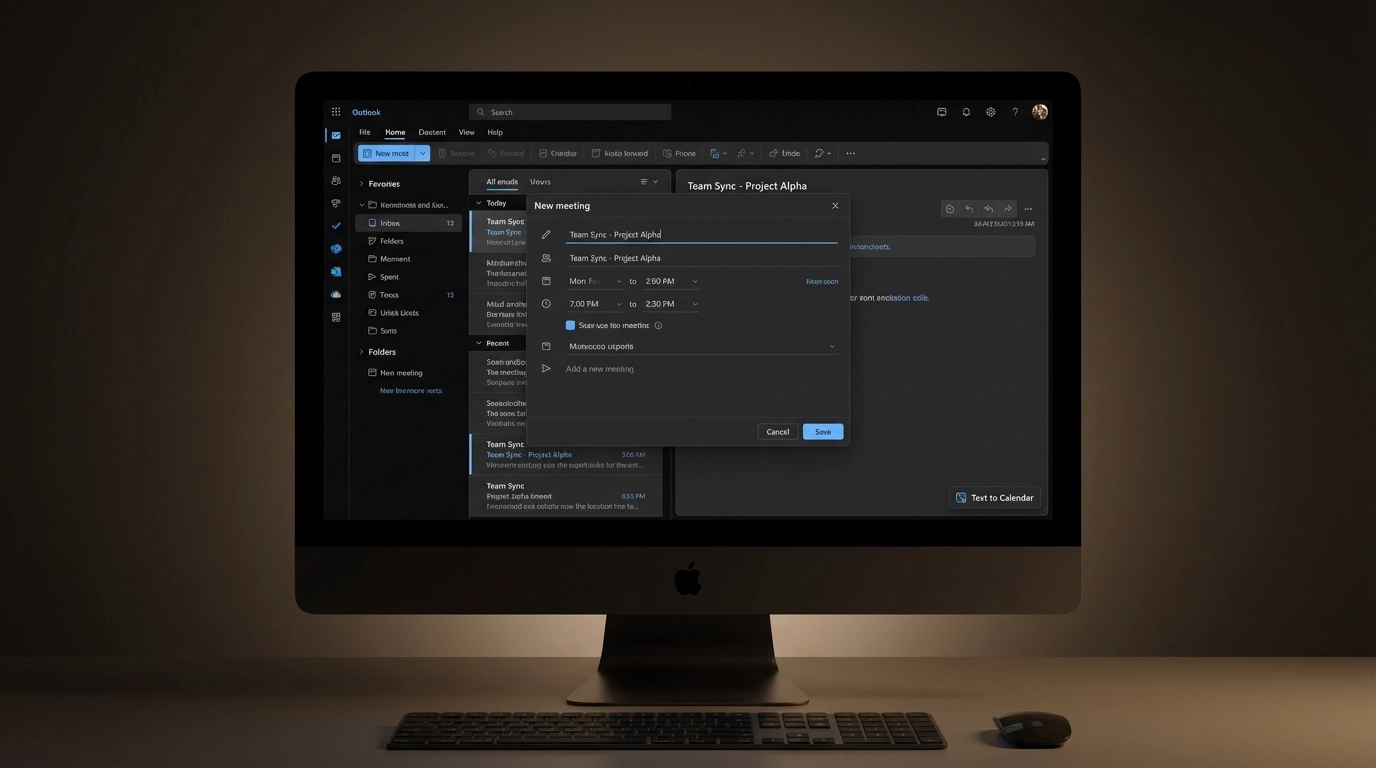
Method 1: Drag and Drop (Desktop Only)
The fastest method for Outlook desktop users:
- Select the email containing meeting details
- Drag the email to the Calendar icon in the navigation pane
- Outlook opens a new appointment window
- The email subject becomes the meeting title
- The original email appears in the meeting description
- Add date, time, location, and attendees
- Set reminders and recurrence if needed
- Click "Save & Close"
The original email stays attached to the calendar event, so you have all the details at hand during the meeting.
Method 2: Reply with Meeting
Perfect when you want to include the email sender and recipients in the meeting:
- Open the email you want to convert
- Click "Reply with Meeting" in the ribbon
- Outlook creates a new meeting invitation
- All original recipients are automatically added as attendees
- Set the meeting date, time, and location
- Add additional notes or agenda items
- Send the meeting invitation
This method automatically adds the event to your calendar and sends invitations to all participants.
Method 3: Quick Steps Automation
Set up a Quick Step for frequently converted email types:
- Go to Home tab in Outlook
- Click "Create New" in the Quick Steps group
- Choose "New Meeting" as the action
- Customize settings (default location, duration, etc.)
- Assign a keyboard shortcut
- Save the Quick Step
Now you can convert any email to a meeting with one click or keyboard shortcut.
Method 4: Outlook Web App Process
For Outlook web users:
- Open the email in Outlook on the web
- Click the three dots (More actions) in the email toolbar
- Select "Create event" from the menu
- Outlook opens a new calendar event
- Fill in the meeting details
- Add attendees from the original email recipients
- Save the event
Advanced Automation with Text to Calendar
Manual conversion works fine for occasional emails. But what if you're handling dozens of meeting requests, demo bookings, or event confirmations daily?
Our tool handles bulk conversions and complex scheduling scenarios:
For Event Managers:
- Process multiple venue bookings from email confirmations
- Extract client meeting details from inquiry emails
- Convert seminar schedules from PDF attachments
For Sales Teams:
- Turn demo requests into calendar blocks
- Convert client follow-up emails into scheduled calls
- Process trade show schedules into individual meetings
For Project Managers:
- Extract project milestones from email updates
- Convert stakeholder meeting requests into calendar events
- Process vendor schedule confirmations
Simply copy email content, paste into Text to Calendar, and export directly to Google Calendar or Outlook. No manual data entry required.
Troubleshooting Common Issues
Gmail Smart Detection Not Working
Problem: Gmail doesn't underline dates and times in your email.
Solutions:
- Check if the date format is clear (avoid abbreviations)
- Ensure time includes AM/PM or 24-hour format
- Try refreshing the email or switching to desktop Gmail
- Use manual event creation instead
Outlook Drag-and-Drop Missing
Problem: Can't drag emails to calendar in Outlook.
Solutions:
- Verify you're using Outlook desktop (not web version)
- Check if calendar view is visible in navigation pane
- Try right-clicking the email and selecting "Move to Calendar"
- Update Outlook if the feature isn't available
Time Zone Confusion
Problem: Events appear in wrong time zone.
Solutions:
- Always specify time zone in the original email
- Double-check calendar time zone settings
- When creating events, manually set the correct time zone
- For recurring meetings, verify time zone handling
Missing Meeting Details
Problem: Important information gets lost during conversion.
Solutions:
- Always review the event description after creation
- Copy important details to the event title or location field
- Use Text to Calendar for consistent detail extraction
- Create a checklist template for manual conversions
Best Practices for Email-to-Calendar Conversion
Standardize Your Email Templates
When sending meeting invitations, use consistent formatting:
- Subject: Clear meeting purpose
- Date: Full date format (December 20, 2025)
- Time: Include time zone (3:00 PM EST)
- Location: Full address or video link
- Duration: Specify meeting length
Set Up Default Settings
Configure your calendar applications with smart defaults:
- Default meeting length (30 or 60 minutes)
- Standard reminder times (15 minutes before)
- Default privacy settings for different meeting types
- Automatic time zone detection
Create Processing Workflows
For high-volume scenarios:
- Morning Review: Check emails for meeting invitations
- Batch Processing: Convert multiple emails at once using Text to Calendar
- Verification: Review all new calendar events for accuracy
- Follow-up: Send confirmations or additional details as needed
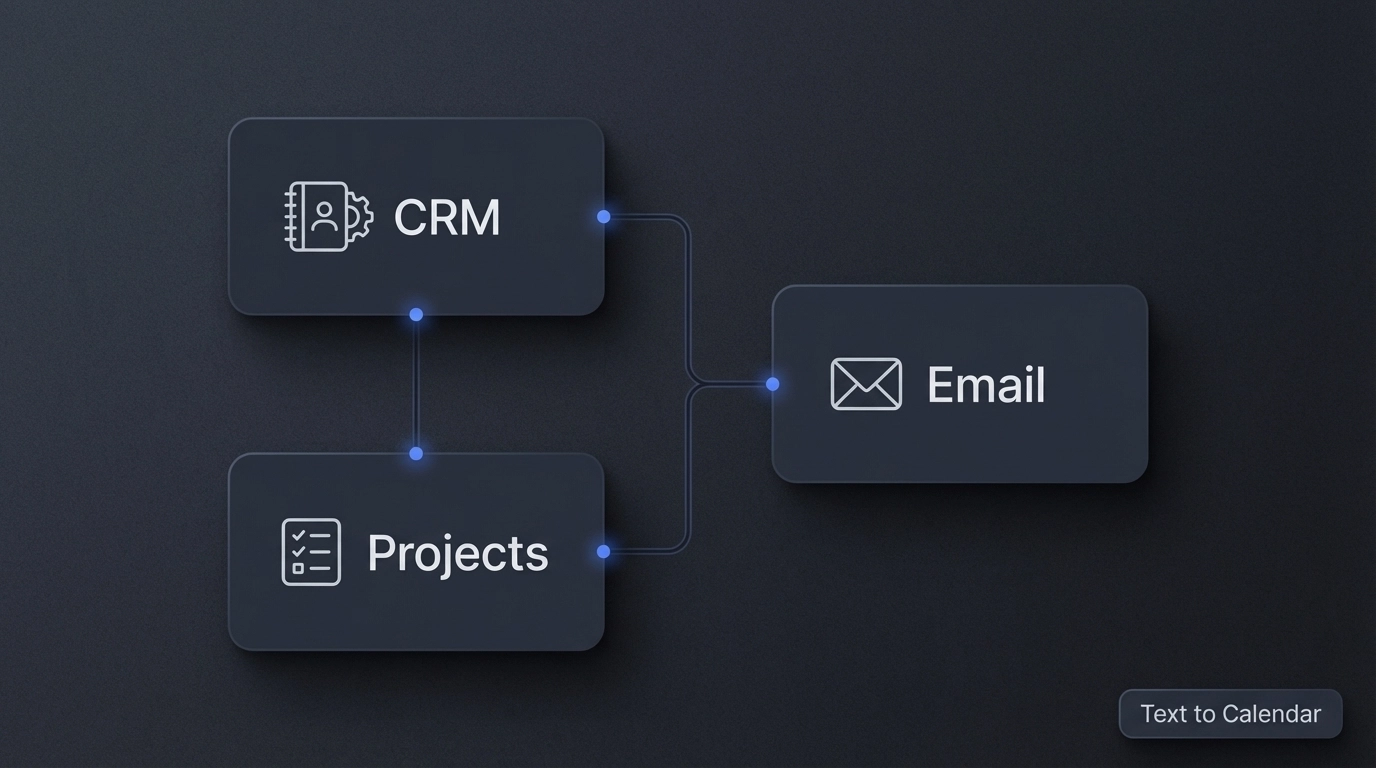
Integration with Existing Tools
CRM Systems
Many CRM platforms integrate with Google Calendar and Outlook:
- Salesforce automatically syncs meeting activities
- HubSpot connects email communications with calendar events
- Pipedrive links deal activities to scheduled meetings
Project Management Tools
Connect your calendar conversions with project workflows:
- Asana creates tasks from calendar events
- Monday.com syncs project milestones with meeting schedules
- Trello adds calendar events as card due dates
Email Management
Streamline your email-to-calendar process:
- Use filters to automatically label meeting-related emails
- Set up rules to forward specific email types to calendar addresses
- Create templates for common meeting invitation responses
Converting email invitations to calendar events doesn't have to be a manual, time-consuming process. Whether you use built-in Gmail and Outlook features or automate the entire workflow with specialized tools, the key is finding a system that works consistently for your volume and complexity needs.
For occasional conversions, manual methods work fine. For regular processing of meeting details, automated extraction tools save significant time and reduce errors.
Start with the method that matches your current email platform, then scale up to automation as your needs grow. Your future self will thank you for never missing another important meeting.
Leave a Reply