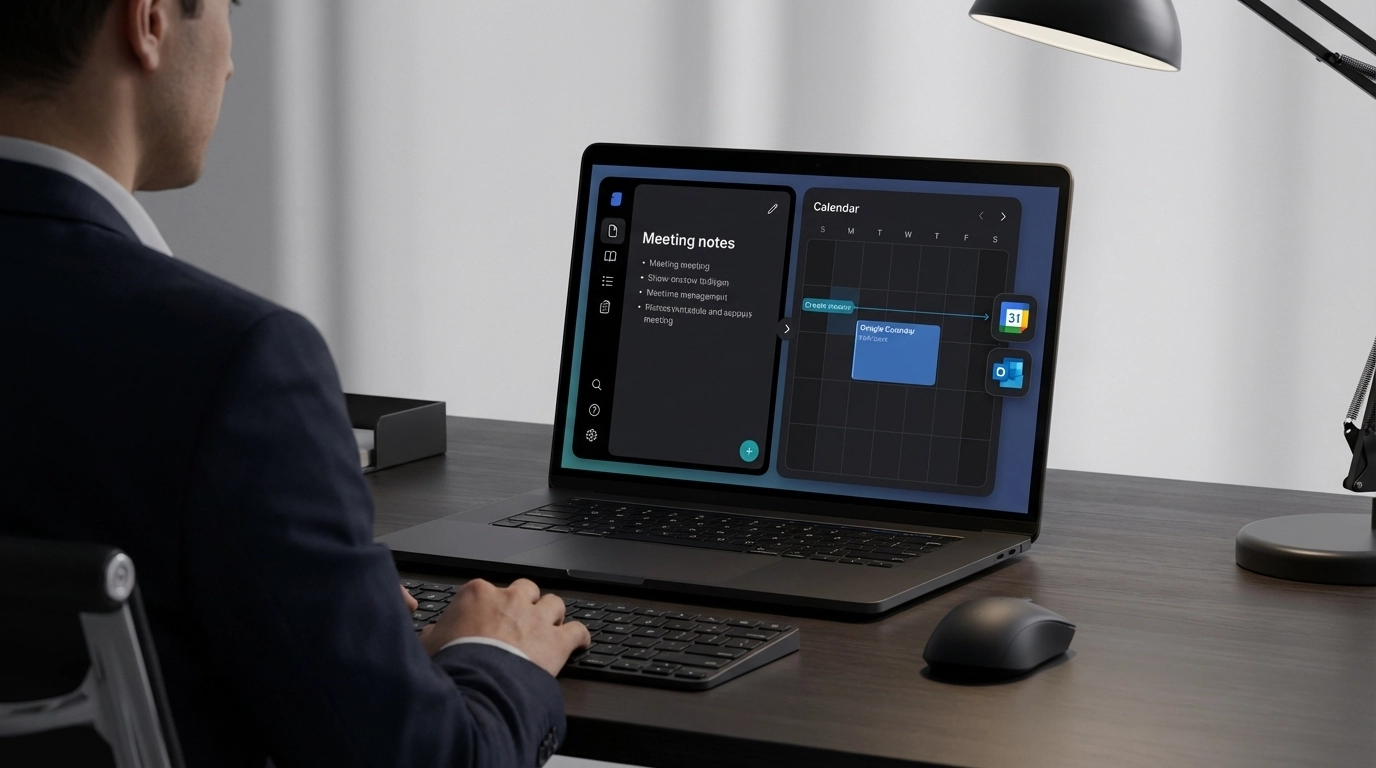
You just wrapped up a productive meeting. Your notebook is filled with action items, deadlines, and follow-up appointments. But here's the thing – those notes are useless if they never make it into your actual calendar.
We've all been there. Meeting notes that sit in notebooks, scattered across different apps, or buried in email threads. Meanwhile, important deadlines slip through the cracks because you forgot to manually add that "quarterly review meeting for March 15th" to your calendar.
That's exactly why we built Text to Calendar – and now it's even better. You can instantly convert your meeting notes into calendar events and export them directly to Google Calendar or Outlook. No more double work. No more missed appointments.
Why Meeting Notes Die in Digital Limbo
Most professionals take great meeting notes. The problem isn't note-taking – it's what happens afterward.
You have action items like "Schedule client presentation for next Thursday at 2 PM" written down perfectly. But transferring that into your calendar means:
- Opening your calendar app
- Finding the right date and time
- Typing out event details again
- Adding attendees manually
- Setting reminders
- Repeating this for every single action item
By the time you finish one meeting's worth of calendar entries, you have three more meetings to catch up on. It's a productivity nightmare.
The result? Important dates live only in your notes while your calendar stays incomplete. You end up managing two separate systems that should work together.
How Text to Calendar Transforms Your Workflow
Text to Calendar eliminates the manual work entirely. You paste your meeting notes, and our AI instantly identifies every date, time, and event mentioned. Then you export everything directly to your preferred calendar platform.
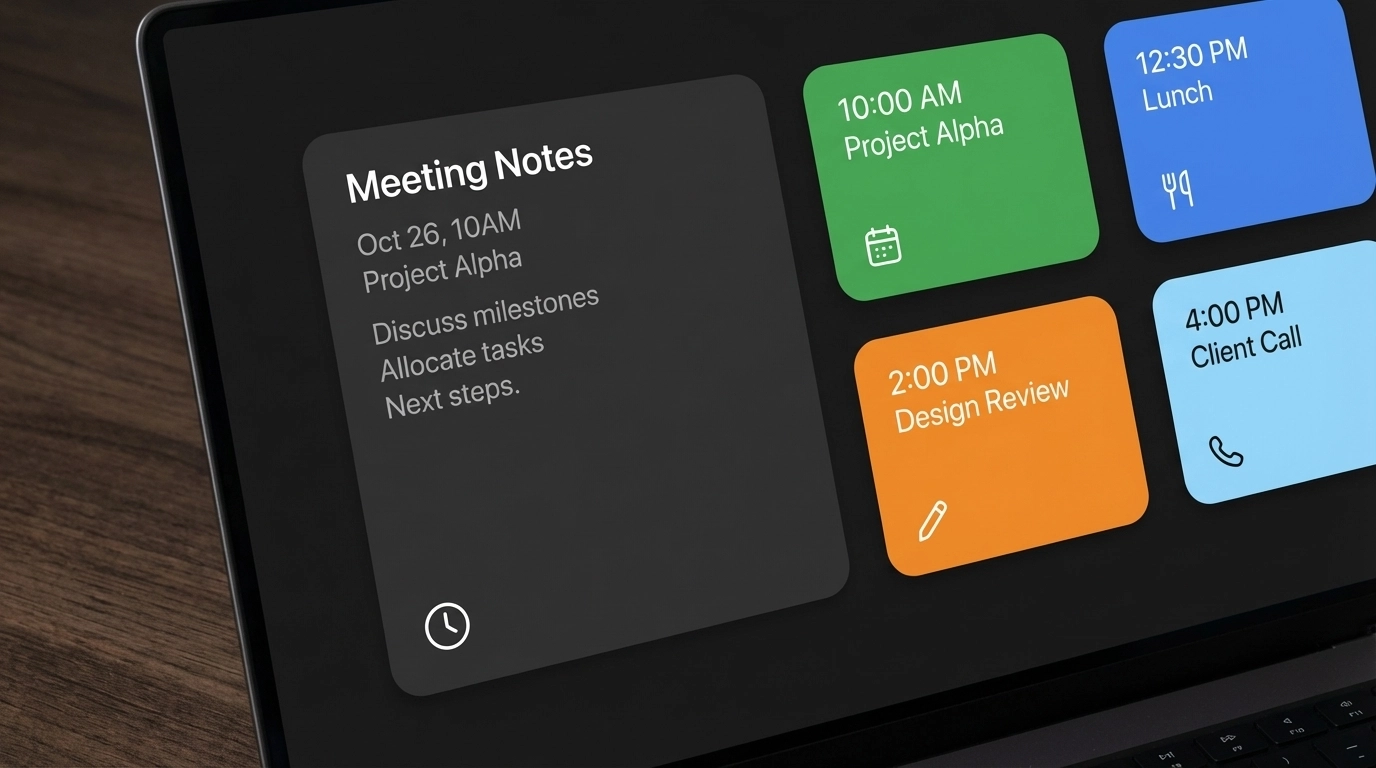
Here's what this looks like in practice:
Before: "Team standup every Monday 9 AM, client call with Johnson Industries March 8th 3 PM, project deadline March 22nd, quarterly review meeting April 5th 10 AM"
After: Four separate calendar events, properly formatted and ready for Google Calendar or Outlook, complete with:
- Correct dates and times
- Clear event titles
- Automatic timezone detection
- Proper duration settings
The entire process takes under 30 seconds instead of 10+ minutes of manual entry.
Step-by-Step: From Notes to Calendar Events
Step 1: Gather Your Meeting Notes
Start with any text containing dates and events. This works with:
- Handwritten notes you type up
- Voice-to-text transcriptions
- Email summaries
- Shared meeting documents
- Action item lists from team collaboration tools
Step 2: Convert Text to Events
- Go to Text to Calendar
- Paste your meeting notes into the text field
- Click "Generate Events"
- Review the automatically detected events
Our AI recognizes various date and time formats:
- "Next Friday at 2 PM"
- "March 15th 10:30 AM"
- "Tomorrow 3 o'clock"
- "First Monday of April"
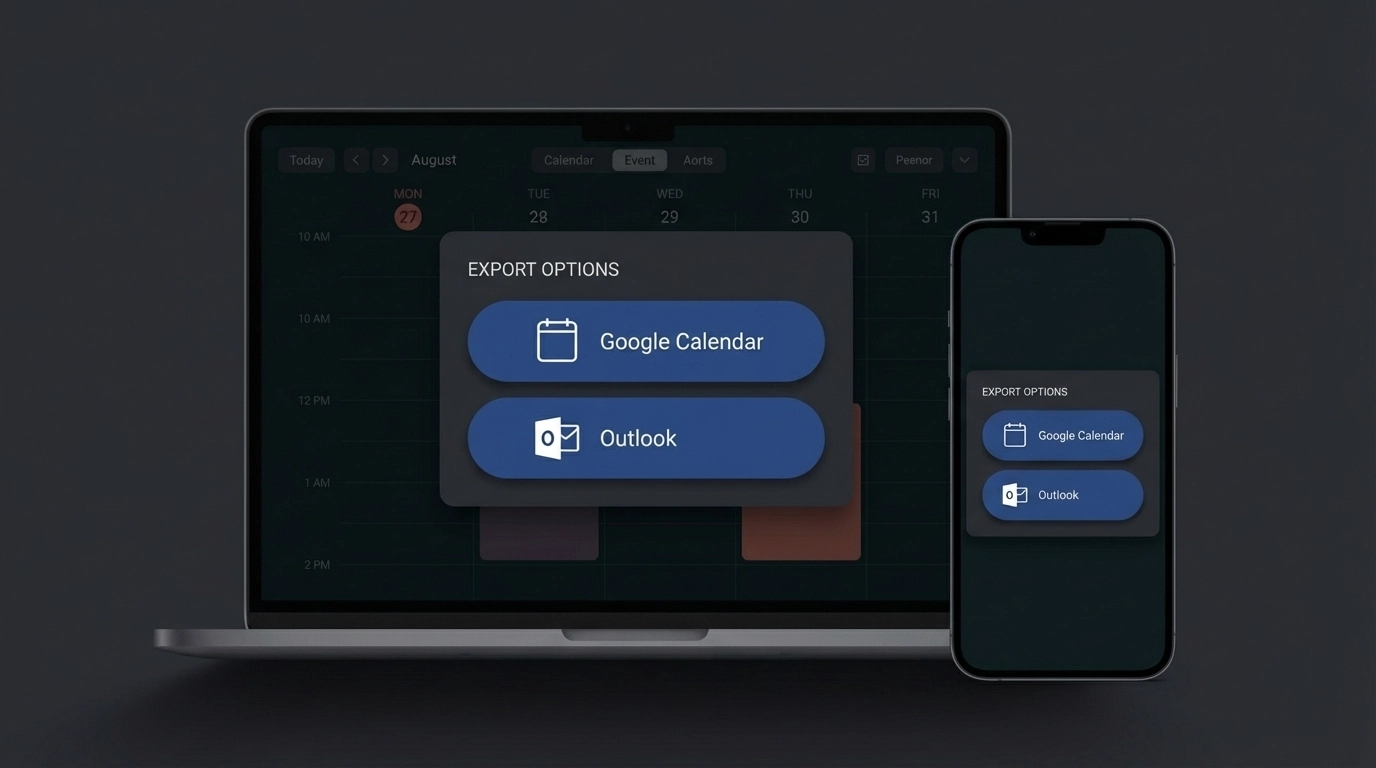
Step 3: Export to Your Calendar Platform
Choose your preferred export option:
For Google Calendar users:
- Click "Export to Google Calendar"
- Authorize the connection (one-time setup)
- Select which calendar to add events to
- Events appear instantly in your Google Calendar
For Outlook users:
- Click "Export to Outlook"
- Sign in to your Microsoft account
- Choose your target calendar
- Events sync automatically across all devices
You can also download ICS files for other calendar applications or manual import.
Google Calendar vs Outlook: Which Export Works Better?
Both platforms offer seamless integration, but there are slight differences in functionality:
| Feature | Google Calendar | Outlook |
|---|---|---|
| Instant sync | ✅ Real-time | ✅ Real-time |
| Mobile sync | ✅ All devices | ✅ All devices |
| Team sharing | ✅ Easy sharing | ✅ Enterprise features |
| Reminder options | Multiple custom options | Standard + custom |
| Timezone handling | Automatic detection | Automatic detection |
| Recurring events | Full support | Full support |
Google Calendar excels at simplicity. The export process is straightforward, and events appear immediately across all your devices. Perfect for individuals and small teams.
Outlook shines in corporate environments. Enterprise users get advanced features like meeting room booking, resource scheduling, and deeper Microsoft 365 integration.
The choice depends on your existing workflow. If you live in the Google ecosystem, use Google Calendar export. If you're in a Microsoft-heavy organization, Outlook integration will fit better.
Real-World Examples That Save Hours
Scenario 1: Project Manager with Multiple Team Meetings
Sarah manages three different projects. Her weekly planning meeting generated these notes:
"Project Alpha kickoff Monday 10 AM with development team, client presentation Wednesday 2 PM for Beta project, sprint review Friday 11 AM for Gamma project, stakeholder meeting next Tuesday 9 AM"
Instead of manually creating four separate calendar entries, Sarah used Text to Calendar. Total time: 45 seconds vs. 8+ minutes of manual work.
Result: All four meetings properly scheduled with appropriate durations, and her team received calendar invites immediately.
Scenario 2: Sales Rep Tracking Follow-ups
Mike had a productive day of client calls and noted:
"Follow up with Peterson Industries Monday morning, demo for Walsh Corp Wednesday at 3 PM, contract review with Zeta Company Friday 1 PM, check in with existing client Thompson LLC next Thursday"
Text to Calendar converted these notes into specific calendar blocks. Mike set reminders for each follow-up, ensuring no potential deals fell through the cracks.

Scenario 3: Event Coordinator Planning Multiple Events
Lisa coordinates corporate events and had detailed planning notes:
"Venue walkthrough March 10th 11 AM, catering tasting March 12th 2 PM, final headcount due March 18th, setup begins March 25th 8 AM, event day March 26th 6 PM to 10 PM"
Each phase became a separate calendar event with proper timing. Lisa shared the calendar with vendors and internal teams, keeping everyone aligned on the timeline.
Pro Tips for Maximum Efficiency
Be Specific with Time References
Instead of "later this week," write "Thursday afternoon" or "Friday 3 PM." The more specific your notes, the more accurate the calendar events.
Include Duration Hints
Add context like "1-hour client call" or "30-minute standup" to get properly sized calendar blocks instead of default durations.
Batch Process Multiple Meetings
Don't convert notes after every single meeting. Collect a day's worth of notes and process them together for maximum efficiency.
Use Consistent Format
Develop a note-taking style that includes clear date/time references. This makes the AI conversion more reliable and reduces manual cleanup.
Review Before Exporting
Always check the generated events for accuracy. While our AI is highly accurate, complex scheduling scenarios might need minor adjustments.
Beyond Basic Calendar Events
Text to Calendar handles more than simple appointments. You can convert:
Recurring Events: "Team standup every Monday at 9 AM" becomes a proper recurring calendar entry
All-Day Events: "Project deadline March 22nd" creates an all-day reminder
Multi-Day Events: "Conference April 15-17" generates appropriate multi-day blocks
Complex Scheduling: "Quarterly reviews: Q1 April 5th, Q2 July 10th, Q3 October 8th, Q4 January 12th" becomes four separate events
This flexibility means you can dump entire meeting transcripts or project timelines and get comprehensive calendar coverage.
Making the Switch: From Manual to Automated
The transition from manual calendar entry to automated conversion feels dramatic once you experience it. You go from dreading post-meeting administrative work to having your calendar populated instantly.
Most users report saving 2-3 hours per week on calendar management alone. But the bigger benefit is peace of mind. When your calendar accurately reflects all your commitments, you stop worrying about what you might have forgotten.
Start with your next meeting. Take notes as usual, then try Text to Calendar instead of manually entering events. You'll immediately see why this approach transforms how busy professionals manage their time.
The tool works with any calendar platform, but direct Google Calendar and Outlook export makes the process even smoother. Your meeting notes finally become the actionable schedules they were meant to be.
Leave a Reply