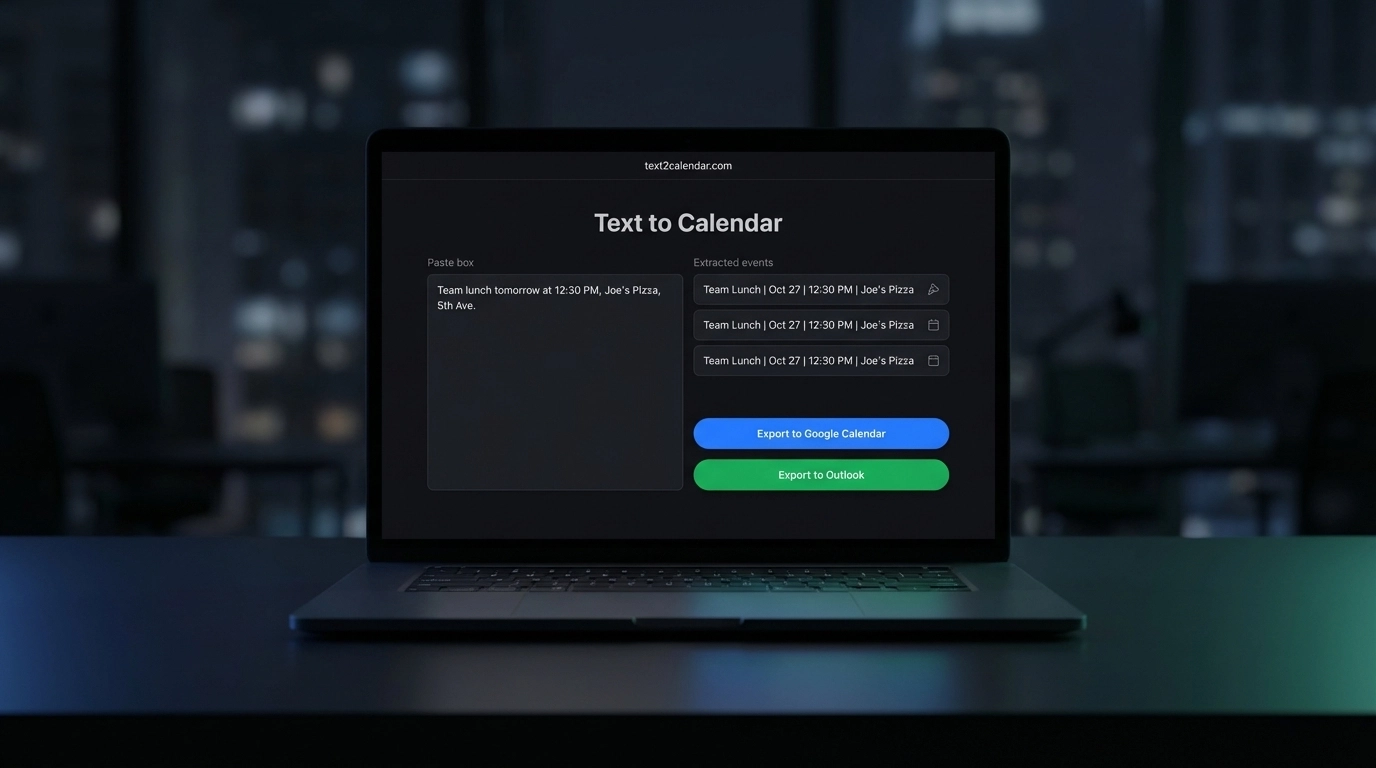
You're drowning in event details scattered across emails, documents, and notes. Copying dates, times, and locations into your calendar one by one feels like digital busywork that eats away precious minutes from your day. Every meeting invitation, conference schedule, or project deadline becomes another manual data entry task.
That's exactly why automation exists.
The Manual Calendar Entry Problem
Most people still add calendar events the hard way. You open an email with meeting details, switch to Google Calendar, click "Create Event," then manually type the title, date, time, location, and description. Multiply this by dozens of events per week, and you've lost hours to repetitive data entry.
The traditional workaround involves downloading ICS files or importing CSV spreadsheets. But these methods create their own headaches. ICS files work for one-time imports but don't help with daily event creation from text sources. CSV imports often break recurring events and lose formatting details.
Direct Export Changes Everything
Text to Calendar now eliminates the middle steps entirely. Instead of converting text to ICS files that you manually import, the tool connects directly to Google Calendar and Outlook. You paste your text, and events appear in your calendar automatically.
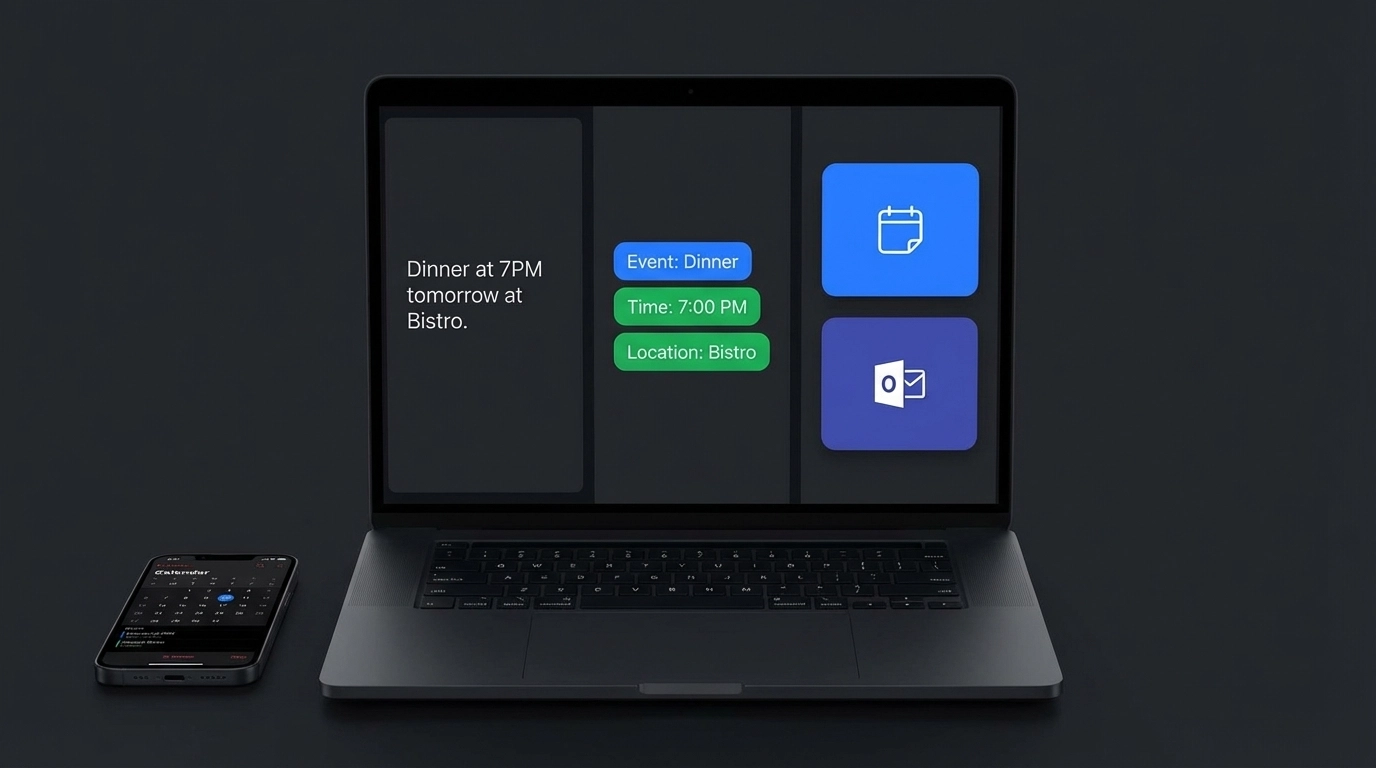
This direct integration means no file downloads, no import dialogs, and no switching between multiple apps. Your workflow becomes: paste text, review extracted events, click export, done.
How Direct Export Works
The process couldn't be simpler:
Step 1: Paste Your Content
Copy any text containing event information into the Text to Calendar tool. This includes email threads, meeting notes, conference schedules, or project timelines.
Step 2: AI Extraction
The AI identifies dates, times, locations, and event descriptions automatically. It handles various date formats, time zones, and even recurring patterns.
Step 3: Choose Your Calendar
Select whether to export directly to Google Calendar or Outlook. You can specify which calendar within your account receives the events.
Step 4: Automatic Creation
Events appear in your chosen calendar within seconds, complete with all details, proper formatting, and correct time zones.
Google Calendar Integration
The Google Calendar integration handles complex scheduling scenarios seamlessly. When you authorize the connection, Text to Calendar can:
- Create events in any of your Google calendars
- Set appropriate privacy levels (public, private, or custom visibility)
- Add attendees from email addresses found in the source text
- Include video meeting links when detected
- Preserve time zone information across different regions
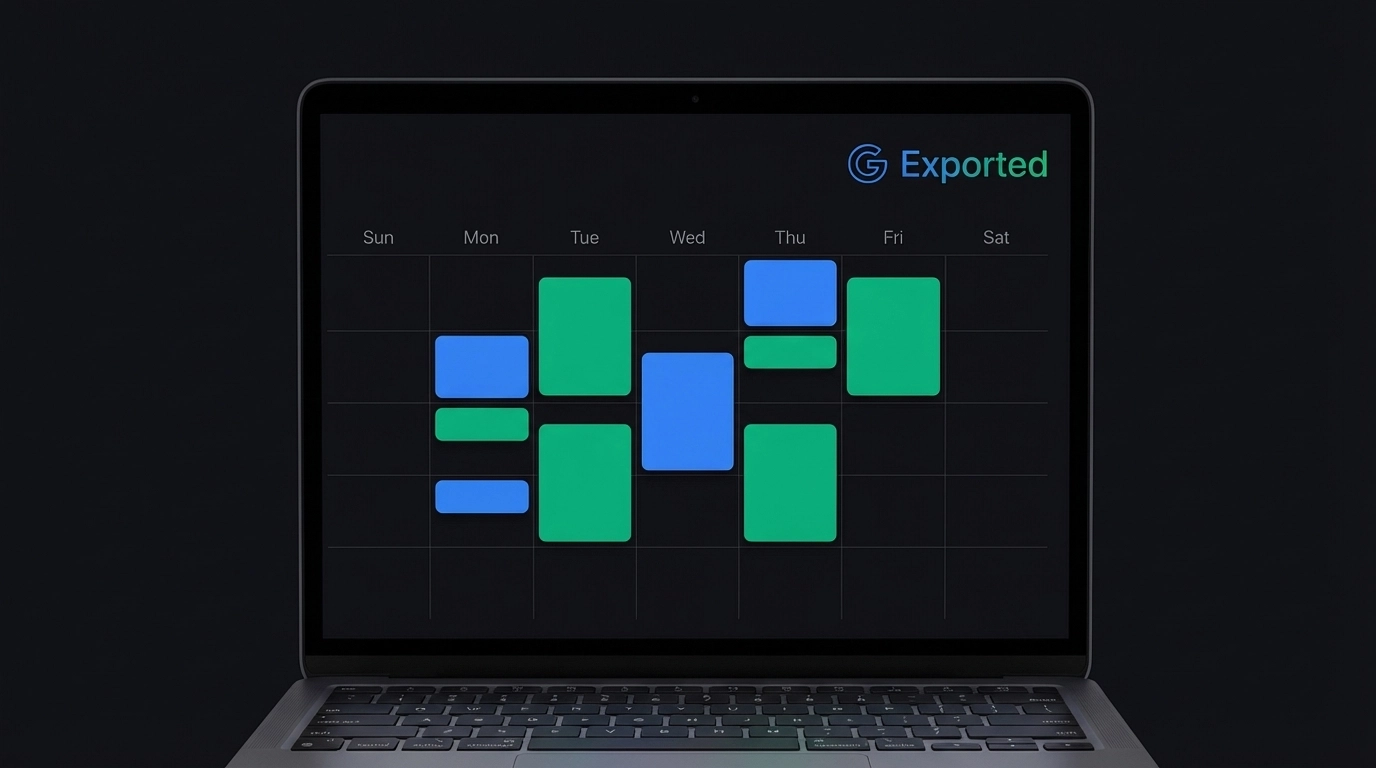
The integration respects your existing calendar settings. If you have notifications configured for new events, those preferences apply to imported events too.
Outlook Integration Benefits
Microsoft Outlook users get similar functionality with additional enterprise-friendly features:
- Events sync across all Outlook platforms (desktop, web, mobile)
- Integration with Microsoft Teams for automatic meeting links
- Support for Outlook categories and color coding
- Compatibility with Exchange server environments
- Proper handling of recurring meeting patterns
Both integrations maintain two-way sync, meaning changes you make to imported events in your calendar app stay current.
Real-World Use Cases
Conference Schedule Import
Instead of manually creating 15+ events from a conference PDF, paste the entire schedule. Each session becomes a separate calendar entry with proper times and locations.
Email Thread Processing
Long email chains discussing multiple meetings get messy fast. Extract all mentioned dates and times in one operation, creating clean calendar entries for each commitment.
Project Timeline Management
Project managers can convert milestone documents directly into calendar events, ensuring nothing falls through scheduling cracks.
Client Meeting Coordination
Sales teams can process multiple client communication threads simultaneously, creating follow-up events and appointment reminders automatically.
Comparison: Manual vs Automated Methods
| Method | Time per Event | Error Rate | Scalability | Setup Required |
|---|---|---|---|---|
| Manual Entry | 2-3 minutes | High (typos, wrong times) | Poor | None |
| ICS File Import | 5+ minutes | Medium | Good for batches | File management |
| CSV Import | 10+ minutes | High (format issues) | Good for large datasets | Spreadsheet skills |
| Direct Export | 30 seconds | Very Low | Excellent | One-time authorization |
The time savings become dramatic when processing multiple events. A typical conference with 20 sessions takes 40+ minutes to enter manually but under 5 minutes with direct export.
Pro Tips for Better Results
Format Your Source Text Clearly
While the AI handles messy formatting, cleaner source text produces better results. Separate different events with line breaks when possible.
Double-Check Time Zones
Always verify the time zone setting matches your intended schedule, especially when processing events from different geographic regions.
Use Descriptive Event Titles
The AI pulls event titles from context, but you can edit them during the review step for better calendar organization.
Batch Similar Events
Process related events together (like weekly team meetings) to maintain consistent formatting and categorization.
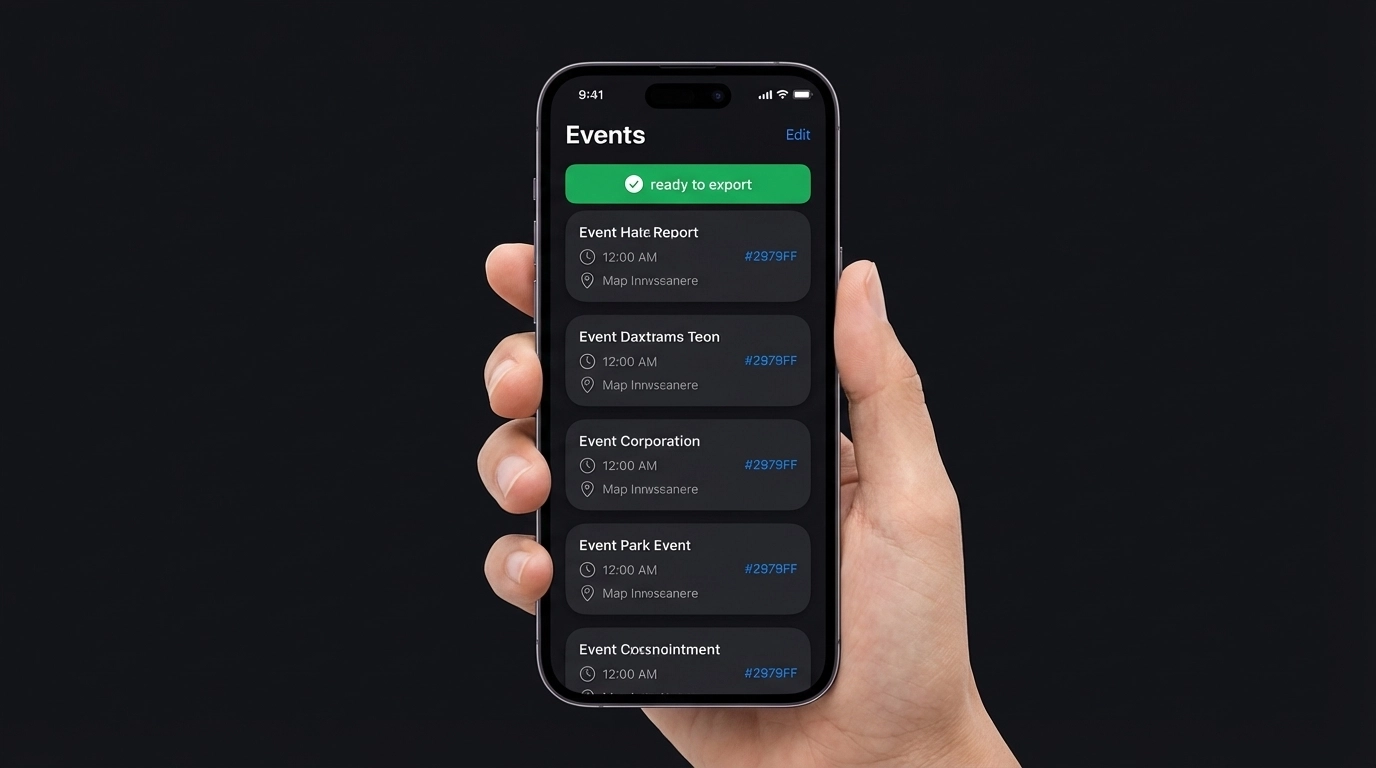
Review Before Exporting
Take 30 seconds to scan extracted events for accuracy. Catching errors before export saves time compared to editing events individually in your calendar later.
Advanced Features
The direct export functionality includes several sophisticated features that manual entry can't match:
Smart Duplicate Detection
The system identifies potentially duplicate events and asks for confirmation before creating redundant calendar entries.
Intelligent Location Parsing
Physical addresses, room numbers, and virtual meeting links are automatically categorized and formatted appropriately.
Context-Aware Descriptions
The AI includes relevant context from surrounding text, creating more informative event descriptions than basic title/time entries.
Recurring Pattern Recognition
Weekly meetings, monthly reviews, and other recurring patterns are detected and created as proper recurring events, not individual entries.
Getting Started
Ready to automate your calendar creation? Visit the Text to Calendar tool and connect your Google Calendar or Outlook account. The authorization process takes about 60 seconds and enables immediate direct export functionality.
For more advanced calendar automation techniques, check out our guides on email to calendar conversion and extracting events from email threads.
The days of manual calendar entry are over. Direct export automation saves time, reduces errors, and keeps your schedule organized without the busywork.
Leave a Reply