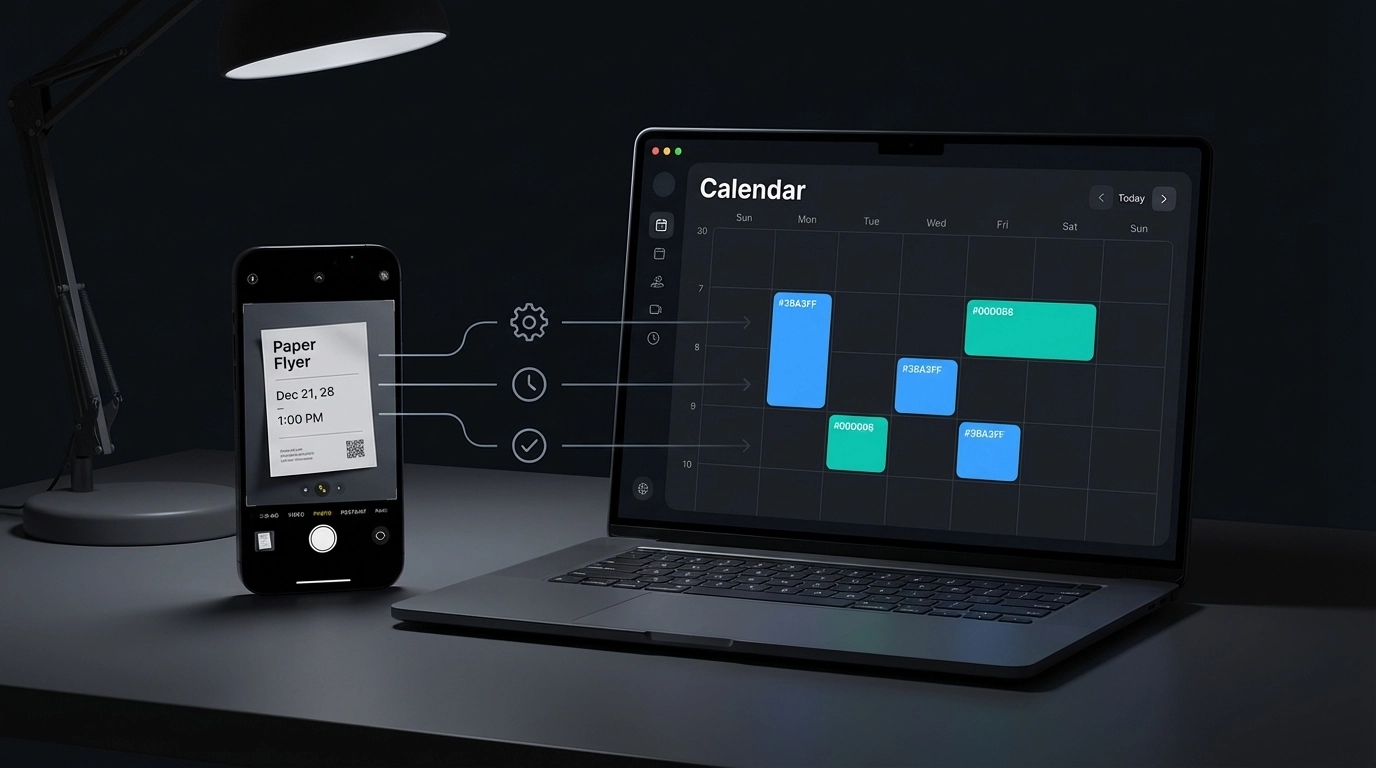
You're drowning in text messages, emails, and scattered notes with dates and times that need to become actual calendar events. Manually typing each meeting, appointment, and deadline into your calendar takes forever. You copy details from one app, switch to your calendar, create a new event, paste the information, set the time zone, add attendees: and repeat this tedious process dozens of times each week.
There's a better way. Calendar automation tools can extract dates, times, and event details from any text and automatically place them directly into Google Calendar, Outlook, or any calendar system you use. No more switching between apps. No more manual data entry mistakes.
What Calendar Automation Actually Does
Calendar automation transforms how you handle scheduling by eliminating the manual steps between finding event information and having it appear in your calendar. Instead of reading through emails to find meeting times or scrolling through chat messages to locate deadlines, automation tools scan your text and identify calendar-worthy information instantly.
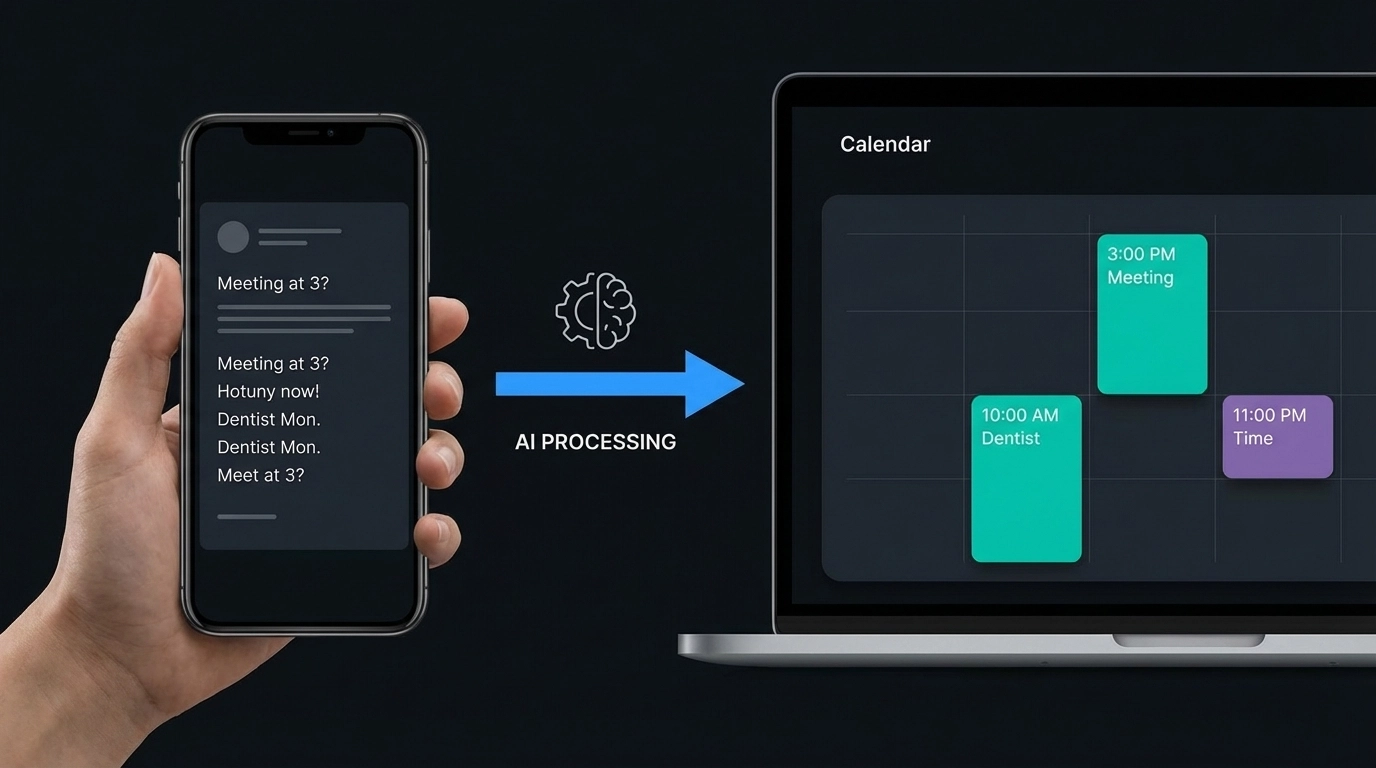
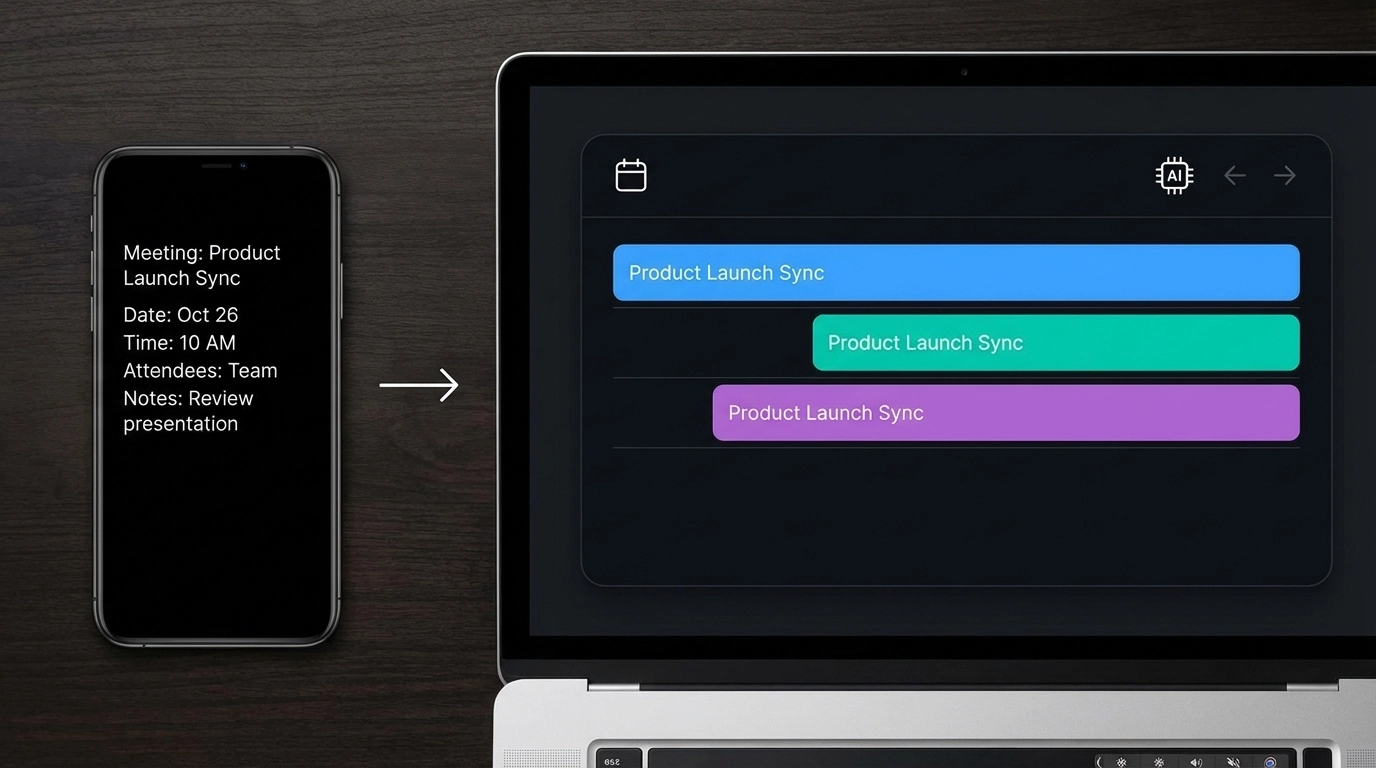
The process works in three steps: text analysis, event extraction, and calendar integration. First, the tool analyzes your input text: whether it's an email, message, document, or note. Next, it identifies dates, times, locations, and event descriptions using pattern recognition. Finally, it creates properly formatted calendar events and sends them directly to your chosen calendar platform.
This automation handles time zones, recurring events, attendee lists, and location details without requiring you to manually configure each element. The result is a seamless flow from information to scheduled event.
Direct Export to Google Calendar and Outlook
Modern calendar automation tools support direct integration with the platforms you already use daily. Instead of downloading files and manually importing them, these tools connect directly to Google Calendar and Microsoft Outlook through secure APIs.
For Google Calendar users, this means events appear in your calendar within seconds of processing your text. The automation handles Google's specific formatting requirements, time zone conversions, and privacy settings automatically. You maintain full control over which calendar receives new events, whether they're marked as busy or available, and how notifications are configured.
Outlook integration works similarly but accommodates Microsoft's ecosystem requirements. Events sync across all your Outlook-connected devices, integrate with Teams for automatic meeting links, and respect your organization's calendar sharing permissions. The automation tool handles the technical complexity while you see simple, accurate calendar entries.
Both integrations support different event types: single meetings, recurring appointments, all-day events, and multi-day schedules. Location information gets properly formatted for each platform's map integration, and attendee emails are processed according to each system's invitation protocols.
Beyond Basic Calendar Export
While direct Google and Outlook integration covers most users' needs, comprehensive calendar automation supports additional export options for specific workflows and requirements.
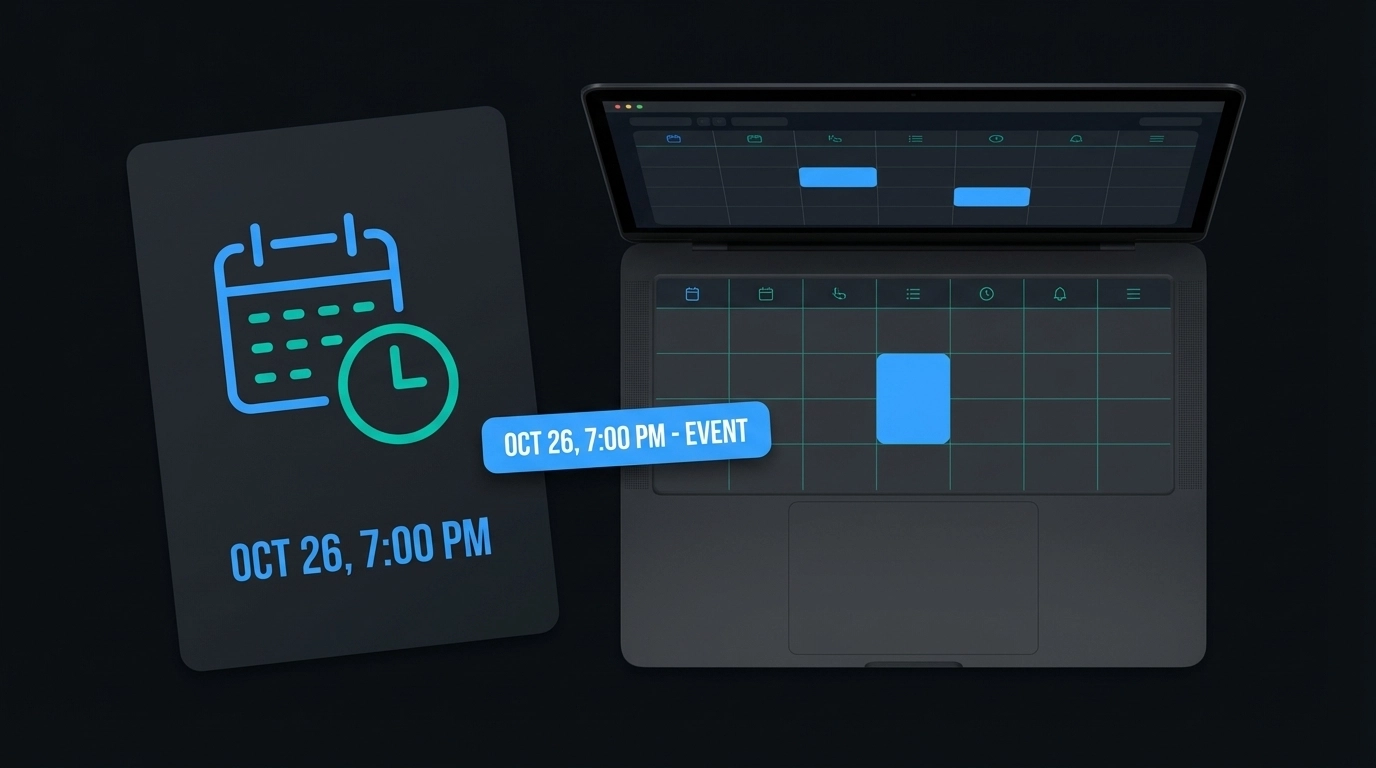
ICS file generation remains valuable for situations requiring universal calendar compatibility. These files work with Apple Calendar, Thunderbird, and virtually any calendar application that supports standard formatting. ICS exports are particularly useful for sharing event details with people using different calendar systems or for creating backup copies of important schedules.
CSV exports serve different purposes entirely. They're essential for data analysis, bulk editing in spreadsheet applications, or integration with custom business systems. If you need to modify multiple events simultaneously or generate reports from calendar data, CSV format provides the flexibility required for these tasks.
Some automation tools also support PDF generation for printed schedules, JSON exports for developer integrations, and direct connections to project management platforms like Asana or Trello.
Real-World Use Cases for Calendar Automation
Event coordinators manage hundreds of scheduling details across multiple communications channels. Instead of manually transferring information from vendor emails, client messages, and venue confirmations into calendar systems, automation tools process entire email threads and extract every relevant date and time. This approach reduces scheduling conflicts and ensures nothing gets overlooked during busy planning periods.
Project managers dealing with deadline-heavy workflows benefit from automated calendar creation when processing status updates, client communications, and team reports. Rather than reading through each update to identify important dates, automation tools scan project communications and populate calendars with milestones, review meetings, and delivery deadlines.
Sales professionals receive prospect information through various channels: CRM notifications, email inquiries, LinkedIn messages, and phone notes. Calendar automation processes these communications and creates prospect meetings, follow-up reminders, and proposal deadlines without requiring manual calendar management during busy sales periods.
Administrative assistants handling executive schedules can process travel itineraries, meeting requests, and appointment confirmations simultaneously rather than managing each scheduling request individually. This automation approach significantly reduces the time required for calendar coordination while improving accuracy.
The Technical Advantage of Direct Integration
Direct calendar integration offers several technical benefits over traditional file-based export methods. Real-time synchronization means changes appear immediately across all connected devices and applications. You don't need to remember to download and import updated files when event details change.
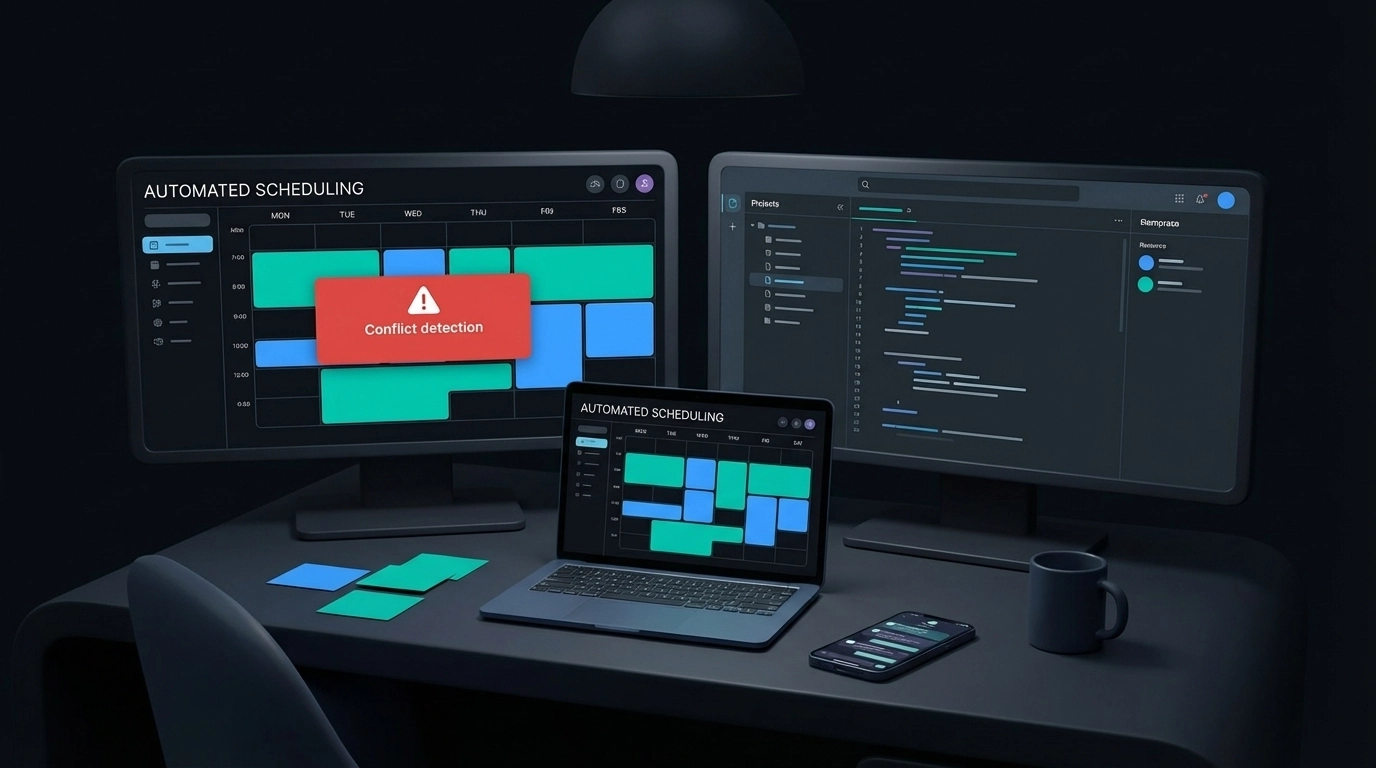
Conflict detection happens automatically when new events are added to calendars through direct integration. The system can identify scheduling conflicts and alert you before double-booking occurs, something that's impossible with manual file imports.
Automatic updates handle modifications to existing events seamlessly. If meeting times change or locations are updated in your original text source, direct integration can modify the corresponding calendar events without creating duplicates or requiring manual intervention.
Permission handling respects your existing calendar sharing settings and organizational policies. Events added through automation inherit appropriate visibility levels and sharing permissions based on your calendar configuration.
Comparing Automation vs Manual Calendar Management
Manual calendar entry requires an average of 2-3 minutes per event when accounting for app switching, data entry, and double-checking details. For professionals managing 20-30 calendar events weekly, this represents 1-2 hours of purely administrative work.
Automation reduces this time investment to seconds per event while eliminating common manual entry errors: incorrect time zones, missing attendees, wrong dates, and incomplete location information. The time savings compound significantly for users managing complex schedules across multiple projects or clients.
Accuracy improvements are equally important. Manual transcription introduces errors through misreading, typos, and misunderstanding of time formats or time zones. Automated extraction and calendar creation eliminate these human error sources while maintaining consistency across all events.
The mental overhead reduction is harder to quantify but equally valuable. When calendar management happens automatically, you can focus on actual work rather than administrative tasks. This cognitive load reduction improves overall productivity beyond simple time savings.
Getting Started with Text to Calendar
Text to Calendar provides a straightforward approach to calendar automation with direct Google Calendar and Outlook integration. The process begins by pasting your text containing dates, times, and event information into the tool interface.
The system analyzes your input and identifies calendar-worthy information automatically. You review the extracted events to ensure accuracy, then choose your export method: direct Google Calendar integration, Outlook synchronization, or ICS file download.
For users new to calendar automation, starting with simple use cases helps build familiarity with the process. Try processing a few email threads containing meeting information or converting handwritten notes with deadlines. As you become comfortable with the automation workflow, you can tackle more complex scenarios like multi-day events or recurring appointments.
The tool handles various text formats and sources: emails, chat messages, document excerpts, and handwritten notes photographed with your phone. This flexibility means you can automate calendar management regardless of how you receive scheduling information.
Advanced Integration Features
Modern calendar automation supports sophisticated scheduling scenarios beyond basic event creation. Recurring event detection identifies patterns in your text and suggests appropriate repeat schedules without manual configuration. This feature proves particularly valuable for processing information about weekly meetings, monthly deadlines, or seasonal events.
Time zone handling automatically adjusts events based on context clues in your text or your account settings. If your text mentions "10 AM Eastern" or references a specific city, the automation tool calculates appropriate time zone conversions for your local calendar.
Attendee management processes email lists, names mentioned in text, and contact information to populate event invitations automatically. This feature works with both Google Calendar's sharing system and Outlook's meeting invitation protocols.
Location processing goes beyond simple address extraction to include meeting room numbers, building names, virtual meeting links, and phone numbers for conference calls. The automation tool formats this information appropriately for each calendar platform's location field requirements.
Making Calendar Automation Work for You
Successful calendar automation requires establishing consistent workflows that match your existing communication and scheduling patterns. Start by identifying your primary sources of scheduling information: email, messaging apps, project management tools, or handwritten notes.
Create a routine for processing these information sources through your automation tool. Many users find success with daily or weekly batch processing sessions rather than attempting to automate every individual scheduling communication immediately.
Customize your automation settings to match your calendar preferences: default event duration, notification timing, calendar selection, and privacy levels. These preferences ensure automated events integrate seamlessly with your existing calendar organization system.
Learn more about converting different types of text to calendar events or explore our complete automation tool to start eliminating manual calendar management from your workflow.
Calendar automation transforms scheduling from a time-consuming administrative task into an effortless background process. With direct Google Calendar and Outlook integration, you can focus on your actual work while your calendar stays perfectly organized and up-to-date.
Leave a Reply