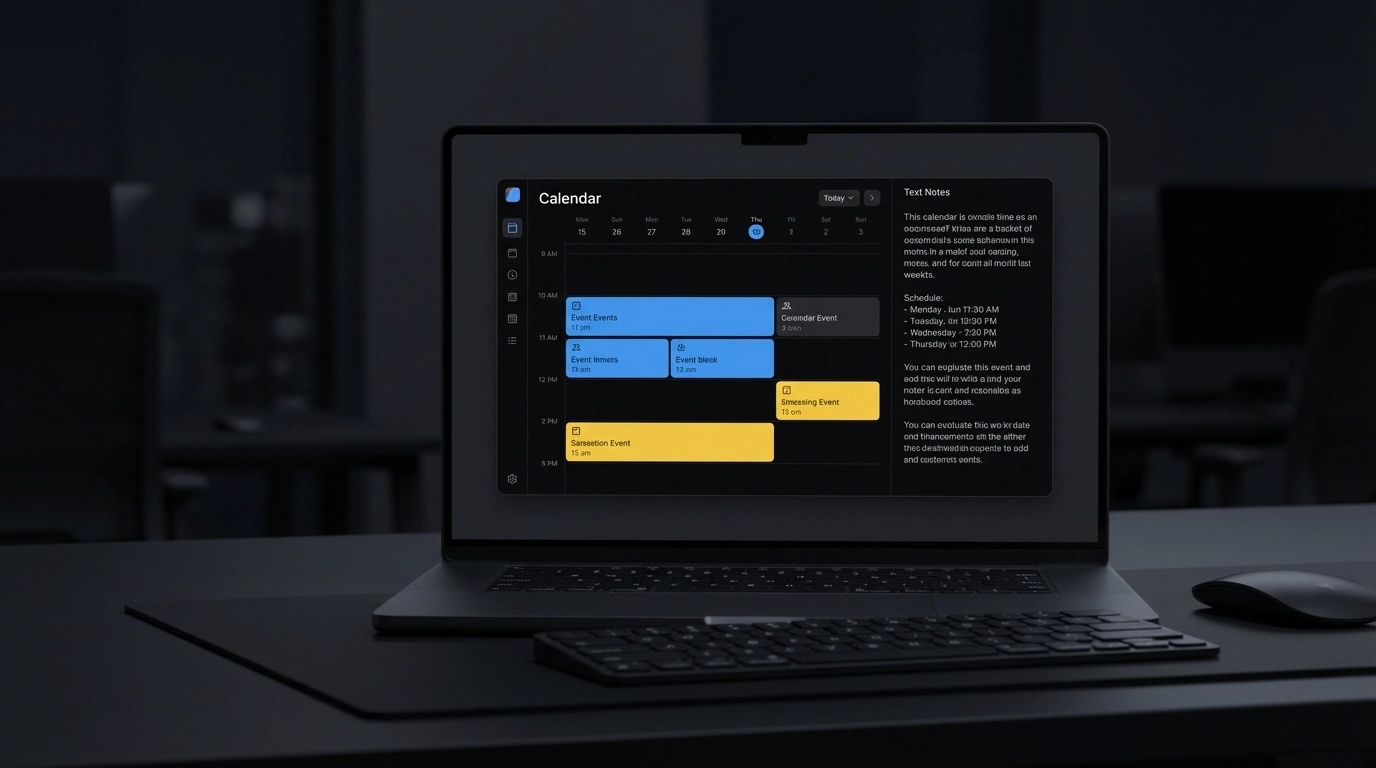
You spend too much time copying dates from emails, PDFs, and screenshots into your calendar. Different time zones. Vague wording. Missed details. It’s easy to make mistakes—and it adds up.
There’s a faster way. With Text to Calendar, you paste text or upload images/PDFs, and our AI finds the dates, times, locations, and descriptions for you. Then you export to Google Calendar or Outlook with one click. No manual entry. No guesswork.
What schedule parsing means (in plain English)
Schedule parsing is a simple idea: you give the tool some text or a file; it recognizes scheduling info and turns it into clean calendar events.
- “Next Tuesday at 2 PM” becomes a proper event with the right date and time.
- “March 15–17, all-day” becomes a multi-day event.
- “2 PM PST” converts to your calendar’s time zone automatically.
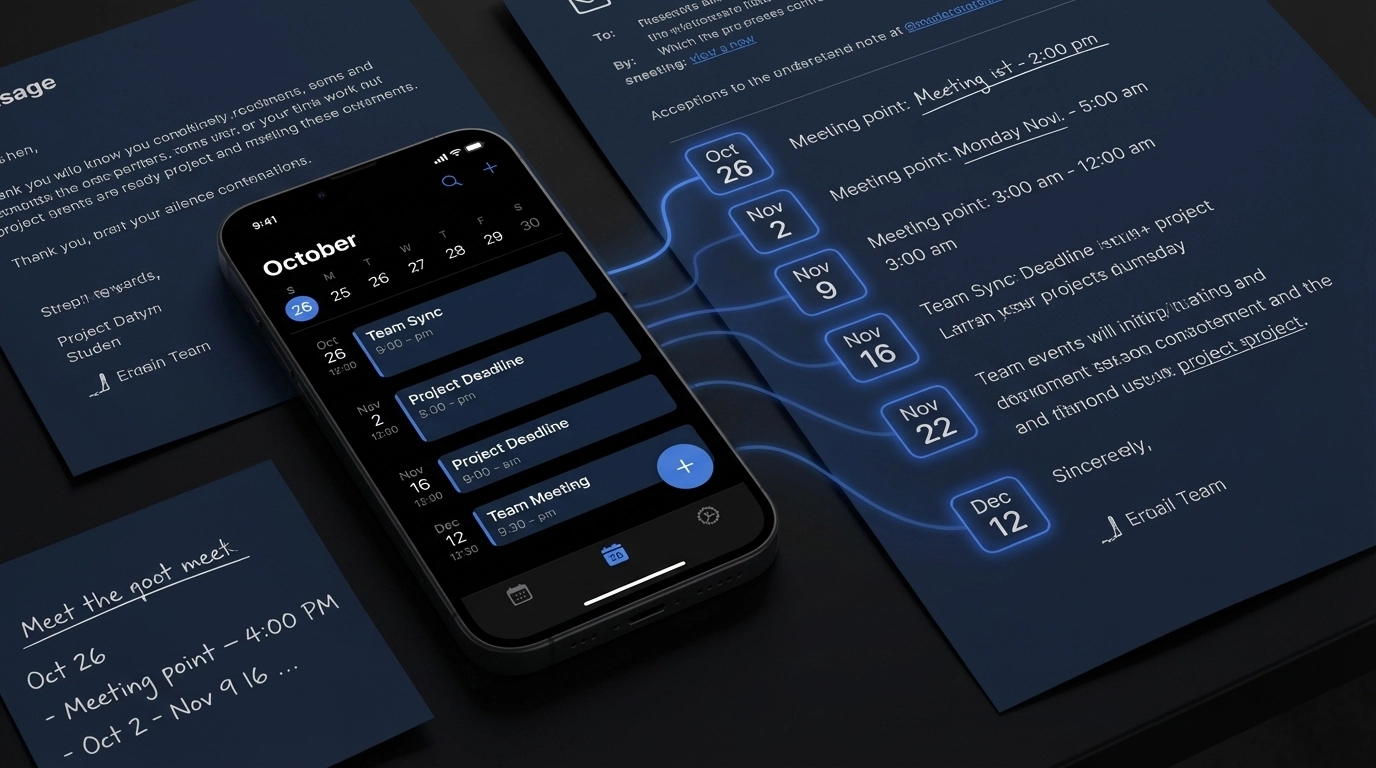
In short, you stop hunting for details. The tool reads, extracts, and organizes—so you can just review and export.
What you can parse
- Emails and threads with scattered dates
- Meeting notes, minutes, and summaries
- PDFs: agendas, event programs, invites
- Screenshots and posters with date/time blocks
- Web pages with schedules or timelines
- Quick chat messages and SMS
Tip: Messy or mixed formats are fine. The AI handles multiple patterns and international date formats.
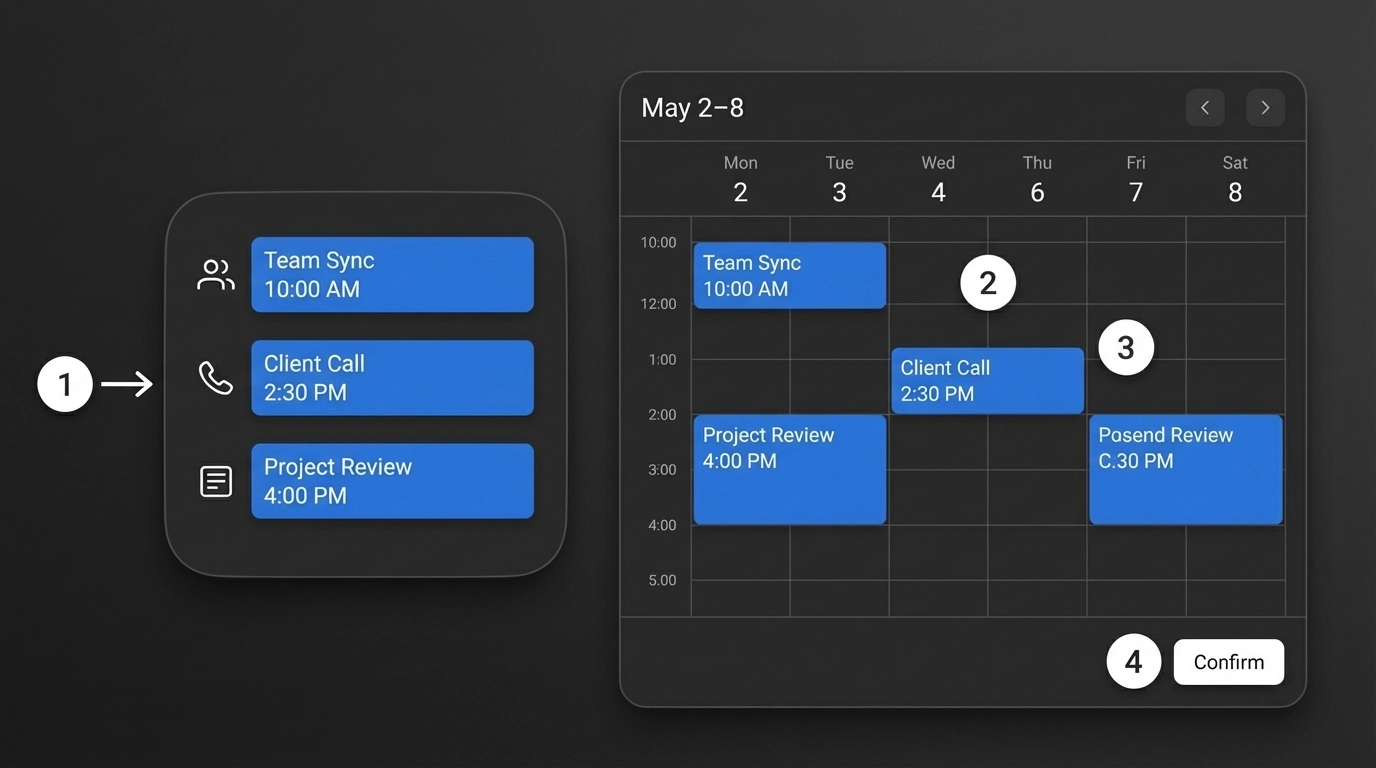
How it works (step-by-step)
-
Paste or upload
Provide text, images, or PDFs. Large chunks are okay. -
Review
You see extracted events in a clean list. Edit anything—titles, times, locations, descriptions. -
Choose export
Pick Google Calendar or Outlook. You can also download a standard .ics file if you prefer. -
One click
Export and you’re done. Events show up in your calendar with correct time zones and formatting.
Pro tip: Use short, descriptive event titles during review (e.g., “Client Kickoff – APAC”) so they’re instantly recognizable on mobile.
Export to Google Calendar (key benefits)
- One-click push to your Google Calendar
- Automatic time zone handling based on your calendar
- Works with your existing Google Workspace workflows
- Events sync to all your devices immediately
- Recurring meetings, multi-day events, and locations supported
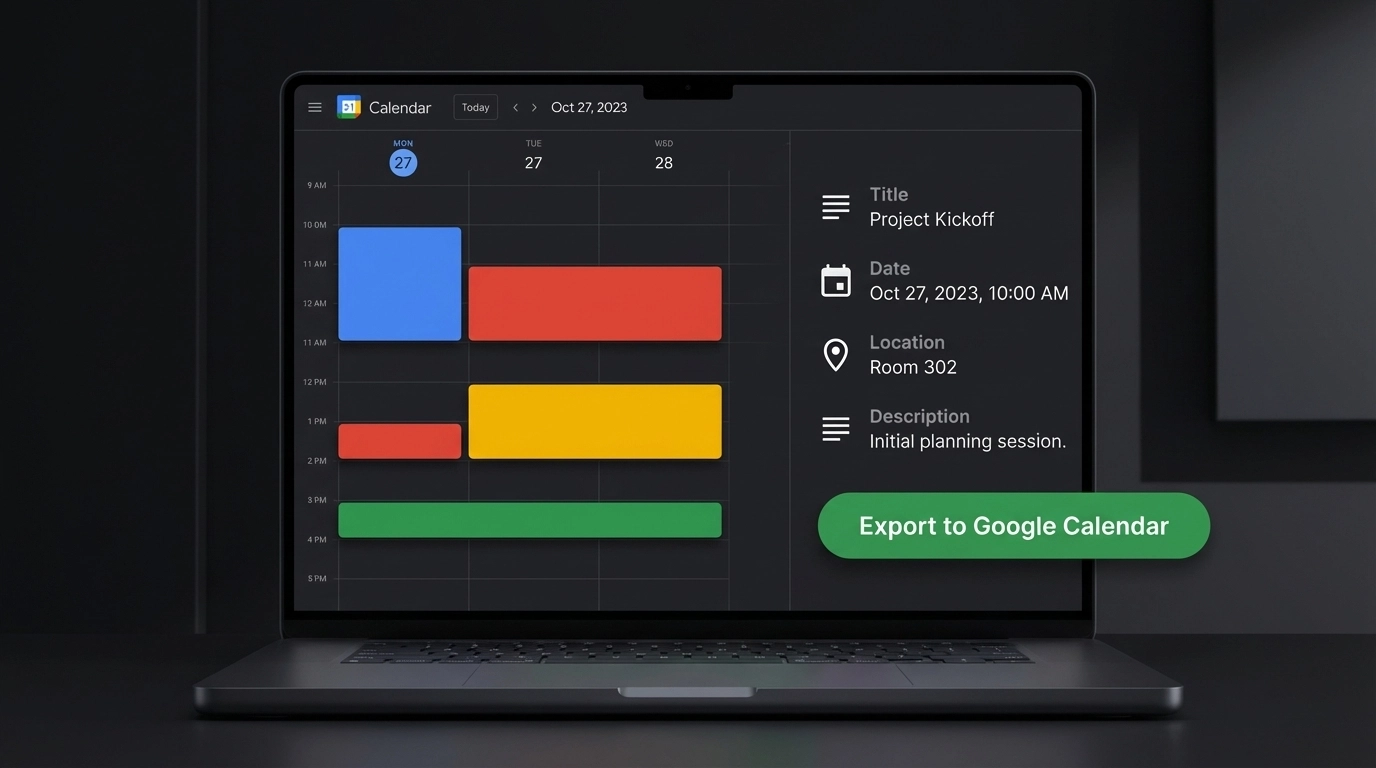
Use it when: you receive a long project update email with five deadlines. Paste once, review, export—all events appear in Google Calendar in seconds.
Export to Outlook Calendar (key benefits)
- One-click push to Outlook via Microsoft Graph
- Microsoft Teams meeting info supported
- Works with Office 365 and Exchange setups
- Categories and delegation play nicely
- Bulk creation for team schedules
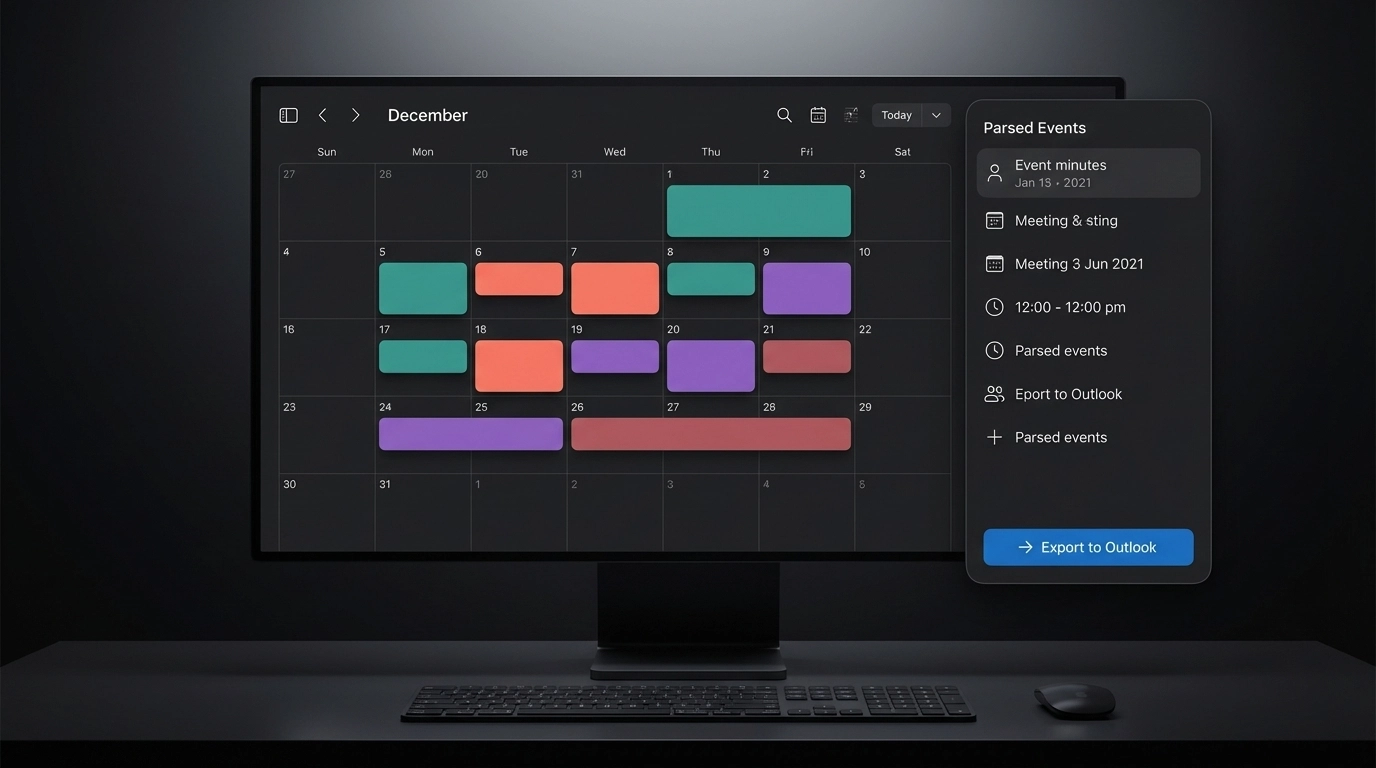
Use it when: you’re coordinating with multiple departments and vendors who all use Outlook. You export once and share instantly.
Export options at a glance
| Feature | Google Calendar Export | Outlook Calendar Export | .ics File Export (universal) |
|---|---|---|---|
| Connection type | Direct push | Direct push | Download + import |
| Time zone handling | Automatic | Automatic | Depends on calendar settings |
| Recurring events | Yes | Yes | Yes |
| Attendees/notes support | Yes | Yes | Yes |
| Best for | Google Workspace users | Microsoft 365 users | Any calendar app |
Note: If your IT restricts direct connections, .ics download works with any calendar.
Real-world examples you’ll recognize
- You get an email: “Let’s talk next Thursday 11:30 ET; if we miss it, Friday 12:15 works.” The tool extracts both options. You pick one, mark the other as tentative.
- A conference PDF lists sessions across three days. You upload it and export all sessions to your calendar at once.
- A screenshot of a WhatsApp message says “Delivery window: 9–11 AM, 24 Jan.” You upload the image and create a single event with the right time range.
- Meeting notes say “Kickoff two days after contract signature.” The parser links relative timing and creates a draft with correct dates after you set the signature date.
Time saved and mistakes avoided
- Manual entry takes ~2–3 minutes per event. Ten items = up to 30 minutes.
- Parsing + one-click export takes under 5 minutes total—even for long emails or PDFs.
- Error reduction: fewer time zone mistakes, consistent titles, and less chance of double-booking.
Pro tip: Create a quick review checklist—title, time zone, location, description—before export. It takes 20 seconds and prevents follow-up corrections.
Troubleshooting and edge cases
- Vague dates (“sometime next week”): The tool suggests a default window. Adjust during review.
- Conflicting times in a thread: You’ll see both; mark the correct one and discard the rest.
- Mixed time zones: We detect them, then convert to your calendar’s default. You can override.
- Partial info (no end time): Duration estimation proposes an end time based on context. Edit if needed.
- Scanned PDFs with low quality: Try a clearer scan or upload the original file if available.
If something looks off, edit in the preview list before export. Changes stick to the final events.
Integrate with your workflow
- Centralize parsing: One person can parse department emails and share calendars with the team.
- Use .ics for handoffs: Clients or vendors on different platforms still get accurate events.
- Keep using your tools: Reminders, sharing, conferencing links, and mobile sync all work as usual.

Security note: Your data is handled privately and processed for event extraction only.
Next steps
- Try it with a real email thread or a meeting notes doc.
- Export to Google Calendar or Outlook and confirm the time zone.
- Share with your team if you’re handling common schedules.
Ready to stop typing events by hand? Start here: Text to Calendar
Leave a Reply