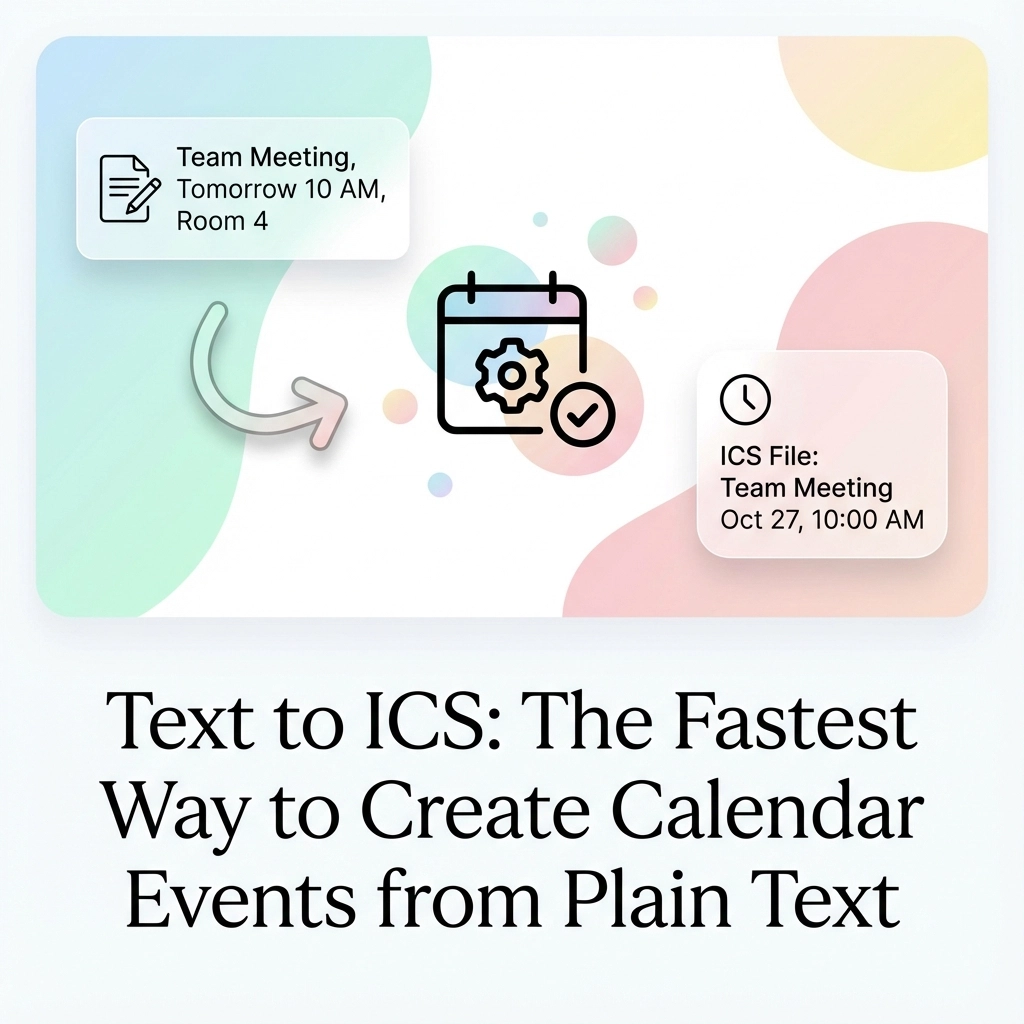
You're staring at another email with event details buried in paragraphs of text. The meeting is next week, but extracting the date, time, and location means manually copying and pasting into your calendar app. Again.
Sound familiar? You're not alone.
Every day, professionals waste precious minutes manually entering calendar events from emails, meeting notes, PDFs, and text messages. One missed detail or typo can mean showing up at the wrong time or place.
There's a better way: converting text directly to ICS files.
What Is Text to ICS Conversion?
ICS (iCalendar) files are the universal standard for calendar events. Think of them as digital event tickets that work with every major calendar platform, Google Calendar, Outlook, Apple Calendar, and more.
Text to ICS conversion transforms plain text containing event information into these standardized calendar files. Instead of manual entry, you paste your text, and the system extracts dates, times, locations, and descriptions automatically.
The result? Instant, downloadable calendar events ready for any platform.
Why Event Managers Need This
Event managers juggle dozens of events, venues, and scheduling details daily. Manual calendar entry isn't just tedious, it's error-prone.
Consider these common scenarios:
Conference Planning: You receive vendor emails with setup times, speaker schedules, and venue details scattered across multiple messages. Converting each email thread to calendar events manually takes hours.
Client Meetings: Meeting notes from calls contain follow-up appointments, deadlines, and check-in dates. Extracting these into actionable calendar items requires careful parsing and multiple app switches.
Event Promotion: Social media posts, flyers, and registration confirmations contain event details your team needs in their calendars. Recreating this information repeatedly wastes time.
Vendor Coordination: Supplier communications include delivery schedules, setup appointments, and inspection times that must sync across your entire team's calendars.

How Text to ICS Conversion Works
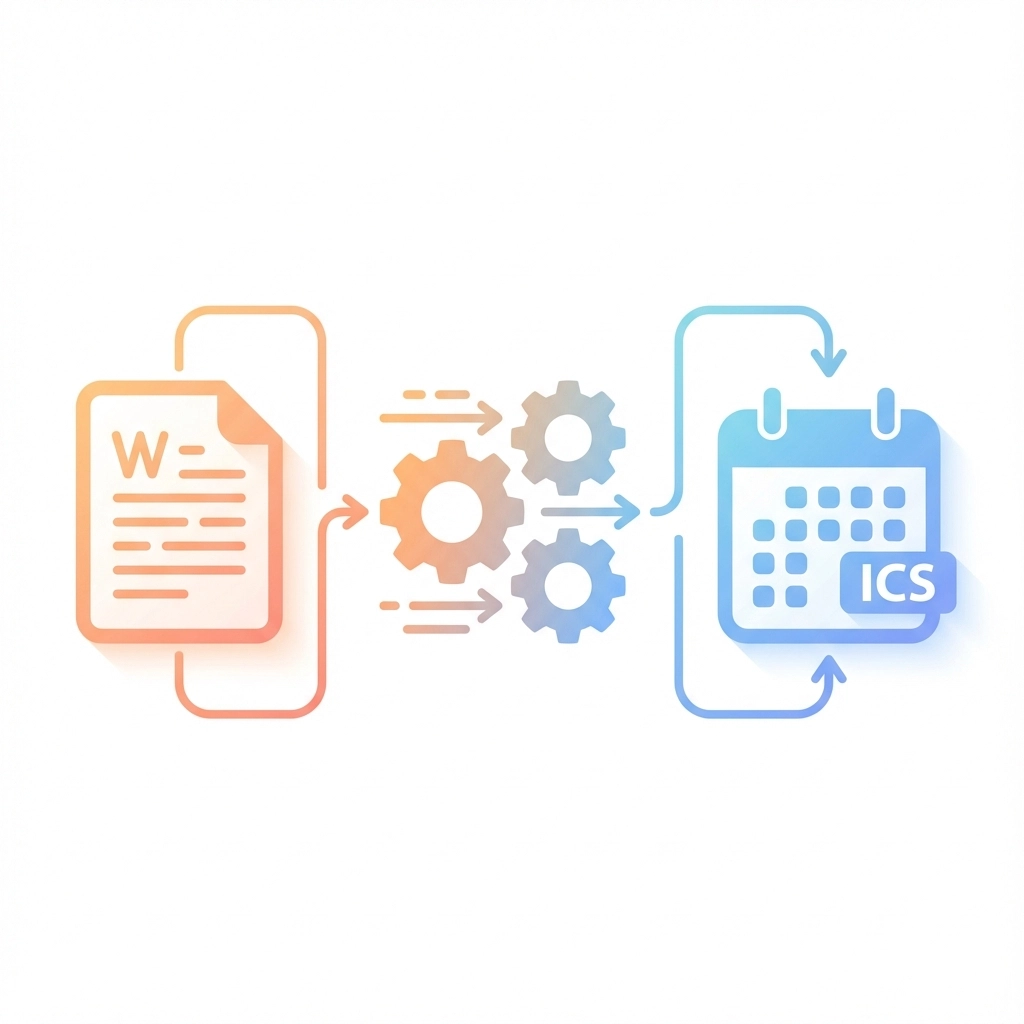
The process involves three main steps: text parsing, event extraction, and ICS generation.
Text Parsing: The system analyzes your input text using natural language processing. It identifies patterns that indicate dates, times, locations, and event descriptions.
Event Extraction: Once patterns are identified, the system extracts specific details:
- Event titles and descriptions
- Start and end dates/times
- Location information
- Additional notes or attendees
ICS Generation: Finally, the extracted information gets formatted into a standard .ics file that any calendar application can import.
Different Conversion Methods Available
Browser Extensions
Chrome extensions like "Text to iCal" offer one-click conversion directly from web pages. Highlight text containing event details, click the extension, and download the ICS file immediately.
Pros: Quick access, works on any webpage
Cons: Limited customization, may struggle with complex formats
Web-Based Tools
Online platforms provide more robust conversion capabilities. You paste text into a form, review extracted details, make edits if needed, and download the result.
Tools like Text to Calendar offer enhanced accuracy and customization options for professional use.
Pros: No installation required, better accuracy, editing capabilities
Cons: Requires internet connection
AI-Powered Solutions
Advanced tools use artificial intelligence to understand context and handle complex text formats. These systems excel at interpreting natural language and extracting nuanced event details.
Pros: Handles complex formats, understands context, high accuracy
Cons: May require API keys or subscriptions
Step-by-Step Conversion Process
Here's how to convert text to ICS efficiently:
-
Identify Your Text Source: Gather the text containing event information, emails, PDFs, meeting notes, or messages.
-
Choose Your Tool: Select based on your needs. For quick, simple conversions, use browser extensions. For professional use with multiple events, choose web-based or AI-powered tools.
-
Input Your Text: Copy and paste the relevant text into your chosen conversion tool.
-
Review Extracted Details: Most tools show a preview of extracted event information. Check dates, times, and locations for accuracy.
-
Make Adjustments: Edit any details that weren't parsed correctly. Add attendees, adjust time zones, or modify descriptions as needed.
-
Generate and Download: Create the .ics file and save it to your device.
-
Import to Calendar: Open the .ics file with your preferred calendar application to add the event automatically.
Key Benefits for Busy Professionals
Time Savings
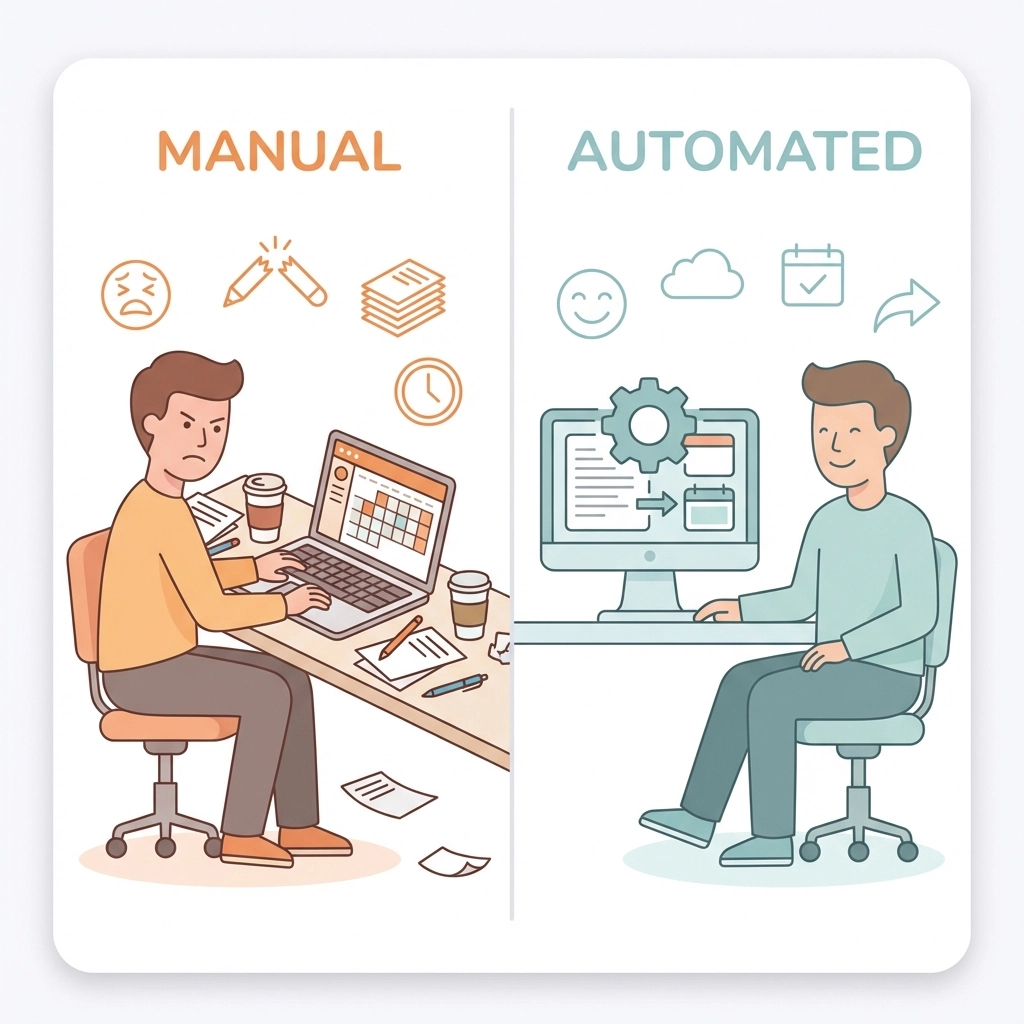
Manual calendar entry averages 2-3 minutes per event. For event managers handling dozens of events weekly, text to ICS conversion saves hours monthly.
Accuracy Improvement
Automated extraction eliminates typos and transcription errors. Dates, times, and locations transfer exactly as written in the source text.
Universal Compatibility
ICS files work with all major calendar platforms. Create once, use everywhere, no platform-specific reformatting required.
Bulk Processing
Many tools handle multiple events simultaneously. Convert entire email threads or document sections into multiple calendar entries at once.
Consistent Formatting
Automated conversion ensures consistent event formatting across your calendar system. No more variation in how different team members enter event details.
Common Use Cases and Examples
Email Invitations:
"Please join us for the quarterly review meeting on March 15th at 2:00 PM in Conference Room B. We'll discuss Q4 results and 2024 planning."
Converts to: Event titled "Quarterly Review Meeting" on March 15, 2:00 PM, location "Conference Room B" with description about Q4 results and planning.
Event Flyers:
"Summer Networking Event – July 20, 2024, 6:30 PM – 9:00 PM at Downtown Convention Center, 123 Main Street. Cocktails and appetizers provided."
Becomes: Complete calendar event with correct date range, venue address, and event details.
Meeting Notes:
"Follow-up meeting scheduled for next Tuesday at 10 AM via Zoom. Action items due Wednesday."
Creates: Meeting event for the correct Tuesday with Zoom location and related deadline reminder.
Privacy and Security Considerations
When handling sensitive event information, privacy matters. Here's what to consider:
Local Processing: Tools that process text locally on your device provide maximum privacy. Your event details never leave your computer.
Secure Transmission: Web-based tools should use encrypted connections (HTTPS) when handling your data.
Data Retention: Check whether tools store your text or event details after conversion. Many reputable services don't retain user data.
AI Provider Policies: AI-powered tools may send text to external providers like OpenAI or Google. Review their privacy policies for sensitive information.
For maximum security, choose tools that emphasize privacy protection and local processing when possible.
Pro Tips for Better Results
Use Clear Date Formats: Write dates consistently (March 15, 2024 instead of 3/15/24) for better parsing accuracy.
Include Time Zones: Specify time zones for events involving remote participants or multiple locations.
Separate Multiple Events: Use line breaks or clear separation between different events in your text.
Add Context: Include relevant keywords like "meeting," "conference," or "deadline" to help tools categorize events correctly.
Review Before Importing: Always check extracted details before adding to your calendar. Automated systems aren't perfect.
Test with Sample Text: Try your conversion tool with known event details first to understand its accuracy and limitations.
Troubleshooting Common Issues
Incorrect Date Parsing: If dates are wrong, try different formats or add more context words around dates.
Missing Time Information: When times aren't detected, ensure they're clearly formatted (2:00 PM, 14:00, etc.).
Location Problems: Add specific location keywords like "at," "in," or "venue:" before addresses.
Multiple Events Merging: Use clear separators between different events in your source text.
Getting Started Today
Ready to stop wasting time on manual calendar entry?
Start with a simple test. Find an email or document with event details and try converting it to calendar events using a text to ICS tool.
Most professionals see immediate time savings on their first use. Event managers handling multiple events weekly can reclaim hours of productive time monthly.
The technology exists. The tools are ready. Your calendar chaos has a solution.
Stop copying and pasting. Start converting text to ICS files automatically, and focus your energy on what really matters: running great events and managing your time effectively.
Leave a Reply