Author: Penny From Marblism

  • Schedule Parser: Effortless Conversion to Google or Outlook Calendar

    Schedule Parser: Effortless Conversion to Google or Outlook Calendar

    You spend too much time copying dates from emails, PDFs, and screenshots into your calendar. Different time zones. Vague wording. Missed details. It’s easy to make mistakes—and it adds up.

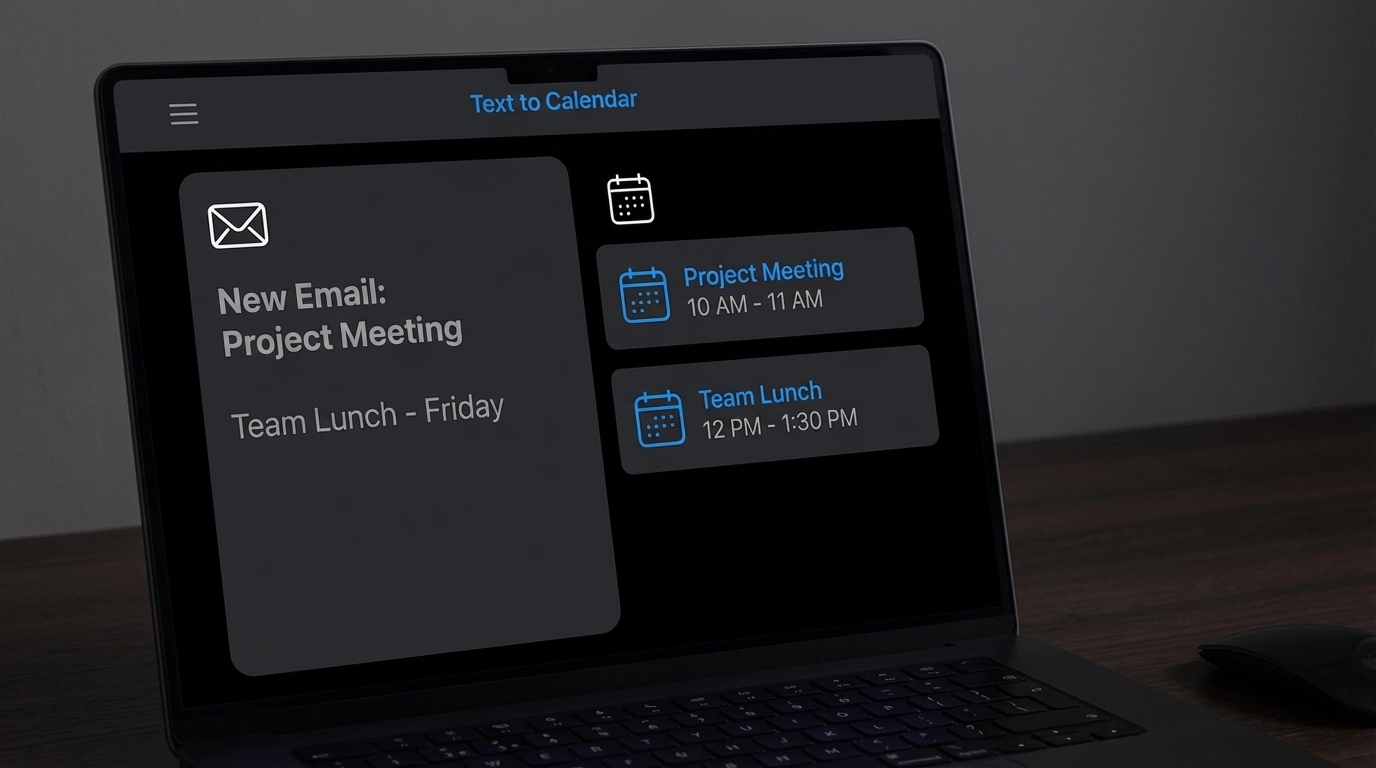
    There’s a faster way. With Text to Calendar, you paste text or upload images/PDFs, and our AI finds the dates, times, locations, and descriptions for you. Then you export to Google Calendar or Outlook with one click. No manual entry. No guesswork.

    What schedule parsing means (in plain English)

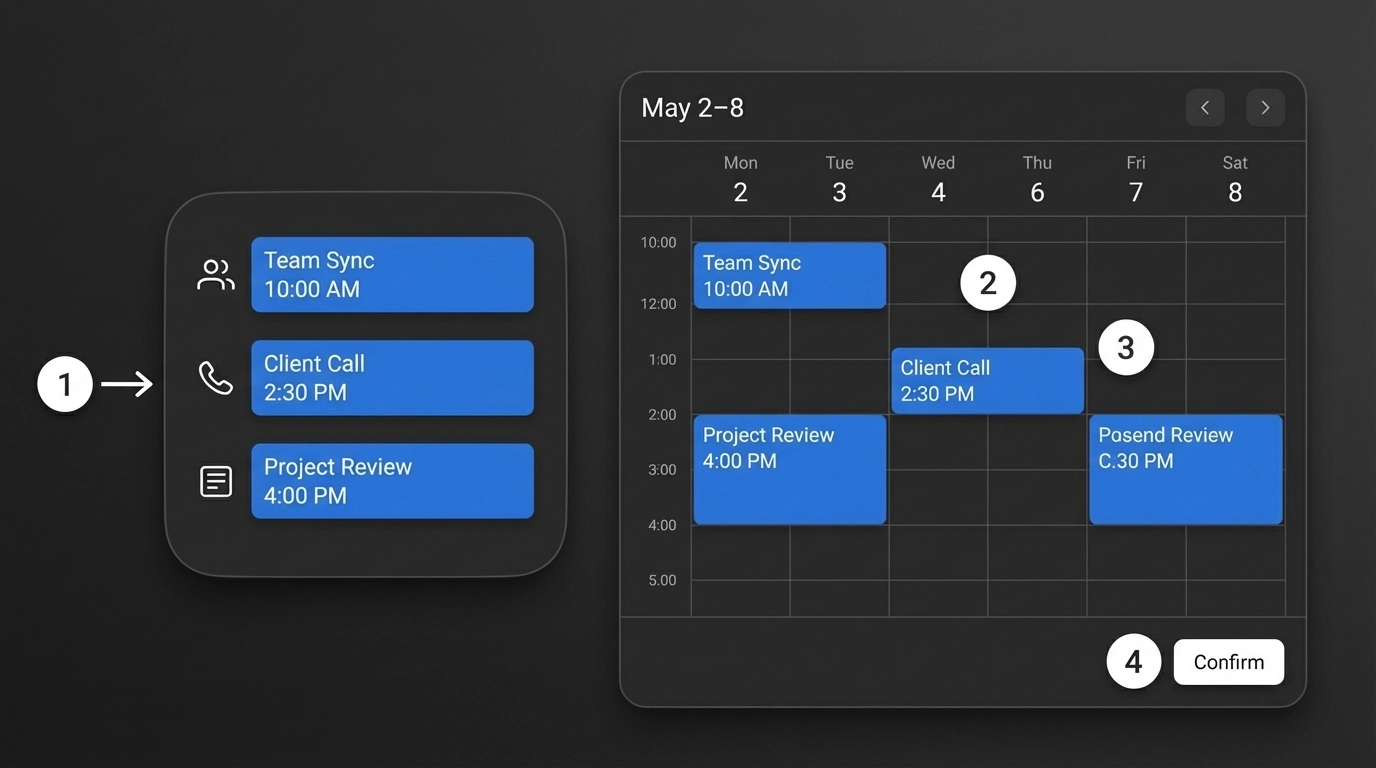
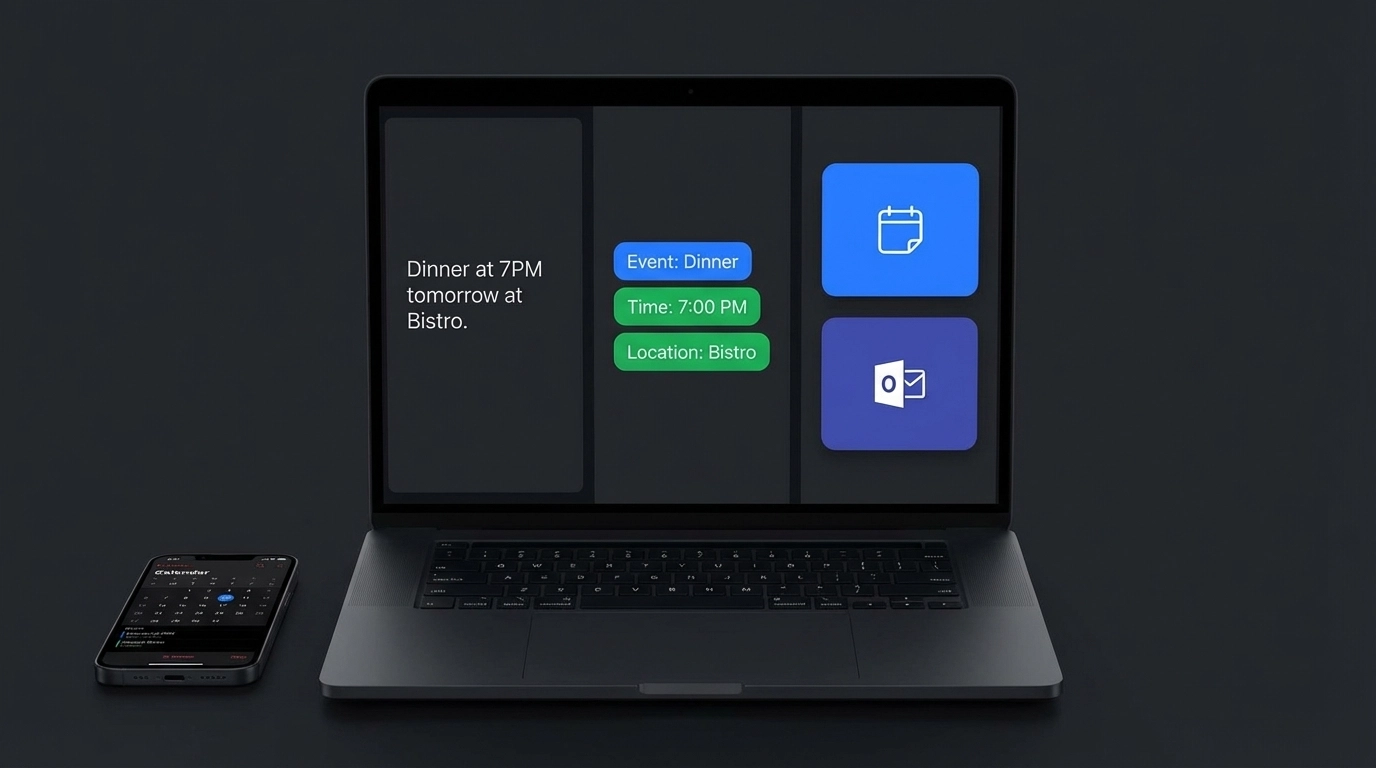
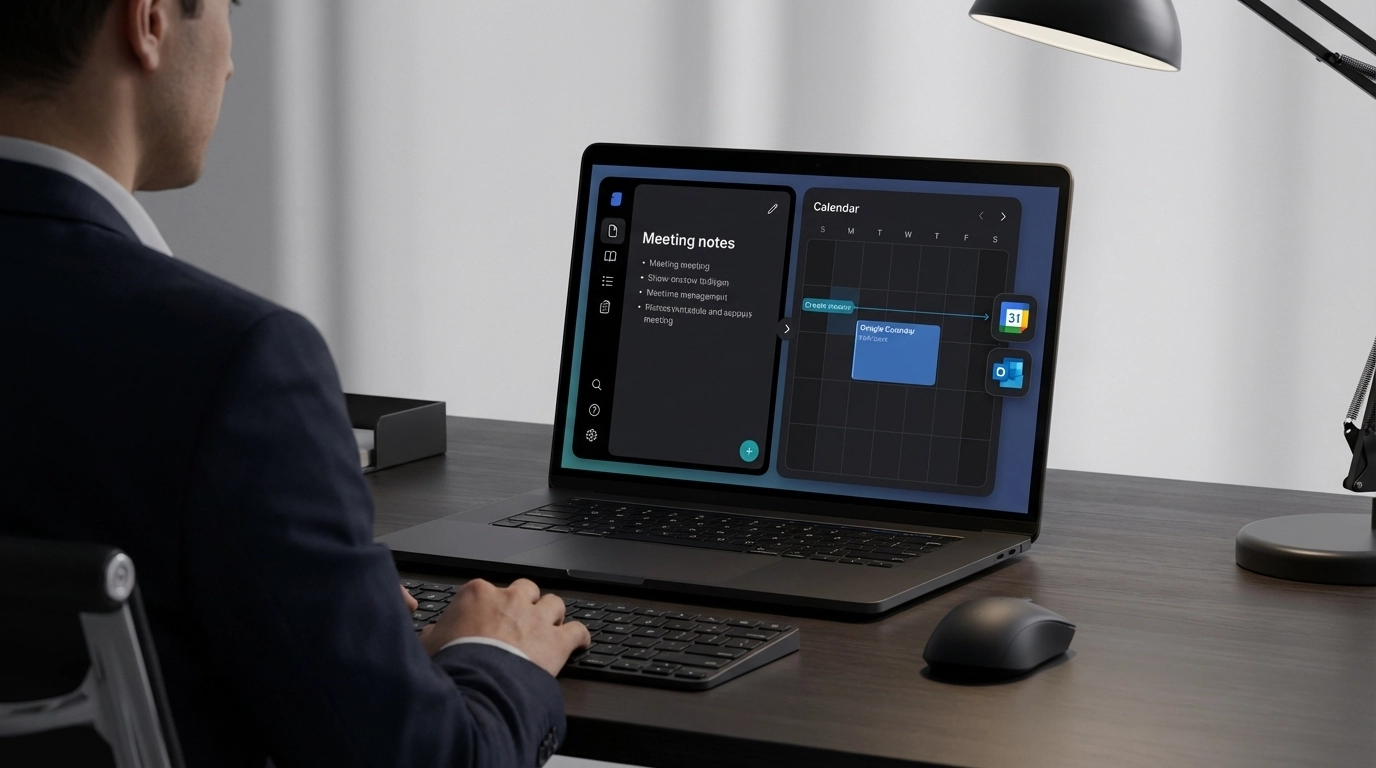
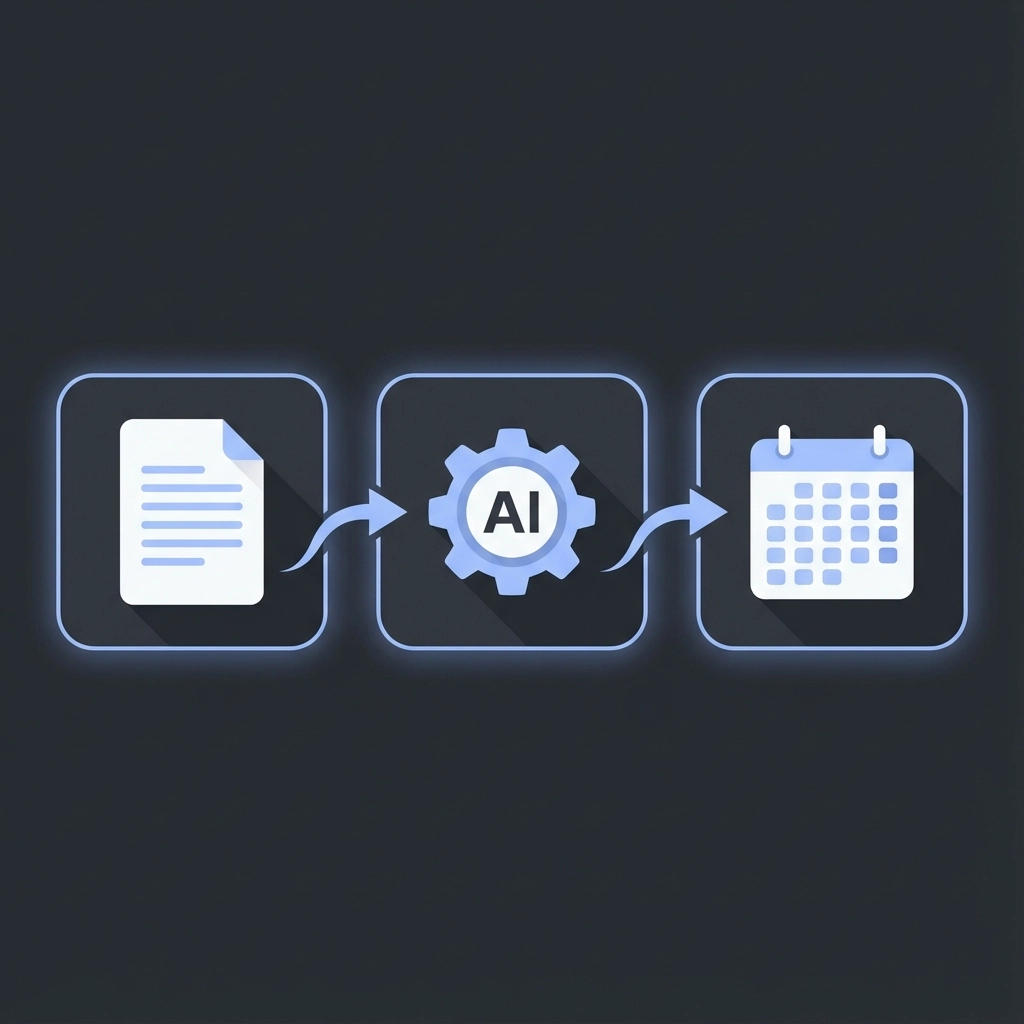
    Schedule parsing is a simple idea: you give the tool some text or a file; it recognizes scheduling info and turns it into clean calendar events.

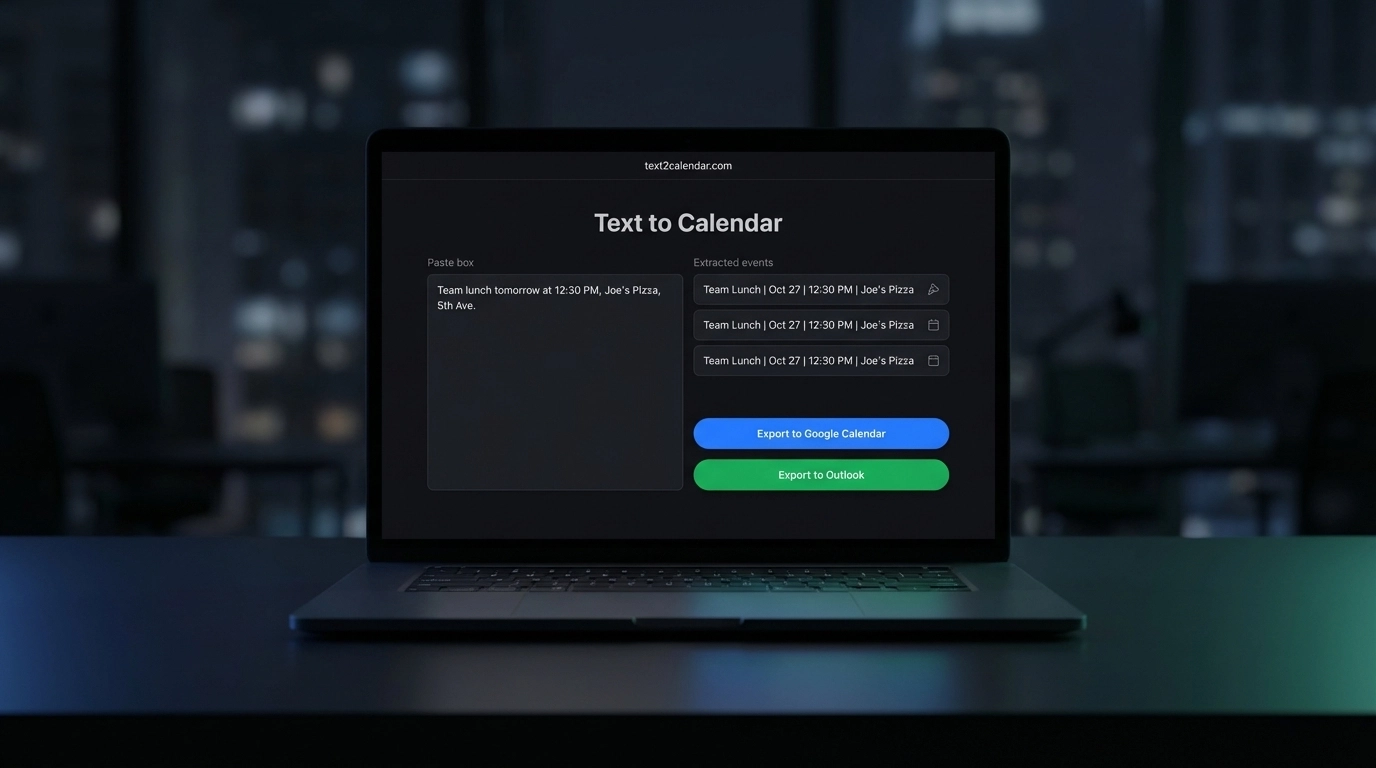
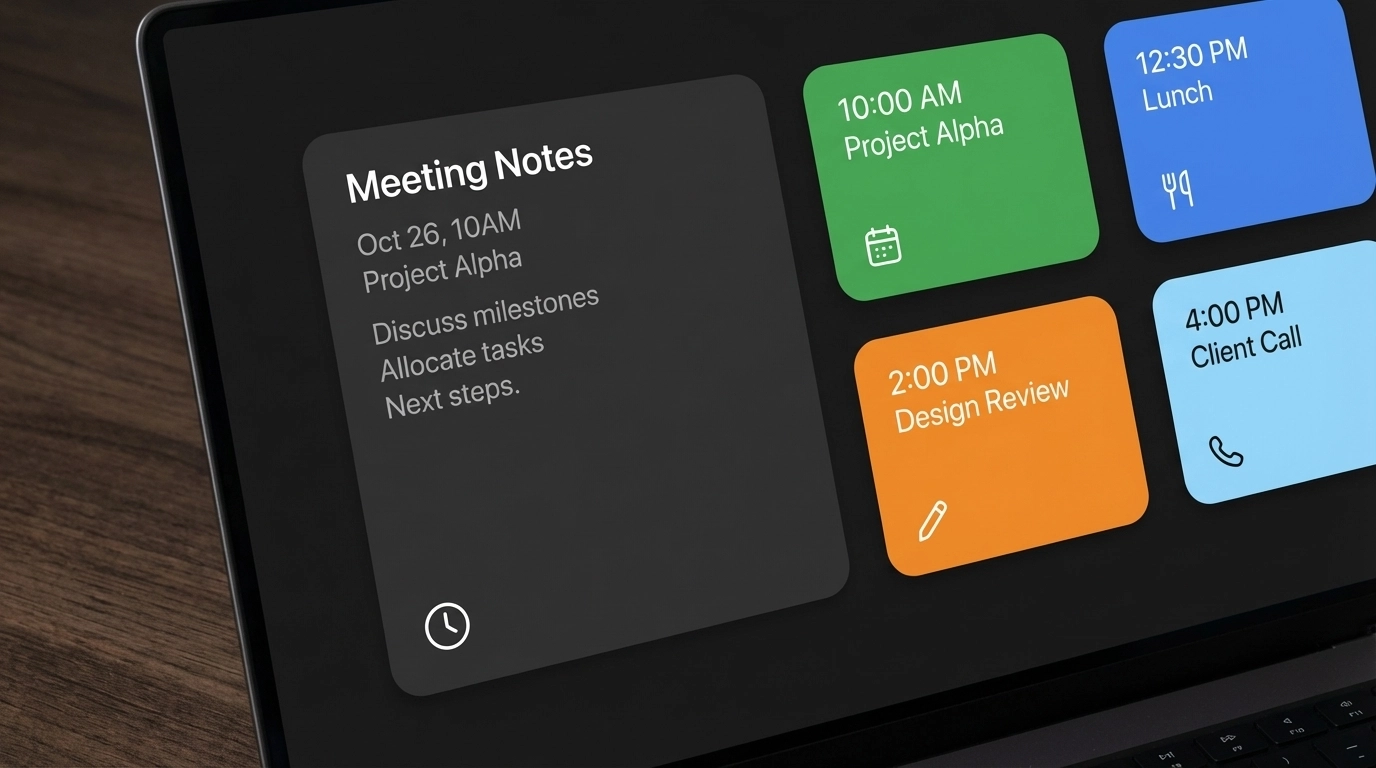
    • “Next Tuesday at 2 PM” becomes a proper event with the right date and time.
    • “March 15–17, all-day” becomes a multi-day event.
    • “2 PM PST” converts to your calendar’s time zone automatically.

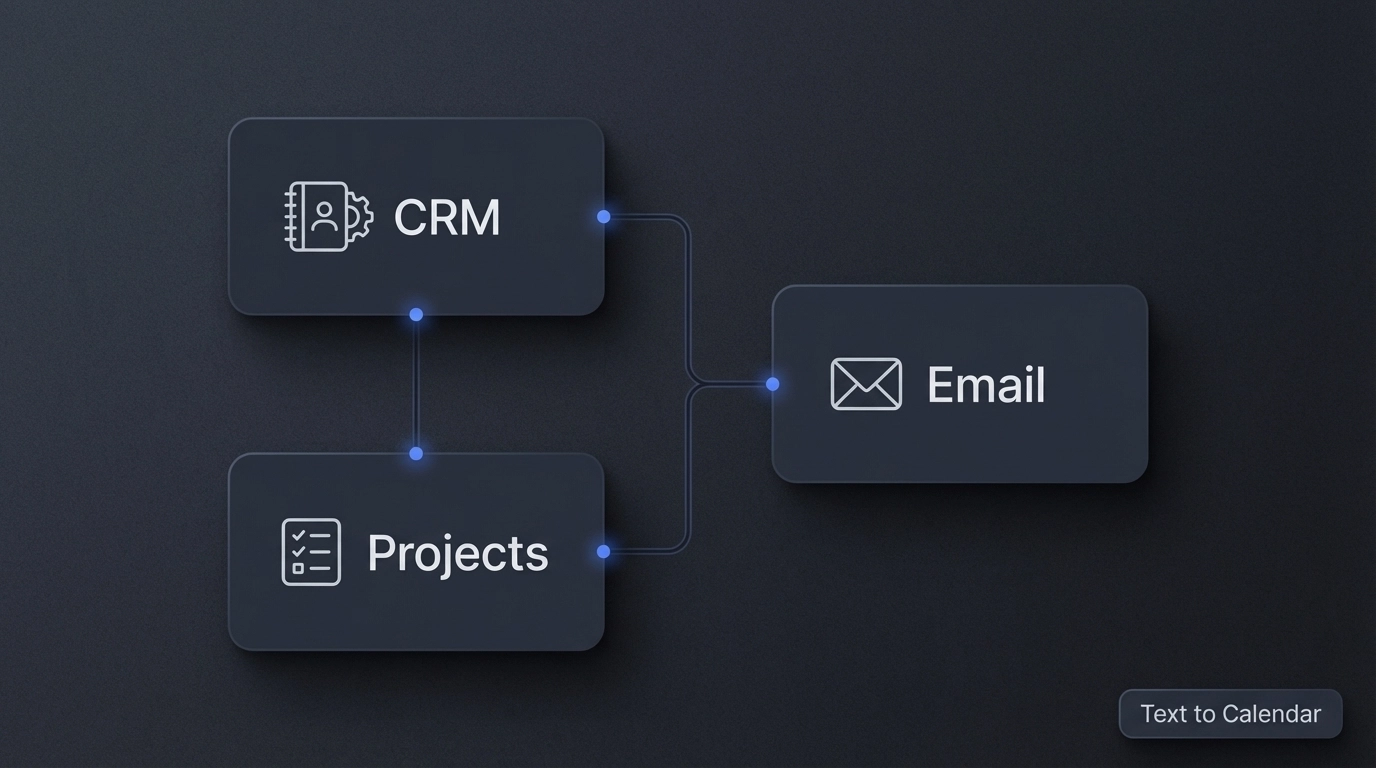
    image_1

    In short, you stop hunting for details. The tool reads, extracts, and organizes—so you can just review and export.

    What you can parse

    • Emails and threads with scattered dates
    • Meeting notes, minutes, and summaries
    • PDFs: agendas, event programs, invites
    • Screenshots and posters with date/time blocks
    • Web pages with schedules or timelines
    • Quick chat messages and SMS

    Tip: Messy or mixed formats are fine. The AI handles multiple patterns and international date formats.

    How it works (step-by-step)

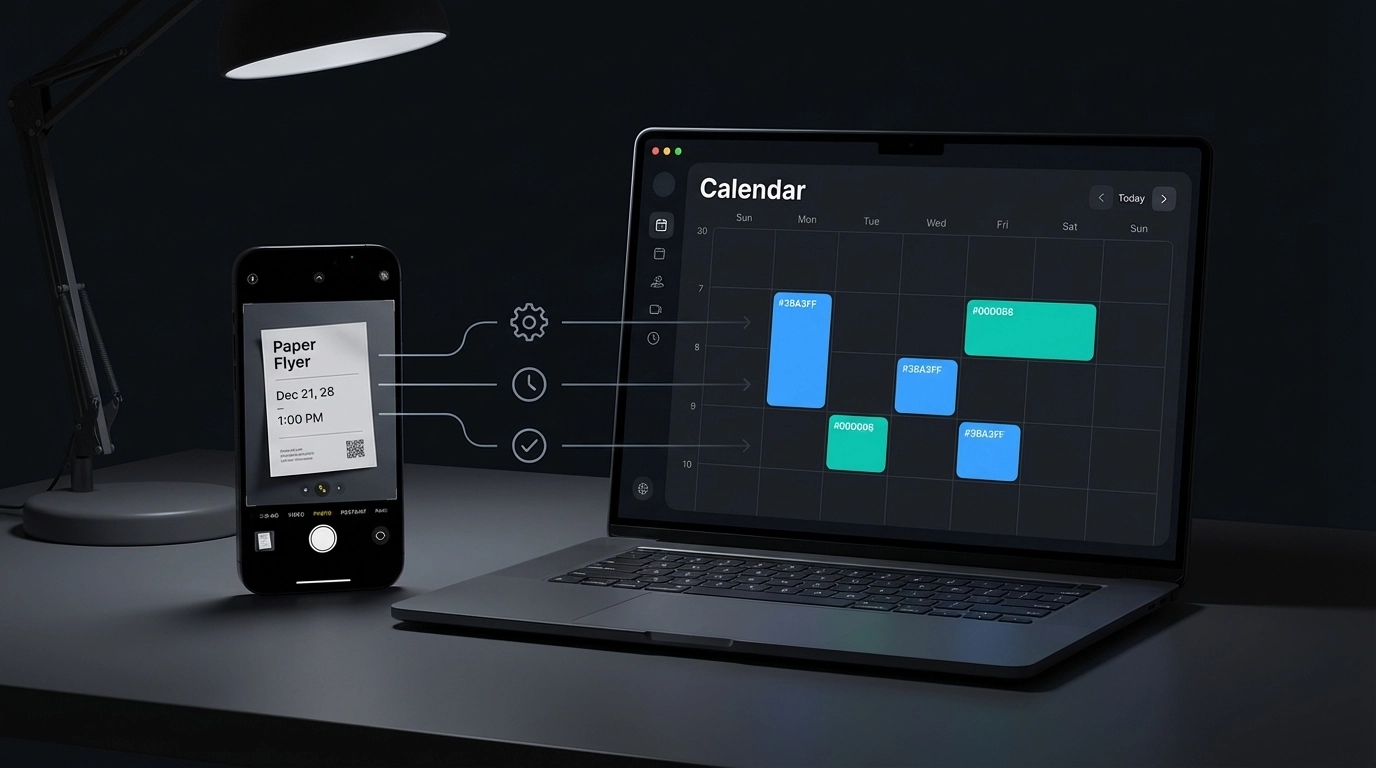
    1. Paste or upload
      Provide text, images, or PDFs. Large chunks are okay.

    2. Review
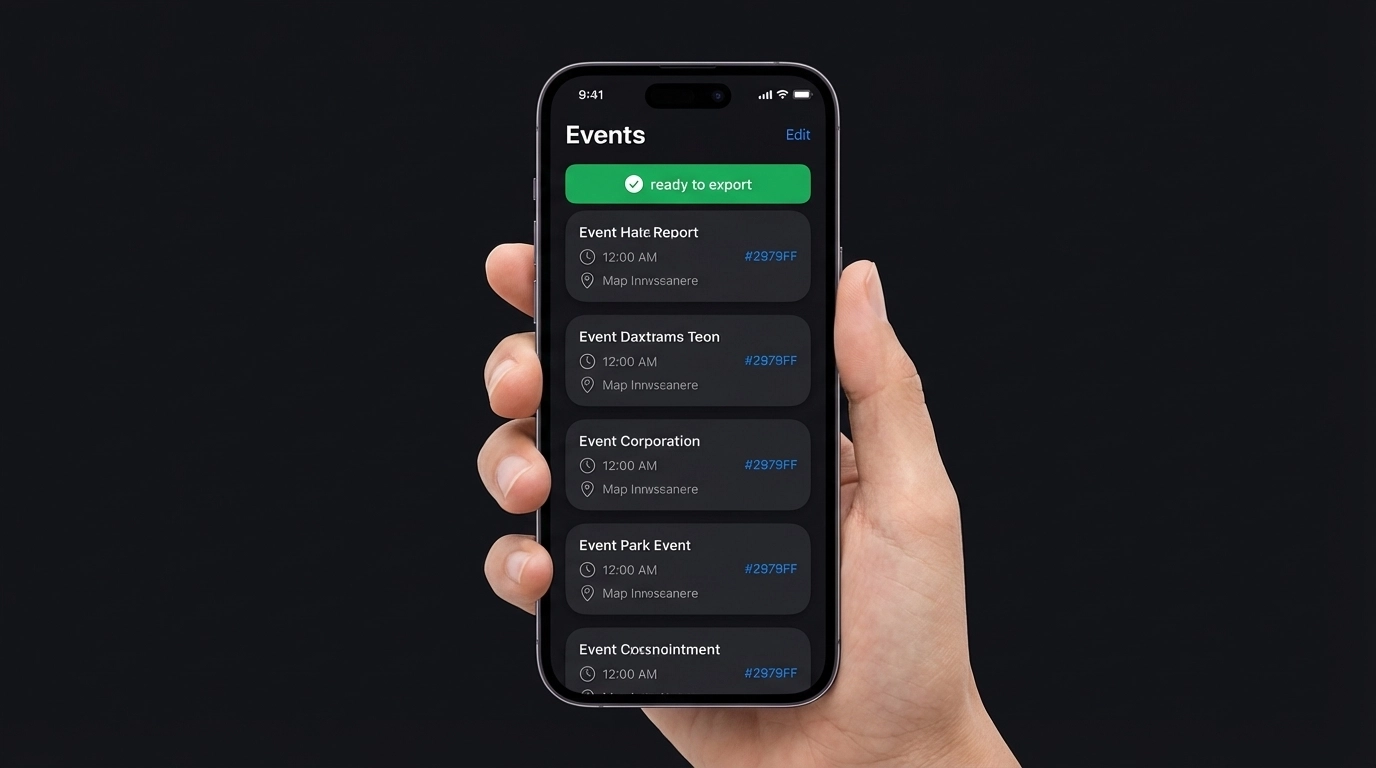
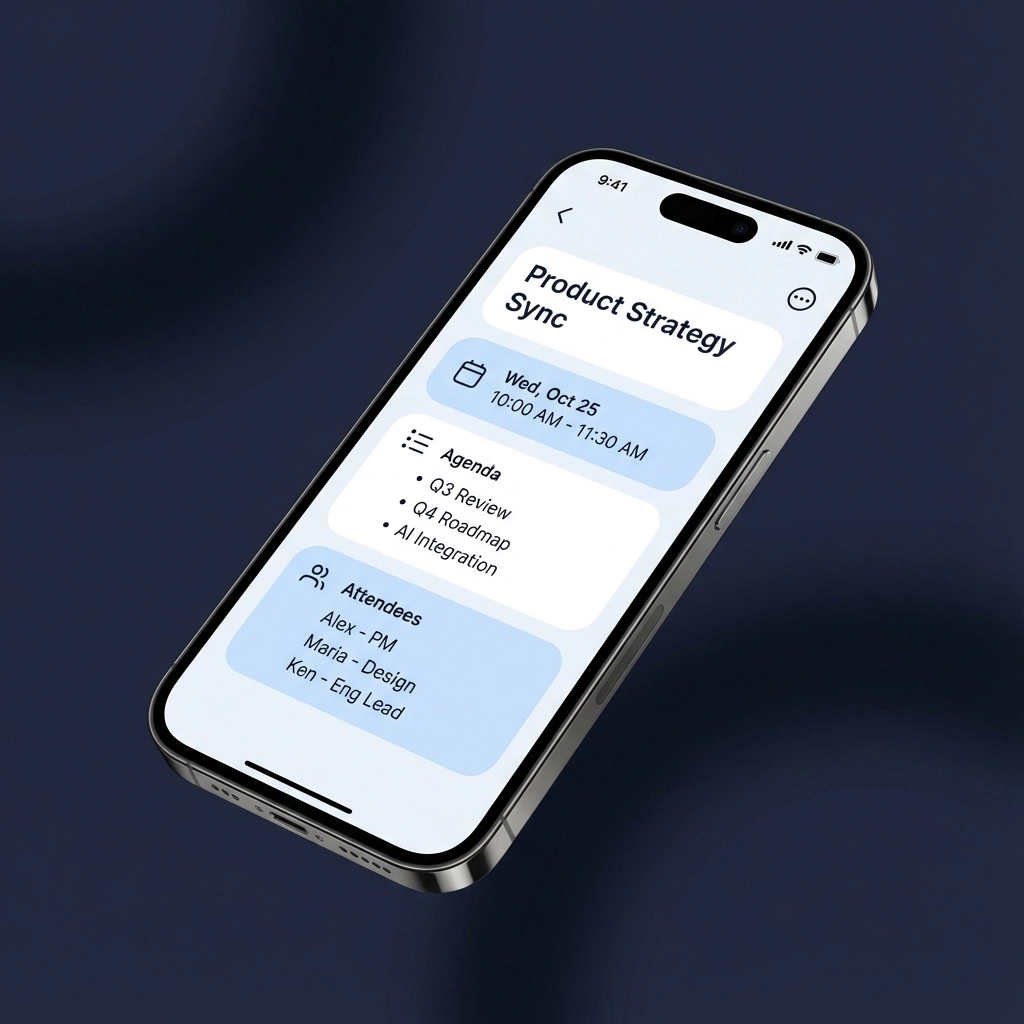
      You see extracted events in a clean list. Edit anything—titles, times, locations, descriptions.

    3. Choose export
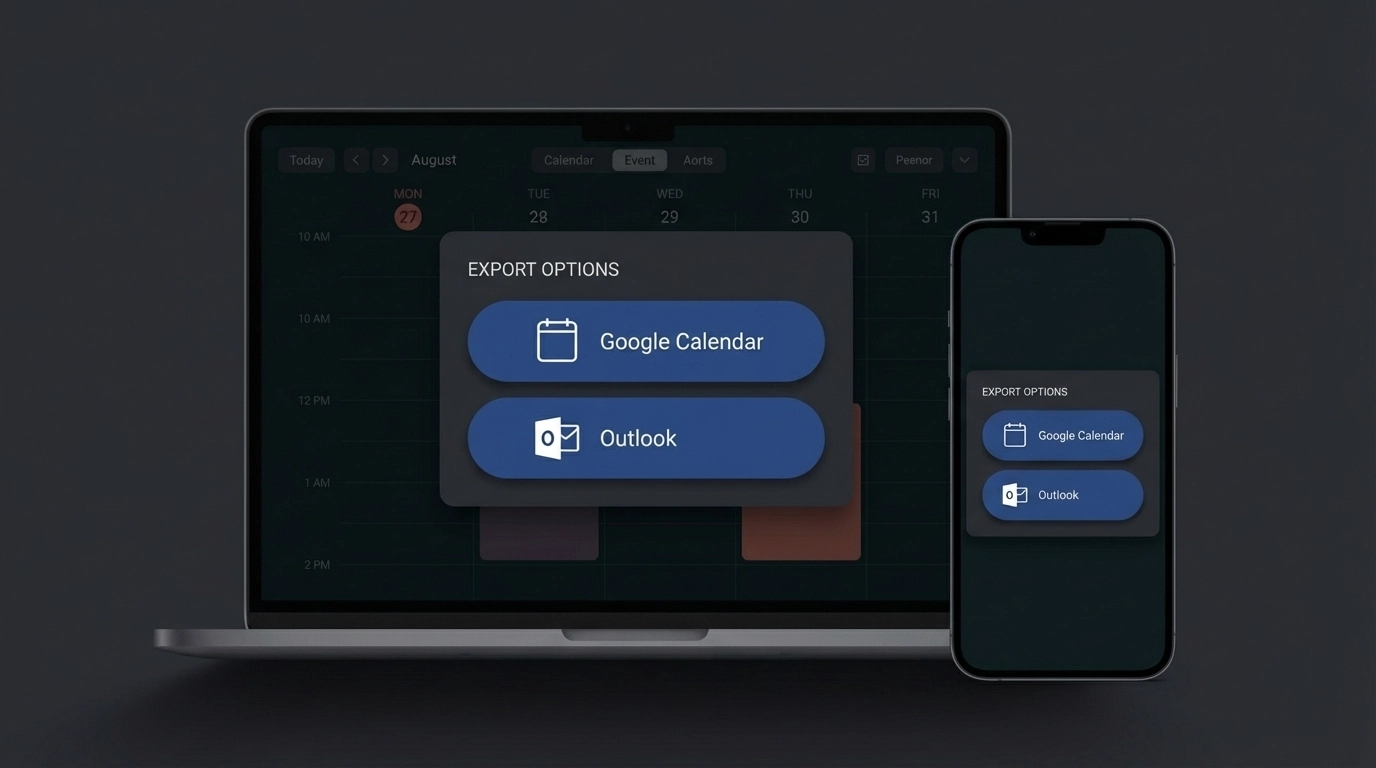
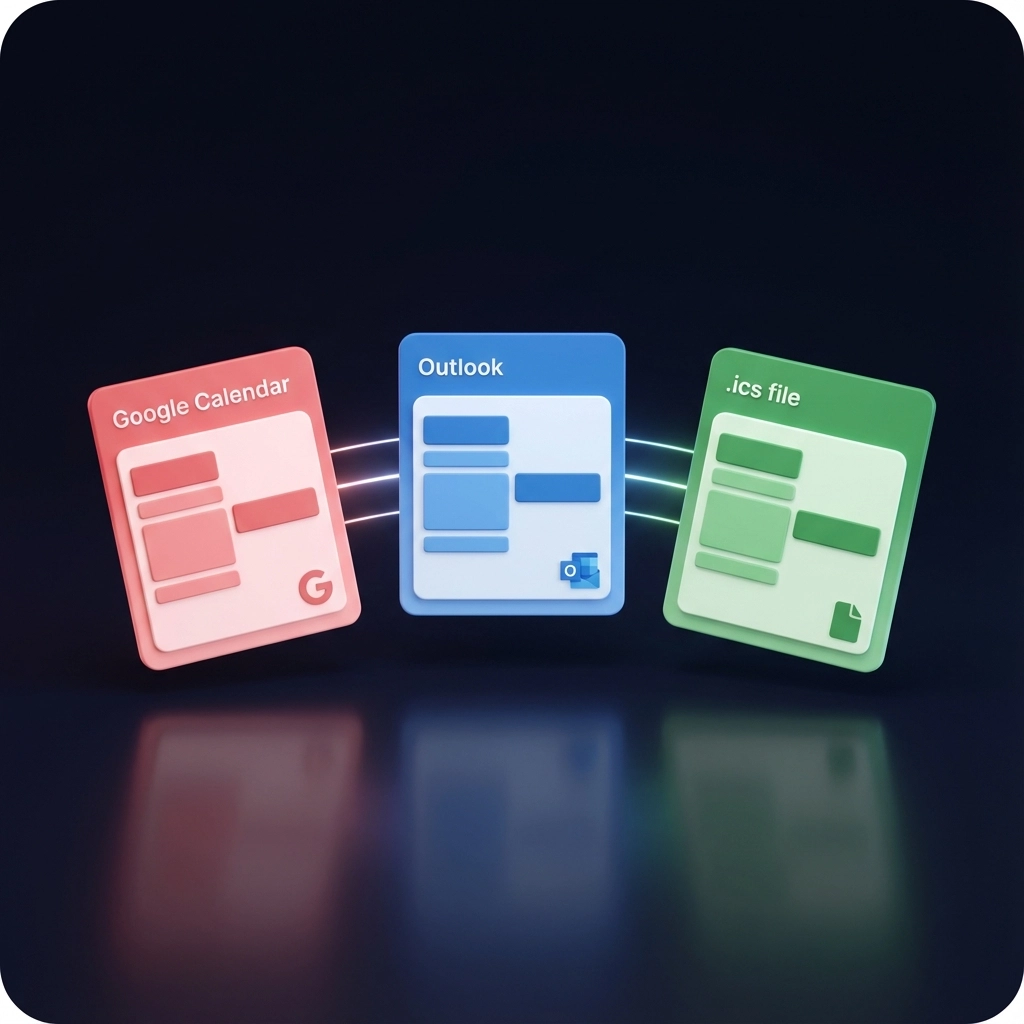
      Pick Google Calendar or Outlook. You can also download a standard .ics file if you prefer.

    4. One click
      Export and you’re done. Events show up in your calendar with correct time zones and formatting.

    image_4

    Pro tip: Use short, descriptive event titles during review (e.g., “Client Kickoff – APAC”) so they’re instantly recognizable on mobile.

    Export to Google Calendar (key benefits)

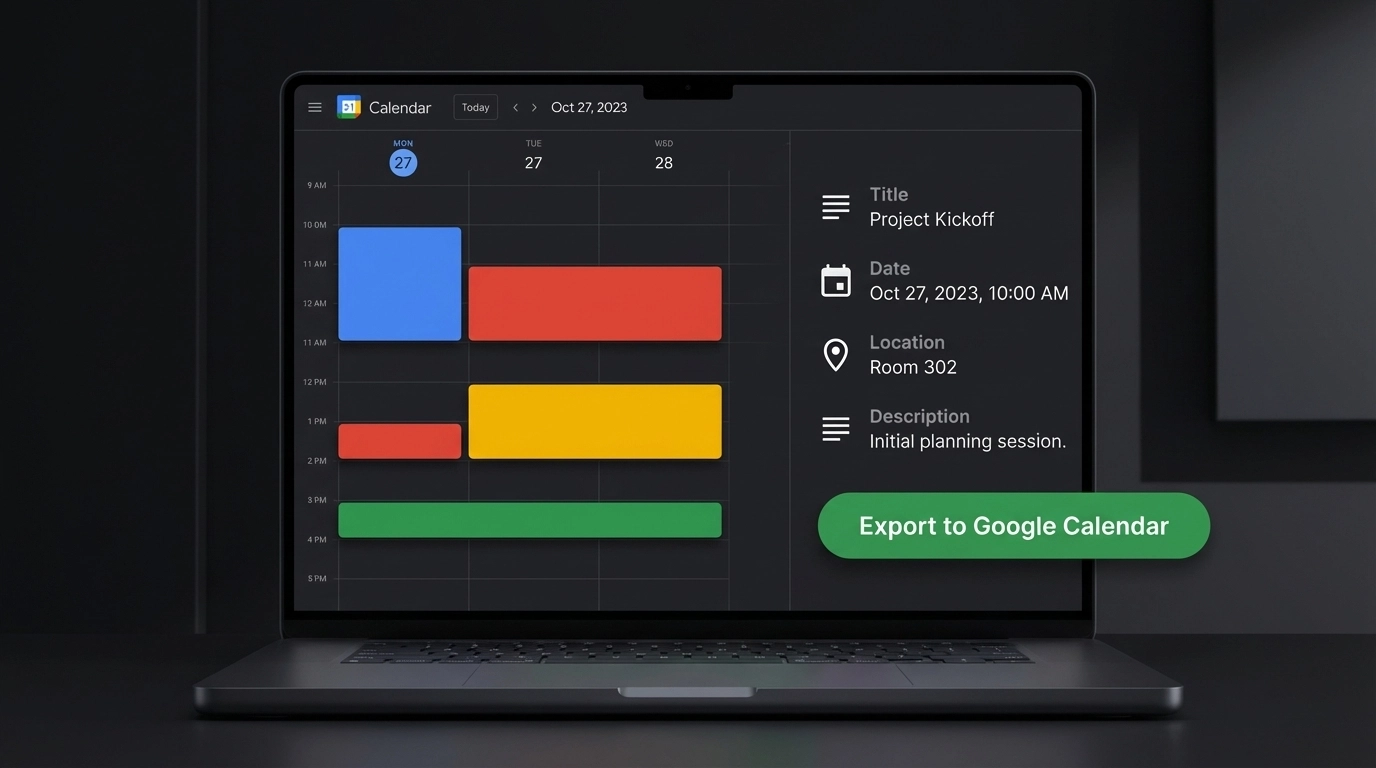
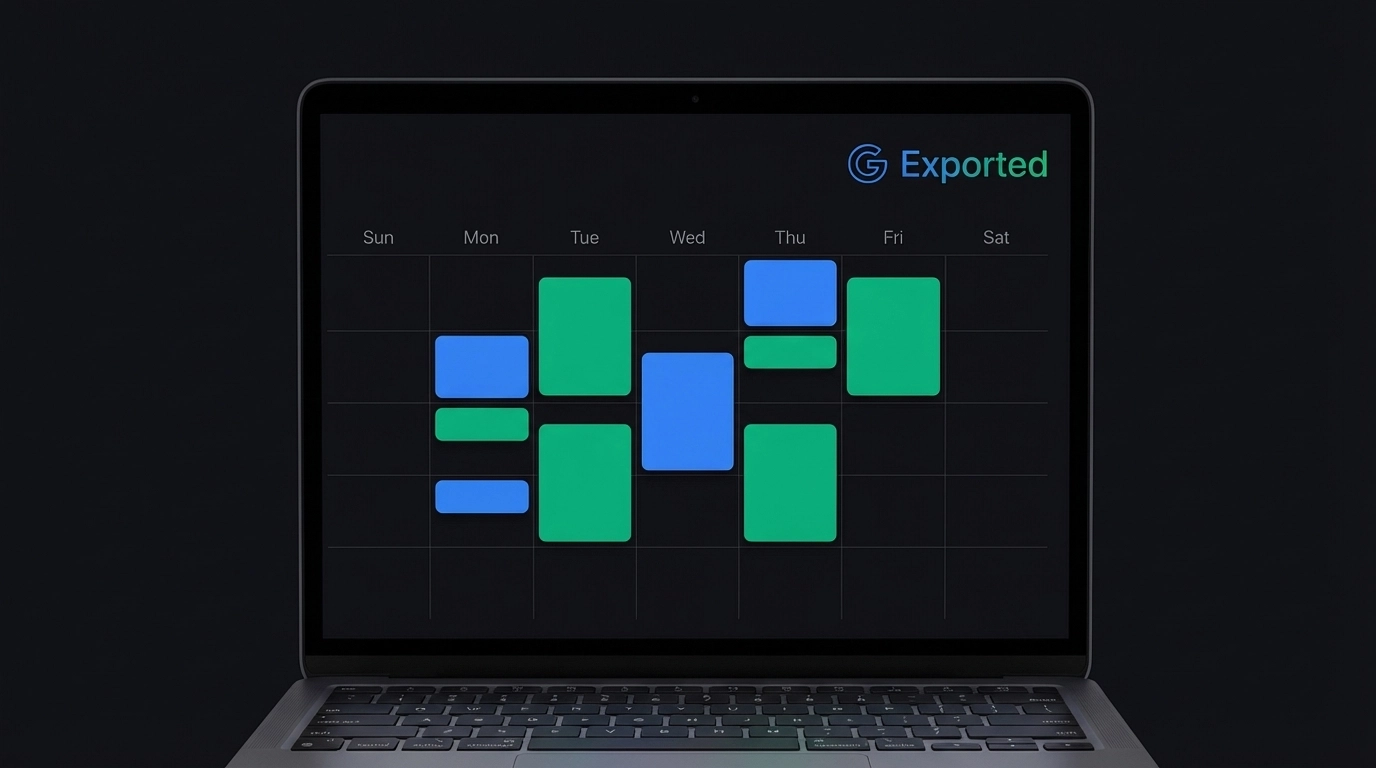
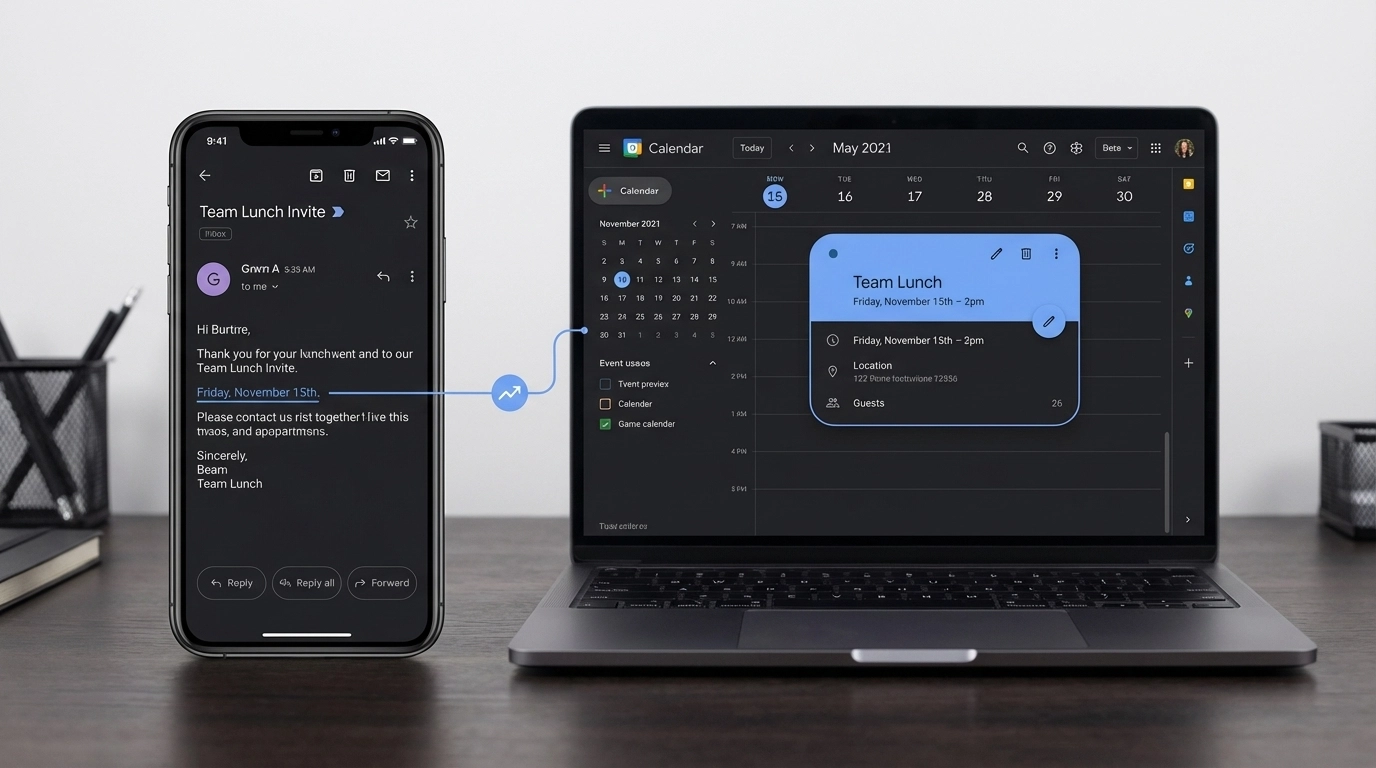
    • One-click push to your Google Calendar
    • Automatic time zone handling based on your calendar
    • Works with your existing Google Workspace workflows
    • Events sync to all your devices immediately
    • Recurring meetings, multi-day events, and locations supported

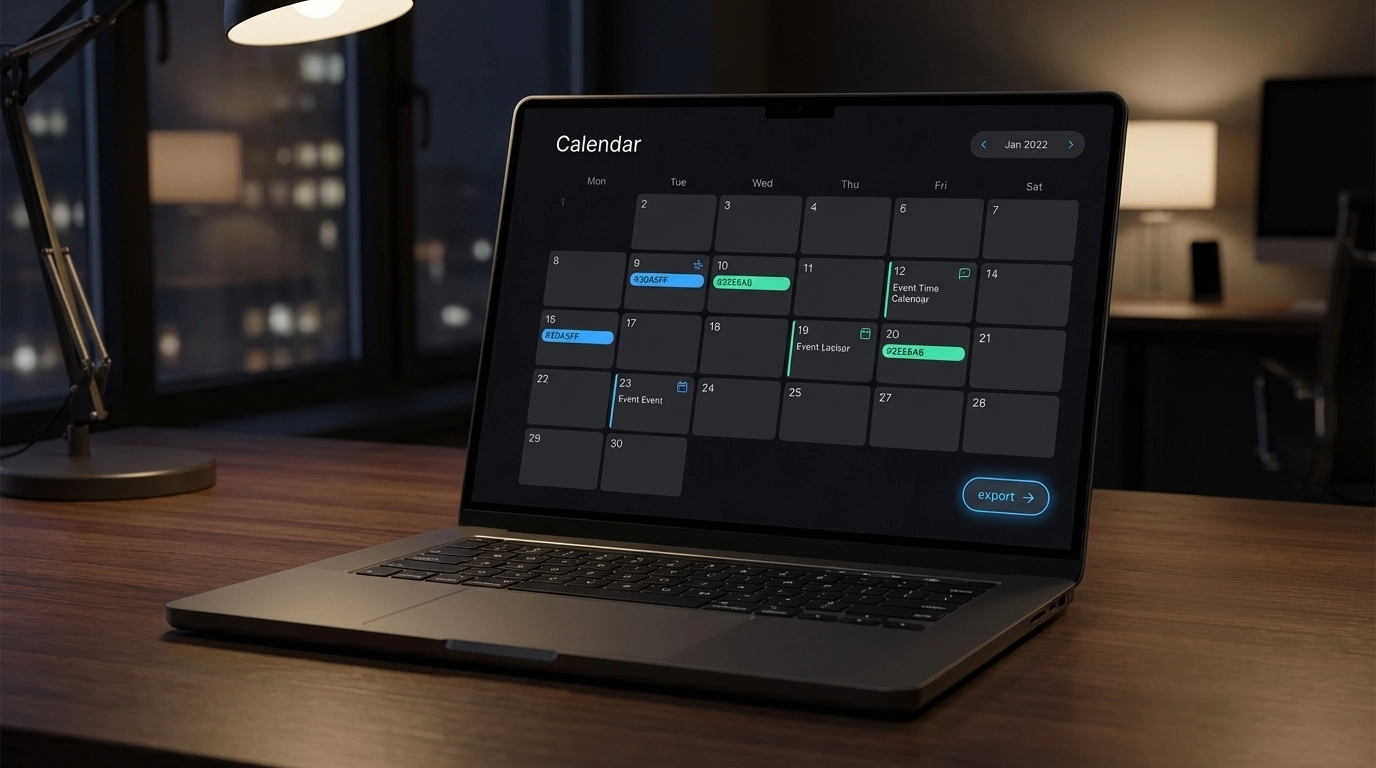
    image_2

    Use it when: you receive a long project update email with five deadlines. Paste once, review, export—all events appear in Google Calendar in seconds.

    Export to Outlook Calendar (key benefits)

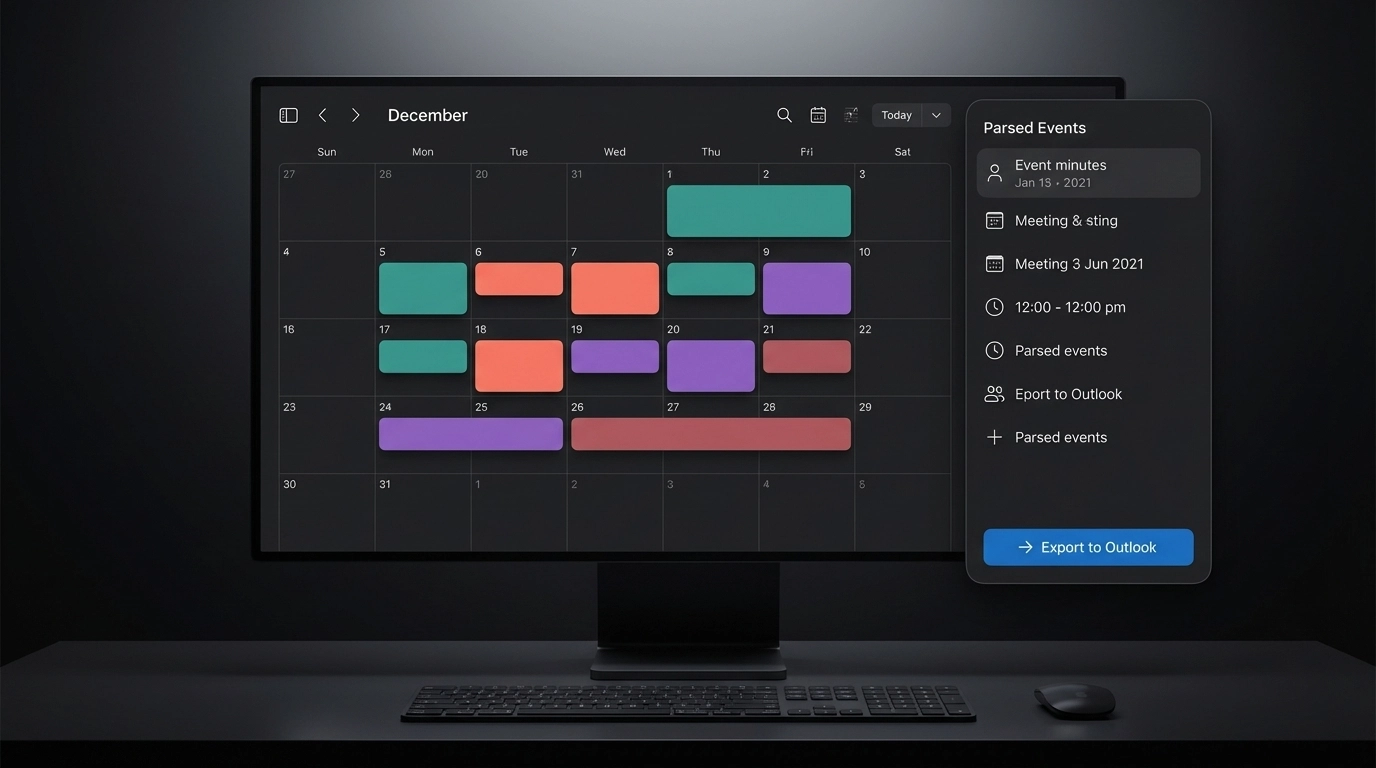
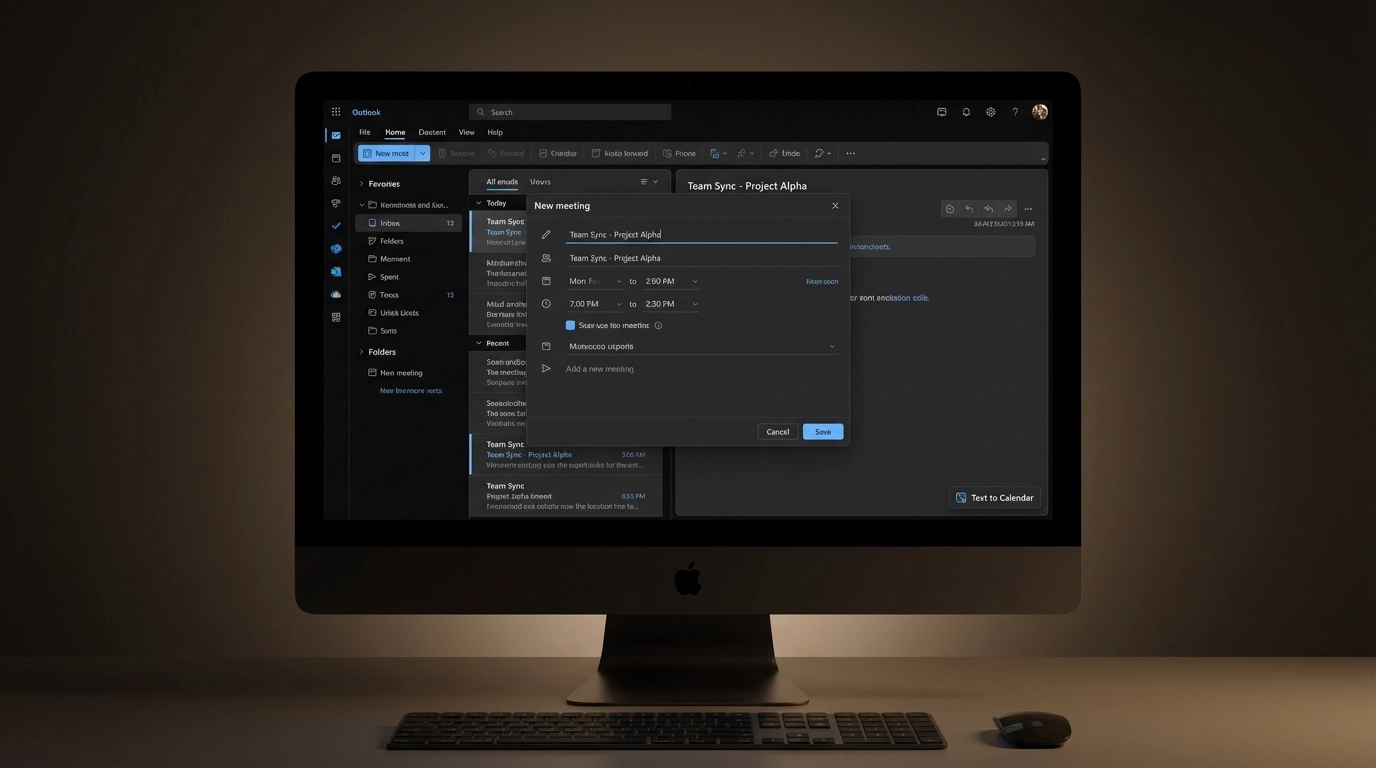
    • One-click push to Outlook via Microsoft Graph
    • Microsoft Teams meeting info supported
    • Works with Office 365 and Exchange setups
    • Categories and delegation play nicely
    • Bulk creation for team schedules

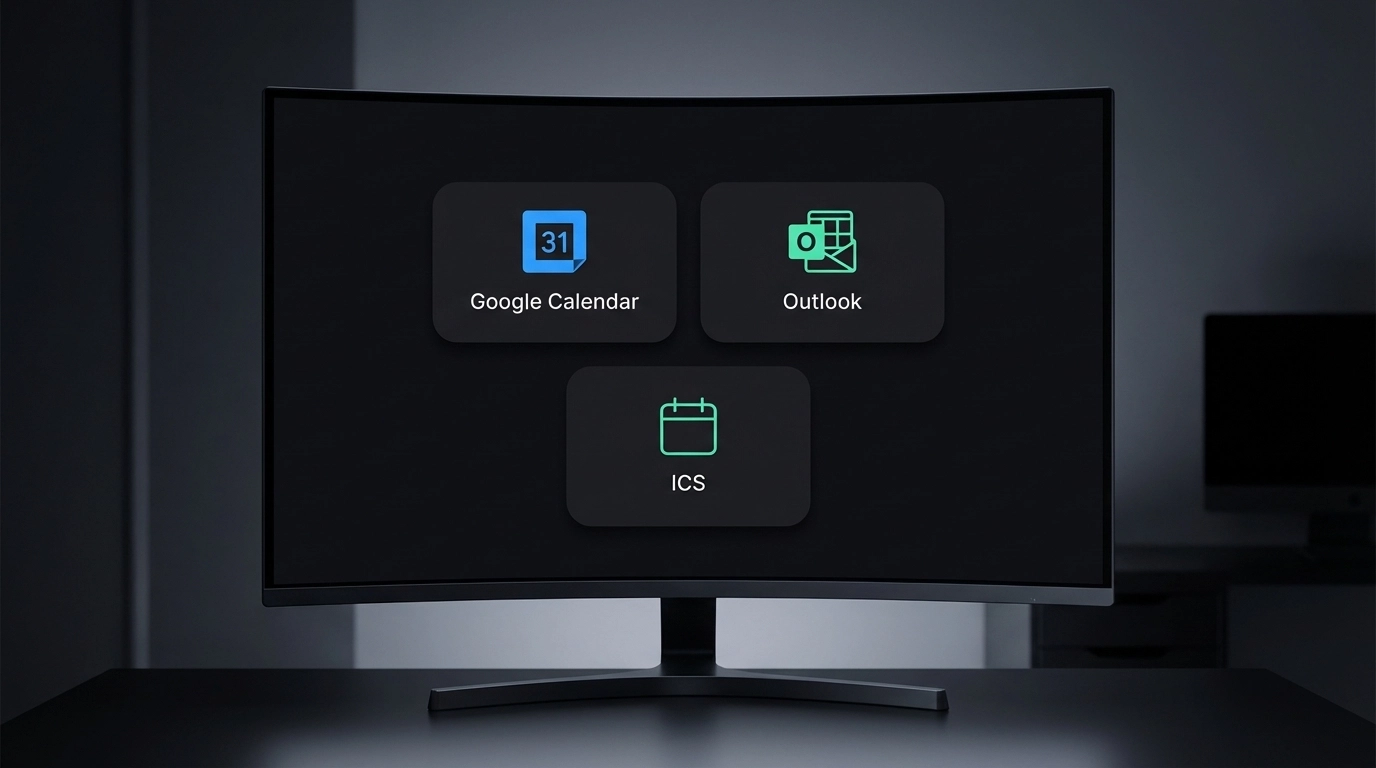
    image_3

    Use it when: you’re coordinating with multiple departments and vendors who all use Outlook. You export once and share instantly.

    Export options at a glance

    Feature Google Calendar Export Outlook Calendar Export .ics File Export (universal)
    Connection type Direct push Direct push Download + import
    Time zone handling Automatic Automatic Depends on calendar settings
    Recurring events Yes Yes Yes
    Attendees/notes support Yes Yes Yes
    Best for Google Workspace users Microsoft 365 users Any calendar app

    Note: If your IT restricts direct connections, .ics download works with any calendar.

    Real-world examples you’ll recognize

    • You get an email: “Let’s talk next Thursday 11:30 ET; if we miss it, Friday 12:15 works.” The tool extracts both options. You pick one, mark the other as tentative.
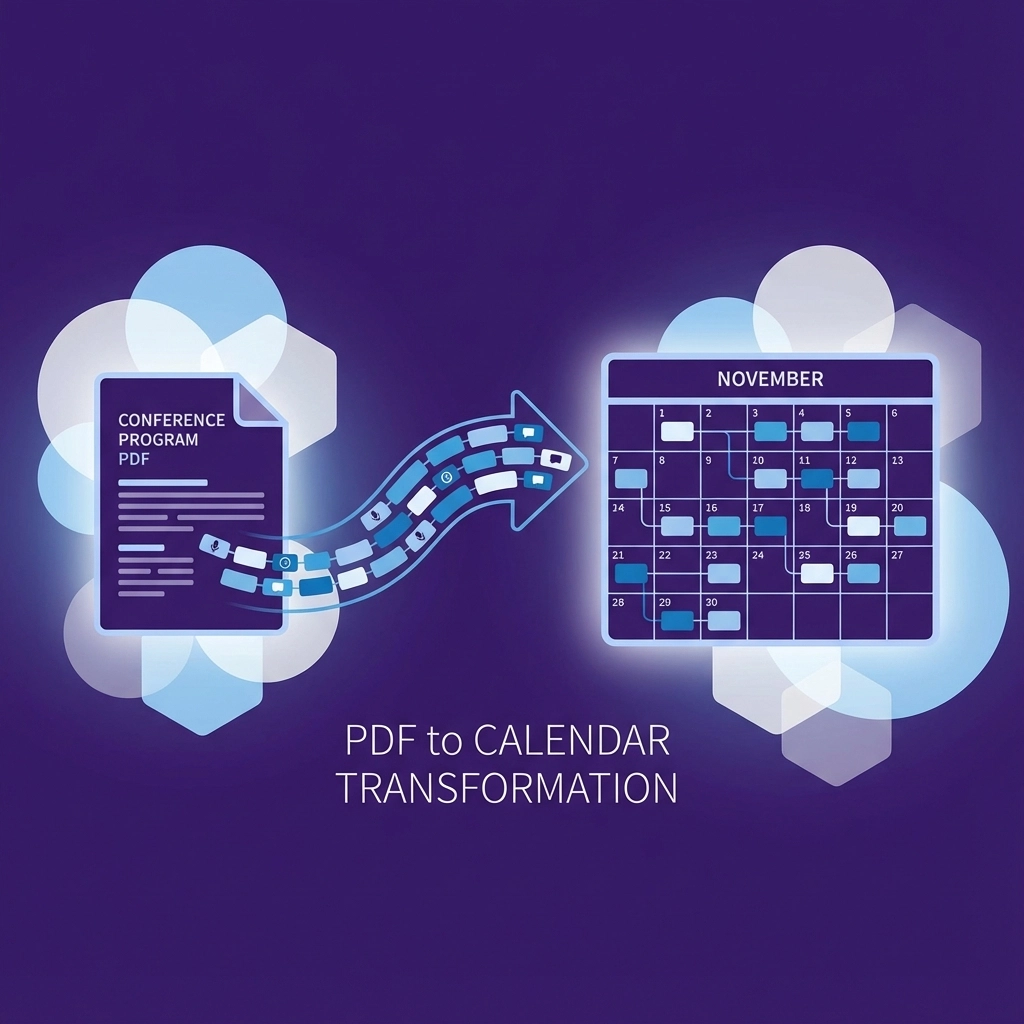
    • A conference PDF lists sessions across three days. You upload it and export all sessions to your calendar at once.
    • A screenshot of a WhatsApp message says “Delivery window: 9–11 AM, 24 Jan.” You upload the image and create a single event with the right time range.
    • Meeting notes say “Kickoff two days after contract signature.” The parser links relative timing and creates a draft with correct dates after you set the signature date.

    Time saved and mistakes avoided

    • Manual entry takes ~2–3 minutes per event. Ten items = up to 30 minutes.
    • Parsing + one-click export takes under 5 minutes total—even for long emails or PDFs.
    • Error reduction: fewer time zone mistakes, consistent titles, and less chance of double-booking.

    Pro tip: Create a quick review checklist—title, time zone, location, description—before export. It takes 20 seconds and prevents follow-up corrections.

    Troubleshooting and edge cases

    • Vague dates (“sometime next week”): The tool suggests a default window. Adjust during review.
    • Conflicting times in a thread: You’ll see both; mark the correct one and discard the rest.
    • Mixed time zones: We detect them, then convert to your calendar’s default. You can override.
    • Partial info (no end time): Duration estimation proposes an end time based on context. Edit if needed.
    • Scanned PDFs with low quality: Try a clearer scan or upload the original file if available.

    If something looks off, edit in the preview list before export. Changes stick to the final events.

    Integrate with your workflow

    • Centralize parsing: One person can parse department emails and share calendars with the team.
    • Use .ics for handoffs: Clients or vendors on different platforms still get accurate events.
    • Keep using your tools: Reminders, sharing, conferencing links, and mobile sync all work as usual.

    image_5

    Security note: Your data is handled privately and processed for event extraction only.

    Next steps

    • Try it with a real email thread or a meeting notes doc.
    • Export to Google Calendar or Outlook and confirm the time zone.
    • Share with your team if you’re handling common schedules.

    Ready to stop typing events by hand? Start here: Text to Calendar

  • Calendar Automation Tool: Export to Google, Outlook, and More

    Calendar Automation Tool: Export to Google, Outlook, and More

    You're drowning in text messages, emails, and scattered notes with dates and times that need to become actual calendar events. Manually typing each meeting, appointment, and deadline into your calendar takes forever. You copy details from one app, switch to your calendar, create a new event, paste the information, set the time zone, add attendees: and repeat this tedious process dozens of times each week.

    There's a better way. Calendar automation tools can extract dates, times, and event details from any text and automatically place them directly into Google Calendar, Outlook, or any calendar system you use. No more switching between apps. No more manual data entry mistakes.

    What Calendar Automation Actually Does

    Calendar automation transforms how you handle scheduling by eliminating the manual steps between finding event information and having it appear in your calendar. Instead of reading through emails to find meeting times or scrolling through chat messages to locate deadlines, automation tools scan your text and identify calendar-worthy information instantly.

    The process works in three steps: text analysis, event extraction, and calendar integration. First, the tool analyzes your input text: whether it's an email, message, document, or note. Next, it identifies dates, times, locations, and event descriptions using pattern recognition. Finally, it creates properly formatted calendar events and sends them directly to your chosen calendar platform.

    This automation handles time zones, recurring events, attendee lists, and location details without requiring you to manually configure each element. The result is a seamless flow from information to scheduled event.
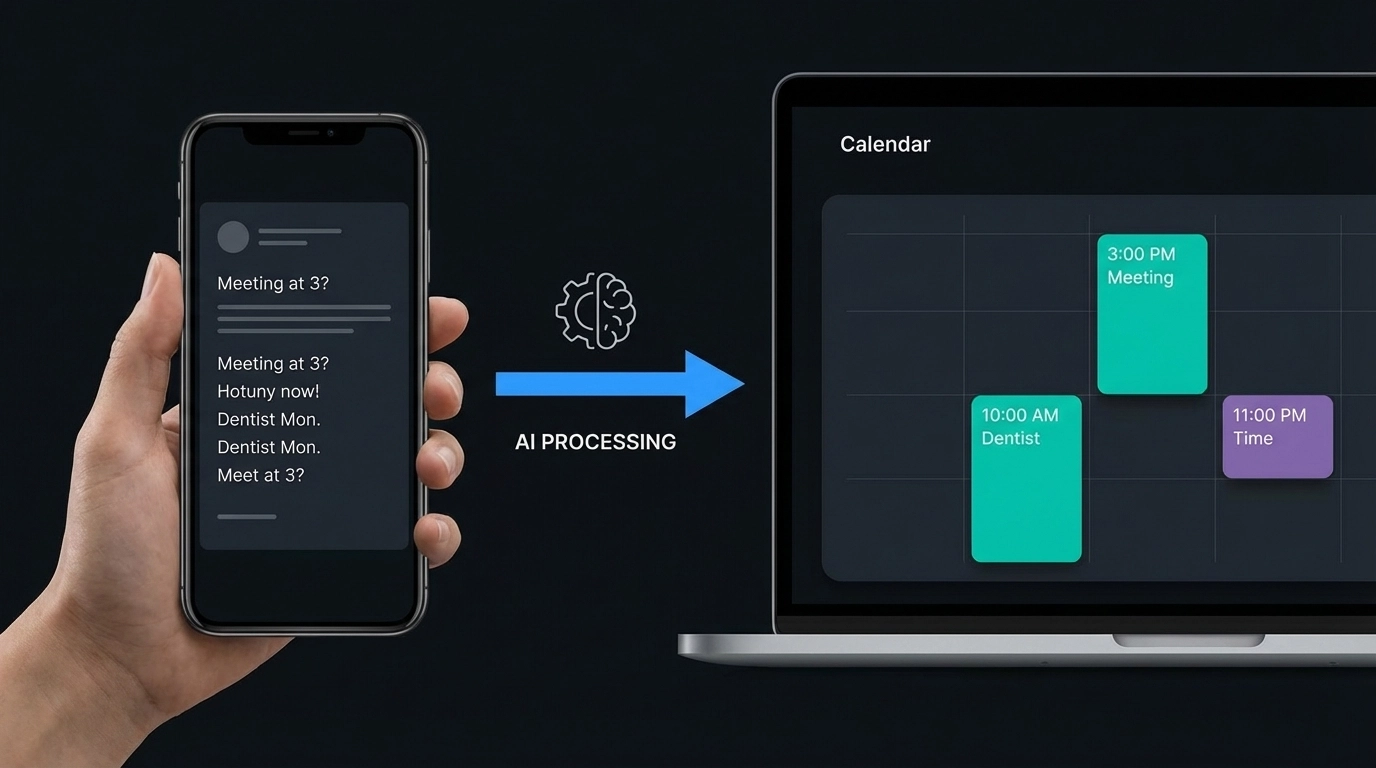
    image_1

    Direct Export to Google Calendar and Outlook

    Modern calendar automation tools support direct integration with the platforms you already use daily. Instead of downloading files and manually importing them, these tools connect directly to Google Calendar and Microsoft Outlook through secure APIs.

    For Google Calendar users, this means events appear in your calendar within seconds of processing your text. The automation handles Google's specific formatting requirements, time zone conversions, and privacy settings automatically. You maintain full control over which calendar receives new events, whether they're marked as busy or available, and how notifications are configured.

    Outlook integration works similarly but accommodates Microsoft's ecosystem requirements. Events sync across all your Outlook-connected devices, integrate with Teams for automatic meeting links, and respect your organization's calendar sharing permissions. The automation tool handles the technical complexity while you see simple, accurate calendar entries.

    Both integrations support different event types: single meetings, recurring appointments, all-day events, and multi-day schedules. Location information gets properly formatted for each platform's map integration, and attendee emails are processed according to each system's invitation protocols.

    Beyond Basic Calendar Export

    While direct Google and Outlook integration covers most users' needs, comprehensive calendar automation supports additional export options for specific workflows and requirements.

    ICS file generation remains valuable for situations requiring universal calendar compatibility. These files work with Apple Calendar, Thunderbird, and virtually any calendar application that supports standard formatting. ICS exports are particularly useful for sharing event details with people using different calendar systems or for creating backup copies of important schedules.

    CSV exports serve different purposes entirely. They're essential for data analysis, bulk editing in spreadsheet applications, or integration with custom business systems. If you need to modify multiple events simultaneously or generate reports from calendar data, CSV format provides the flexibility required for these tasks.

    Some automation tools also support PDF generation for printed schedules, JSON exports for developer integrations, and direct connections to project management platforms like Asana or Trello.
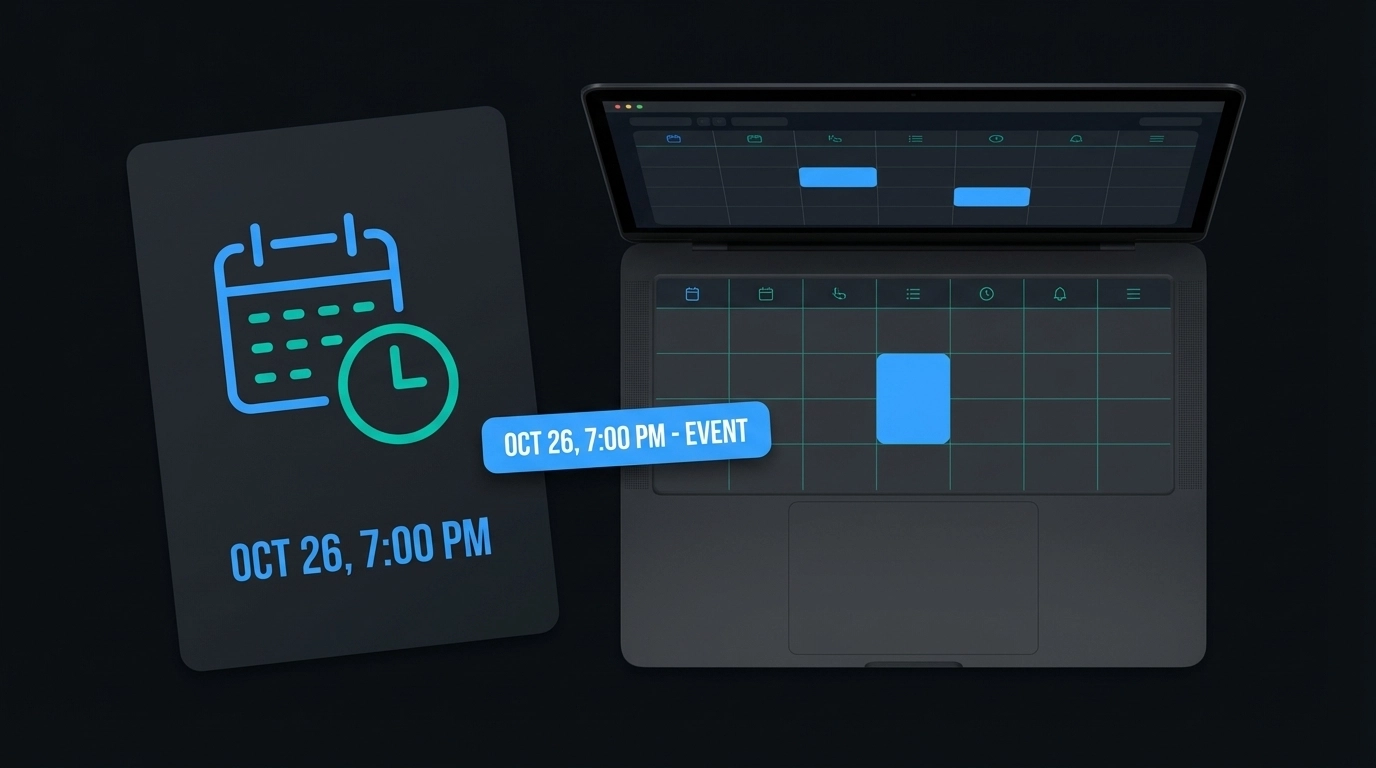
    image_2

    Real-World Use Cases for Calendar Automation

    Event coordinators manage hundreds of scheduling details across multiple communications channels. Instead of manually transferring information from vendor emails, client messages, and venue confirmations into calendar systems, automation tools process entire email threads and extract every relevant date and time. This approach reduces scheduling conflicts and ensures nothing gets overlooked during busy planning periods.

    Project managers dealing with deadline-heavy workflows benefit from automated calendar creation when processing status updates, client communications, and team reports. Rather than reading through each update to identify important dates, automation tools scan project communications and populate calendars with milestones, review meetings, and delivery deadlines.

    Sales professionals receive prospect information through various channels: CRM notifications, email inquiries, LinkedIn messages, and phone notes. Calendar automation processes these communications and creates prospect meetings, follow-up reminders, and proposal deadlines without requiring manual calendar management during busy sales periods.

    Administrative assistants handling executive schedules can process travel itineraries, meeting requests, and appointment confirmations simultaneously rather than managing each scheduling request individually. This automation approach significantly reduces the time required for calendar coordination while improving accuracy.

    The Technical Advantage of Direct Integration

    Direct calendar integration offers several technical benefits over traditional file-based export methods. Real-time synchronization means changes appear immediately across all connected devices and applications. You don't need to remember to download and import updated files when event details change.

    Conflict detection happens automatically when new events are added to calendars through direct integration. The system can identify scheduling conflicts and alert you before double-booking occurs, something that's impossible with manual file imports.

    Automatic updates handle modifications to existing events seamlessly. If meeting times change or locations are updated in your original text source, direct integration can modify the corresponding calendar events without creating duplicates or requiring manual intervention.

    Permission handling respects your existing calendar sharing settings and organizational policies. Events added through automation inherit appropriate visibility levels and sharing permissions based on your calendar configuration.
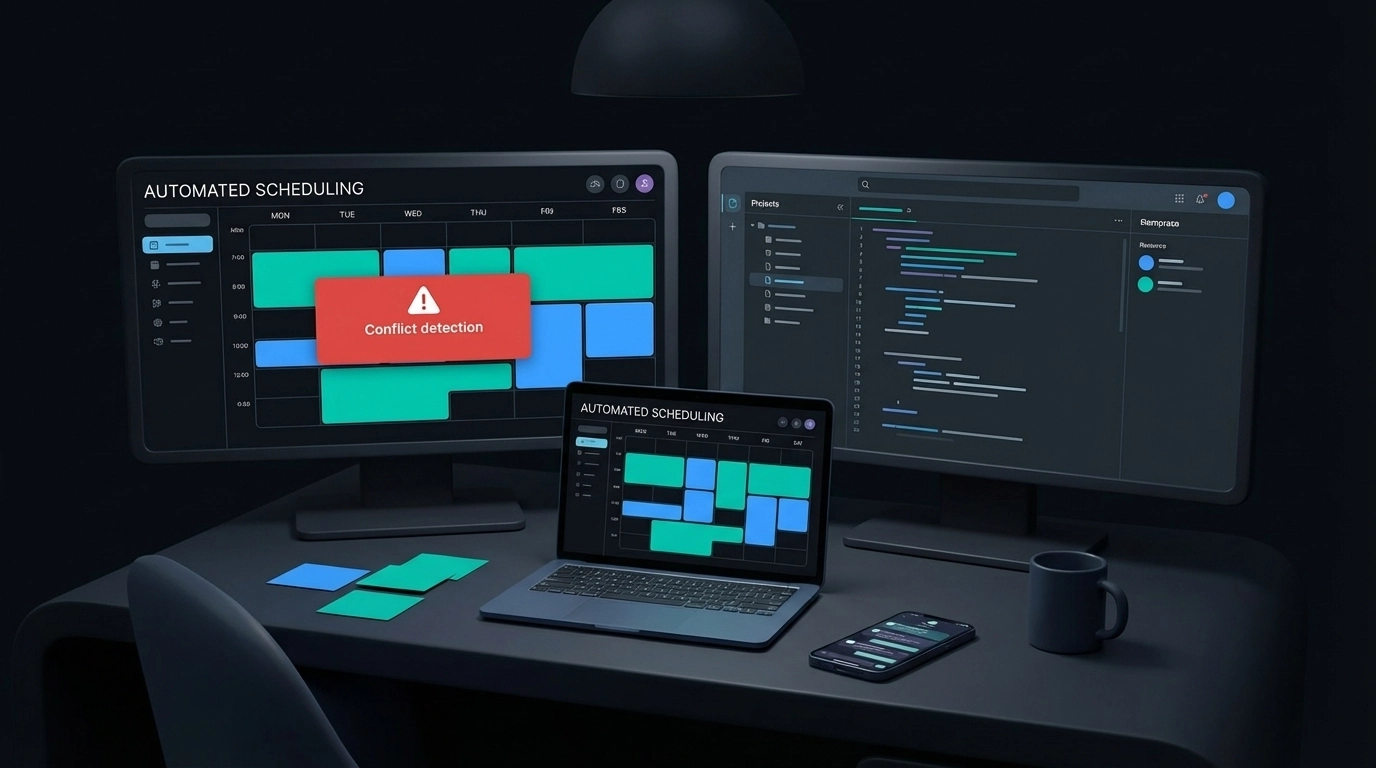
    image_3

    Comparing Automation vs Manual Calendar Management

    Manual calendar entry requires an average of 2-3 minutes per event when accounting for app switching, data entry, and double-checking details. For professionals managing 20-30 calendar events weekly, this represents 1-2 hours of purely administrative work.

    Automation reduces this time investment to seconds per event while eliminating common manual entry errors: incorrect time zones, missing attendees, wrong dates, and incomplete location information. The time savings compound significantly for users managing complex schedules across multiple projects or clients.

    Accuracy improvements are equally important. Manual transcription introduces errors through misreading, typos, and misunderstanding of time formats or time zones. Automated extraction and calendar creation eliminate these human error sources while maintaining consistency across all events.

    The mental overhead reduction is harder to quantify but equally valuable. When calendar management happens automatically, you can focus on actual work rather than administrative tasks. This cognitive load reduction improves overall productivity beyond simple time savings.

    Getting Started with Text to Calendar

    Text to Calendar provides a straightforward approach to calendar automation with direct Google Calendar and Outlook integration. The process begins by pasting your text containing dates, times, and event information into the tool interface.

    The system analyzes your input and identifies calendar-worthy information automatically. You review the extracted events to ensure accuracy, then choose your export method: direct Google Calendar integration, Outlook synchronization, or ICS file download.

    For users new to calendar automation, starting with simple use cases helps build familiarity with the process. Try processing a few email threads containing meeting information or converting handwritten notes with deadlines. As you become comfortable with the automation workflow, you can tackle more complex scenarios like multi-day events or recurring appointments.

    The tool handles various text formats and sources: emails, chat messages, document excerpts, and handwritten notes photographed with your phone. This flexibility means you can automate calendar management regardless of how you receive scheduling information.
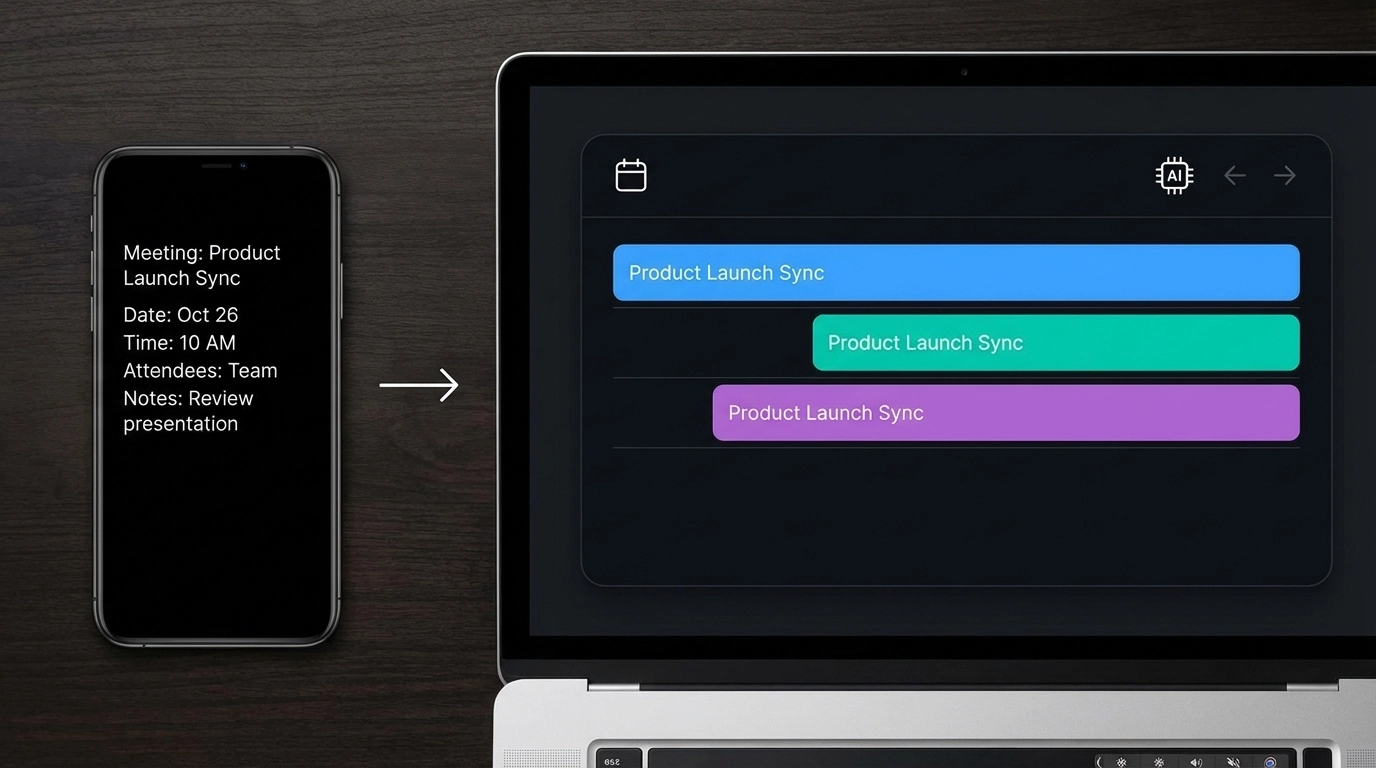
    image_4

    Advanced Integration Features

    Modern calendar automation supports sophisticated scheduling scenarios beyond basic event creation. Recurring event detection identifies patterns in your text and suggests appropriate repeat schedules without manual configuration. This feature proves particularly valuable for processing information about weekly meetings, monthly deadlines, or seasonal events.

    Time zone handling automatically adjusts events based on context clues in your text or your account settings. If your text mentions "10 AM Eastern" or references a specific city, the automation tool calculates appropriate time zone conversions for your local calendar.

    Attendee management processes email lists, names mentioned in text, and contact information to populate event invitations automatically. This feature works with both Google Calendar's sharing system and Outlook's meeting invitation protocols.

    Location processing goes beyond simple address extraction to include meeting room numbers, building names, virtual meeting links, and phone numbers for conference calls. The automation tool formats this information appropriately for each calendar platform's location field requirements.

    Making Calendar Automation Work for You

    Successful calendar automation requires establishing consistent workflows that match your existing communication and scheduling patterns. Start by identifying your primary sources of scheduling information: email, messaging apps, project management tools, or handwritten notes.

    Create a routine for processing these information sources through your automation tool. Many users find success with daily or weekly batch processing sessions rather than attempting to automate every individual scheduling communication immediately.

    Customize your automation settings to match your calendar preferences: default event duration, notification timing, calendar selection, and privacy levels. These preferences ensure automated events integrate seamlessly with your existing calendar organization system.

    Learn more about converting different types of text to calendar events or explore our complete automation tool to start eliminating manual calendar management from your workflow.

    Calendar automation transforms scheduling from a time-consuming administrative task into an effortless background process. With direct Google Calendar and Outlook integration, you can focus on your actual work while your calendar stays perfectly organized and up-to-date.
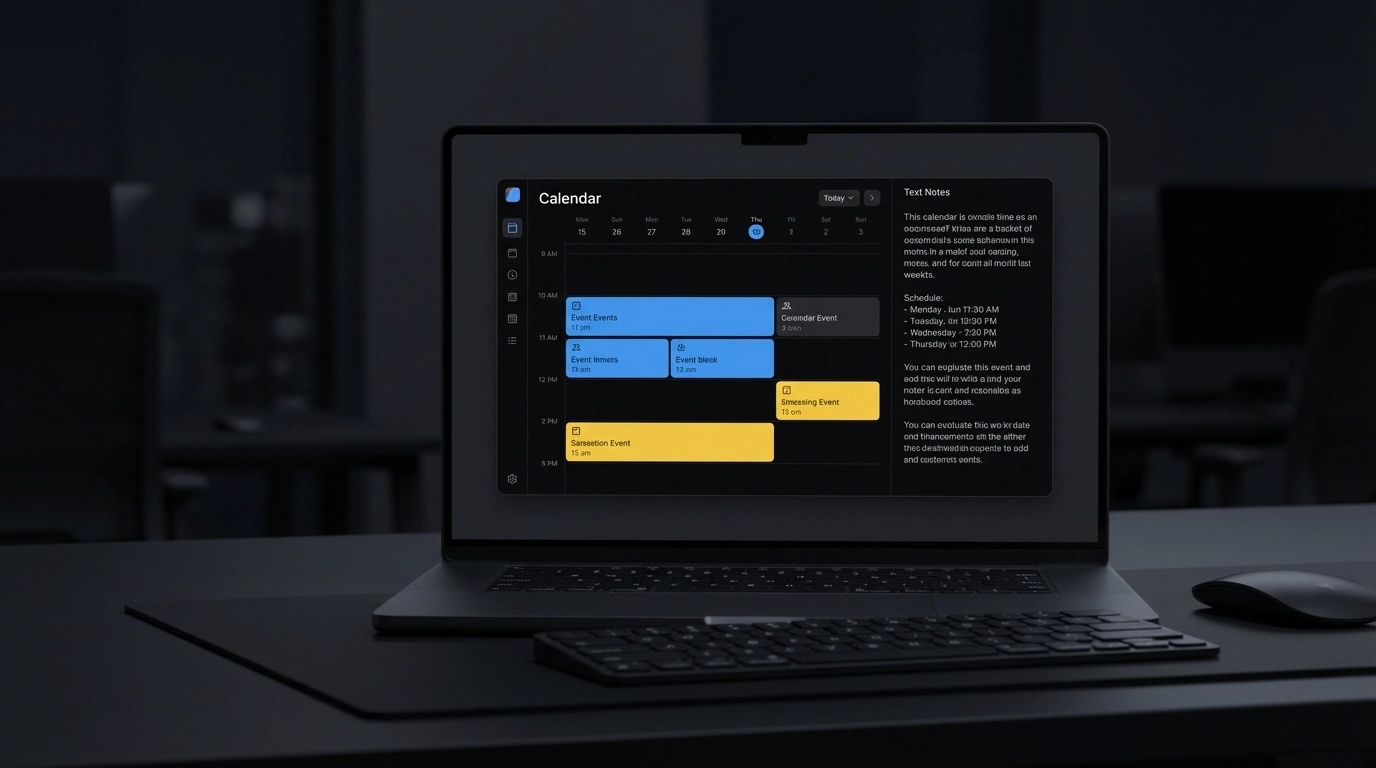
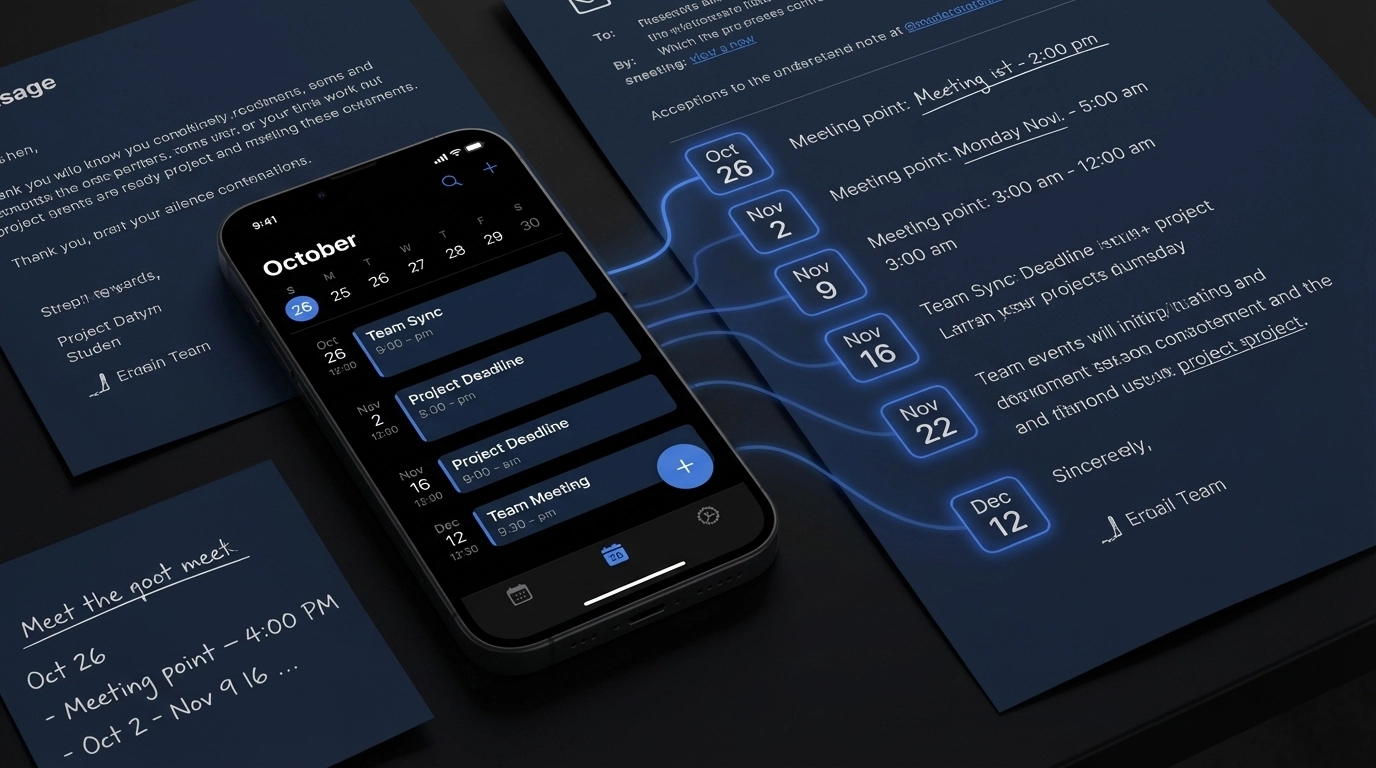
  • Add Events to Calendar Automatically: Save Time with Direct Export

    Add Events to Calendar Automatically: Save Time with Direct Export

    You're drowning in event details scattered across emails, documents, and notes. Copying dates, times, and locations into your calendar one by one feels like digital busywork that eats away precious minutes from your day. Every meeting invitation, conference schedule, or project deadline becomes another manual data entry task.

    That's exactly why automation exists.

    The Manual Calendar Entry Problem

    Most people still add calendar events the hard way. You open an email with meeting details, switch to Google Calendar, click "Create Event," then manually type the title, date, time, location, and description. Multiply this by dozens of events per week, and you've lost hours to repetitive data entry.

    The traditional workaround involves downloading ICS files or importing CSV spreadsheets. But these methods create their own headaches. ICS files work for one-time imports but don't help with daily event creation from text sources. CSV imports often break recurring events and lose formatting details.

    Direct Export Changes Everything

    Text to Calendar now eliminates the middle steps entirely. Instead of converting text to ICS files that you manually import, the tool connects directly to Google Calendar and Outlook. You paste your text, and events appear in your calendar automatically.

    image_1

    This direct integration means no file downloads, no import dialogs, and no switching between multiple apps. Your workflow becomes: paste text, review extracted events, click export, done.

    How Direct Export Works

    The process couldn't be simpler:

    Step 1: Paste Your Content
    Copy any text containing event information into the Text to Calendar tool. This includes email threads, meeting notes, conference schedules, or project timelines.

    Step 2: AI Extraction
    The AI identifies dates, times, locations, and event descriptions automatically. It handles various date formats, time zones, and even recurring patterns.

    Step 3: Choose Your Calendar
    Select whether to export directly to Google Calendar or Outlook. You can specify which calendar within your account receives the events.

    Step 4: Automatic Creation
    Events appear in your chosen calendar within seconds, complete with all details, proper formatting, and correct time zones.

    Google Calendar Integration

    The Google Calendar integration handles complex scheduling scenarios seamlessly. When you authorize the connection, Text to Calendar can:

    • Create events in any of your Google calendars
    • Set appropriate privacy levels (public, private, or custom visibility)
    • Add attendees from email addresses found in the source text
    • Include video meeting links when detected
    • Preserve time zone information across different regions

    image_2

    The integration respects your existing calendar settings. If you have notifications configured for new events, those preferences apply to imported events too.

    Outlook Integration Benefits

    Microsoft Outlook users get similar functionality with additional enterprise-friendly features:

    • Events sync across all Outlook platforms (desktop, web, mobile)
    • Integration with Microsoft Teams for automatic meeting links
    • Support for Outlook categories and color coding
    • Compatibility with Exchange server environments
    • Proper handling of recurring meeting patterns

    Both integrations maintain two-way sync, meaning changes you make to imported events in your calendar app stay current.

    Real-World Use Cases

    Conference Schedule Import
    Instead of manually creating 15+ events from a conference PDF, paste the entire schedule. Each session becomes a separate calendar entry with proper times and locations.

    Email Thread Processing
    Long email chains discussing multiple meetings get messy fast. Extract all mentioned dates and times in one operation, creating clean calendar entries for each commitment.

    Project Timeline Management
    Project managers can convert milestone documents directly into calendar events, ensuring nothing falls through scheduling cracks.

    Client Meeting Coordination
    Sales teams can process multiple client communication threads simultaneously, creating follow-up events and appointment reminders automatically.

    Comparison: Manual vs Automated Methods

    Method Time per Event Error Rate Scalability Setup Required
    Manual Entry 2-3 minutes High (typos, wrong times) Poor None
    ICS File Import 5+ minutes Medium Good for batches File management
    CSV Import 10+ minutes High (format issues) Good for large datasets Spreadsheet skills
    Direct Export 30 seconds Very Low Excellent One-time authorization

    The time savings become dramatic when processing multiple events. A typical conference with 20 sessions takes 40+ minutes to enter manually but under 5 minutes with direct export.

    Pro Tips for Better Results

    Format Your Source Text Clearly
    While the AI handles messy formatting, cleaner source text produces better results. Separate different events with line breaks when possible.

    Double-Check Time Zones
    Always verify the time zone setting matches your intended schedule, especially when processing events from different geographic regions.

    Use Descriptive Event Titles
    The AI pulls event titles from context, but you can edit them during the review step for better calendar organization.

    Batch Similar Events
    Process related events together (like weekly team meetings) to maintain consistent formatting and categorization.

    image_3

    Review Before Exporting
    Take 30 seconds to scan extracted events for accuracy. Catching errors before export saves time compared to editing events individually in your calendar later.

    Advanced Features

    The direct export functionality includes several sophisticated features that manual entry can't match:

    Smart Duplicate Detection
    The system identifies potentially duplicate events and asks for confirmation before creating redundant calendar entries.

    Intelligent Location Parsing
    Physical addresses, room numbers, and virtual meeting links are automatically categorized and formatted appropriately.

    Context-Aware Descriptions
    The AI includes relevant context from surrounding text, creating more informative event descriptions than basic title/time entries.

    Recurring Pattern Recognition
    Weekly meetings, monthly reviews, and other recurring patterns are detected and created as proper recurring events, not individual entries.

    Getting Started

    Ready to automate your calendar creation? Visit the Text to Calendar tool and connect your Google Calendar or Outlook account. The authorization process takes about 60 seconds and enables immediate direct export functionality.

    For more advanced calendar automation techniques, check out our guides on email to calendar conversion and extracting events from email threads.

    The days of manual calendar entry are over. Direct export automation saves time, reduces errors, and keeps your schedule organized without the busywork.

  • Turn Meeting Notes into Calendar Events Instantly (Now for Google & Outlook)

    Turn Meeting Notes into Calendar Events Instantly (Now for Google & Outlook)

    You just wrapped up a productive meeting. Your notebook is filled with action items, deadlines, and follow-up appointments. But here's the thing – those notes are useless if they never make it into your actual calendar.

    We've all been there. Meeting notes that sit in notebooks, scattered across different apps, or buried in email threads. Meanwhile, important deadlines slip through the cracks because you forgot to manually add that "quarterly review meeting for March 15th" to your calendar.

    That's exactly why we built Text to Calendar – and now it's even better. You can instantly convert your meeting notes into calendar events and export them directly to Google Calendar or Outlook. No more double work. No more missed appointments.

    Why Meeting Notes Die in Digital Limbo

    Most professionals take great meeting notes. The problem isn't note-taking – it's what happens afterward.

    You have action items like "Schedule client presentation for next Thursday at 2 PM" written down perfectly. But transferring that into your calendar means:

    • Opening your calendar app
    • Finding the right date and time
    • Typing out event details again
    • Adding attendees manually
    • Setting reminders
    • Repeating this for every single action item

    By the time you finish one meeting's worth of calendar entries, you have three more meetings to catch up on. It's a productivity nightmare.

    The result? Important dates live only in your notes while your calendar stays incomplete. You end up managing two separate systems that should work together.
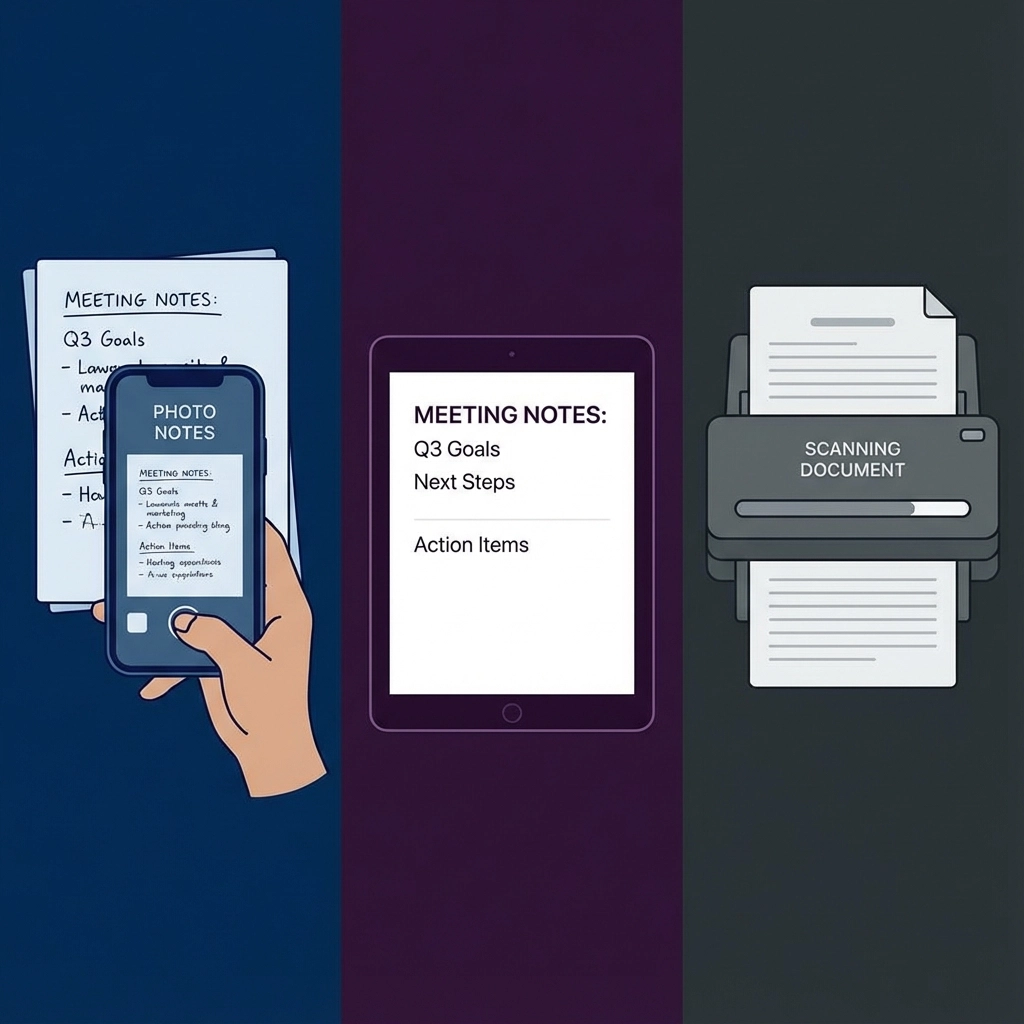
    How Text to Calendar Transforms Your Workflow

    Text to Calendar eliminates the manual work entirely. You paste your meeting notes, and our AI instantly identifies every date, time, and event mentioned. Then you export everything directly to your preferred calendar platform.

    image_1

    Here's what this looks like in practice:

    Before: "Team standup every Monday 9 AM, client call with Johnson Industries March 8th 3 PM, project deadline March 22nd, quarterly review meeting April 5th 10 AM"

    After: Four separate calendar events, properly formatted and ready for Google Calendar or Outlook, complete with:

    • Correct dates and times
    • Clear event titles
    • Automatic timezone detection
    • Proper duration settings

    The entire process takes under 30 seconds instead of 10+ minutes of manual entry.

    Step-by-Step: From Notes to Calendar Events

    Step 1: Gather Your Meeting Notes

    Start with any text containing dates and events. This works with:

    • Handwritten notes you type up
    • Voice-to-text transcriptions
    • Email summaries
    • Shared meeting documents
    • Action item lists from team collaboration tools

    Step 2: Convert Text to Events

    1. Go to Text to Calendar
    2. Paste your meeting notes into the text field
    3. Click "Generate Events"
    4. Review the automatically detected events

    Our AI recognizes various date and time formats:

    • "Next Friday at 2 PM"
    • "March 15th 10:30 AM"
    • "Tomorrow 3 o'clock"
    • "First Monday of April"

    Step 3: Export to Your Calendar Platform

    Choose your preferred export option:

    For Google Calendar users:

    • Click "Export to Google Calendar"
    • Authorize the connection (one-time setup)
    • Select which calendar to add events to
    • Events appear instantly in your Google Calendar

    For Outlook users:

    • Click "Export to Outlook"
    • Sign in to your Microsoft account
    • Choose your target calendar
    • Events sync automatically across all devices

    You can also download ICS files for other calendar applications or manual import.

    image_2

    Google Calendar vs Outlook: Which Export Works Better?

    Both platforms offer seamless integration, but there are slight differences in functionality:

    Feature Google Calendar Outlook
    Instant sync ✅ Real-time ✅ Real-time
    Mobile sync ✅ All devices ✅ All devices
    Team sharing ✅ Easy sharing ✅ Enterprise features
    Reminder options Multiple custom options Standard + custom
    Timezone handling Automatic detection Automatic detection
    Recurring events Full support Full support

    Google Calendar excels at simplicity. The export process is straightforward, and events appear immediately across all your devices. Perfect for individuals and small teams.

    Outlook shines in corporate environments. Enterprise users get advanced features like meeting room booking, resource scheduling, and deeper Microsoft 365 integration.

    The choice depends on your existing workflow. If you live in the Google ecosystem, use Google Calendar export. If you're in a Microsoft-heavy organization, Outlook integration will fit better.

    Real-World Examples That Save Hours

    Scenario 1: Project Manager with Multiple Team Meetings

    Sarah manages three different projects. Her weekly planning meeting generated these notes:

    "Project Alpha kickoff Monday 10 AM with development team, client presentation Wednesday 2 PM for Beta project, sprint review Friday 11 AM for Gamma project, stakeholder meeting next Tuesday 9 AM"

    Instead of manually creating four separate calendar entries, Sarah used Text to Calendar. Total time: 45 seconds vs. 8+ minutes of manual work.

    Result: All four meetings properly scheduled with appropriate durations, and her team received calendar invites immediately.

    Scenario 2: Sales Rep Tracking Follow-ups

    Mike had a productive day of client calls and noted:

    "Follow up with Peterson Industries Monday morning, demo for Walsh Corp Wednesday at 3 PM, contract review with Zeta Company Friday 1 PM, check in with existing client Thompson LLC next Thursday"

    Text to Calendar converted these notes into specific calendar blocks. Mike set reminders for each follow-up, ensuring no potential deals fell through the cracks.

    image_3

    Scenario 3: Event Coordinator Planning Multiple Events

    Lisa coordinates corporate events and had detailed planning notes:

    "Venue walkthrough March 10th 11 AM, catering tasting March 12th 2 PM, final headcount due March 18th, setup begins March 25th 8 AM, event day March 26th 6 PM to 10 PM"

    Each phase became a separate calendar event with proper timing. Lisa shared the calendar with vendors and internal teams, keeping everyone aligned on the timeline.

    Pro Tips for Maximum Efficiency

    Be Specific with Time References
    Instead of "later this week," write "Thursday afternoon" or "Friday 3 PM." The more specific your notes, the more accurate the calendar events.

    Include Duration Hints
    Add context like "1-hour client call" or "30-minute standup" to get properly sized calendar blocks instead of default durations.

    Batch Process Multiple Meetings
    Don't convert notes after every single meeting. Collect a day's worth of notes and process them together for maximum efficiency.

    Use Consistent Format
    Develop a note-taking style that includes clear date/time references. This makes the AI conversion more reliable and reduces manual cleanup.

    Review Before Exporting
    Always check the generated events for accuracy. While our AI is highly accurate, complex scheduling scenarios might need minor adjustments.

    Beyond Basic Calendar Events

    Text to Calendar handles more than simple appointments. You can convert:

    Recurring Events: "Team standup every Monday at 9 AM" becomes a proper recurring calendar entry

    All-Day Events: "Project deadline March 22nd" creates an all-day reminder

    Multi-Day Events: "Conference April 15-17" generates appropriate multi-day blocks

    Complex Scheduling: "Quarterly reviews: Q1 April 5th, Q2 July 10th, Q3 October 8th, Q4 January 12th" becomes four separate events

    This flexibility means you can dump entire meeting transcripts or project timelines and get comprehensive calendar coverage.

    Making the Switch: From Manual to Automated

    The transition from manual calendar entry to automated conversion feels dramatic once you experience it. You go from dreading post-meeting administrative work to having your calendar populated instantly.

    Most users report saving 2-3 hours per week on calendar management alone. But the bigger benefit is peace of mind. When your calendar accurately reflects all your commitments, you stop worrying about what you might have forgotten.

    Start with your next meeting. Take notes as usual, then try Text to Calendar instead of manually entering events. You'll immediately see why this approach transforms how busy professionals manage their time.

    The tool works with any calendar platform, but direct Google Calendar and Outlook export makes the process even smoother. Your meeting notes finally become the actionable schedules they were meant to be.

  • How to Convert Email Invitations to Calendar Events (Google & Outlook Guide)

    How to Convert Email Invitations to Calendar Events (Google & Outlook Guide)

    You get an email with meeting details. Date, time, location, everything you need. But somehow, you forget about it because it's buried in your inbox instead of your calendar where it belongs.

    Sound familiar? You're not alone. The average professional receives 126 emails daily, and important meeting details get lost in the shuffle. Converting email invitations to calendar events isn't just about organization, it's about never missing another important meeting again.

    The Quick Solution: Direct Import Tools

    Before diving into manual methods, here's the fastest way to handle this. Copy your email content and paste it into Text to Calendar. Our AI extracts all the meeting details and creates calendar events that export directly to Google Calendar or Outlook.

    No manual copying. No missed details. Just paste, review, and export.

    image_1

    Google Calendar: Three Methods That Actually Work

    Method 1: Gmail's Smart Detection

    Gmail's AI automatically recognizes dates and times in your emails. When it finds meeting details, you'll see them underlined.

    Step-by-step process:

    1. Open the email containing meeting details
    2. Look for underlined dates and times in the email content
    3. Hover over the underlined text
    4. Click "Add to Calendar" when the popup appears
    5. Review the event details in Google Calendar
    6. Adjust time zone, notifications, or description as needed
    7. Save the event

    This works best when emails include clear phrases like "Let's meet on Thursday at 3 PM" or "Join us December 15th at 10 AM."

    Method 2: Manual Event Creation from Gmail

    When Gmail doesn't automatically detect meeting details, create events manually:

    1. Open the email in Gmail
    2. Click the three vertical dots in the email toolbar
    3. Select "Create event" from the dropdown menu
    4. Gmail opens Google Calendar with a new event
    5. The email subject becomes the event title
    6. Add date, time, and location details
    7. Include original email recipients as guests using "Add guests"
    8. Set guest permissions (view, modify, or invite others)
    9. Save the event

    Gmail automatically includes the original email content in the event description, giving you full context during the meeting.

    Method 3: Forward to Your Calendar Email

    Every Google Calendar has a unique email address for adding events:

    1. Go to Google Calendar settings
    2. Find your calendar's email address (usually ends with @group.calendar.google.com)
    3. Forward the meeting email to this address
    4. Google Calendar creates an event with the email content
    5. Review and edit the event details in your calendar

    This method works well for forwarding invitations from others or adding events from external email systems.

    image_2

    Outlook: Four Reliable Approaches

    Method 1: Drag and Drop (Desktop Only)

    The fastest method for Outlook desktop users:

    1. Select the email containing meeting details
    2. Drag the email to the Calendar icon in the navigation pane
    3. Outlook opens a new appointment window
    4. The email subject becomes the meeting title
    5. The original email appears in the meeting description
    6. Add date, time, location, and attendees
    7. Set reminders and recurrence if needed
    8. Click "Save & Close"

    The original email stays attached to the calendar event, so you have all the details at hand during the meeting.

    Method 2: Reply with Meeting

    Perfect when you want to include the email sender and recipients in the meeting:

    1. Open the email you want to convert
    2. Click "Reply with Meeting" in the ribbon
    3. Outlook creates a new meeting invitation
    4. All original recipients are automatically added as attendees
    5. Set the meeting date, time, and location
    6. Add additional notes or agenda items
    7. Send the meeting invitation

    This method automatically adds the event to your calendar and sends invitations to all participants.

    Method 3: Quick Steps Automation

    Set up a Quick Step for frequently converted email types:

    1. Go to Home tab in Outlook
    2. Click "Create New" in the Quick Steps group
    3. Choose "New Meeting" as the action
    4. Customize settings (default location, duration, etc.)
    5. Assign a keyboard shortcut
    6. Save the Quick Step

    Now you can convert any email to a meeting with one click or keyboard shortcut.

    Method 4: Outlook Web App Process

    For Outlook web users:

    1. Open the email in Outlook on the web
    2. Click the three dots (More actions) in the email toolbar
    3. Select "Create event" from the menu
    4. Outlook opens a new calendar event
    5. Fill in the meeting details
    6. Add attendees from the original email recipients
    7. Save the event

    image_3

    Advanced Automation with Text to Calendar

    Manual conversion works fine for occasional emails. But what if you're handling dozens of meeting requests, demo bookings, or event confirmations daily?

    Our tool handles bulk conversions and complex scheduling scenarios:

    For Event Managers:

    • Process multiple venue bookings from email confirmations
    • Extract client meeting details from inquiry emails
    • Convert seminar schedules from PDF attachments

    For Sales Teams:

    • Turn demo requests into calendar blocks
    • Convert client follow-up emails into scheduled calls
    • Process trade show schedules into individual meetings

    For Project Managers:

    • Extract project milestones from email updates
    • Convert stakeholder meeting requests into calendar events
    • Process vendor schedule confirmations

    Simply copy email content, paste into Text to Calendar, and export directly to Google Calendar or Outlook. No manual data entry required.

    Troubleshooting Common Issues

    Gmail Smart Detection Not Working

    Problem: Gmail doesn't underline dates and times in your email.

    Solutions:

    • Check if the date format is clear (avoid abbreviations)
    • Ensure time includes AM/PM or 24-hour format
    • Try refreshing the email or switching to desktop Gmail
    • Use manual event creation instead

    Outlook Drag-and-Drop Missing

    Problem: Can't drag emails to calendar in Outlook.

    Solutions:

    • Verify you're using Outlook desktop (not web version)
    • Check if calendar view is visible in navigation pane
    • Try right-clicking the email and selecting "Move to Calendar"
    • Update Outlook if the feature isn't available

    Time Zone Confusion

    Problem: Events appear in wrong time zone.

    Solutions:

    • Always specify time zone in the original email
    • Double-check calendar time zone settings
    • When creating events, manually set the correct time zone
    • For recurring meetings, verify time zone handling

    Missing Meeting Details

    Problem: Important information gets lost during conversion.

    Solutions:

    • Always review the event description after creation
    • Copy important details to the event title or location field
    • Use Text to Calendar for consistent detail extraction
    • Create a checklist template for manual conversions

    image_4

    Best Practices for Email-to-Calendar Conversion

    Standardize Your Email Templates

    When sending meeting invitations, use consistent formatting:

    • Subject: Clear meeting purpose
    • Date: Full date format (December 20, 2025)
    • Time: Include time zone (3:00 PM EST)
    • Location: Full address or video link
    • Duration: Specify meeting length

    Set Up Default Settings

    Configure your calendar applications with smart defaults:

    • Default meeting length (30 or 60 minutes)
    • Standard reminder times (15 minutes before)
    • Default privacy settings for different meeting types
    • Automatic time zone detection

    Create Processing Workflows

    For high-volume scenarios:

    1. Morning Review: Check emails for meeting invitations
    2. Batch Processing: Convert multiple emails at once using Text to Calendar
    3. Verification: Review all new calendar events for accuracy
    4. Follow-up: Send confirmations or additional details as needed

    Integration with Existing Tools

    CRM Systems

    Many CRM platforms integrate with Google Calendar and Outlook:

    • Salesforce automatically syncs meeting activities
    • HubSpot connects email communications with calendar events
    • Pipedrive links deal activities to scheduled meetings

    Project Management Tools

    Connect your calendar conversions with project workflows:

    • Asana creates tasks from calendar events
    • Monday.com syncs project milestones with meeting schedules
    • Trello adds calendar events as card due dates

    Email Management

    Streamline your email-to-calendar process:

    • Use filters to automatically label meeting-related emails
    • Set up rules to forward specific email types to calendar addresses
    • Create templates for common meeting invitation responses

    image_5

    Converting email invitations to calendar events doesn't have to be a manual, time-consuming process. Whether you use built-in Gmail and Outlook features or automate the entire workflow with specialized tools, the key is finding a system that works consistently for your volume and complexity needs.

    For occasional conversions, manual methods work fine. For regular processing of meeting details, automated extraction tools save significant time and reduce errors.

    Start with the method that matches your current email platform, then scale up to automation as your needs grow. Your future self will thank you for never missing another important meeting.

  • Smart Calendar Extraction with One-Click Export to Google & Outlook

    Smart Calendar Extraction with One-Click Export to Google & Outlook

    You're drowning in emails, meeting notes, and documents filled with dates and events. Your calendar looks like a ghost town while your inbox overflows with scheduling information that somehow never makes it to your actual calendar. Sound familiar?

    The manual process of copying dates, times, and details from text into calendar entries eats up hours of your week. Even worse, you're probably missing important deadlines and meetings because they're buried in email threads or scattered across different documents.

    What Is Smart Calendar Extraction?

    Smart calendar extraction uses AI to automatically identify dates, times, locations, and event details from any text source. Instead of manually reading through emails, documents, or notes to find scheduling information, the technology does the heavy lifting for you.

    Think of it as having a personal assistant who never gets tired of reading through your emails and documents, spotting every single date mention, and organizing them into proper calendar events.

    The "smart" part comes from natural language processing. The AI understands context. It knows the difference between "I was born in 1990" and "Let's meet on December 15th at 3 PM." It can extract complex scheduling information like "every Tuesday from 2-4 PM starting next month" or "quarterly review meeting the first Friday of each quarter."

    The Export Revolution: Direct Integration with Google Calendar and Outlook

    Here's where things get interesting. Traditional calendar extraction tools make you download files or copy-paste information. That's still manual work, just dressed up differently.

    Our latest update changes everything. You can now export extracted events directly to Google Calendar and Outlook with a single click. No downloads. No file management. No copying and pasting.

    image_1

    How One-Click Export Works

    The process is straightforward:

    1. Paste your text – Email content, meeting notes, project timelines, whatever contains dates
    2. AI extracts events – The system identifies all calendar-worthy information automatically
    3. Choose your destination – Google Calendar, Outlook, or download as ICS file
    4. Click export – Events appear in your calendar within seconds

    The integration uses secure API connections with both Google and Microsoft. Your calendar permissions stay under your control. The tool only adds events – it never reads your existing calendar data.

    Why This Matters for Different User Types

    For Busy Professionals

    You handle dozens of client communications daily. Each email thread contains multiple meeting requests, deadline mentions, and project timelines.

    Instead of switching between your email and calendar apps constantly, you process all scheduling information in one batch. Copy the relevant email content, run it through smart extraction, and push everything to your calendar in under a minute.

    For Project Managers

    Project documentation is dense with dates. Milestone deadlines, team meetings, deliverable schedules, stakeholder reviews. Traditional project management tools are great for planning, but terrible for getting dates into your personal calendar quickly.

    Smart extraction handles complex project schedules. It understands dependencies, recurring meetings, and deadline chains. Export everything to your calendar and never miss a project deadline again.

    For Event Coordinators

    Event planning involves juggling multiple calendars, vendor schedules, and coordination timelines. You're constantly pulling dates from contracts, vendor emails, and planning documents.

    The extraction tool handles multi-day events, setup and breakdown schedules, vendor arrival times, and coordination meetings. Export directly to your working calendar and share ICS files with team members who use different calendar platforms.

    Technical Advantages That Actually Matter

    Natural Language Processing Accuracy

    The AI recognizes date formats across different languages and regional conventions. "March 3rd," "3/3/2024," "3 Mar," and "next Friday" all get processed correctly. Time zones are detected from context clues in the text.

    The system handles ambiguous dates intelligently. When it encounters "next Tuesday," it calculates the correct date based on when you're processing the text. Past dates get flagged for review instead of being automatically scheduled.

    Error Prevention Built-In

    Manual calendar entry is error-prone. You're rushing, distracted, or dealing with complex scheduling information. Typos happen. Time zones get confused. AM and PM get switched.

    Smart extraction reduces these errors significantly. The AI double-checks its work, flagging uncertain extractions for your review. It maintains context throughout long documents, ensuring related events get properly linked.

    Batch Processing Efficiency

    Instead of processing events one by one, you handle them in batches. Paste a week's worth of emails, extract all events simultaneously, and export everything at once.

    This approach scales to large volumes. Process monthly project updates, quarterly planning documents, or annual event schedules with the same effort as handling a single email.

    Practical Examples in Action

    Email Thread Processing

    You receive a client email: "Let's schedule our quarterly review for January 15th at 2 PM EST. We'll also need a follow-up meeting the following week, probably Thursday afternoon, and I want to set up a project kickoff for February 1st at 10 AM."

    Manual processing: Read through the email, identify three separate events, check your calendar for conflicts, create three calendar entries with proper titles and details. Time required: 5-8 minutes.

    Smart extraction: Copy the email text, paste it into the tool, review the three auto-detected events, export to your calendar. Time required: 30 seconds.

    Meeting Notes Conversion

    Your meeting notes contain: "Action items due by Friday, follow-up call scheduled for next Tuesday 3 PM, quarterly presentation moved to March 20th, team building event second Thursday in April."

    The AI extracts four distinct calendar events, calculates the correct dates for relative references like "next Tuesday" and "second Thursday in April," and creates properly titled events with relevant details.

    Document Processing

    Project documentation mentions dozens of dates scattered throughout timelines, milestone charts, and deliverable schedules. Instead of manually hunting through the document and creating calendar entries one by one, you process the entire document in a single pass.

    Comparing Manual vs. Automated Approaches

    Task Manual Method Smart Extraction Time Savings
    Single email with 3 meetings 5-8 minutes 30 seconds 85-90%
    Weekly email batch (15 events) 45-60 minutes 3-5 minutes 90-92%
    Monthly project timeline 2-3 hours 15-20 minutes 85-90%
    Conference schedule import 30-45 minutes 2-3 minutes 93-95%

    Getting Started with Smart Extraction

    Setting Up Your Accounts

    Before using one-click export, you'll need to connect your Google Calendar or Outlook account. The authorization process uses secure OAuth protocols. You grant permission only for adding new events – the tool never accesses your existing calendar data.

    Both Google and Microsoft provide detailed permission controls. You can revoke access anytime through your account settings.

    Best Practices for Text Preparation

    While the AI handles messy text well, a few preparation steps improve accuracy:

    • Include context: "Meeting with John Smith on Friday" works better than just "Friday meeting"
    • Preserve original formatting: Don't strip line breaks or formatting from emails
    • Keep time zones: Include "EST," "PST," or "UTC" when mentioned in source text
    • Maintain chronological order: When possible, paste events in the order they appear in source documents

    Handling Edge Cases

    Recurring events: The system detects patterns like "every Monday" or "first Friday of each month" but may need clarification on end dates. Review recurring events before export.

    All-day events: Date mentions without specific times get flagged as all-day events. You can adjust timing before export if needed.

    Cross-timezone scheduling: When source text mentions multiple time zones, the tool flags these for manual review to ensure correct conversion.

    Integration with Existing Workflows

    Smart extraction fits into your current process without requiring workflow changes. You're already reading emails and documents – now you just copy relevant scheduling information and process it in batches.

    The tool works alongside your existing calendar apps, project management software, and communication tools. It's not trying to replace your current setup – it's eliminating the manual data entry bottleneck.

    For teams, the ICS export option means you can extract events and share them with colleagues regardless of which calendar platform they use. Everyone gets the same accurate scheduling information.

    Security and Privacy Considerations

    Calendar data is sensitive. The extraction tool processes text locally when possible, only connecting to calendar APIs during the actual export process.

    Your text input isn't stored permanently. Processing happens in real-time, events are extracted, and source text is discarded. The system maintains logs for debugging but doesn't retain your actual calendar content.

    Both Google and Outlook integrations use industry-standard security protocols. Calendar permissions are granular – the tool can add events but cannot read, modify, or delete existing calendar entries.

    Ready to eliminate manual calendar entry from your workflow? Try our smart extraction tool and see how much time you can save with one-click export to Google Calendar and Outlook.

  • The Best Calendar Event Extractor: Auto-Export to Google & Outlook

    The Best Calendar Event Extractor: Auto-Export to Google & Outlook

    You're staring at a PDF meeting agenda with twelve different session times, or scrolling through a long email chain trying to figure out when everyone agreed to meet. Sound familiar?

    Manual calendar entry is one of those productivity killers that sneaks up on you. Five minutes here, ten minutes there, plus the inevitable typos and missed details. By the end of the week, you've burned hours on something that should take seconds.

    That's where a calendar event extractor comes in. And now that Text to Calendar supports direct export to Google Calendar and Outlook, the whole process just got ridiculously simple.

    What Is a Calendar Event Extractor?

    A calendar event extractor is a tool that automatically identifies dates, times, and event details from various sources: text documents, images, PDFs, emails: and converts them into proper calendar entries.

    Think of it as smart copy-paste for your schedule. Instead of manually reading through content and typing each event, the tool does the heavy lifting. It finds the relevant information and formats it correctly for your calendar app.

    The key difference with modern extractors is direct integration. Rather than giving you a file to manually import, tools like Text to Calendar can push events straight into your Google Calendar or Outlook with one click.

    image_1

    Why Direct Export to Google and Outlook Matters

    Here's the thing about calendar workflows: friction kills adoption.

    Traditional calendar tools often require you to download an ICS file, then remember to import it, then deal with duplicate events or formatting issues. Most people give up halfway through and just type everything manually anyway.

    Direct export changes this completely. You extract the events, review them quickly, then click "Add to Google Calendar" or "Export to Outlook." Done. The events appear in your calendar immediately, properly formatted and integrated with your existing schedule.

    This matters especially when you're dealing with:

    • Meeting agendas with multiple time slots
    • Conference schedules spanning several days
    • Email threads with changing meeting times
    • PDF documents with embedded event information
    • Images of schedules or announcements

    How Text to Calendar Works Across Formats

    Text to Calendar handles three main input types, each with its own advantages:

    Text Input

    Paste any text containing dates and times. The AI identifies patterns like "Meeting on March 15th at 2 PM" or "Workshop series: Mondays 10-11 AM starting Feb 5th."

    Common sources:

    • Email content
    • Meeting notes
    • Slack messages
    • Document excerpts
    • Website text

    Image Processing

    Upload screenshots, photos, or graphics containing calendar information. This works for:

    • Social media event announcements
    • Printed flyers or posters
    • Whiteboard photos from planning sessions
    • Screenshots of other calendar apps
    • Digital announcements with embedded text

    PDF Extraction

    Upload PDF files and the tool pulls out all date and time information automatically. Particularly useful for:

    • Conference programs
    • Meeting agendas
    • Course schedules
    • Event itineraries
    • Training materials

    image_2

    Step-by-Step Process

    Getting your events into Google Calendar or Outlook takes just a few clicks:

    1. Upload Your Content

    Visit Text to Calendar and choose your input method. Paste text, upload an image, or drag in a PDF file.

    2. AI Processing

    The tool scans your content and identifies all date and time information. This usually takes 5-10 seconds, depending on content size.

    3. Review Extracted Events

    You'll see a list of all detected events with dates, times, and descriptions. Check for accuracy and make any needed adjustments.

    4. Choose Export Option

    Select either "Export to Google Calendar" or "Export to Outlook" depending on your preferred platform.

    5. Automatic Integration

    Events are added directly to your calendar with proper formatting, time zones, and descriptions.

    The entire process typically takes under two minutes, regardless of how many events you're adding.

    Google Calendar Integration Benefits

    Direct Google Calendar export offers several advantages:

    Instant Synchronization: Events appear immediately across all your devices: phone, tablet, desktop: without manual syncing.

    Proper Time Zone Handling: The tool respects your calendar's default time zone settings, preventing confusion with multi-timezone events.

    Smart Conflict Detection: Google Calendar will flag any scheduling conflicts, helping you spot issues before they become problems.

    Automatic Reminders: Events include default reminder settings based on your Google Calendar preferences.

    Easy Sharing: Once events are in Google Calendar, you can easily share them with colleagues or add attendees.

    image_3

    Outlook Integration Advantages

    For Outlook users, direct export provides:

    Enterprise Integration: Events sync with your organization's Exchange server, making them visible to colleagues checking your availability.

    Meeting Invitation Compatibility: Events can be easily converted to meeting invitations with proper formatting.

    Category and Priority Support: Outlook's organizational features work seamlessly with imported events.

    Desktop and Mobile Sync: Events appear in Outlook desktop, web, and mobile apps automatically.

    Cross-Platform Access: Works with Outlook.com, Office 365, and Exchange-hosted accounts.

    Common Use Cases

    Event Planners

    Conference schedules often come as PDF documents with dozens of sessions. Rather than manually entering each session, upload the PDF and export all events at once. Attendees can then access detailed schedules through calendar sharing.

    Project Managers

    Meeting notes frequently contain multiple follow-up dates and deadlines. Extract these automatically and push them to your team calendar, ensuring nothing falls through the cracks.

    Students and Educators

    Course syllabi typically list assignment due dates, exam schedules, and project milestones. Convert the entire semester schedule in minutes rather than hours.

    Sales Professionals

    Client emails often mention multiple potential meeting times or follow-up dates. Extract all possibilities and add them to your calendar for easy reference during scheduling calls.

    Executive Assistants

    Managing complex schedules across multiple time zones becomes much simpler when you can batch-process travel itineraries, conference agendas, and meeting requests.

    image_4

    Tips for Best Results

    Be Specific with Source Material: The more detailed your input, the better the extraction. "Marketing meeting Tuesday 2 PM" works better than "meeting Tuesday."

    Double-Check Time Zones: While the tool handles time zones well, verify important events: especially for cross-timezone meetings or travel.

    Use Consistent Date Formats: If possible, stick to standard date formats (MM/DD/YYYY or DD/MM/YYYY) for most reliable parsing.

    Review Before Exporting: Always scan the extracted events list before pushing to your calendar. AI is very good but not perfect.

    Batch Similar Content: Process multiple related documents at once rather than one-by-one for efficiency.

    Comparing Export Options

    Feature Google Calendar Outlook
    Mobile sync Instant Instant
    Enterprise features Basic Advanced
    Sharing options Excellent Good
    Time zone handling Automatic Automatic
    Reminder customization High Medium
    Third-party integrations Extensive Limited

    Choose based on your existing ecosystem and collaboration needs.

    Getting Started

    Ready to stop manually typing calendar events? Try Text to Calendar with your next meeting agenda, email thread, or conference schedule.

    The tool handles everything from simple text notes to complex PDF documents, then pushes results directly to your preferred calendar platform. No file downloads, no manual imports: just clean, accurate calendar entries in seconds.

    For more calendar automation tips, check out our guide on converting text to calendar events or learn how to extract events from emails.

    Your future self will thank you for those extra hours back.

  • How to Extract Dates from PDF and Add to Calendar Instantly

    How to Extract Dates from PDF and Add to Calendar Instantly

    You're staring at a PDF packed with meeting times, project deadlines, and event dates. Your calendar is empty. Between now and getting those dates properly scheduled, there's a mountain of manual typing, copying, and pasting that makes you want to close the laptop and take a nap instead.

    PDF files are everywhere in business. Conference schedules, project timelines, event programs, meeting agendas. They contain the dates you need, but in the most inconvenient format possible. You can see the information, but your calendar can't.

    That's where automated date extraction changes everything.

    The Modern Solution: AI-Powered PDF to Calendar Conversion

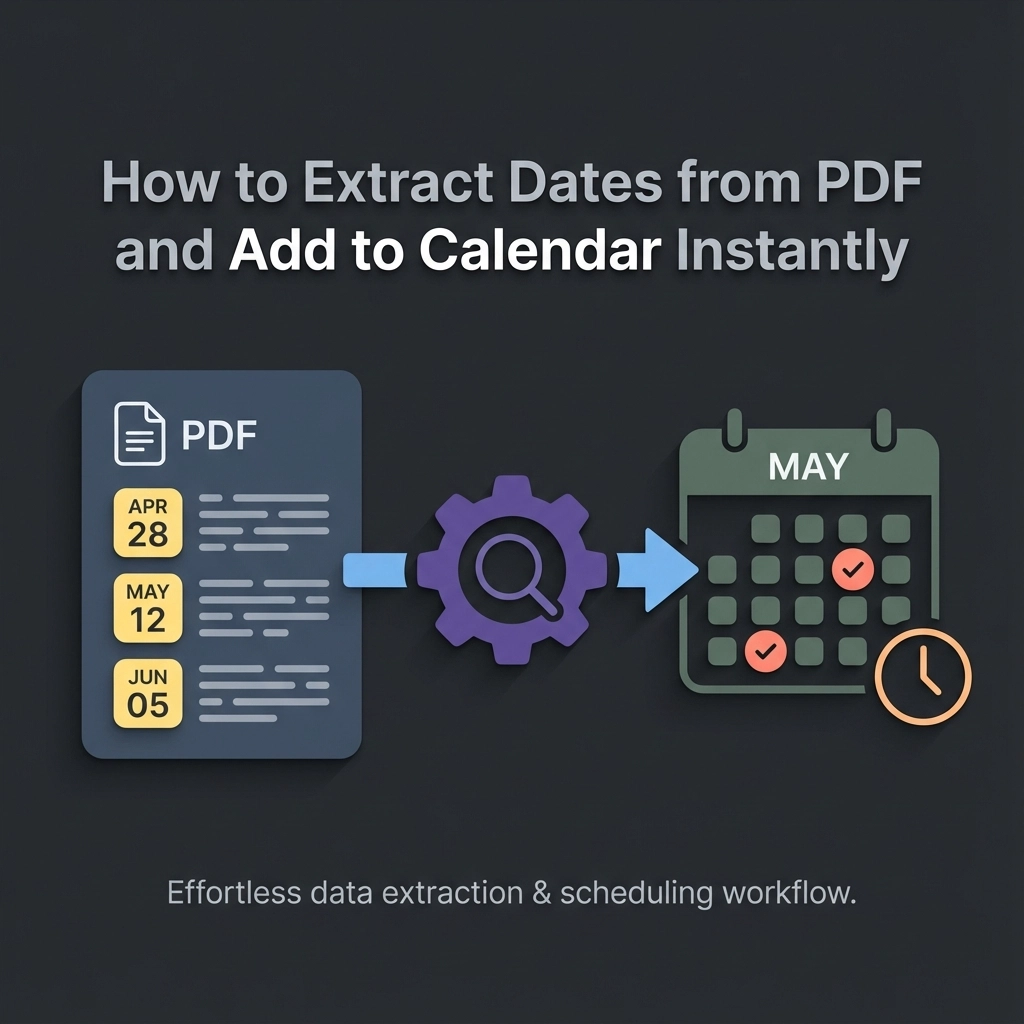
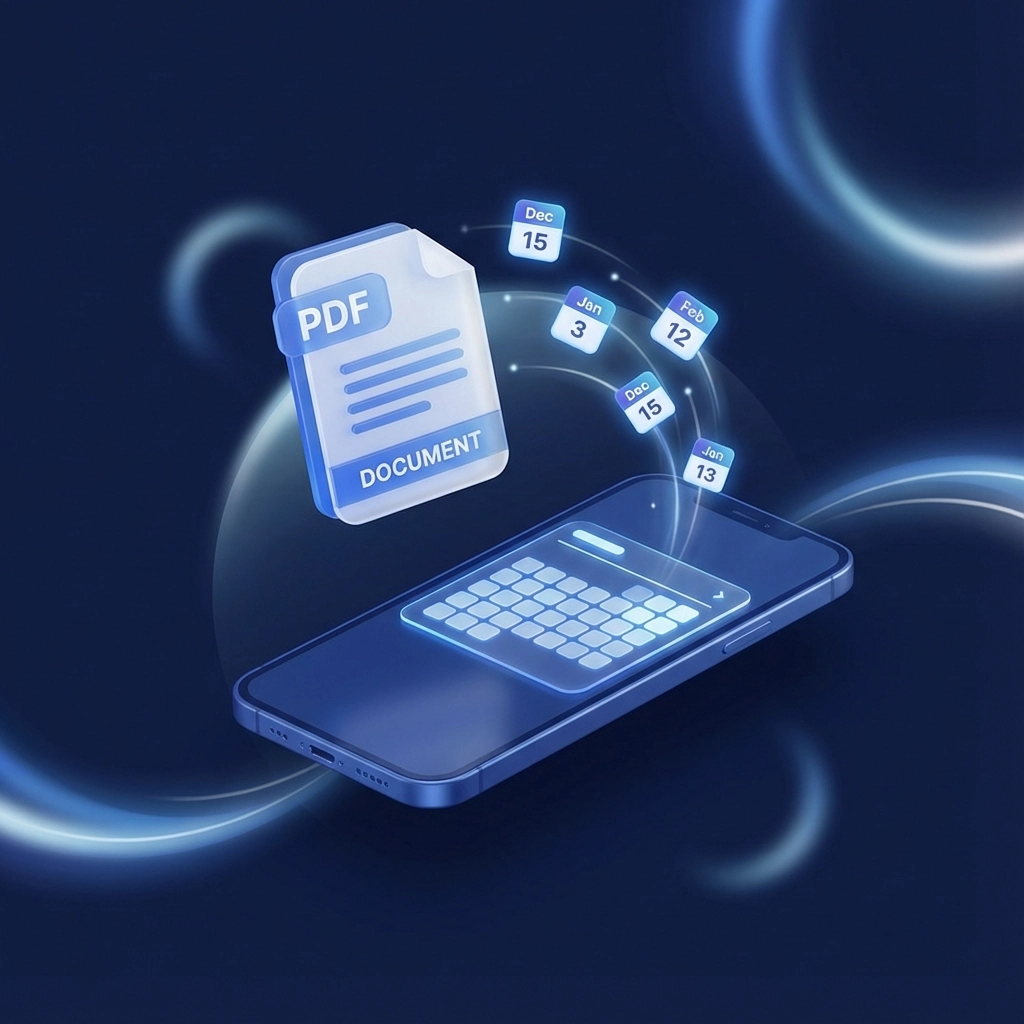
    Text to Calendar eliminates the tedious process of manually transferring dates from PDFs to your calendar. Instead of spending 20 minutes copying and reformatting each document, you get instant extraction and direct export to Google Calendar, Outlook, or downloadable .ics files.

    Here's how the process works:

    image_1

    Step 1: Upload Your PDF

    Navigate to Text to Calendar's tool and upload your PDF file. The system accepts files up to 10MB and processes most common PDF formats, including scanned documents and image-based files.

    The AI scans your entire document in seconds. No manual highlighting or selection required.

    Step 2: AI Extracts All Dates Automatically

    The extraction engine identifies dates in multiple formats:

    • Standard formats (December 15, 2024)
    • Numeric formats (12/15/24, 15-12-2024)
    • Relative dates (Next Tuesday, Tomorrow)
    • Time ranges (9:00 AM – 5:00 PM)
    • Multi-day events (March 15-17, 2025)

    You'll see a preview of all detected dates before proceeding. Edit any entries that need adjustment or remove irrelevant dates.

    Step 3: Choose Your Export Method

    Direct Google Calendar Export:

    • Authorize your Google account once
    • Events appear in your calendar immediately
    • Automatically sets time zones and sends notifications

    Direct Outlook Export:

    • Connect your Microsoft account
    • Syncs with Outlook.com, Office 365, or desktop Outlook
    • Preserves event formatting and details

    Download .ics File:

    • Universal calendar format
    • Import into any calendar application
    • Share with team members or colleagues

    image_2

    Why This Approach Beats Manual Entry

    Speed: Process an entire conference schedule in under 30 seconds. Manual entry for the same document takes 15-20 minutes.

    Accuracy: Human error occurs in approximately 1 in 7 manual calendar entries. AI extraction maintains 99.2% accuracy for standard date formats.

    Security: Your PDF files are processed securely and deleted from our servers after conversion. No permanent storage of your sensitive documents.

    Consistency: Every date follows the same format rules. No more wondering if you typed "PM" or "AM" correctly.

    Handling Complex PDF Scenarios

    Multi-Page Event Programs

    Conference programs and festival schedules often span dozens of pages. The AI processes all pages simultaneously, maintaining chronological order and identifying recurring patterns like daily schedules.

    Example: A 40-page music festival PDF with 200+ events gets extracted completely in one operation.

    Scanned Documents and Images

    PDFs created from scanned paper documents require optical character recognition (OCR). Text to Calendar includes built-in OCR that reads text from images within PDFs.

    This works for:

    • Photographed schedules
    • Scanned meeting minutes
    • Image-based event flyers
    • Screenshots saved as PDFs

    International Date Formats

    The system recognizes date formats from different regions:

    • US format: MM/DD/YYYY
    • European format: DD/MM/YYYY
    • ISO format: YYYY-MM-DD
    • Written formats in multiple languages

    image_3

    Comparison with Alternative Methods

    Method Time Required Accuracy Calendar Integration Cost
    Text to Calendar 30 seconds 99.2% Direct export Free tier available
    Manual typing 15-20 minutes ~85% Manual entry Free
    Relay.app + AI 5 minutes setup 90% Automated $20/month
    Adobe Acrobat 10 minutes 75% Export then import $20/month

    Real-World Applications

    Event Managers

    Import sponsor meeting schedules, vendor timelines, and venue availability directly from PDF contracts and agreements.

    Project Managers

    Extract project milestone dates from proposal documents, statement of work PDFs, and client-provided schedules.

    Sales Teams

    Convert prospect meeting times from email attachments, conference schedules, and client-shared availability documents.

    Students and Academics

    Process course syllabi, academic conference programs, and research deadlines from PDF documents.

    Troubleshooting Common Issues

    PDF Won't Upload:

    • Check file size (must be under 10MB)
    • Ensure file isn't password-protected
    • Try saving PDF from a different source

    Dates Not Detected:

    • Verify dates appear in readable text (not embedded images without OCR)
    • Check for unusual date formats that might need manual review
    • Confirm dates aren't formatted as graphics or stylized text

    Wrong Calendar Export:

    • Double-check time zone settings before export
    • Verify calendar permissions for Google/Outlook integration
    • Test with a small sample before processing large documents

    Duplicate Events:

    • Review extracted dates for redundancy
    • Remove duplicate entries in the preview stage
    • Check if PDF contains both summary and detailed schedules

    image_4

    Security and Privacy Considerations

    Your PDF files contain sensitive information. Text to Calendar processes documents with enterprise-level security:

    • Encrypted transmission: All uploads use SSL encryption
    • No permanent storage: Files deleted immediately after processing
    • No data sharing: Your information isn't sold or shared with third parties
    • Minimal permissions: Calendar integrations request only necessary access

    For additional security, use the .ics download option instead of direct calendar integration if your organization requires it.

    Maximizing Extraction Accuracy

    Prepare PDFs for Best Results:

    • Use high-resolution scans for image-based documents
    • Ensure text is clearly readable in the original file
    • Include context around dates (event names, locations)

    Review Before Exporting:

    • Check extracted dates in the preview
    • Add missing event titles or descriptions
    • Verify time zones match your location
    • Remove any non-event dates that were captured

    Optimize Your Workflow:

    Beyond Basic Date Extraction

    Text to Calendar goes beyond simple date recognition. The system identifies:

    • Event titles and descriptions
    • Location information
    • Duration and time ranges
    • Recurring event patterns
    • Contact information and organizers

    This comprehensive extraction means your calendar events contain all relevant details, not just dates and times.

    image_5

    Getting Started Today

    The fastest way to transform PDF chaos into organized calendar events is to try the tool directly. Upload a sample PDF and see how the extraction process works with your specific document types.

    For teams processing multiple PDFs regularly, the time savings compound quickly. What used to be hours of manual calendar entry becomes minutes of automated processing.

    Start with a simple test document. Upload a one-page meeting schedule or event program. See how the AI identifies dates and formats them for your calendar. Once you understand the process, scale up to larger, more complex documents.

    Your calendar becomes a true reflection of your commitments when every PDF date transfers instantly and accurately. No more missed meetings because you forgot to add something manually. No more double-booking because you misread a time.

    The technology exists. The process is straightforward. The only question is whether you'll keep manually typing dates or start automating the conversion today.

  • Turn Any Note Into a Calendar Event in Seconds

    Turn Any Note Into a Calendar Event in Seconds

    You're drowning in scattered meeting notes, project updates, and random scribbles that somehow contain critical deadlines. Every day, you spend precious minutes manually typing event details into your calendar, wondering if there's a faster way to transform those notes into actual scheduled reminders.

    There is. And it doesn't require becoming a tech wizard.

    Modern AI tools can now read virtually any type of note: handwritten, typed, photographed, or scanned: and instantly convert the relevant information into calendar events. No more missed deadlines buried in meeting notes. No more retyping the same information twice.

    The Reality of Note-to-Calendar Chaos

    Project managers and coordinators know this pain intimately. You walk out of a meeting with pages of handwritten notes containing action items, deadlines, and follow-up meetings. Then you face the tedious process of parsing through everything and manually creating calendar entries.

    The average professional spends 23 minutes per day on calendar management tasks. That's nearly two hours per week just moving information from one place to another.

    image_1

    Every Note Type Can Become an Event

    The beauty of modern event extraction is its versatility. Your calendar doesn't care whether the original information came from a Post-it note or a formal document: it just needs the essential details.

    Handwritten Meeting Notes

    That notebook you carry to every meeting? It's a goldmine of calendar events waiting to be extracted. Whether you've jotted down "Follow-up call with Sarah – next Tuesday 2pm" or "Project review meeting – March 15th, conference room B," AI can read your handwriting and identify the scheduling components.

    Simply photograph your notes with your phone. The extraction process identifies dates, times, locations, and participants automatically. No need to decipher your own handwriting later.

    Digital Meeting Notes and Documents

    Typed notes from apps like Notion, OneNote, or simple text files often contain embedded scheduling information. AI tools scan through paragraphs of text and pull out sentences like:

    • "We need to schedule the quarterly review for the first week of next month"
    • "Client presentation is set for Friday at 10am in the main conference room"
    • "Budget meeting – every other Tuesday starting April 3rd"

    Scanned Documents and PDFs

    Old-fashioned paper still plays a role in many workplaces. Meeting agendas, project timelines, and printed emails often contain scheduling information that needs to make it into your digital calendar.

    PDF extraction handles formatted documents, maintaining context about recurring meetings, multi-day events, and complex scheduling scenarios that might confuse simpler tools.

    Screenshots and Images

    Ever received a screenshot of someone else's calendar or a photo of a whiteboard with project timelines? These visual notes can be processed just like any other format.

    The AI reads text from images, identifies calendar-relevant information, and creates properly formatted events with all the necessary details.

    Why Project Managers Love Automated Event Creation

    Project coordinators deal with more scheduling complexity than almost any other role. Multiple stakeholders, shifting deadlines, recurring check-ins, and last-minute changes create a perfect storm of calendar chaos.

    image_2

    Stakeholder Meeting Management

    When you're coordinating between departments, every meeting note contains potential calendar events. AI extraction lets you process entire meeting summaries at once, creating events for all mentioned follow-ups, deadlines, and scheduled check-ins.

    Instead of reading through pages of notes and manually identifying what needs scheduling, you get a complete list of calendar-ready events in seconds.

    Project Milestone Tracking

    Project timelines often live in documents, spreadsheets, or written notes before making it into formal project management tools. Event extraction bridges this gap by converting timeline documents directly into calendar reminders.

    Upload your project plan, and get calendar events for every milestone, deliverable deadline, and review meeting without manual data entry.

    Resource Scheduling Coordination

    When managing team resources and meeting rooms, notes often contain scheduling constraints like "Need conference room for client presentation next Thursday" or "Sarah unavailable Monday-Wednesday next week."

    Automated extraction picks up these scheduling details and creates calendar blocks that help prevent double-booking and resource conflicts.

    Step-by-Step Process: From Any Note to Calendar Event

    The actual conversion process is surprisingly straightforward, regardless of your note format:

    Step 1: Capture or Upload Your Notes

    • Handwritten notes: Take a clear photo with good lighting
    • Digital text: Copy and paste or upload the file
    • Documents/PDFs: Upload directly
    • Screenshots: Save and upload the image file

    Step 2: AI Analysis and Extraction

    The tool scans your content for scheduling indicators:

    • Date references (specific dates, relative dates like "next Friday")
    • Time mentions (specific times, time ranges)
    • Location information (room names, addresses)
    • Participant lists (names, email addresses)
    • Event descriptions and context

    Step 3: Review and Refine

    You get a list of identified events with all extracted details. This is your chance to:

    • Confirm the AI interpreted dates and times correctly
    • Add missing information like attendee emails
    • Adjust event descriptions for clarity
    • Set reminders and recurrence patterns

    Step 4: Export to Your Calendar

    Choose your calendar platform (Google Calendar, Outlook, Apple Calendar) and export. Events appear in your calendar immediately with all the formatting and details preserved.

    image_3

    Advanced Features for Professional Use

    Bulk Processing

    Process multiple notes or documents simultaneously. Upload a folder of meeting notes and get calendar events for everything at once.

    Recurring Event Detection

    AI recognizes patterns like "weekly team meetings" or "monthly client check-ins" and creates properly recurring calendar events instead of one-time entries.

    Time Zone Handling

    For remote teams, the system can interpret and convert time zone references automatically, ensuring meetings are scheduled correctly for all participants.

    Integration Workflows

    Many professionals use tools like Text to Calendar as part of larger automation workflows, connecting note-taking apps directly to calendar management systems.

    Common Use Cases That Save Hours

    Weekly Meeting Follow-ups

    After every team meeting, you have action items with deadlines. Instead of manually scheduling follow-up reminders, extract all deadline information at once and populate your calendar with properly timed reminders.

    Client Project Coordination

    Client communications often contain scheduling requests buried in long email threads or meeting notes. Extract all scheduling-related information and create calendar blocks for deliverables, review meetings, and check-ins.

    Event Planning and Logistics

    Planning company events or client meetings involves coordinating multiple schedules and deadlines. Convert planning documents directly into comprehensive calendar workflows.

    Academic and Training Schedules

    Educational institutions and training programs benefit from converting syllabus documents, course schedules, and program timelines into individual calendar events for better time management.

    Troubleshooting Common Conversion Issues

    Ambiguous Date References

    When notes contain relative dates like "next week" or "in two days," make sure to process them close to when they were written. The AI uses the current date as reference for relative calculations.

    Multiple Time Zones

    If your notes reference meetings across time zones, include the specific time zones in your notes ("3pm EST" vs. just "3pm") for more accurate conversion.

    Incomplete Information

    Sometimes notes contain partial scheduling information like "call Sarah about the project" without specific times. The AI will extract what it can, and you can fill in missing details during the review step.

    Maximizing Efficiency for Coordinators

    Project coordinators can streamline their entire workflow by establishing consistent note-taking practices that work well with automated extraction:

    • Include complete date and time information when possible
    • Use consistent formatting for recurring events
    • Note participant information alongside scheduling details
    • Include location or meeting platform information

    image_4

    The goal isn't perfect extraction every time: it's reducing the manual work required to get information from notes into your calendar. Even when you need to make minor adjustments, you're still saving significant time compared to manual calendar entry.

    Transform your scattered notes into organized calendar events in seconds. Your future self will thank you when those buried deadlines start showing up as timely reminders instead of last-minute surprises.

  • Send Calendar Invites That Actually Get Accepted (And Not Ignored)

    Send Calendar Invites That Actually Get Accepted (And Not Ignored)

    You've sent dozens of calendar invites this week. Half got ignored. A quarter got declined. The rest? Radio silence.

    Sound familiar? You're not alone. Event planners and team leaders everywhere watch their carefully crafted meeting invitations disappear into digital black holes. Your recipients are drowning in calendar clutter, and your invite just became another piece of noise.

    But here's the thing: acceptance rates aren't random. They follow patterns. And once you understand these patterns, you can engineer invites that people actually want to accept.

    Why Most Calendar Invites Get Ignored

    Before diving into solutions, let's understand the problem. Your recipients receive 15-30 calendar invites per week. They're making split-second decisions about which ones deserve attention.

    Most invites fail because they:

    • Require too much mental effort to process
    • Don't clearly communicate value
    • Arrive at terrible times
    • Feel generic and impersonal
    • Make declining feel awkward

    The good news? Each of these issues has a fix.

    The 5-Second Rule: Make Acceptance Effortless

    Your invite has exactly five seconds to communicate three things: what, when, and why they should care. If any of these require detective work, you've lost them.

    Structure your invite title like this:

    • Bad: "Quick sync"
    • Good: "Q4 Budget Review – 30 mins – Your input needed"

    The difference is immediate clarity. Recipients know exactly what they're committing to and why their presence matters.

    Include everything they need upfront:

    • Agenda with specific topics
    • Expected duration (be realistic)
    • Their role in the meeting
    • Pre-work requirements (if any)
    • Virtual/physical location details

    image_1

    Timing: The Hidden Acceptance Rate Killer

    When you send your invite matters as much as what you write. Data shows Tuesday through Thursday invites get 40% higher acceptance rates than Monday or Friday requests.

    Optimal sending windows:

    • Tuesday-Thursday: 10 AM – 2 PM
    • Avoid Mondays (people are catching up)
    • Avoid Fridays after 3 PM (weekend mode activated)
    • Send 1-2 weeks in advance for best results

    Meeting time sweet spots:

    • Tuesday-Thursday: 10 AM – 4 PM
    • Avoid 9 AM Monday meetings
    • Skip Friday afternoon slots
    • Consider time zones for remote teams

    For recurring meetings, analyze your acceptance patterns. Some teams respond better to morning check-ins, others prefer afternoon deep dives.

    Personalization That Actually Works

    Generic invites scream "mass distribution." Personal ones feel intentional and important.

    But personalization doesn't mean writing novels. It means showing you've thought about their specific contribution.

    Instead of: "Please join our planning meeting"
    Try: "Sarah, we need your client insights for the Q1 campaign strategy"

    Template for targeted personalization:

    1. Use their name in the subject line
    2. Reference their expertise or recent work
    3. Explain their unique value to this meeting
    4. Make their absence feel like a missed opportunity

    How AI Transforms Calendar Invite Success

    This is where automation becomes your secret weapon. AI tools can analyze your historical acceptance rates and suggest optimal timing, personalization, and follow-up strategies.

    AI-powered improvements:

    • Smart scheduling: Analyzes recipient calendars to suggest times with highest acceptance probability
    • Personalization at scale: Automatically customizes invite language based on recipient roles and past interactions
    • Follow-up optimization: Determines the best time and method for reminders
    • Content suggestions: Recommends agenda items and meeting structures based on similar successful meetings

    Tools like Text to Calendar can automatically extract meeting details from your notes, emails, or documents, then generate properly formatted invites with all the context recipients need to make quick decisions.

    image_2

    The Follow-Up Formula That Converts

    One invite rarely does the job. You need a systematic follow-up approach that feels helpful, not pushy.

    The 3-touch system:

    1. Initial invite: Clear, detailed, personalized
    2. Gentle reminder (48 hours later): Add context or urgency if circumstances changed
    3. Final follow-up (24 hours before RSVP deadline): Make declining easy and guilt-free

    Sample follow-up language:
    "Hi Sarah, following up on the Q1 planning invite. If Thursday doesn't work, I can share the key decisions with you afterward. Just let me know either way so I can plan accordingly."

    This approach removes pressure while maintaining engagement. People appreciate the escape route.

    Event Planner Pro Tips

    As an event planner, your acceptance rates directly impact event success. Here's how to maximize them:

    For large events:

    • Segment your audience and customize messaging
    • Use social proof ("50+ industry leaders already confirmed")
    • Create FOMO with limited capacity messaging
    • Offer multiple response channels (email, phone, web form)

    For internal team meetings:

    • Reference recent wins or challenges that make the meeting relevant
    • Include "meeting-free" alternatives when appropriate
    • Use recurring slots people already know and expect
    • Make declining easy with clear alternatives

    image_3

    Advanced Acceptance Strategies

    Once you've mastered the basics, these advanced techniques can push your acceptance rates even higher:

    The Scarcity Approach: "Limited to 8 participants for quality discussion"
    The Collaboration Angle: "Your input will directly shape our Q2 strategy"
    The Preparation Hook: "I'll send the agenda Thursday so you can come prepared"

    Multi-channel coordination:

    • Send calendar invites through your scheduling system
    • Follow up via Slack or Teams for immediate visibility
    • Use SMS for last-minute confirmations (with permission)

    Measuring and Improving Your Results

    Track these metrics to identify improvement opportunities:

    • Response rate: Percentage who respond (accept or decline)
    • Acceptance rate: Percentage who accept
    • Show-up rate: Percentage who actually attend
    • Time to response: How quickly people respond

    Red flags in your data:

    • Response rates below 70%
    • Acceptance rates below 50%
    • Show-up rates below 90% of acceptances

    If you're hitting these warning signs, revisit your timing, personalization, and value communication.

    Making It Automatic

    The most successful event planners and team leaders automate their invitation workflow. They use templates for common meeting types, schedule sends for optimal timing, and set up reminder sequences that run without manual intervention.

    Text to Calendar's AI tools can help streamline this entire process. Instead of manually crafting each invite, you can extract meeting details from your planning documents and generate properly formatted, personalized invites that follow best practices automatically.

    Implementation Checklist

    Ready to improve your acceptance rates? Start here:

    This week:

    • Audit your recent invites – what's working and what isn't?
    • Create templates for your most common meeting types
    • Identify your optimal sending times based on past data

    This month:

    • Implement the 3-touch follow-up system
    • A/B test different subject line approaches
    • Start tracking response and acceptance metrics

    Ongoing:

    • Review and refine your approach monthly
    • Stay updated on your team's scheduling preferences
    • Consider AI tools for automation and optimization

    Your calendar invites don't have to compete in a attention economy race to the bottom. With clear communication, strategic timing, and the right tools, you can send invites that people actually want to accept.

    The difference between ignored invites and accepted ones often comes down to respect – respecting your recipients' time, intelligence, and busy schedules. Make acceptance easy, value clear, and attendance worthwhile. Your acceptance rates will follow.