Author: Penny From Marblism

  • Email to Calendar: Instantly Create Events From Messages

    Email to Calendar: Instantly Create Events From Messages

    You're drowning in emails. Meeting requests, conference invites, client appointments, deadline reminders: all buried in your inbox while you manually type each one into your calendar. One missed detail means double-booked meetings. One forgotten event means missed opportunities.

    Office admins handle dozens of scheduling requests daily. Event managers juggle multiple stakeholders across different time zones. The constant switching between email and calendar apps kills productivity and introduces errors.

    There's a better way. Auto-create calendar events directly from your emails. No more manual entry. No more missed details. Just instant, accurate scheduling that works while you focus on what matters.

    Why Email-to-Calendar Automation Changes Everything

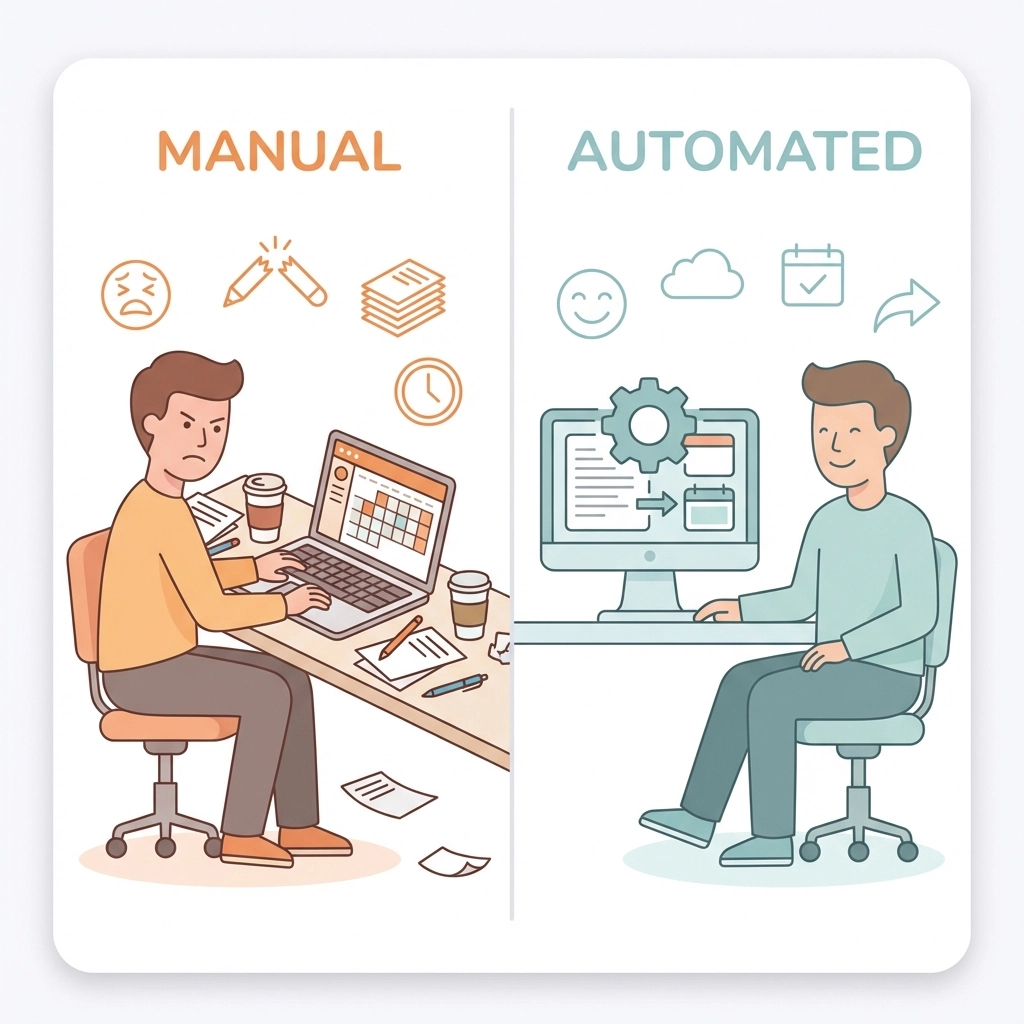
    Manual calendar entry isn't just inefficient: it's a business risk. When you're copying meeting details from emails, you're introducing multiple failure points. Wrong times get entered. Attendee lists get missed. Location details disappear.

    Office admins know this pain intimately. You receive a meeting request via email, open your calendar app, create a new event, copy-paste the subject line, manually enter the date and time, add attendees one by one, include the meeting link, and save. Multiply that by 20-30 emails per day.

    Event managers face even greater complexity. Client emails mention "next Tuesday" without specifying which Tuesday. Stakeholder messages include multiple meeting options. Venue confirmations arrive with detailed logistics that need accurate calendar entries.

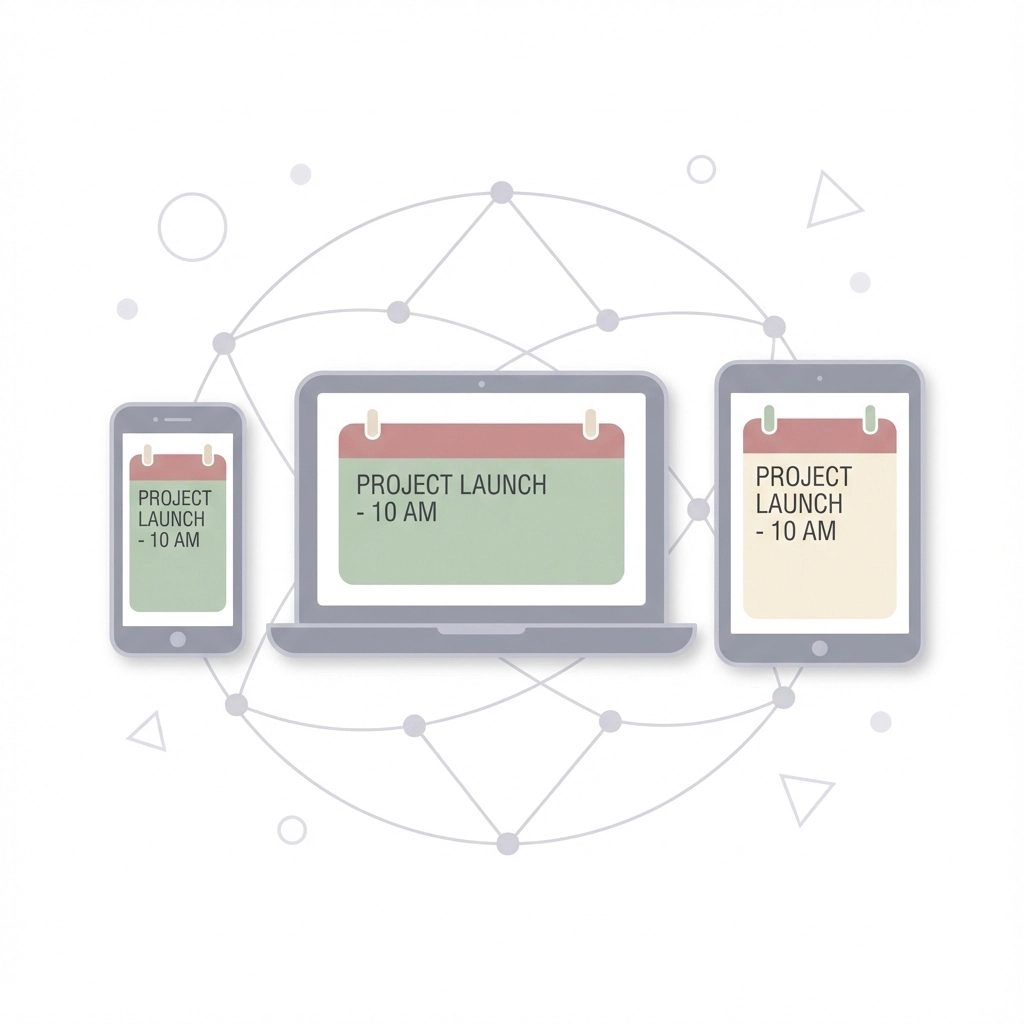
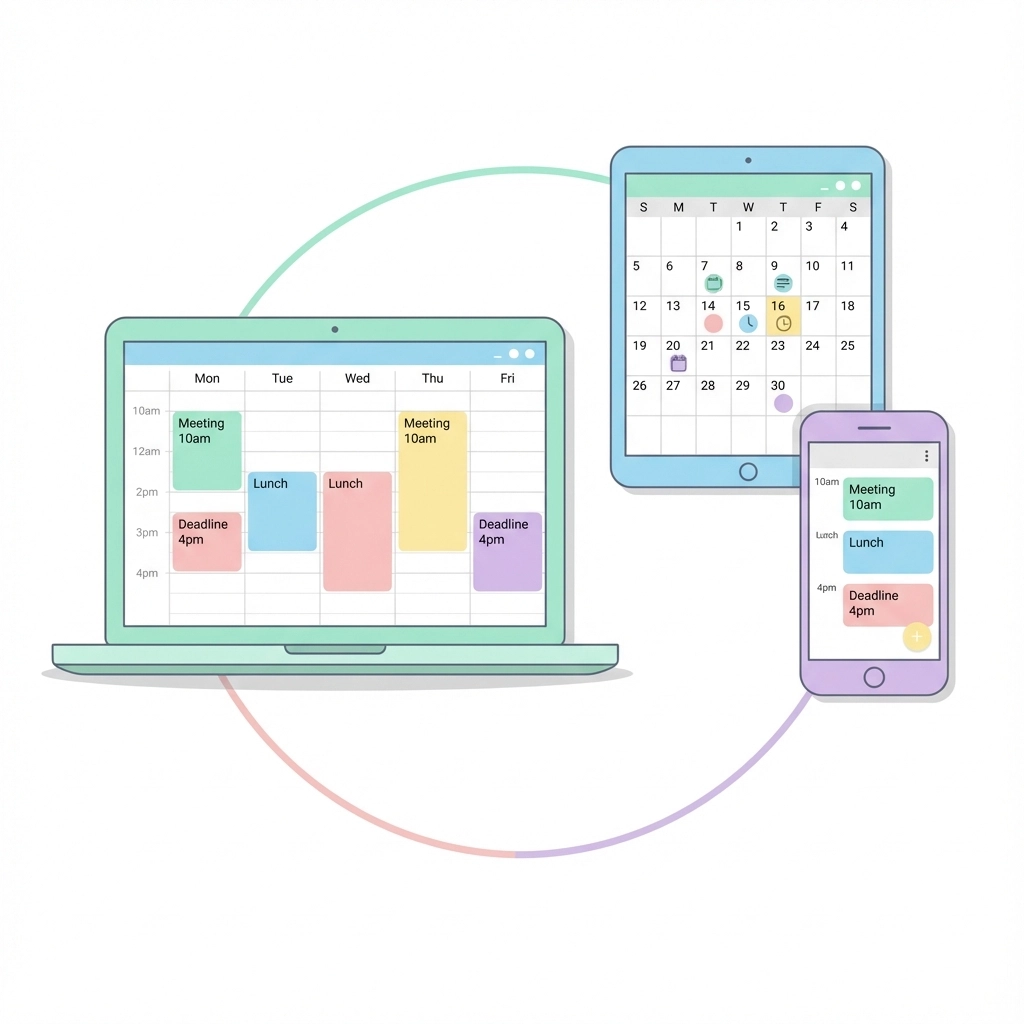
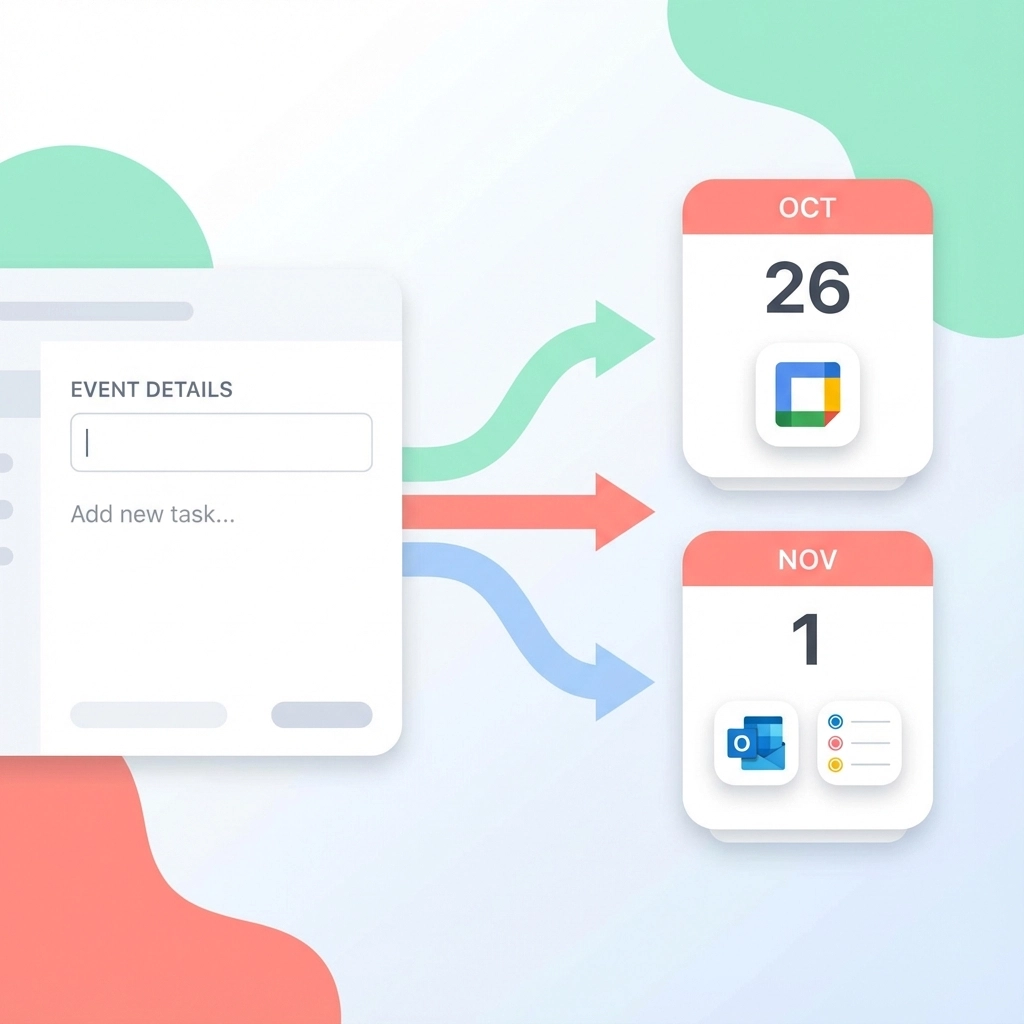
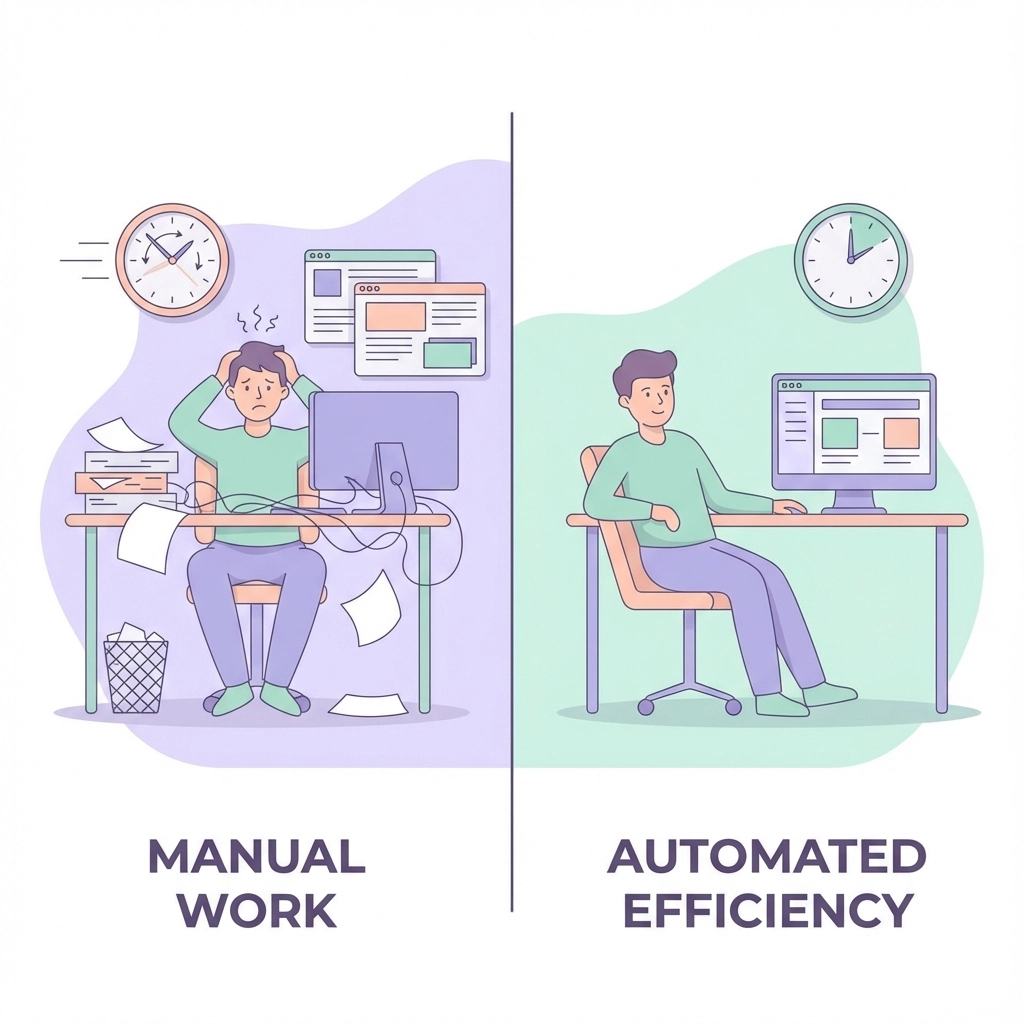
    Automation eliminates these problems entirely. The right tools extract meeting information automatically, create properly formatted calendar events, and sync everything across platforms without your intervention.

    image_1

    Gmail's Built-In Smart Features

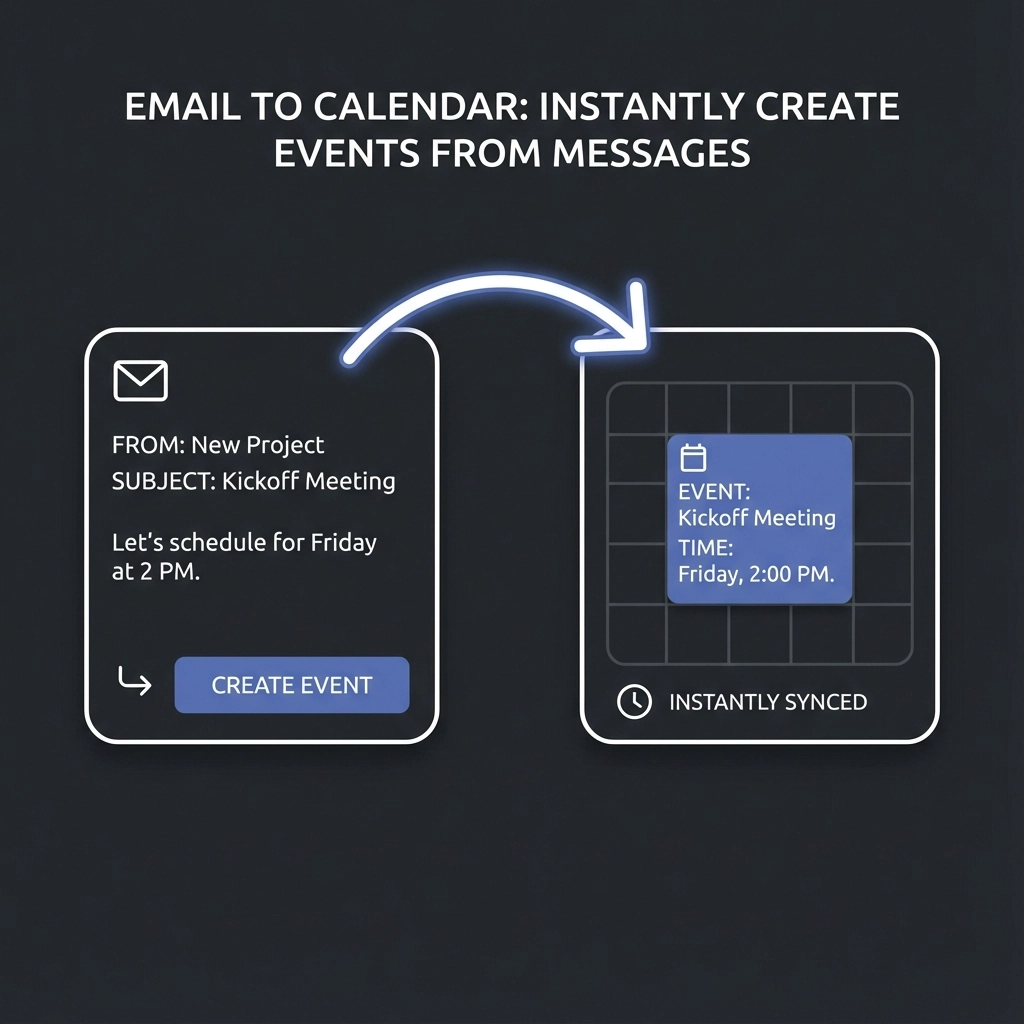
    Google already built email-to-calendar automation into Gmail. The system automatically identifies dates, times, and meeting references in your emails. When someone writes "Let's meet Thursday at 2 PM," Gmail underlines that text.

    Hover over the underlined portion and click "Add to Calendar." Gmail instantly creates a Google Calendar event with the correct date, time, and email subject as the event title. The original email gets attached as context.

    This works best for straightforward meeting mentions. "Conference call tomorrow at 10 AM" gets recognized perfectly. "Let's sync up sometime next week" requires manual interpretation.

    Pro tip: Enable Smart Features in Gmail settings to activate this functionality. Navigate to Settings > General > Smart Features and Personalization, then check "Enable Smart Features."

    The limitation? Gmail's recognition works for obvious date-time patterns but struggles with complex scheduling language or multiple meeting options in the same email.

    AI-Powered Email Processing

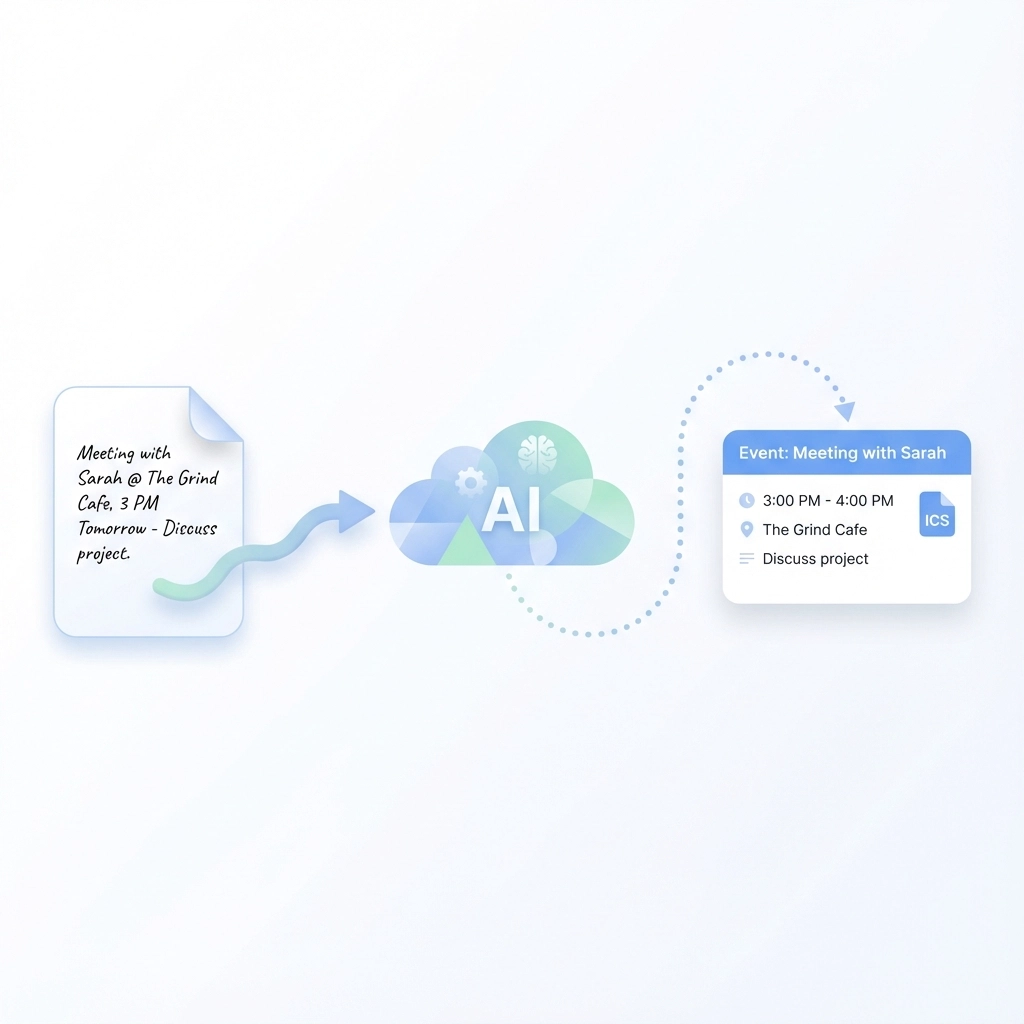
    Advanced AI tools go beyond simple pattern recognition. They understand context, extract multiple meeting details, and handle complex scheduling scenarios that trip up basic automation.

    Google Gemini Integration

    Gemini integrates directly with Gmail and Google Workspace. Open any email containing meeting information, highlight relevant text, and access the Gemini side panel. Request "Create a calendar event from this email."

    Gemini analyzes the entire context. It identifies all attendees, extracts meeting purposes, recognizes location details (physical addresses or video links), and creates comprehensive calendar events with proper descriptions.

    This approach works particularly well for office admins managing executive calendars. Forward a client meeting request to Gemini, and it generates a complete calendar entry including prep time buffers and travel considerations.

    Reclaim AI: Full Automation

    Reclaim AI represents the pinnacle of email-to-calendar automation. It continuously scans your inbox, identifies meeting mentions automatically, and creates calendar events without any manual intervention.

    The system learns your scheduling patterns. It recognizes your meeting types, understands your availability preferences, and even reschedules conflicting events automatically. Reclaim integrates with Google Calendar and Outlook, starting free with basic features.

    Event managers benefit enormously from Reclaim's advanced capabilities. It handles complex multi-stakeholder scheduling, manages different types of events (client calls vs. internal meetings), and maintains your calendar organization standards automatically.
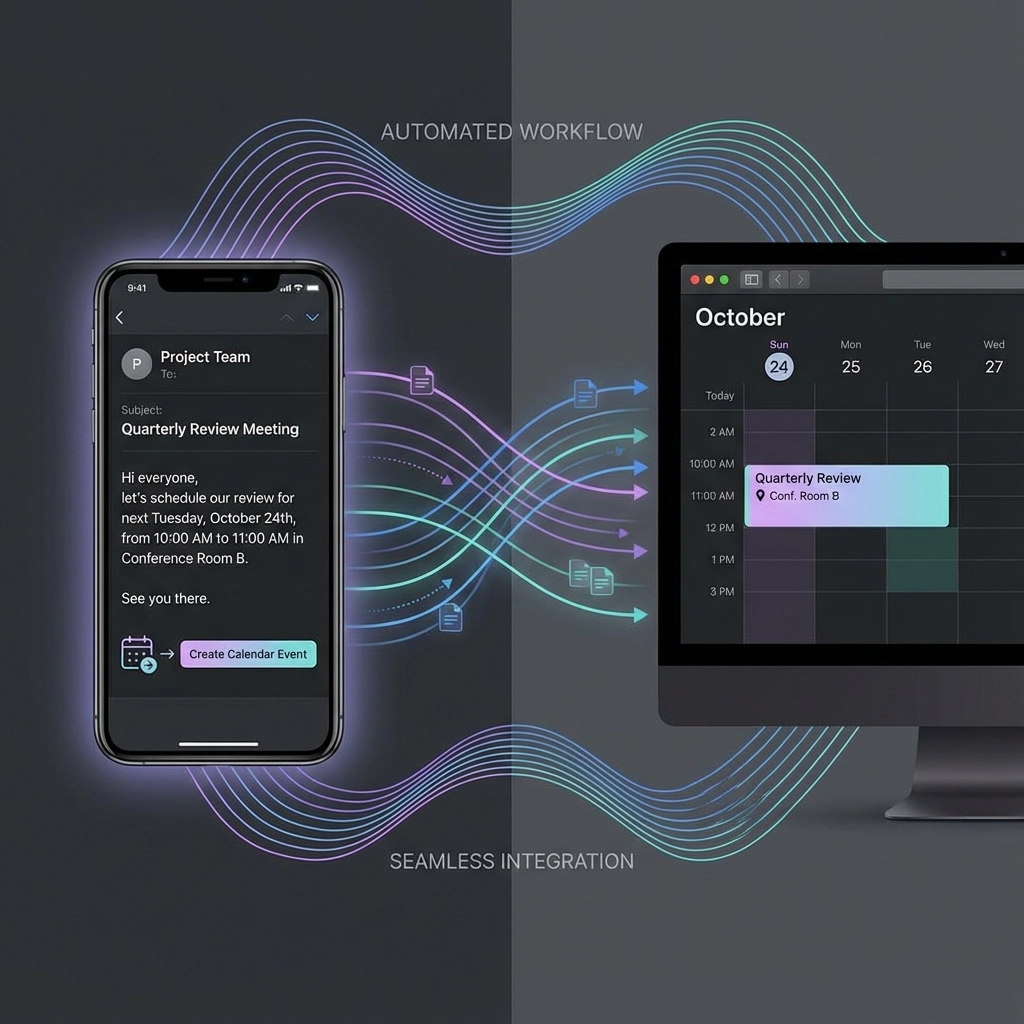
    image_2

    Integration Platform Solutions

    Sometimes you need custom automation that connects email platforms with specific calendar systems. Integration platforms provide flexible solutions for unique organizational requirements.

    Zapier Email-Calendar Workflows

    Zapier connects virtually any email platform with any calendar system. Popular automation templates include:

    • Create Google Calendar events from specific email senders
    • Generate calendar reminders before important email-mentioned deadlines
    • Send email notifications when new calendar events get created
    • Sync email attachments (meeting agendas, location maps) to calendar event descriptions

    Office admins often use Zapier to automate vendor scheduling. Set up workflows that automatically create calendar events when specific suppliers send meeting requests, complete with vendor contact information and purchase order references.

    Event managers leverage Zapier for complex stakeholder coordination. Configure workflows that create calendar events from client emails while simultaneously notifying internal teams and updating project management systems.

    Nutshell CRM Calendar Sync

    Nutshell offers sophisticated email-calendar integration specifically designed for customer relationship management. When you share emails with your team, Nutshell automatically creates contact records for new senders and recipients.

    The system tracks all calendar activities within your CRM. Meeting outcomes, follow-up requirements, and client interaction histories get automatically linked to calendar events generated from emails.

    This approach particularly benefits event managers working with recurring clients. Email-generated calendar events automatically include client history, previous meeting notes, and relationship context.

    Specialized Professional Tools

    Dedicated email-to-calendar tools provide features specifically designed for high-volume scheduling professionals.

    MailTracker Enhanced Processing

    MailTracker focuses specifically on Gmail-to-calendar conversion with enhanced accuracy. The tool recognizes complex scheduling language, handles timezone conversions automatically, and manages recurring meeting setups from email instructions.

    The system excels at processing emails with multiple meeting options. When clients send "Are you available Tuesday at 3 PM or Wednesday at 10 AM?", MailTracker creates tentative events for both options while flagging the need for confirmation.

    Calendly Email Integration

    While primarily a scheduling platform, Calendly provides email-to-calendar features through its email parsing capabilities. Forward meeting request emails to your dedicated Calendly address, and the system creates appropriately formatted calendar events with booking links for easy rescheduling.

    This works exceptionally well for office admins managing external meeting requests. Clients can easily reschedule through Calendly interfaces rather than generating new email threads.

    image_3

    Choosing Your Automation Strategy

    Your optimal email-to-calendar solution depends on your specific role, email volume, and organizational requirements.

    Start with Gmail's built-in features if you primarily use Google Workspace and handle straightforward meeting requests. The native integration requires zero setup and works immediately for clearly formatted scheduling emails.

    Upgrade to Reclaim AI when you need comprehensive automation across multiple email accounts and calendar systems. The investment ($10/month for premium features) pays off quickly for professionals handling 10+ scheduling emails daily.

    Consider Zapier for custom organizational workflows. If you need email-to-calendar automation that connects with specific CRM systems, project management tools, or unique calendar requirements, Zapier's flexibility justifies the learning curve.

    Choose specialized tools for specific professional needs. Event managers coordinating complex stakeholder schedules benefit from dedicated platforms with advanced timezone handling and conflict resolution features.

    Implementation Best Practices

    Successful email-to-calendar automation requires strategic setup and ongoing optimization.

    Email Organization Strategy

    Structure your email handling to support automation. Create dedicated folders for different meeting types. Use consistent email subject line formats when sending meeting requests to others. Train your team to include complete meeting details (date, time, duration, location, attendees) in initial emails rather than fragmented follow-ups.

    Calendar Standardization

    Establish consistent calendar organization standards before implementing automation. Define standard meeting durations, location formats, and description templates. Automated tools work more effectively when they have clear patterns to follow.

    Testing and Refinement

    Start automation with non-critical scheduling first. Test email-to-calendar tools with internal team meetings before using them for important client interactions. Monitor accuracy for two weeks, identifying common errors or missed details.
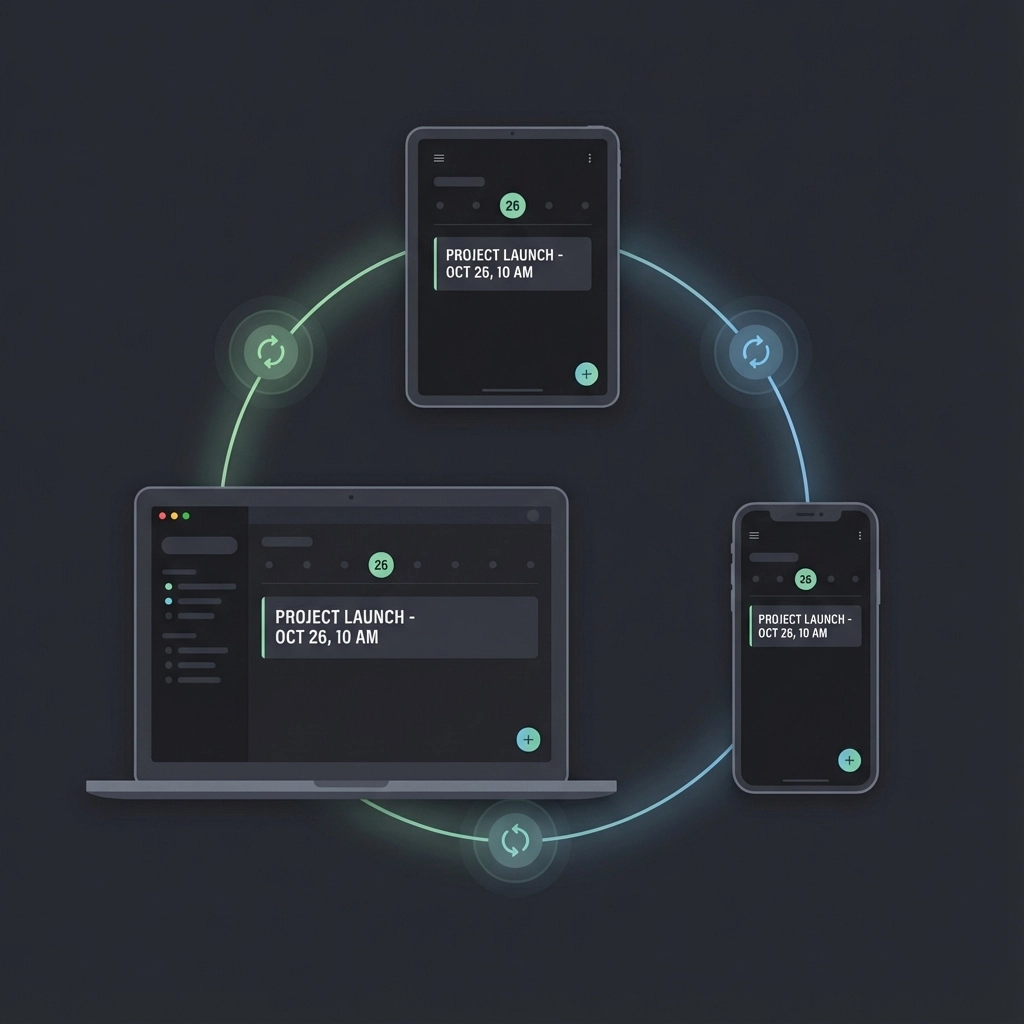
    image_4

    Advanced Automation Features

    Modern email-to-calendar tools provide sophisticated features beyond basic event creation.

    Intelligent Conflict Resolution

    Advanced systems automatically identify scheduling conflicts and suggest alternative times. When automated email processing creates events that overlap with existing calendar entries, the system flags conflicts and provides resolution options.

    Multi-Platform Synchronization

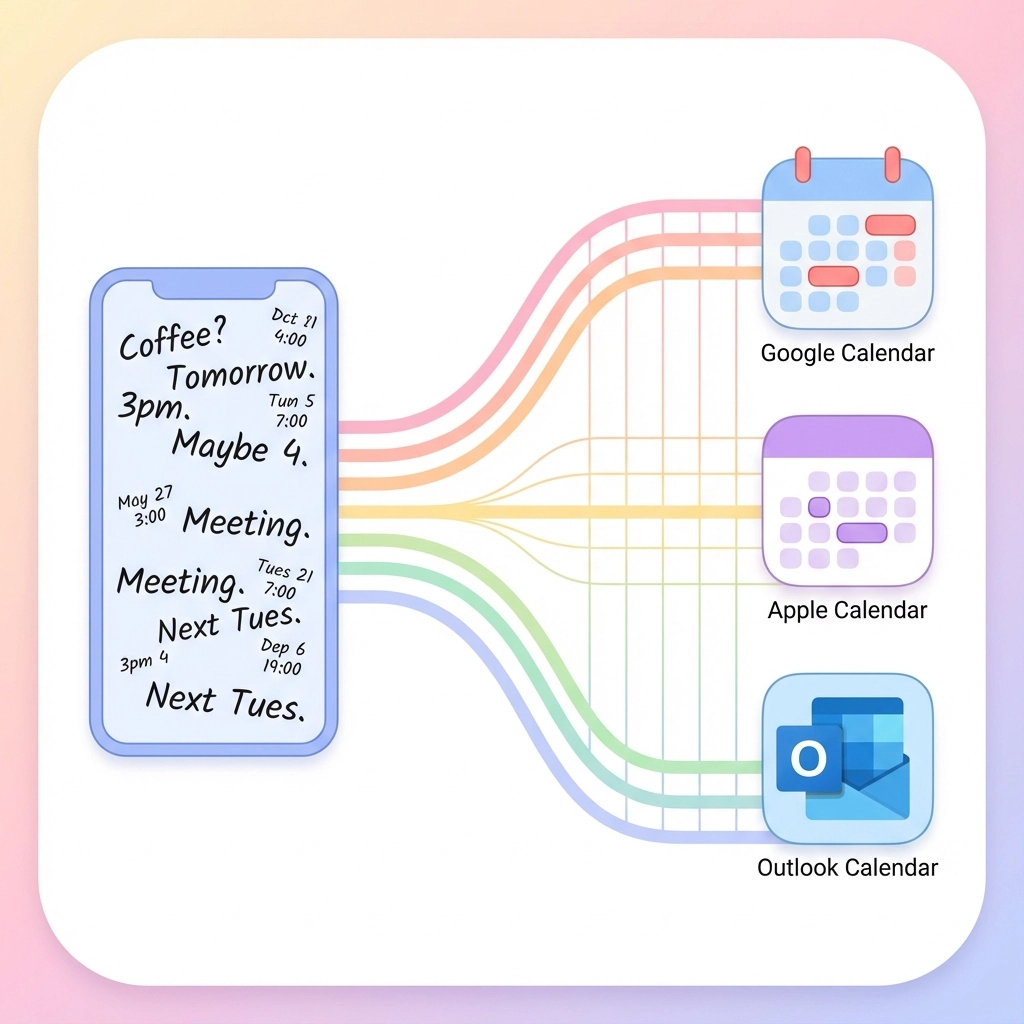
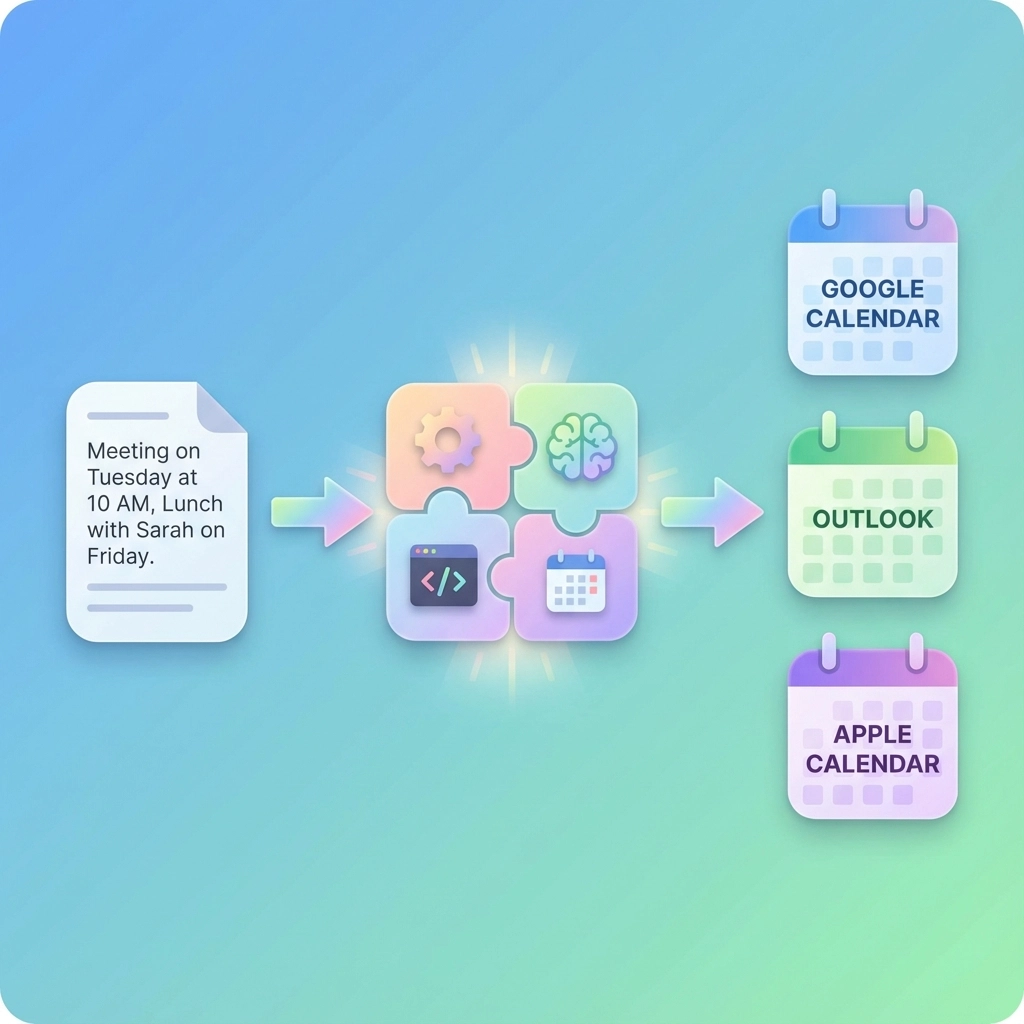
    Enterprise-grade solutions synchronize email-generated calendar events across multiple platforms simultaneously. Create an event from Gmail, and it appears in Outlook, Apple Calendar, and team scheduling systems automatically.

    Smart Attendee Management

    Sophisticated tools analyze email recipient lists and automatically invite appropriate attendees to calendar events. The system learns your meeting patterns and suggests additional stakeholders who typically participate in similar meetings.

    Measuring Automation Success

    Track specific metrics to quantify your email-to-calendar automation benefits:

    • Time savings: Measure daily minutes spent on manual calendar entry before and after automation
    • Error reduction: Count scheduling mistakes, missed meetings, and double-bookings
    • Response speed: Track how quickly you can confirm meeting requests when automation handles calendar creation

    Office admins typically see 60-90 minutes of daily time savings. Event managers report 40% fewer scheduling errors and significantly faster client response times.

    The transformation from manual email-to-calendar entry to intelligent automation isn't just about efficiency: it's about reclaiming your professional focus. When scheduling becomes automatic, you can concentrate on the conversations, relationships, and outcomes that actually matter.

    Start with one automation tool that matches your current email platform and calendar system. Test it with low-stakes internal scheduling. Gradually expand to more complex scenarios as you build confidence in the system's accuracy.

    Your inbox will always be full of meeting requests. But with proper automation, those emails become seamless calendar entries instead of manual data entry tasks. The future of scheduling is automatic, accurate, and effortless.
  • PDF to Calendar: Effortless Event Scheduling with Our Brand Colors

    PDF to Calendar: Effortless Event Scheduling with Our Brand Colors

    You're staring at a PDF schedule again. Maybe it's your kid's school calendar, a conference agenda, or your company's quarterly meeting schedule. The events are all there, neatly formatted and impossible to ignore. But getting them into your digital calendar? That's going to take forever.

    You could spend the next hour manually typing each event, double-checking dates, and fighting with time zones. Or you could let AI handle the heavy lifting while you grab a coffee.

    What PDF to Calendar Conversion Actually Does

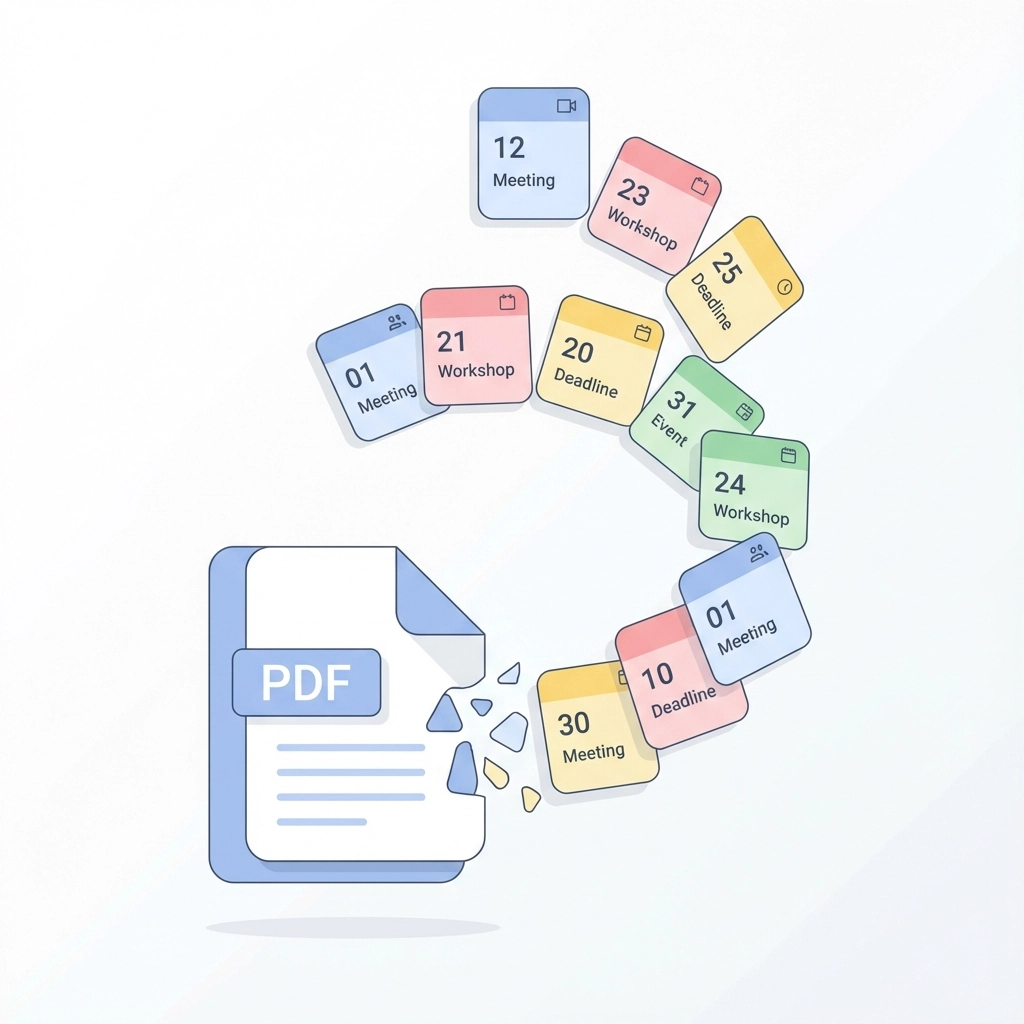
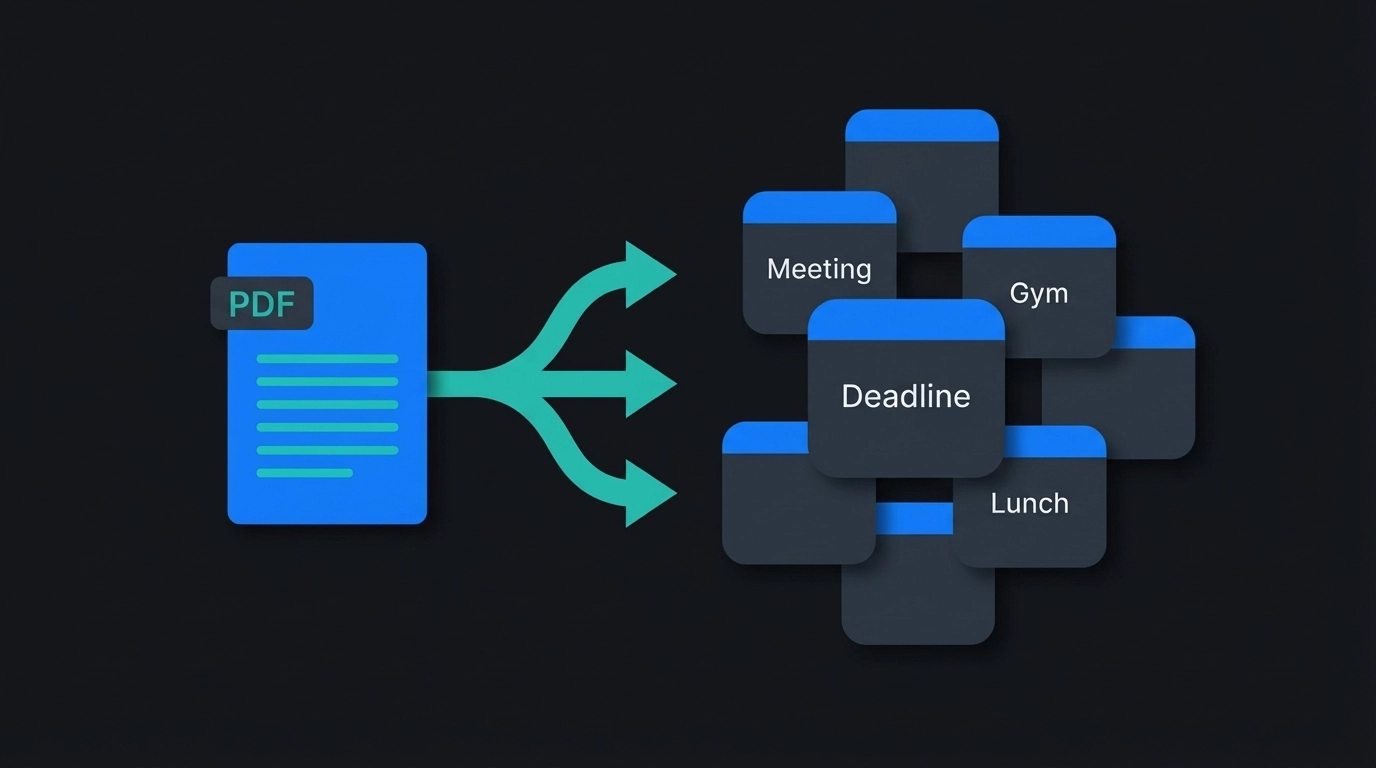
    PDF to calendar conversion transforms static document schedules into live, interactive calendar events. Instead of looking at a flat PDF and mentally calculating when your next meeting is, you get clickable calendar entries with proper notifications, location details, and the ability to share with colleagues.

    The technology reads your PDF, identifies date patterns, event titles, and timing information, then packages everything into a format your calendar app understands. It's like having a personal assistant who never makes typos and works at superhuman speed.

    image_1

    How the Process Works Behind the Scenes

    When you upload a PDF schedule, several things happen simultaneously. The system scans the document for date patterns – whether they're written as "March 15, 2024" or "15/03/24" or "Mar 15th." It identifies event titles, start times, end times, and any location information.

    The AI engine recognizes different document layouts. Conference schedules look different from school calendars, which look different from work shift schedules. But the same core process applies: extract the when, what, and where from each line item.

    Once extracted, the data gets formatted into ICS files – the universal calendar format that works with Google Calendar, Apple Calendar, Outlook, and virtually every other calendar application you might use.

    Why Busy Professionals Need This Yesterday

    Time Recovery
    Manual calendar entry for a multi-day conference can take 45 minutes. PDF conversion handles the same task in under two minutes. That's not just convenience – it's time you can spend on actual work instead of data entry.

    Error Elimination
    You won't accidentally schedule the quarterly review for 3 AM because you misread "3 PM" while rushing through manual entry. The system reads what's actually written, not what your tired brain thinks it sees.

    Consistency Across Teams
    When your entire team needs the same schedule in their calendars, PDF conversion ensures everyone gets identical event details. No more "wait, is the client call at 2 or 3?" confusion.

    image_2

    The Step-by-Step Conversion Process

    Step 1: Document Upload
    Drag your PDF directly into the conversion tool. The system accepts PDFs, images of schedules, or even screenshots from your phone. File size limits are generous enough to handle multi-page conference programs or semester-long academic calendars.

    Step 2: AI Processing
    The system analyzes your document structure and identifies all calendar-worthy information. This typically takes 30-60 seconds, depending on document complexity. You'll see a progress indicator while the AI works through your schedule.

    Step 3: Review and Edit
    Before finalizing, you get a preview of all extracted events. You can modify titles, adjust times, add locations, or delete events you don't need. This editing step catches any edge cases the AI might have interpreted differently than intended.

    Step 4: Export to Your Calendar
    Choose your preferred format – direct Google Calendar integration, ICS file download, or other calendar app formats. The events appear in your calendar with proper time zones, recurring patterns (if applicable), and all original details intact.

    Advanced Features That Save Additional Time

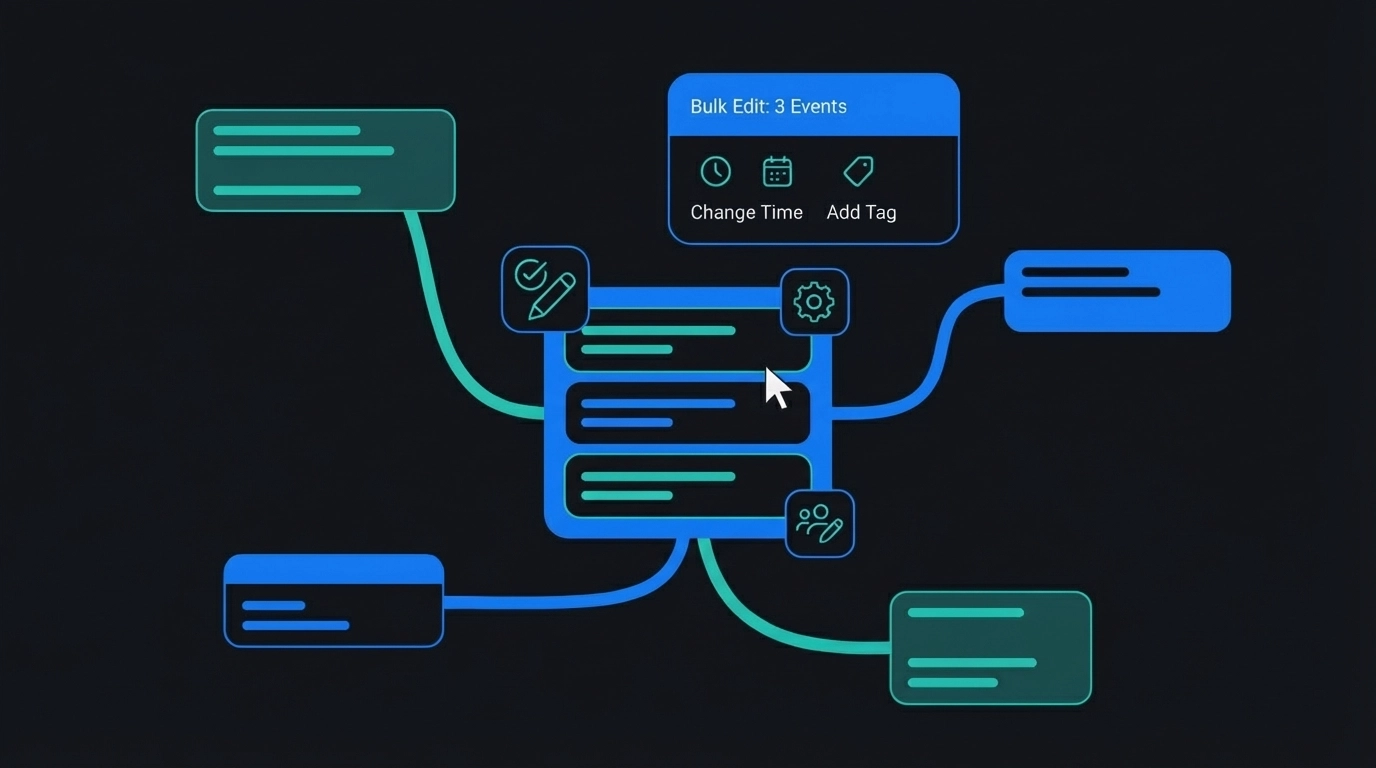
    Bulk Editing Capabilities
    Need to add the same location to 15 different events? Or shift everything by an hour because of schedule changes? Bulk editing handles these modifications across multiple events simultaneously.

    Smart Pattern Recognition
    The system recognizes recurring events automatically. If your PDF shows "Weekly Team Meeting – Mondays at 10 AM," it creates the appropriate recurring calendar entry instead of individual events for each date.

    Multi-Language Support
    Documents in different languages get processed correctly, with date formats adjusted to your calendar's local settings automatically.

    image_3

    Real-World Applications That Actually Matter

    Event Planners Managing Complex Schedules
    Conference organizers regularly deal with 50+ page agenda PDFs. Converting these manually would consume entire days. PDF conversion handles multi-track conferences, speaker schedules, and vendor meetings in one operation.

    Educational Institution Coordination
    Academic calendars, exam schedules, and semester planning documents often exist as PDFs. Students, faculty, and administrators can sync these schedules instantly rather than manually transcribing dates and deadlines.

    Corporate Project Management
    Project timelines, milestone schedules, and deadline documents frequently circulate as PDFs. Getting these into team calendars ensures everyone stays synchronized on deliverables and meetings.

    Healthcare and Service Industries
    Shift schedules, appointment blocks, and service calendars often start as PDF documents. Quick conversion means staff can access their schedules on mobile devices with proper notifications and conflict detection.

    Integration With Your Existing Workflow

    The converted events integrate seamlessly with whatever calendar system you're already using. Google Calendar users can import directly through the web interface. Outlook users get properly formatted ICS files that include all metadata. Apple Calendar users can sync across all their devices immediately.

    For teams using shared calendars, the conversion process maintains proper sharing permissions and visibility settings. Events show up with appropriate access levels and can be modified by designated team members.

    image_4

    Troubleshooting Common PDF Formatting Issues

    Complex Multi-Column Layouts
    Some PDFs use complex formatting that can confuse standard parsers. The system handles most layout variations, but you might need to verify event order during the review step.

    Unclear Date Formats
    Ambiguous dates like "1/2/24" get flagged for manual confirmation. The system defaults to your local date format preferences but allows you to specify the intended interpretation.

    Missing Time Information
    Events without specific times get created as all-day entries. You can modify these during the review process or after importing to your calendar.

    Security and Privacy Considerations

    Your PDF documents get processed securely and deleted automatically after conversion. No schedule data persists on the servers, and the system doesn't store personal calendar information. The conversion happens in an isolated environment that prevents data leakage or unauthorized access.

    For organizations with strict data policies, the entire conversion process can be completed without transmitting sensitive information outside your network perimeter.

    Getting Started With Your First Conversion

    Ready to stop manually typing calendar events? Head to the Text to Calendar tool and upload your first PDF schedule. Start with something simple – maybe a single-day event agenda or a weekly meeting schedule.

    The learning curve is minimal, but the time savings compound quickly. Once you've converted your first schedule successfully, you'll wonder why you ever did calendar entry manually.

    Your calendar should work for you, not against you. PDF conversion is just one way to turn any note into events efficiently. The goal is spending less time on administrative tasks and more time on work that actually matters.

  • How to Convert PDF to Calendar: The Fastest Ways (2026 Guide)

    How to Convert PDF to Calendar: The Fastest Ways (2026 Guide)

    You're staring at a PDF filled with dates, times, and events. Maybe it's a conference schedule, a project timeline, or a school calendar. Now you need to get all those events into your digital calendar without spending the next hour typing each one manually.

    That tedious copy-paste routine? There's a better way.

    Converting PDF schedules to calendar events used to mean squinting at dates, opening calendar apps, and manually entering each event. Not anymore. Modern tools can transform your PDF into usable calendar entries in under a minute.

    The Manual Method Problem

    Before diving into solutions, let's acknowledge what you're probably dealing with. You open the PDF, scan for dates and times, switch to your calendar app, create a new event, copy the title, paste it, set the date, set the time, add location details, save, and repeat. For a 20-event conference schedule, that's easily 30-45 minutes of mind-numbing data entry.

    Plus, you make mistakes. A missed AM/PM designation here, a wrong date there. Then you're dealing with confused attendees and missed meetings.

    Method 1: AI-Powered Text to Calendar Tools

    The fastest solution involves tools that read your PDF content and automatically generate calendar files. These systems use AI to identify dates, times, locations, and event titles within your PDF text.

    image_1

    Here's how it works:

    1. Upload your PDF – Drag and drop or browse to select your file
    2. AI processes the content – The tool scans for date patterns, time formats, and event details
    3. Review the extracted events – Check that everything looks correct
    4. Download or sync – Get an ICS file or direct calendar integration

    Tools like Text to Calendar handle this entire process in seconds. You paste your PDF content or upload the file, and the AI extracts all the event information automatically.

    Pro tip: Before uploading, make sure your PDF text is selectable (not just an image). If you can highlight and copy text from the PDF, the AI can read it.

    Method 2: PDF to ICS File Conversion

    ICS files are the universal language of calendars. Every major calendar application – Google Calendar, Outlook, Apple Calendar, Thunderbird – can import ICS files.

    The process is straightforward:

    1. Use a PDF to ICS converter tool
    2. Upload your PDF document
    3. The tool generates an ICS calendar file
    4. Import that file into your preferred calendar app

    This method works particularly well for:

    • Conference schedules with multiple sessions
    • Academic calendars with semester dates
    • Project timelines with milestone dates
    • Event programs with detailed schedules

    When to choose this method: You need maximum compatibility across different calendar platforms or you're sharing the calendar with team members using various calendar apps.

    Method 3: Direct Calendar Integration

    Some tools skip the file download step entirely and connect directly to your calendar service. This is the absolute fastest method when available.

    image_2

    The workflow looks like this:

    1. Upload your PDF
    2. Authenticate with your calendar service (Google, Outlook, etc.)
    3. Review the extracted events
    4. Click "Add to Calendar"
    5. Events appear in your calendar immediately

    Security note: Only use this method with trusted tools. Look for services that use secure OAuth authentication and don't store your calendar credentials.

    Method 4: OCR for Image-Based PDFs

    Not all PDFs contain selectable text. Some are essentially images of schedules or scanned documents. For these, you need Optical Character Recognition (OCR) capabilities.

    Modern PDF to calendar tools include OCR features that:

    • Read text from images within PDFs
    • Handle various fonts and layouts
    • Process handwritten schedules (with varying accuracy)
    • Work with scanned documents

    Quality factors: OCR accuracy depends on image resolution, font clarity, and document layout. Clean, high-contrast PDFs work best.

    Troubleshooting Common Issues

    Problem: Events show up with wrong times
    Solution: Check if your PDF uses 12-hour or 24-hour format. Some tools struggle with format conversion. Manually verify a few events after import.

    Problem: Location information missing
    Solution: Many PDFs don't include detailed location data in a format AI can easily parse. You might need to add locations manually after the initial conversion.

    Problem: Recurring events aren't properly detected
    Solution: Most PDF to calendar tools handle one-time events better than recurring ones. For recurring events, create the first instance and then set up the recurrence pattern in your calendar app.

    image_3

    Problem: Event descriptions are incomplete
    Solution: PDF layouts vary widely. Complex formatting or multi-column layouts can confuse extraction algorithms. Review descriptions and add missing details as needed.

    Choosing the Right Tool

    Consider these factors when selecting a PDF to calendar conversion method:

    Speed Requirements

    • Need it done in under a minute? → Direct integration tools
    • Can spend 2-3 minutes for better accuracy? → ICS conversion tools
    • Complex PDF that needs manual review? → Multi-step tools with editing features

    Privacy Concerns

    • Sensitive company information? → Look for tools that don't store data
    • Personal calendar details? → Use services with clear privacy policies
    • Public event information? → Any reputable tool works fine

    Volume and Frequency

    • One-off conversion? → Simple online tools
    • Regular PDF calendars? → Tools with batch processing
    • Team use? → Services with sharing and collaboration features

    Advanced Tips for Better Results

    Prepare your PDF: If possible, use text-based PDFs rather than scanned images. Text-based PDFs provide more accurate extraction.

    Check date formats: US format (MM/DD/YYYY) vs. international format (DD/MM/YYYY) can cause confusion. Verify the tool handles your region's date format correctly.

    Review time zones: If your PDF doesn't specify time zones, make sure you're converting to the correct one for your calendar.

    Batch processing: For multiple PDFs, look for tools that can process several files at once rather than converting one at a time.

    image_4

    Quality Control After Conversion

    Even the best tools aren't perfect. After converting your PDF to calendar events:

    1. Spot check dates and times – Verify a few random events match the original PDF
    2. Confirm critical events – Double-check important dates like deadlines or key meetings
    3. Add missing details – Fill in any location, description, or attendee information that didn't convert
    4. Set appropriate reminders – Add notifications based on event importance

    Integration with Team Workflows

    For team use, consider how your converted calendar fits into existing workflows:

    • Shared calendars: Import into a team calendar that everyone can access
    • Project management tools: Some tools can export to project management platforms beyond just calendars
    • Meeting scheduling: Ensure converted events don't conflict with existing meetings using calendar overlay features

    Converting PDFs to calendar entries doesn't have to be a time sink. With the right tools and approach, you can transform a 30-minute manual task into a 30-second automated process. Whether you need a quick one-time conversion or a regular workflow solution, modern PDF to calendar tools deliver the speed and accuracy that busy professionals need.

    For the fastest, most reliable conversion experience, try Text to Calendar – designed specifically for turning any text content, including PDFs, into properly formatted calendar events in seconds.

  • ICS File Generator: Instantly Turn Event Details Into Calendar Files

    ICS File Generator: Instantly Turn Event Details Into Calendar Files

    You're drowning in event details scattered across emails, notes, and messages. Every time you need to schedule something, you're stuck manually typing dates, times, and locations into your calendar. Then you realize others need the same information: and now you're copying and pasting event details into individual messages, hoping people actually add them to their calendars.

    There's a better way. ICS file generators eliminate this tedious process entirely.

    What Is an ICS File Generator?

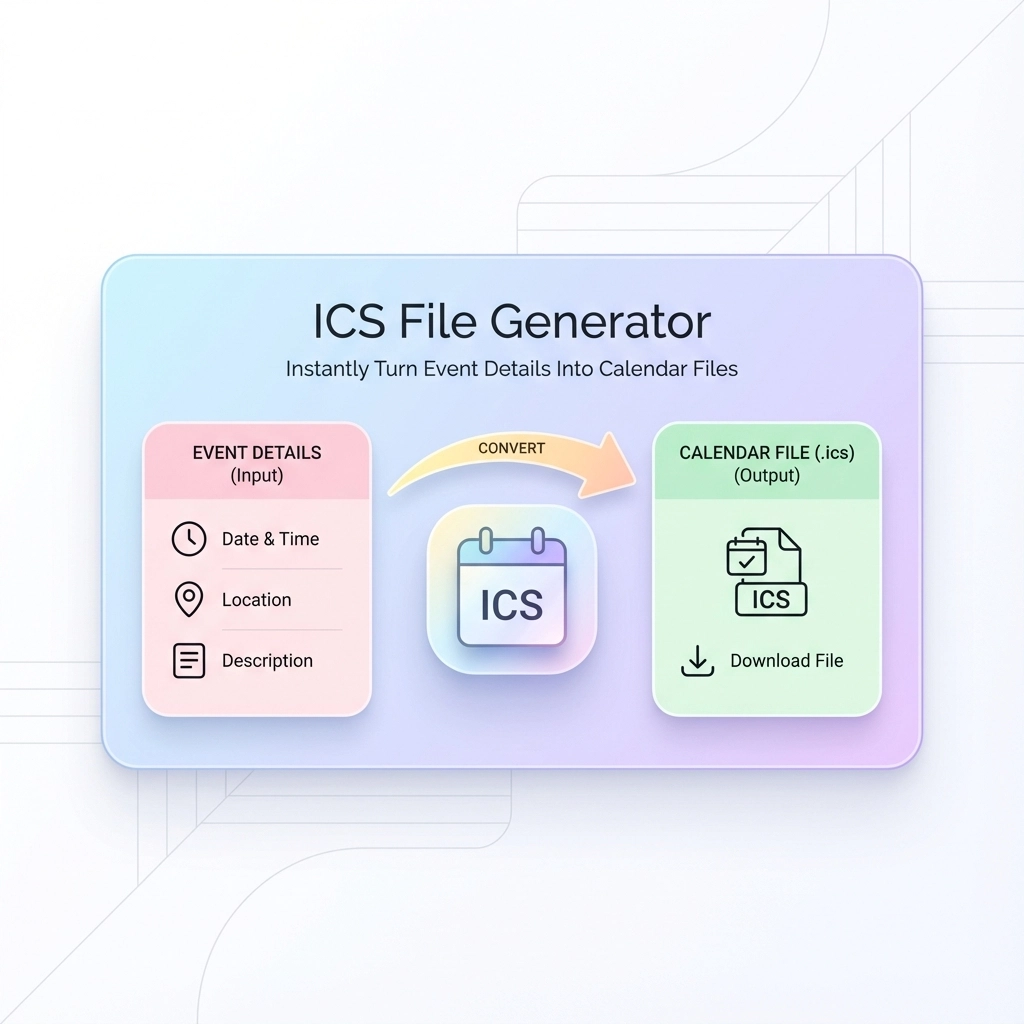
    An ICS file generator transforms your event information into a universal calendar file that works with every major calendar application. You enter your event details once, generate the file, and share it with anyone who needs it.

    The recipient simply clicks the file, and the event automatically appears in their calendar: complete with all details, reminders, and location information. No manual entry required.

    ICS stands for iCalendar, a standardized format that Outlook, Google Calendar, Apple Calendar, and virtually every other calendar system recognizes. Think of it as the PDF of calendar events: it looks the same everywhere and opens reliably across different platforms.

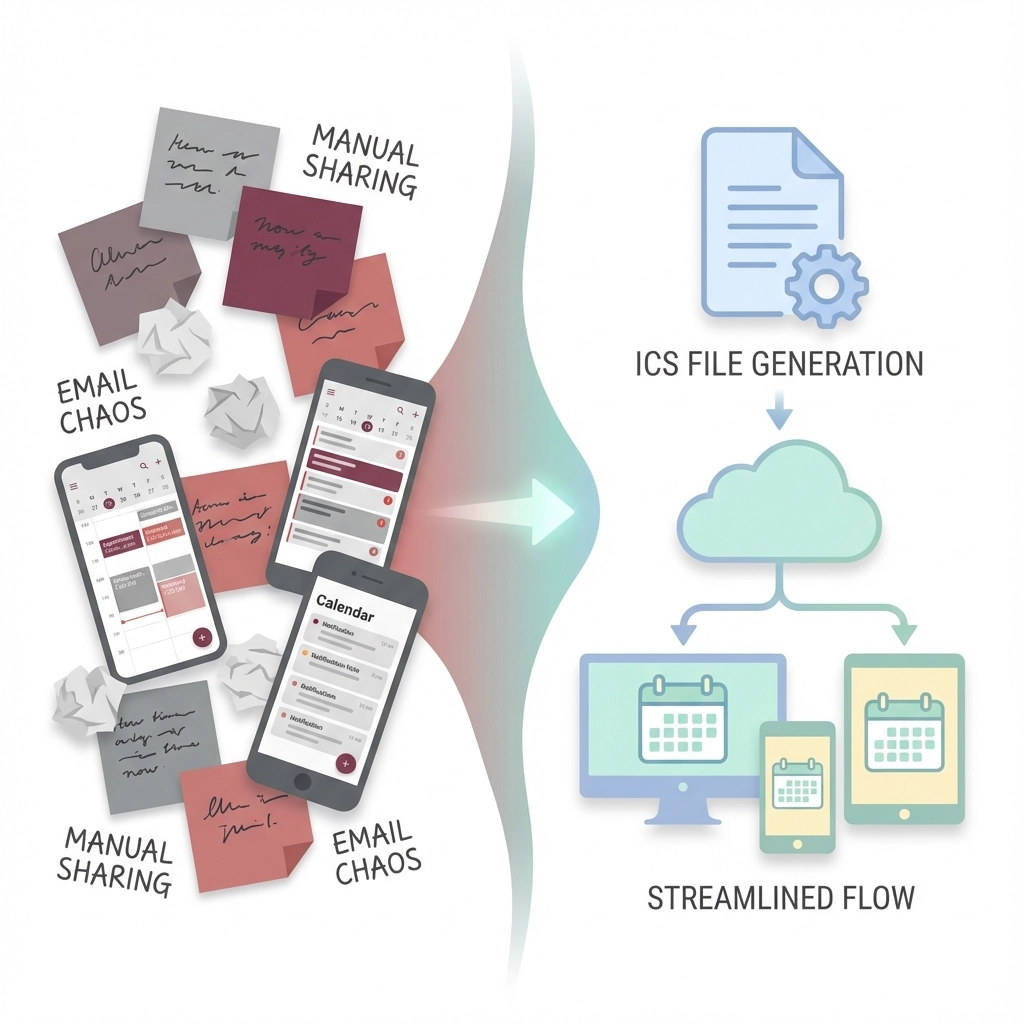
    Why Manual Event Sharing Fails

    When you send event details through email or text, recipients face several obstacles:

    • Manual transcription errors: They mistype dates, times, or locations
    • Timezone confusion: Your 3 PM might be their 6 PM
    • Inconsistent formats: Different calendar apps expect different date formats
    • Missing details: They forget to add location, duration, or description
    • Procrastination: They plan to add it later but forget entirely

    image_1

    Each manual step introduces potential failure points. ICS generators bypass these problems by creating files that contain all event information in a format every calendar understands.

    How ICS File Generators Work

    The process is straightforward:

    1. Enter event details: Fill out a simple form with date, time, location, and description
    2. Generate the file: The tool creates an .ics file containing your information
    3. Download and share: Send the file via email, upload to websites, or distribute however you prefer
    4. Recipients import: They click the file and it opens in their default calendar app

    Most generators require no account creation, store no data permanently, and work entirely through your web browser.

    Essential Features to Look For

    Timezone Support

    Your generator should handle timezones automatically. When you create an event for 2 PM EST, recipients in different timezones see it converted to their local time. This prevents the common mistake of showing up three hours early (or late) to virtual meetings.

    Recurring Events

    Look for tools that handle repeating events. Whether you're scheduling weekly meetings, monthly deadlines, or annual conferences, the generator should create the appropriate recurrence pattern without requiring separate files for each occurrence.

    Multiple Event Creation

    The best generators allow bulk creation. Instead of generating individual files for each session of a multi-day conference, you can input all events at once and receive a single file containing the entire schedule.

    Customizable Reminders

    Choose generators that let you set reminder preferences. Some people need alerts 15 minutes before events, others prefer day-of notifications. The ICS file should include these preferences so recipients' calendars respect their timing needs.

    Top Use Cases for Event Planners

    Conference Scheduling

    Generate a master ICS file containing all sessions, speakers, and networking events. Attendees import one file and have the complete conference schedule in their calendars, with automatic updates if you regenerate the file with changes.

    Wedding Coordination

    Create files for rehearsal dinners, ceremony times, reception schedules, and post-wedding brunches. Share different files with different groups: vendors get the full timeline, guests receive only relevant events.

    Corporate Training

    Generate training schedules that include room numbers, trainer contact information, and prep materials in the event description. Participants get accurate schedules that sync across their devices.

    Client Meetings

    Instead of back-and-forth scheduling emails, send ICS files with proposed meeting times. Clients can preview how the meeting fits their schedule before committing.

    image_2

    Advanced Bulk Generation Techniques

    From Spreadsheets

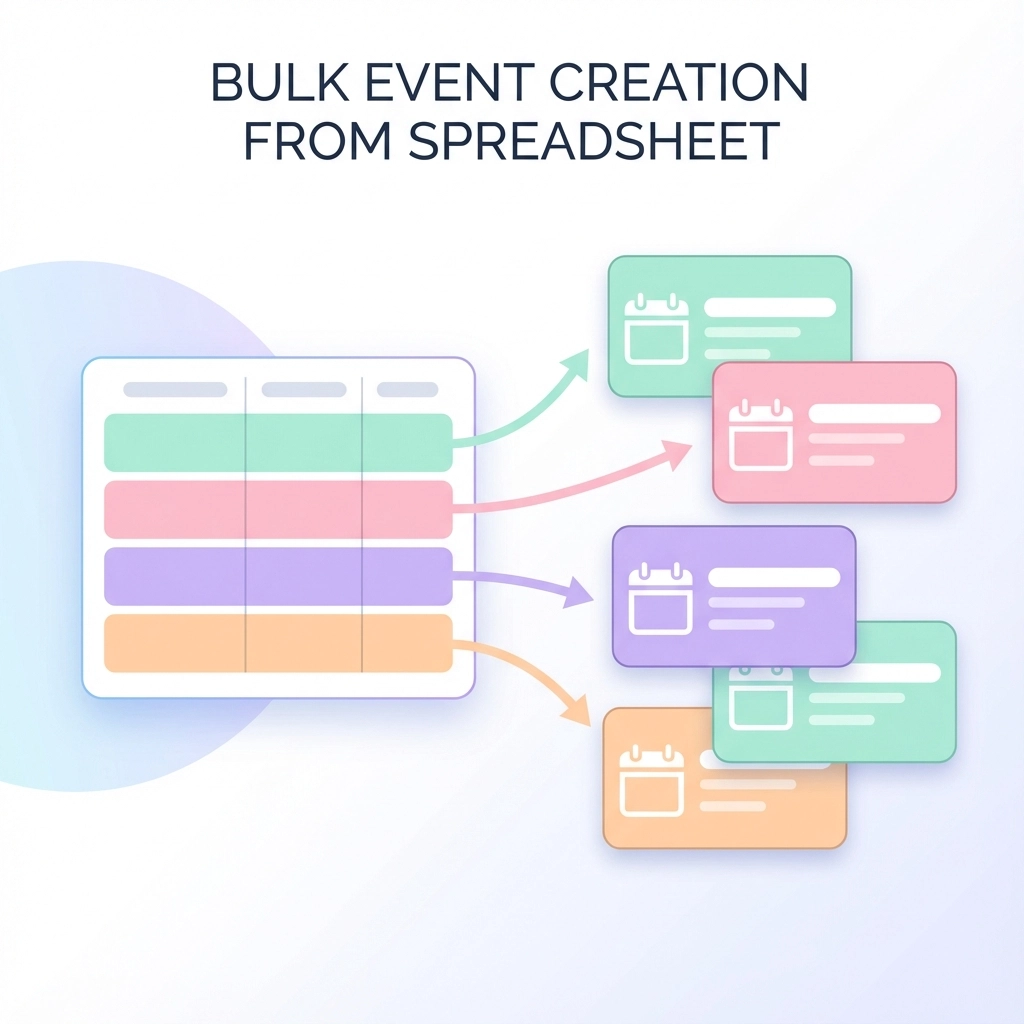
    Many generators accept CSV imports. Create a spreadsheet with columns for event name, date, time, location, and description. Upload it to generate dozens of ICS files simultaneously.

    Format your spreadsheet like this:

    Event Name Date Start Time End Time Location Description
    Team Meeting 2025-01-15 10:00 11:00 Conference Room A Weekly planning session
    Project Review 2025-01-16 14:00 15:30 Zoom Link Q4 deliverables assessment

    From Text Lists

    Some tools parse unstructured text and extract event information automatically. Copy meeting details from emails or documents, paste them into the generator, and let it identify dates, times, and locations.

    Template Creation

    Save frequently used event templates. If you regularly schedule client consultations, board meetings, or training sessions, templates eliminate repetitive data entry while ensuring consistency.

    Integration with Your Existing Workflow

    Email Distribution

    Most email clients recognize ICS attachments automatically. Recipients see an "Add to Calendar" button directly in their email interface, making adoption effortless.
    Website Embedding

    Place "Add to Calendar" buttons on event pages that generate ICS files when clicked. This works particularly well for public events, workshops, or webinars where you want to minimize registration friction.

    Team Collaboration Tools

    Share ICS files through Slack, Teams, or project management platforms. Team members can add events to their personal calendars without switching between multiple tools.

    image_3

    Technical Benefits Without Technical Knowledge

    Cross-Platform Compatibility

    ICS files work identically across iOS, Android, Windows, and Mac systems. You don't need to worry about whether recipients use Outlook, Google Calendar, or Apple's native apps: the file opens correctly everywhere.

    Automatic Synchronization

    Once imported, events sync across all devices where recipients have calendar access. The meeting you schedule appears on their phone, laptop, and tablet simultaneously.
    Rich Information Support

    ICS files can include detailed descriptions, multiple location fields, attendee lists, and custom fields. You're not limited to basic date-and-time information.

    Common Mistakes to Avoid

    Overcomplicating Descriptions

    Keep event descriptions concise but complete. Include essential information like dial-in numbers or parking instructions, but avoid lengthy explanations that overwhelm the calendar interface.

    Ignoring Timezone Settings

    Always specify timezones explicitly, especially for virtual events with participants across multiple regions. When in doubt, include timezone information in the event title: "Team Meeting (3 PM EST)".

    Forgetting Update Procedures

    Plan how you'll communicate changes to events. If you need to modify timing or location, regenerate the ICS file and clearly communicate that recipients should import the updated version.

    Skipping Test Imports

    Before distributing ICS files widely, test them in different calendar applications. Import the file into Google Calendar, Outlook, and Apple Calendar to verify formatting appears correctly.

    Pro Tips for Maximum Efficiency

    Standardize Your Templates

    Develop consistent formats for common event types. Use the same description structure for client meetings, include standard reminder times for internal events, and maintain consistent location naming conventions.

    Batch Process Similar Events

    When creating multiple related events, start with the most complex one, then duplicate and modify rather than starting from scratch each time.

    Include Contact Information

    Add your contact details to event descriptions so recipients can reach you directly if questions arise. This prevents confusion and demonstrates professionalism.

    The right ICS file generator transforms chaotic event coordination into a streamlined, professional process. You eliminate manual errors, save significant time, and ensure everyone has consistent, accurate calendar information.
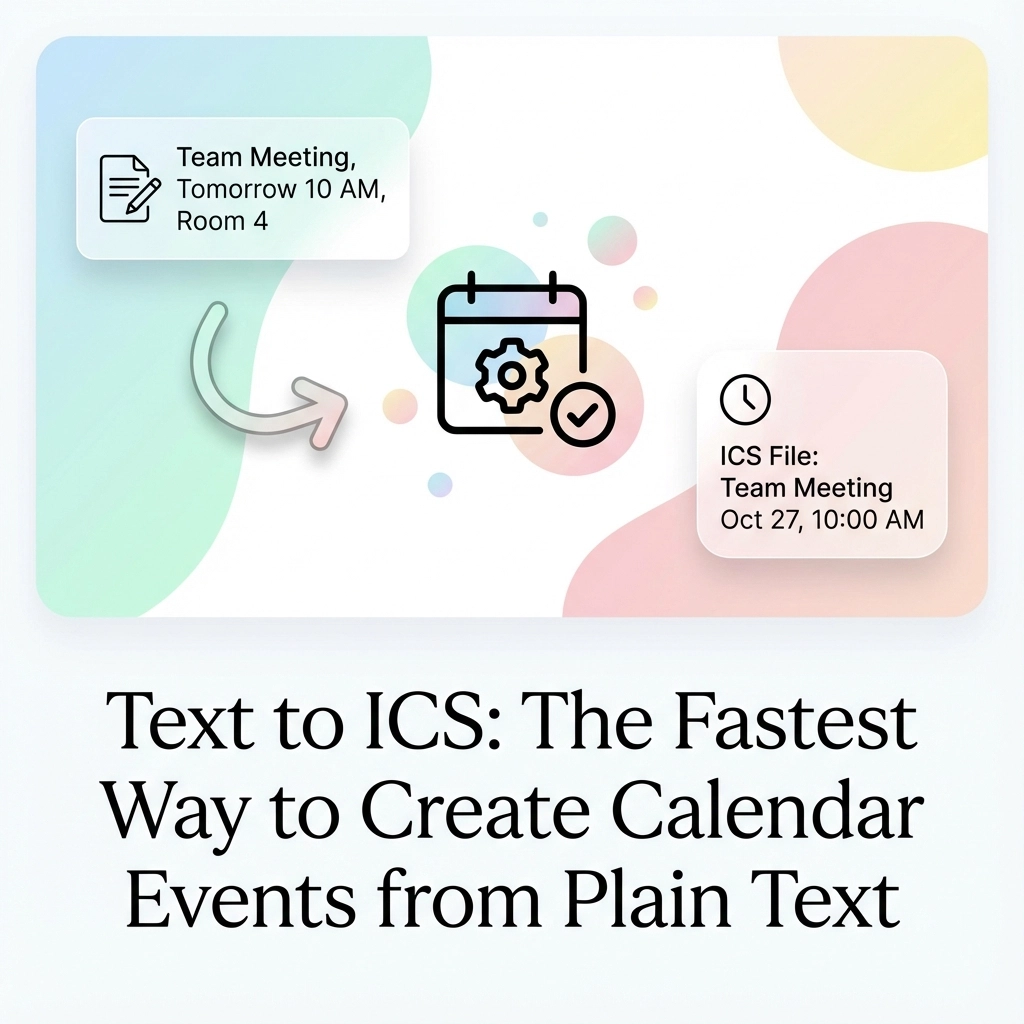
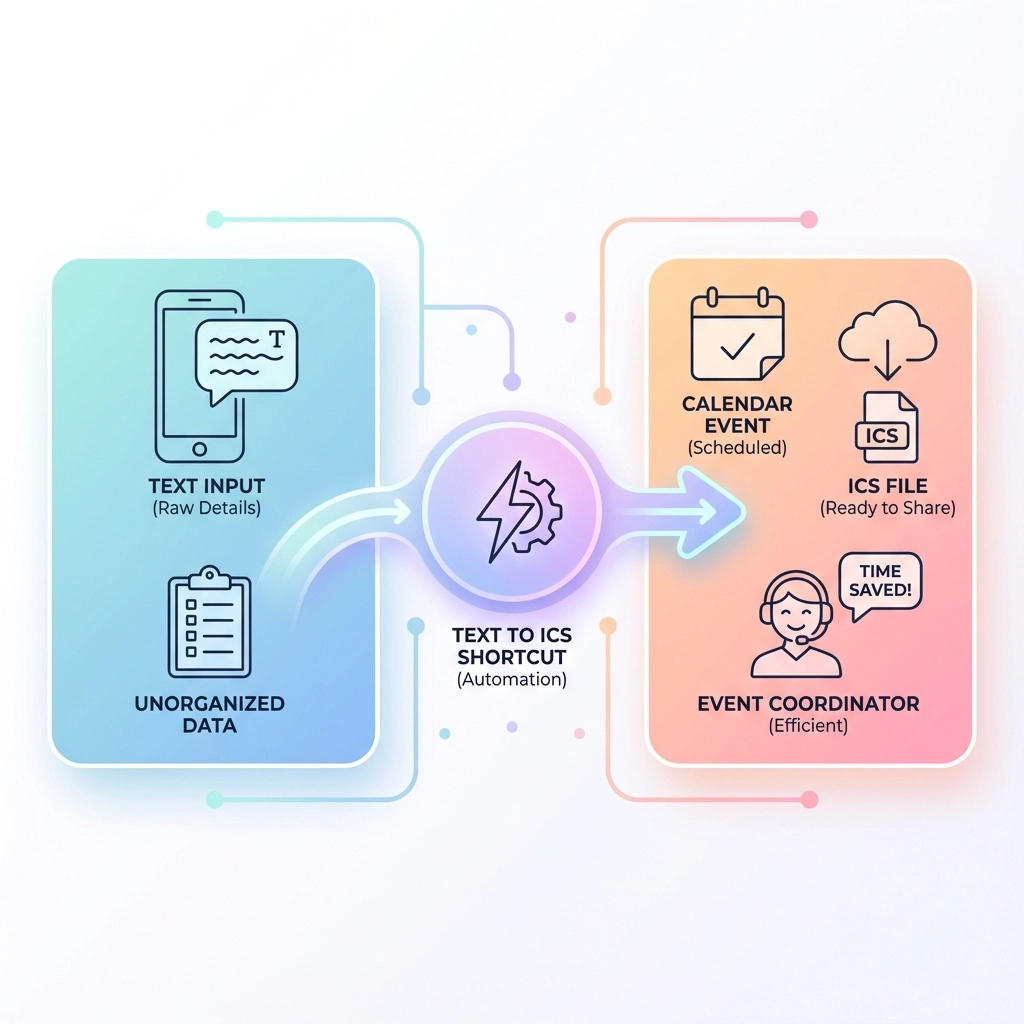
    Ready to stop wrestling with manual calendar entry? Try generating your first ICS file with our simple text-to-calendar tool and experience the difference automated scheduling makes.

  • Text to ICS: The Ultimate Shortcut for Efficient Event Scheduling

    Text to ICS: The Ultimate Shortcut for Efficient Event Scheduling

    You're staring at a wall of text. Meeting notes, email chains, event flyers, project deadlines scattered across different documents. Each event needs to make it into your calendar, but the thought of typing each one manually makes you want to put it off until tomorrow.
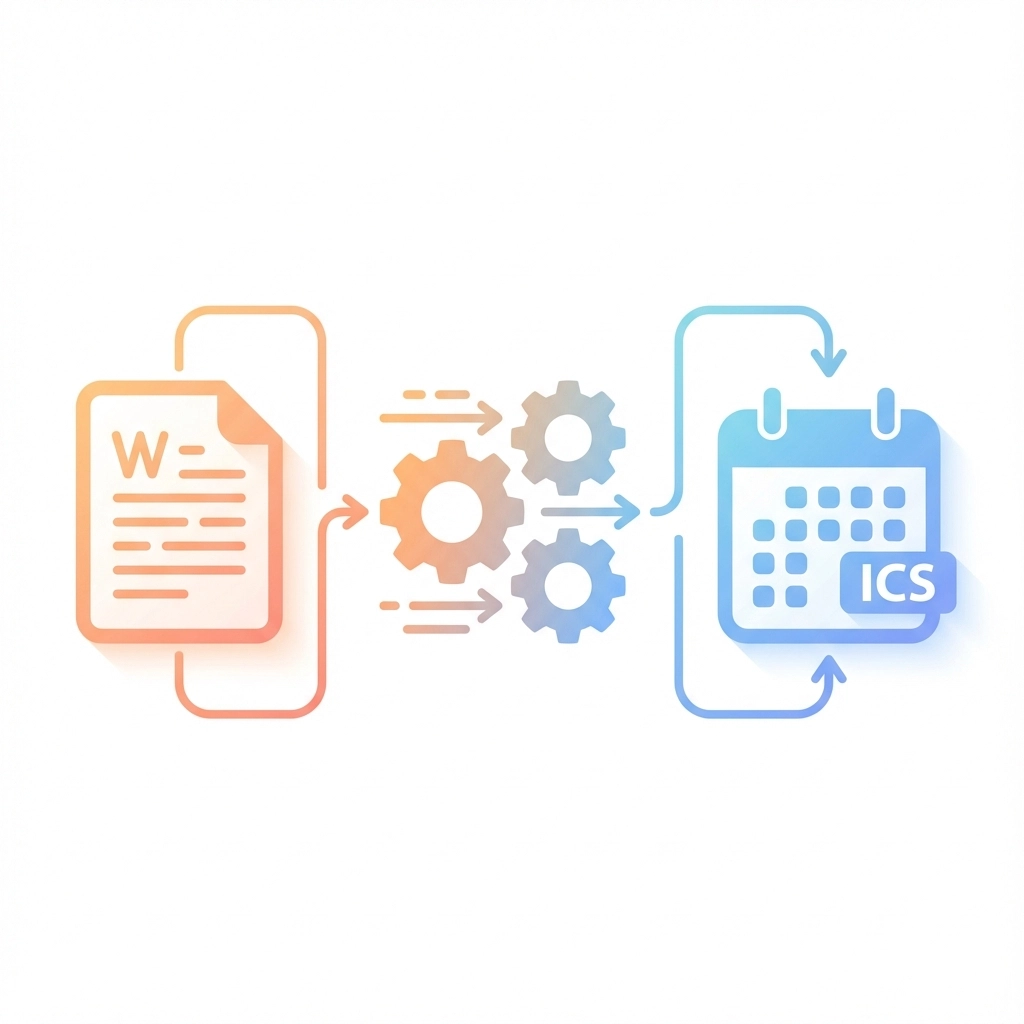
    Sound familiar? You're not alone. Most professionals waste hours each week manually entering events into their calendars, switching between apps, copying dates, and inevitably making typos that cause scheduling conflicts.

    There's a better way. Text to ICS conversion transforms any plain text into calendar files that work across every major calendar app. No more copy-paste marathons. No more missed events because you forgot to transfer them from your notes.

    What Makes ICS Files Your Calendar's Best Friend

    ICS stands for iCalendar: a universal file format that every calendar application understands. Think of it as a translator that speaks fluent Google Calendar, Apple Calendar, Outlook, and Yahoo Calendar all at once.

    Here's why this matters: When you create an ICS file, you're not locked into one calendar system. Your events transfer seamlessly whether you're switching from iPhone to Android, sharing schedules with colleagues who use different apps, or backing up your calendar data.

    The format itself is surprisingly simple: just structured text that follows specific rules. But you don't need to learn those rules. That's where text-to-ICS tools come in.

    image_1

    The Magic Behind Text to ICS Conversion

    Modern text-to-ICS tools use AI to read your messy, human-written text and extract the important stuff: dates, times, locations, and event details. You paste in something like:

    "Team meeting tomorrow at 2pm in conference room B to discuss Q4 budget planning"

    The tool creates a properly formatted calendar event with:

    • Event title: Team meeting
    • Date: (tomorrow's date)
    • Time: 2:00 PM
    • Location: Conference room B
    • Description: Q4 budget planning discussion

    This process happens in seconds, not minutes. And unlike manual entry, the AI doesn't get tired or make transcription errors.

    Real-World Scenarios Where This Saves Hours

    Academic Schedule Management
    Students dealing with course syllabi can convert entire semester schedules in one go. Instead of manually entering 50+ assignment due dates, you upload the syllabus PDF and get a complete ICS file ready for import.

    Event Planning Coordination
    Conference organizers managing dozens of sessions can transform speaker lists and session schedules into calendar files that attendees can import directly. No more individual calendar invites for each session.

    Project Management
    Teams can convert project timeline documents into shared calendar events. Milestone dates, deadline reminders, and review meetings all get scheduled automatically from your project notes.

    Email-Based Event Management
    Those long email chains with multiple meeting times and location changes? Extract all the relevant events in one conversion instead of hunting through replies to find the final details.

    Step-by-Step: From Text Chaos to Calendar Order

    The conversion process is straightforward, regardless of which tool you use:

    Step 1: Gather Your Text
    Collect event information from wherever it lives: emails, documents, handwritten notes, or even photos of event flyers. Most tools accept multiple input formats.

    Step 2: Input Your Data
    Paste text directly, upload files, or use browser extensions to capture event details from web pages. The more context you provide, the better the AI can extract accurate event information.

    Step 3: Review and Refine
    Good tools show you a preview of extracted events before generating the final ICS file. Check dates, times, and locations for accuracy. Make corrections if the AI missed context clues.

    Step 4: Generate and Download
    Create the ICS file with a single click. The file downloads to your device, ready for calendar import.

    Step 5: Import Everywhere
    Add the ICS file to any calendar application. The events appear instantly, complete with proper formatting and timezone handling.

    image_2

    Why Universal Compatibility Matters More Than You Think

    Different calendar apps handle event data differently. Outlook formats recurring events one way, Google Calendar uses another approach, and Apple Calendar has its own quirks. When you manually create events in one app, they don't always transfer cleanly to others.

    ICS files solve this problem by using a standardized format that preserves event integrity across platforms. Your carefully crafted event descriptions, reminder settings, and timezone information stay intact whether you're viewing them on your phone, computer, or colleague's calendar.

    This compatibility extends beyond personal use. When you share ICS files with team members, clients, or event attendees, everyone can import them regardless of their calendar preference. No more "I can't see your calendar invite" conversations.

    Advanced Features That Save Even More Time

    Bulk Event Processing
    Convert dozens of events simultaneously from spreadsheets, long-form documents, or complex email threads. Perfect for processing conference schedules, academic calendars, or project timelines.

    Smart Date Recognition
    Modern tools handle relative dates ("next Tuesday"), informal time references ("around 3pm"), and even date ranges ("June 15-17 conference"). The AI understands context that manual calendar entry often misses.

    Automatic Reminder Settings
    Set default reminder preferences that apply to all converted events. No need to manually configure notifications for each imported event.

    Location Intelligence
    Tools can recognize and properly format addresses, meeting room names, and virtual meeting links. Some even integrate with mapping services for enhanced location data.

    Common Pitfalls and How to Avoid Them

    Timezone Confusion
    Always verify timezone settings, especially when processing events from different time zones or daylight saving transitions. Most tools default to your system timezone, but international events need manual adjustment.

    Recurring Event Complexity
    Simple recurring patterns ("every Tuesday") convert well, but complex schedules might need manual refinement. Review recurring events carefully before importing.

    Incomplete Context
    Provide as much context as possible in your source text. "Meeting at 3" is ambiguous, but "Marketing team meeting at 3pm EST in conference room A" gives the tool everything it needs.

    Privacy and Security Advantages

    Unlike calendar sync services that require account access, text-to-ICS tools work locally with your data. You maintain complete control over your information: the tool processes your text and generates a file without storing or accessing your actual calendar.

    This approach eliminates privacy concerns about third-party access to your calendar data while still providing the automation benefits you need.

    image_3

    Integration With Your Existing Workflow

    Text-to-ICS conversion works best when it becomes part of your regular process, not a special task you do occasionally. Consider these integration points:

    Email Processing: Convert meeting details as they arrive instead of letting them pile up in your inbox.

    Note-Taking: Include event details in your regular notes, then batch-convert them weekly.

    Document Review: Process project timelines, course syllabi, and event announcements immediately after receiving them.

    Team Collaboration: Share ICS files alongside project documents so everyone stays synchronized.

    The key is making conversion automatic enough that you don't have to remember to do it, but manual enough that you maintain control over what gets added to your calendar.

    Getting Started Today

    Ready to eliminate manual calendar entry from your workflow? Start with our text-to-ICS tool and experience the difference automated event conversion makes.

    Your first conversion will likely save you 10-15 minutes compared to manual entry. Multiply that by the dozens of events you process each month, and the time savings become substantial. More importantly, you'll reduce the stress and errors that come with manual calendar management.

    The most efficient calendar is one that updates itself. Text-to-ICS conversion gets you there without requiring you to learn new systems or change your existing workflow. You keep working with text the way you always have: just with better results.

  • Text to Calendar Event: Effortlessly Create Events from Notes or Memos

    Text to Calendar Event: Effortlessly Create Events from Notes or Memos

    You're staring at a page of meeting notes. Three different client calls scheduled. Two project deadlines mentioned. A team lunch thrown in for good measure. Now you get to spend the next fifteen minutes manually typing each one into your calendar. Date by date. Time by time. Detail by detail.

    There's a better way.

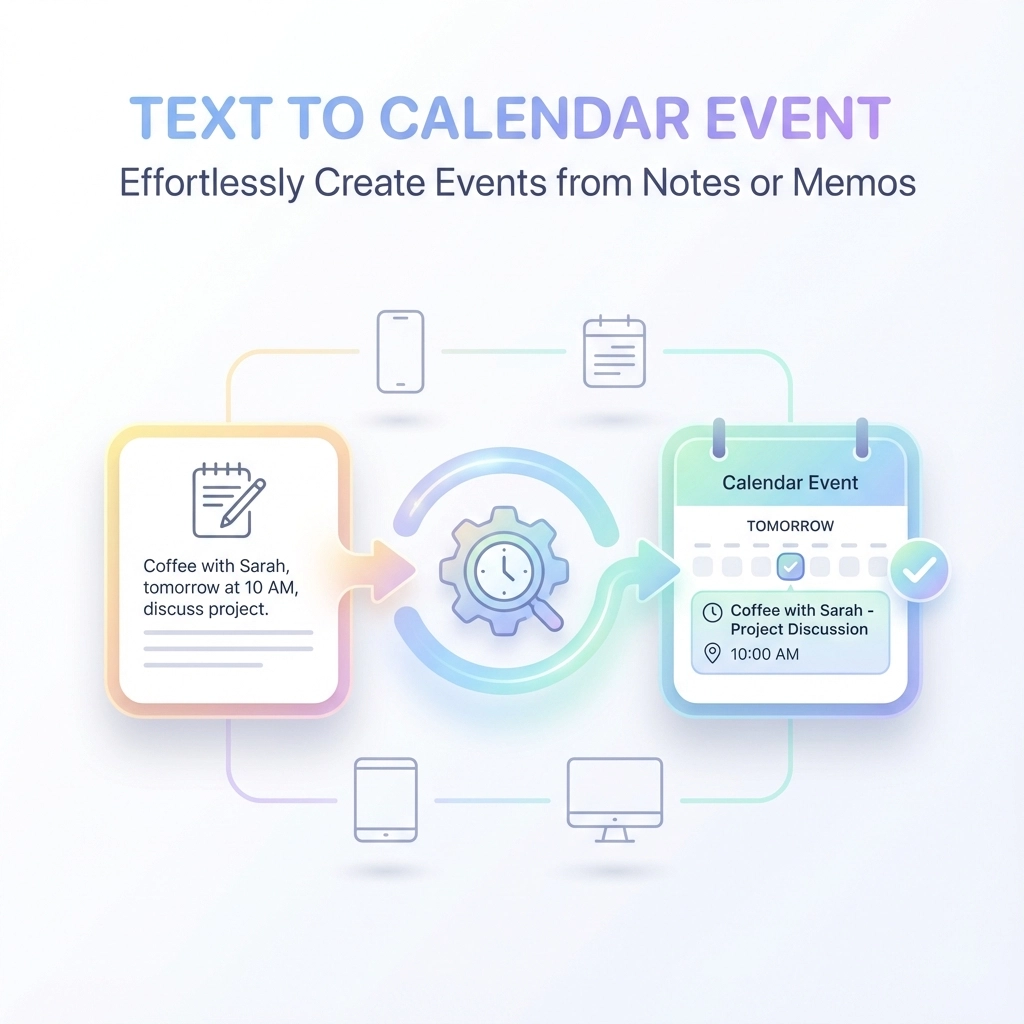
    Text-to-calendar conversion tools eliminate the tedious copy-paste dance that eats up your day. Instead of transcribing event details by hand, you simply feed your notes or memos into a tool that automatically creates calendar events for you.

    What Text-to-Calendar Conversion Actually Does

    Text-to-calendar tools scan your written content and identify event-related information. They pull out dates, times, locations, and descriptions, then format everything into proper calendar events.

    The process works with any text format. Meeting notes from Word documents. Email threads with scattered scheduling details. Quick voice-to-text memos on your phone. Even handwritten notes you've photographed.

    image_1

    The tool doesn't just copy text blindly. It understands context. When your notes say "client meeting next Tuesday at 3 PM," the system knows to convert "next Tuesday" into an actual date and set the time accordingly.

    Who Benefits Most from Text-to-Calendar Tools

    Project Managers
    You juggle multiple timelines, stakeholder meetings, and milestone deadlines. Your notes contain dozens of scheduling details that need to become trackable calendar events. Manual entry takes forever and introduces errors.

    Executive Assistants
    You manage calendars for multiple executives while coordinating their overlapping schedules. Meeting notes from one person often contain events that affect another person's calendar. Converting notes to events quickly keeps everyone synchronized.

    Consultants and Freelancers
    You work with multiple clients who schedule meetings through different channels. Email, Slack, phone calls, text messages. Centralizing all these scattered scheduling details into your calendar manually is a time drain.

    Team Leaders
    You run regular team meetings where people mention upcoming deadlines, training sessions, or project reviews. Converting these verbal commitments into shared calendar events ensures nothing gets forgotten.

    How the Process Works Step-by-Step

    Step 1: Gather Your Text Source
    Start with any document containing event information. This could be meeting notes, email threads, project documents, or quick memos you've jotted down.

    Step 2: Input the Text
    Copy and paste your content into the text-to-calendar tool. Most tools accept large blocks of text, so you don't need to separate individual events beforehand.

    Step 3: Review Extracted Events
    The tool presents a list of calendar events it identified from your text. Each event shows the extracted date, time, title, and any additional details like location or description.

    Step 4: Edit if Necessary
    Check the extracted information for accuracy. Sometimes the tool needs clarification on ambiguous dates or times. You can edit titles, adjust times, or add missing details.

    Step 5: Export to Your Calendar
    Generate ICS files or direct calendar links for the events. Most tools support Google Calendar, Outlook, Apple Calendar, and other major platforms.

    image_2

    Real-World Examples That Save Hours

    Example 1: Project Kickoff Notes
    Your meeting notes contain: "Design review scheduled for March 15th at 2 PM in Conference Room B. Development sprint planning on March 22nd, 10 AM. Client presentation draft due March 20th."

    Instead of creating three separate calendar entries, the tool converts this paragraph into three properly formatted events with correct dates, times, and locations.

    Example 2: Email Thread Scheduling
    A long email thread contains scattered references to upcoming events: "Let's meet next Thursday," "Don't forget the quarterly review is the 15th," and "Budget meeting moved to 3 PM on Tuesday."

    The tool extracts all scheduling references and converts relative dates like "next Thursday" into specific calendar dates based on when you process the text.

    Example 3: Voice Memo Conversion
    You recorded a quick voice memo while walking between meetings: "Need to schedule follow-up with Johnson for early next week. Also, the product demo is Thursday afternoon, and we have that vendor meeting sometime Friday morning."

    After converting speech to text, the tool identifies the three events and creates calendar entries, even though the original memo was informal and conversational.

    Pro Tips for Better Results

    Be Specific with Time References
    Instead of writing "tomorrow" or "next week," include actual dates when possible. This reduces ambiguity and improves extraction accuracy.

    Use Consistent Formatting
    If you regularly take notes that become calendar events, develop a consistent style. "Meeting with [Client] on [Date] at [Time]" works better than scattered references.

    Include Context Clues
    Add location information and meeting purposes to your notes. "Budget review in main conference room" gives the tool more information to work with than just "budget review."

    Process Notes Soon After Creation
    Convert notes to calendar events within a day or two of writing them. Relative date references like "next Monday" become more accurate when processed quickly.

    Double-Check Recurring Events
    Tools sometimes miss recurring meeting patterns. If your notes mention "weekly team meeting," you might need to set up the recurring pattern manually after the initial event creation.

    image_3

    Troubleshooting Common Issues

    Ambiguous Date References
    When your notes say "meeting next Tuesday," the tool needs to know which Tuesday you mean. Always process notes quickly, or include specific dates like "Tuesday, March 12th."

    Multiple Time Zones
    If you work with remote teams, specify time zones in your notes. "Call with London team at 10 AM GMT" prevents scheduling conflicts.

    Missing Time Information
    Notes that mention dates without times create all-day events by default. Add time details during the review step if the tool doesn't extract them automatically.

    Duplicate Events
    Long documents sometimes contain multiple references to the same meeting. Review extracted events to remove duplicates before adding them to your calendar.

    Unclear Event Titles
    The tool might extract "it" or "the meeting" as event titles when your notes use pronouns. Edit titles during the review process to make them descriptive.

    Advanced Features Worth Using

    Batch Processing
    Process multiple documents at once. Upload several meeting note files and convert all contained events in a single operation.

    Template Recognition
    Some tools learn from your note-taking patterns and get better at extracting events that match your typical formatting style.

    Integration Capabilities
    Connect directly with your calendar platform instead of using ICS files. This enables automatic syncing and reduces manual steps.

    Reminder Settings
    Set default reminder preferences so extracted events automatically include your preferred notification timing.

    Making It Part of Your Workflow

    Start small. Pick one type of recurring notes: weekly team meetings, client call summaries, or project planning documents: and use text-to-calendar conversion for just that content.

    Build the habit gradually. After each meeting or planning session, immediately convert any scheduling details you've captured into calendar events.

    Standardize your note-taking approach. When you know you'll need to create calendar events from your notes, write them with conversion in mind.

    The goal isn't perfect automation. It's eliminating the tedious manual work that turns simple scheduling into a time-consuming chore. Even if you need to edit extracted events occasionally, you're still saving significant time compared to creating each calendar entry from scratch.

    Ready to stop copy-pasting event details? Try our text-to-calendar tool and convert your next set of meeting notes in under a minute.

  • Event Chaos, Organized: How Text to ICS Simplifies Your Planning Workflow

    Event Chaos, Organized: How Text to ICS Simplifies Your Planning Workflow

    You're drowning in event details. Emails with meeting times, chat messages with deadline reminders, flyers with conference schedules: all scattered across different platforms. You spend your mornings copying and pasting information into your calendar, double-checking dates, and inevitably making mistakes that cause missed meetings or scheduling conflicts.

    This chaos doesn't have to be your reality. Text to ICS conversion transforms scattered event information into organized, downloadable calendar files in seconds. No more manual typing. No more forgotten details buried in your inbox.

    The Problem: Event Information Lives Everywhere

    Event planners and busy professionals face the same daily struggle. Important dates arrive through multiple channels:

    • Email invitations with embedded event details
    • Team chat messages mentioning quick meeting times
    • PDF flyers with conference schedules
    • Website event listings you want to track
    • Handwritten notes from phone calls

    Each piece of information requires manual calendar entry. You copy the date, switch to your calendar app, create a new event, paste the title, set the time, add location details, and repeat. This process takes 2-3 minutes per event, and mistakes happen when you're rushing or distracted.

    image_1

    How Text to ICS Eliminates Manual Work

    Text to ICS tools use natural language processing to extract event information from any text source. You highlight relevant text: whether it's "Board meeting next Thursday at 2 PM" or a detailed conference agenda: and the tool automatically identifies dates, times, locations, and event titles.

    The conversion happens in three simple steps:

    1. Input: Paste or type event details in plain text
    2. Processing: AI extracts dates, times, and event information
    3. Download: Receive a properly formatted .ics file for your calendar

    The entire process takes under 30 seconds per event. More importantly, the generated files work with every major calendar application: Google Calendar, Outlook, Apple Calendar, and others.

    Step-by-Step Workflow for Event Planners

    Step 1: Collect Event Information

    Start by identifying where your event details currently live. Open your email, team chat, or any document containing event information. You don't need to reformat anything: the text can be messy, informal, or embedded within longer messages.

    Step 2: Extract Relevant Text

    Highlight or copy the text containing event details. This might be:

    • "Marketing review meeting tomorrow 3:30 PM in Conference Room B"
    • "Q4 planning session scheduled for December 20th from 9 AM to 12 PM"
    • An entire email thread with multiple meeting references

    Step 3: Convert to ICS Format

    Visit your text to ICS conversion tool and paste the copied text. The tool automatically scans for date and time patterns, event titles, and location information. You'll see a preview of extracted events before downloading.

    Step 4: Review and Adjust

    Before downloading, verify the extracted information. Check that dates appear in your local timezone and event titles capture the essential details. Most tools allow quick edits at this stage.

    Step 5: Import to Your Calendar

    Download the .ics file and open it with your preferred calendar application. The events automatically appear in your schedule with proper formatting, timezone conversion, and reminder settings.

    image_2

    Key Benefits for Busy Teams

    Time Savings Add Up Quickly

    Manual calendar entry takes an average of 2-3 minutes per event. If you process 10 events weekly, that's 30 minutes of repetitive work. Text to ICS conversion reduces this to under 5 minutes total, freeing up 25 minutes for actual planning work.

    Accuracy Improves Dramatically

    Human error rates in manual data entry range from 1-5% depending on complexity and fatigue. Common mistakes include:

    • Wrong dates (especially when crossing month boundaries)
    • Incorrect times (forgetting AM/PM)
    • Timezone confusion for remote meetings
    • Typos in event titles or locations

    Automated extraction eliminates these errors by parsing text consistently and handling timezone conversions automatically.

    Universal Calendar Compatibility

    ICS files work across all calendar platforms without formatting issues. Your team can use different calendar applications while maintaining schedule synchronization. Remote workers, freelancers, and external partners can easily import shared event files regardless of their preferred tools.

    Real-World Use Cases

    Conference Planning

    Conference organizers often receive speaker schedules, venue changes, and session updates through email. Instead of manually entering dozens of events, planners can convert entire agenda documents into calendar files. Session coordinators can then distribute these files to attendees, speakers, and staff.

    Project Management

    Project managers frequently handle deadline schedules across multiple communication channels. Team members mention due dates in chat, clients email project milestones, and stakeholders reference important dates in meetings. Converting these scattered references into organized calendar events ensures nothing falls through the cracks.

    Client Services

    Service professionals who manage multiple client appointments benefit from streamlined calendar management. Client emails often contain informal scheduling language like "Let's meet next week Tuesday afternoon" or "Follow-up call scheduled for the 15th." Converting these references into proper calendar events improves client relationship management.

    image_3

    Best Practices for Maximum Efficiency

    Batch Processing Events

    Instead of converting events one at a time, collect multiple event references and process them together. Many tools support bulk conversion, allowing you to extract several events from a single text block or document.

    Standardize Your Input Format

    While text to ICS tools handle informal language, consistent formatting improves accuracy. Train your team to include key details in a predictable order: event name, date, time, and location.

    Create Event Templates

    For recurring event types, develop standard text templates. Meeting organizers can use formats like "Weekly team sync – [Date] at [Time] in [Location]" to ensure consistent conversion results.

    Verify Timezone Settings

    Always confirm that your conversion tool uses the correct local timezone. This becomes especially important when processing events scheduled across different regions or when working with international teams.

    Troubleshooting Common Issues

    Ambiguous Date Formats

    Text like "meeting on 3/4" could mean March 4th or April 3rd depending on regional conventions. When processing ambiguous dates, verify the intended interpretation before importing to your calendar.

    Complex Recurring Events

    Simple text to ICS tools handle single events effectively but struggle with complex recurring patterns. For events like "every second Tuesday" or "monthly on the last Friday," you may need to create the initial event and set up recurrence manually in your calendar application.

    Multiple Time References

    Text containing several time mentions can confuse extraction algorithms. Focus on the primary event details and process multiple events separately when text contains numerous date references.

    image_4

    Integration with Existing Workflows

    Email-to-Calendar Automation

    Many text to ICS tools integrate with email platforms, allowing direct conversion from your inbox. Set up filters or forwarding rules to automatically process specific types of event-related emails.

    Team Communication Tools

    Some conversion services offer plugins for popular team communication platforms like Slack or Microsoft Teams. Team members can convert meeting references directly within their chat workflow.

    Document Processing

    For teams working with shared documents containing event schedules, establish a routine for extracting calendar information. Designate team members to process updated schedules and distribute calendar files to relevant stakeholders.

    Measuring the Impact

    Track your time savings and accuracy improvements to quantify the benefits of automated event conversion. Most teams report:

    • 60-80% reduction in calendar management time
    • Significant decrease in missed meetings due to scheduling errors
    • Improved team coordination through consistent calendar formatting
    • Better work-life balance from reduced administrative overhead

    Getting Started Today

    Begin with a small test. Choose one source of regular event information: perhaps your weekly team meeting emails or client scheduling messages. Convert these events to ICS format and import them to your calendar.

    Measure the time difference between manual entry and automated conversion. Once you see the efficiency gains, expand the process to other event sources and team workflows.

    The shift from event chaos to organized scheduling doesn't require major system changes or expensive software. Simple text to ICS conversion eliminates the busywork that keeps you from focusing on what matters: successful event planning and execution.

  • Why Every Event Coordinator Needs a Text to ICS Shortcut

    Why Every Event Coordinator Needs a Text to ICS Shortcut

    You're drowning in event details scattered across emails, PDFs, spreadsheets, and sticky notes. Every conference agenda, speaker schedule, and venue booking requires manual calendar entry. Your team keeps missing deadlines because someone forgot to add that crucial planning meeting to their calendar. Sound familiar?

    Event coordination shouldn't feel like data entry hell. Yet most coordinators spend hours each week copying and pasting event information into calendar systems, fixing typos, and chasing down team members who "didn't get the calendar invite."

    Text to ICS shortcuts change everything. Instead of manual calendar entry, you convert any text into downloadable calendar files in seconds. Your attendees get properly formatted events that work in any calendar app. Your team stays synchronized. Your sanity remains intact.

    What Exactly Is a Text to ICS Shortcut?

    A text to ICS shortcut transforms unstructured event information into standardized calendar files. You paste meeting details from an email, upload a conference PDF, or even screenshot an event poster. The tool extracts dates, times, locations, and descriptions, then generates an .ics file that works in Google Calendar, Outlook, Apple Calendar, and every other major scheduling platform.

    image_1

    The "ICS" format is the universal calendar language. When you send someone an .ics file, their calendar automatically recognizes all the event details: no matter what system they use.

    Case Study: Sarah's Conference Nightmare Becomes a Breeze

    Sarah coordinates tech conferences with 50+ speakers across three days. Before discovering text to ICS shortcuts, she spent entire weekends manually creating calendar events from speaker submission forms.

    "I had spreadsheets with 200 rows of session data," Sarah recalls. "Name, time slot, room, bio, session title: all sitting there mocking me while I clicked through calendar creation screens for hours."

    Her breaking point came during a particularly chaotic conference prep. She accidentally double-booked two keynote speakers because of a manual entry error. The venue scramble cost her weekend and nearly damaged relationships with sponsors.

    Now Sarah uploads her speaker CSV file and generates all 50+ calendar events in under two minutes. Each session becomes a properly formatted .ics file with speaker details, room assignments, and session descriptions.

    "My stress levels dropped dramatically," she says. "I went from weekend data entry marathons to having complete conference calendars ready before lunch on Monday."

    The time savings compound throughout the planning cycle. Sarah shares session calendars with speakers immediately after confirmation. Attendees download individual sessions or the complete conference schedule. No more "what time was that panel again?" emails.

    Case Study: Mike's Corporate Event Coordination Revolution

    Mike manages quarterly company retreats for a 300-person tech startup. These events involve team workshops, leadership sessions, vendor meetings, and social activities: all requiring precise coordination across departments.

    His old workflow was pure chaos. Department heads sent meeting requests via email, Slack, and sometimes verbal hallway conversations. Mike spent Tuesday mornings deciphering messages like "Can we move the Q4 planning thing to Thursday afternoon somewhere?" and trying to figure out who needed to attend what.

    "I was playing detective instead of coordinating events," Mike explains. "Half my job was translating vague messages into actual calendar invites."

    Text to ICS shortcuts eliminated the translation layer. Now Mike forwards messy emails directly to the conversion tool. He screenshots Slack messages about impromptu meetings. He even photographs whiteboard planning sessions from leadership meetings.

    Each input becomes a clean calendar file within seconds. Mike reviews the extracted details, makes quick adjustments, and sends properly formatted invites to relevant teams.

    The impact extended beyond Mike's workload. "Our no-show rate for internal meetings dropped by 60%," he notes. "When people get clear calendar files with all the details, they actually show up prepared."

    Department heads started requesting Mike's "calendar magic" for their own team meetings. His text to ICS workflow became the company standard for event communication.

    Case Study: Lisa's Nonprofit Fundraising Event Success

    Lisa coordinates fundraising galas for a mid-sized nonprofit. These events require managing donor schedules, volunteer shifts, vendor timelines, and board member availability across months of planning.

    Her coordination nightmare involved juggling information from venue contracts (PDF), volunteer signup forms (online submissions), and donor preference emails. Creating comprehensive event timelines meant hours of manual calendar work, often late into the evening.

    "Board members would send emails like 'I can help with setup Saturday morning but need to leave for my daughter's recital by 2 PM,'" Lisa remembers. "Translating dozens of these messages into workable schedules was exhausting."

    The text to ICS shortcut transformed her workflow. Lisa processes volunteer availability emails in batches, converting each message into calendar blocks. Vendor delivery windows from PDF contracts become calendar events with location details and contact numbers. Board member preferences turn into scheduling constraints that everyone can see.

    image_2

    The clarity improved volunteer coordination dramatically. Instead of confusion about shift timing, volunteers download their specific schedule files. They see exactly when to arrive, where to report, and what tasks they're handling.

    "Our last gala ran smoother than any previous event," Lisa reports. "Volunteers knew their schedules. Vendors arrived on time. Board members showed up when needed. It felt like coordinating a well-oiled machine instead of herding cats."

    The Hidden Cost of Manual Calendar Management

    These success stories highlight a broader problem: manual calendar management doesn't just waste time: it creates cascading errors that damage event quality.

    When you manually transcribe event details, you introduce typos. Wrong meeting times. Incorrect room numbers. Missing attendee names. These errors multiply as events get forwarded and shared.

    Manual processes also create inconsistent formatting. Your Google Calendar event might look different from someone else's Outlook version. Time zones get confused. Location details disappear. Attendees receive unclear information.

    Text to ICS shortcuts standardize everything. Every generated calendar file contains the same information formatted consistently across all calendar platforms.

    Five Ways Text to ICS Shortcuts Transform Daily Event Management

    1. Batch Processing Eliminates Repetitive Work

    Instead of creating calendar events one by one, you process entire event lists simultaneously. Upload a conference schedule CSV and generate 50 calendar files. Convert a week's worth of meeting emails in minutes.

    2. Cross-Platform Compatibility Ends Calendar Confusion

    Your .ics files work everywhere. Google Calendar users, Outlook devotees, and Apple Calendar fans all receive identical, properly formatted events. No more "I didn't see that meeting on my phone" excuses.

    3. Automatic Detail Extraction Reduces Errors

    AI parsing catches information you might miss during manual entry. Time zones get handled correctly. Location details transfer completely. Attendee lists stay accurate.

    4. Instant Sharing Improves Team Coordination

    Generate calendar files immediately after event confirmation. Share schedules while information is fresh. Keep everyone synchronized from day one.

    5. Professional Presentation Enhances Credibility

    Clean, properly formatted calendar files look more professional than hastily created manual entries. Your attention to detail shows in every shared event.

    Getting Started: Your First Text to ICS Conversion

    Ready to eliminate calendar chaos? Your first conversion takes less than five minutes.

    Start with a simple test. Find an email with meeting details: time, date, location, attendees. Copy the relevant text and paste it into a text to ICS tool.

    Review the extracted information. The tool highlights dates, times, and locations it identified. Make any necessary adjustments.

    Download your .ics file and open it in your calendar app. The event appears with all details properly formatted.

    Now try something more complex. Upload a PDF schedule or convert multiple events from a spreadsheet. Watch hours of manual work disappear in seconds.

    Making Text to ICS Part of Your Standard Workflow

    The most successful event coordinators make text to ICS conversion automatic. They process new event information immediately instead of letting it accumulate.

    Set up a simple routine: check emails for event details, convert them to calendar files, and share them with relevant team members. This takes minutes but prevents hours of catch-up work later.

    For recurring events, save your conversion templates. Monthly board meetings, weekly team check-ins, and quarterly reviews become one-click calendar generation.

    Consider integrating text to ICS shortcuts with your existing event management tools. Many coordinators bookmark the conversion tool or add browser extensions for faster access.

    The goal isn't just personal efficiency: it's creating better experiences for everyone involved in your events. When attendees receive clear, consistent calendar information, they show up prepared and on time. When team members have accurate schedules, they coordinate more effectively. When vendors get detailed timeline files, they deliver services smoothly.

    Text to ICS shortcuts don't just save time. They transform chaotic event coordination into systematic, professional event management. Your events run better. Your team stays happier. Your stress levels drop dramatically.

    The question isn't whether you need a text to ICS shortcut. The question is how much longer you'll tolerate manual calendar chaos when a better solution exists.

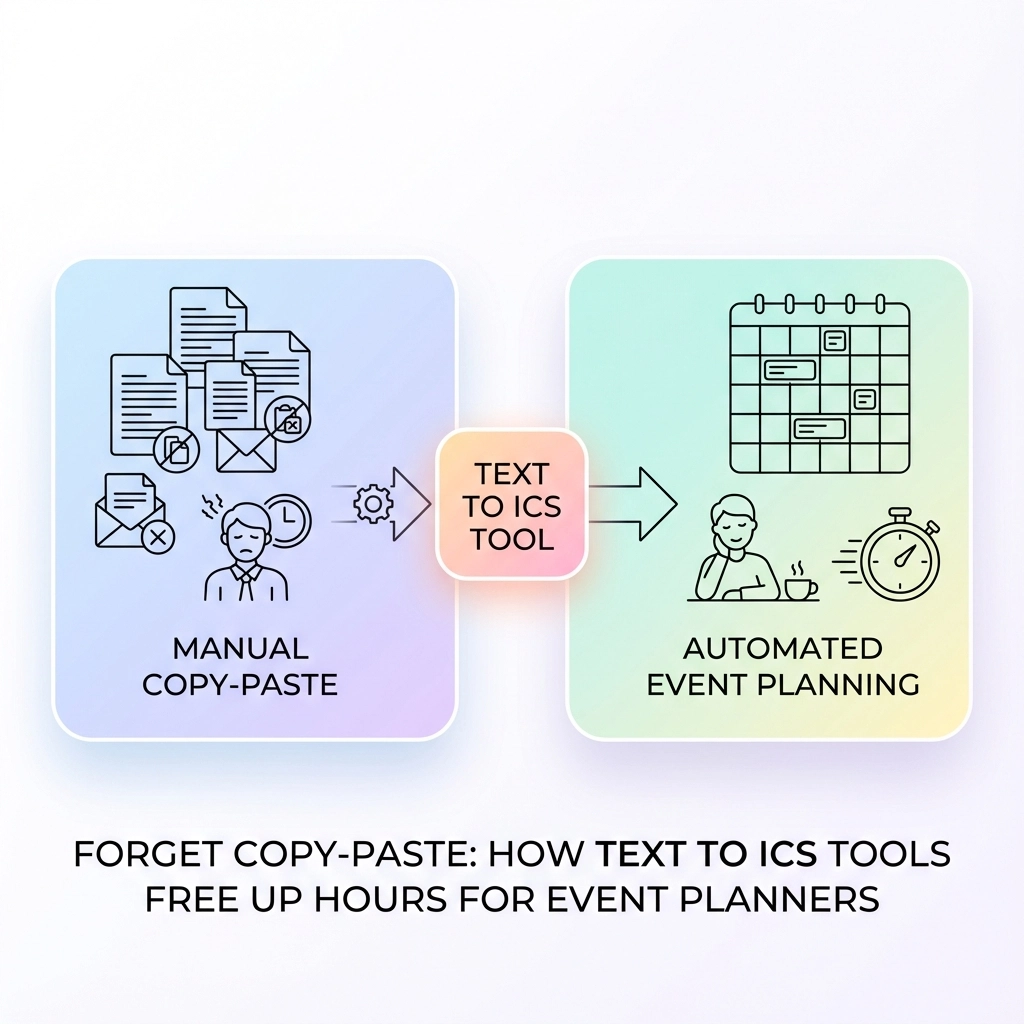
  • Forget Copy-Paste: How Text to ICS Tools Free Up Hours for Event Planners

    Forget Copy-Paste: How Text to ICS Tools Free Up Hours for Event Planners

    You're staring at an email with seventeen different event details scattered across three paragraphs. Meeting times buried between pleasantries. Venue addresses mixed with parking instructions. Conference dates hidden in marketing copy.

    And you know what comes next. The dreaded copy-paste dance.

    Open your calendar. Create new event. Copy the title. Switch back to email. Find the date. Switch to calendar. Type the date. Back to email for the time. Calendar again. Copy the location. Format the description.

    Multiply this by every event notification, every client email, every conference announcement that hits your inbox. Event planners waste hours each week on this mind-numbing process.

    There's a better way.

    The Hidden Time Drain in Event Planning

    Event planning involves juggling information from everywhere. Clients send meeting details via email. Venues share availability through PDFs. Speakers confirm sessions through text messages. Social media posts announce last-minute schedule changes.

    Each piece of information requires manual translation into your calendar system. You're not just copying text: you're interpreting dates, converting time zones, formatting addresses, and ensuring nothing gets lost in translation.

    image_1

    The average event planner spends 2-3 hours per week just on manual calendar entry. That's 150 hours annually. Nearly four full work weeks dedicated to copy-paste operations instead of actual event planning.

    Real-World Scenarios Where Manual Entry Kills Productivity

    Scenario 1: Conference Planning
    You receive speaker confirmations from twelve different presenters. Each email contains session times, room preferences, and A/V requirements formatted differently. Sarah writes "next Tuesday at 2 PM in Conference Room A." Michael sends "1400 hours on 03/15 in the Blue Room." Jennifer texts "Mar 15th – 2:00p – need projector – main hall."

    Manual process: 45 minutes to decode, enter, and cross-reference all sessions.

    Scenario 2: Client Meeting Coordination
    A client forwards you a chain of emails about a project kickoff. The actual meeting details are buried in the fourth message: "Let's meet Thursday, March 20th at 10:30 AM at our downtown office (1234 Main Street, Suite 400) to discuss the Q2 campaign launch."

    Manual process: 8 minutes to extract date, time, location, and purpose into calendar format.

    Scenario 3: Vendor Schedule Integration
    Your catering partner sends availability via PDF. Florist confirms delivery windows through WhatsApp. Musicians share sound check requirements in a Google Doc. Each vendor uses different date formats and terminology.

    Manual process: 25 minutes to consolidate and enter all vendor schedules without conflicts.

    How Text to ICS Tools Eliminate the Copy-Paste Nightmare

    Text to ICS conversion tools use natural language processing to automatically detect and extract event information from any text source. Instead of manually parsing dates, times, and locations, these tools do the heavy lifting instantly.

    The process works like this:

    1. Text Recognition: The tool scans your input for date patterns, time expressions, and location indicators
    2. Information Extraction: Advanced algorithms identify event components even when formatted inconsistently
    3. Calendar Formatting: Extracted data gets structured into standard calendar format
    4. ICS Generation: The tool creates a downloadable calendar file compatible with any calendar application

    image_2

    Step-by-Step: From Chaos to Calendar in 30 Seconds

    Let's walk through converting that messy client email into a calendar event:

    Step 1: Copy the Text
    Grab everything from the email: "Let's meet Thursday, March 20th at 10:30 AM at our downtown office (1234 Main Street, Suite 400) to discuss the Q2 campaign launch."

    Step 2: Paste into Text to ICS Tool
    Visit a text to calendar conversion tool and paste your text.

    Step 3: Review Extracted Data
    The tool automatically identifies:

    • Date: March 20th (current year assumed)
    • Time: 10:30 AM
    • Location: 1234 Main Street, Suite 400
    • Title: Q2 campaign launch meeting

    Step 4: Download ICS File
    Click generate and download your calendar-ready file.

    Step 5: Import to Any Calendar
    Double-click the ICS file or import it directly into Google Calendar, Outlook, Apple Calendar, or any other calendar application.

    Total time: 30 seconds instead of 8 minutes.

    Specific Time Savings Across Common Tasks

    Email-to-Calendar Conversion

    • Manual method: 5-8 minutes per email
    • Text to ICS: 30 seconds per email
    • Time saved: 4-7 minutes per event

    Bulk Event Processing

    • Manual method: 45 minutes for 10 events
    • Text to ICS with batch processing: 5 minutes for 10 events
    • Time saved: 40 minutes per batch

    Cross-Platform Scheduling

    • Manual method: 15 minutes to enter same event across three calendar systems
    • Text to ICS: 30 seconds to generate one file that imports everywhere
    • Time saved: 14.5 minutes per multi-platform event

    image_3

    Beyond Time Saving: Error Reduction and Accuracy

    Manual entry introduces transcription errors. You misread "3 PM" as "2 PM." You forget the time zone. You transpose the venue address. These mistakes cascade into scheduling conflicts, missed meetings, and client frustration.

    Text to ICS tools eliminate human error in several ways:

    Date Pattern Recognition: Tools distinguish between different date formats automatically. Whether someone writes "March 15," "3/15," or "Mar 15th," the tool interprets correctly.

    Time Zone Handling: Advanced tools detect and preserve time zone information, preventing the common mistake of scheduling meetings in the wrong zone.

    Location Standardization: Address recognition ensures venue information stays consistent and searchable across all calendar entries.

    Integration Benefits for Modern Event Planning

    Modern event planning happens across multiple platforms. You use Google Calendar for personal scheduling, Outlook for corporate events, and Apple Calendar for quick mobile entry. Text to ICS tools generate universal calendar files that work everywhere.

    Cross-Platform Compatibility
    ICS files import cleanly into:

    • Google Calendar
    • Microsoft Outlook
    • Apple Calendar
    • Mozilla Thunderbird
    • Yahoo Calendar
    • Any calendar application supporting the iCalendar standard

    Team Collaboration
    Generate one ICS file and share it with your entire team. Everyone imports the same accurate event information without individual manual entry.

    Client Communication
    Send calendar files directly to clients instead of expecting them to manually add events from your emails. Professional and convenient.

    image_4

    Advanced Features That Multiply Productivity

    Bulk Processing
    Process entire email chains or documents containing multiple events. Some tools can extract dozens of events from conference agendas or event schedules in one operation.

    Smart Interpretation
    Modern tools understand context. "Next Tuesday" gets converted to the actual date. "Lunch meeting" automatically suggests 12:00 PM if no time is specified.

    Custom Field Mapping
    Map specific text patterns to calendar fields. If your organization always puts room numbers in parentheses, the tool learns this pattern.

    Recurring Event Detection
    Tools can identify recurring patterns and create repeating calendar entries automatically.

    Pro Tips for Maximum Efficiency

    Tip 1: Standardize Your Text Sources
    Encourage clients and vendors to use consistent formats when sending event information. Create email templates with clear date/time/location sections.

    Tip 2: Batch Similar Tasks
    Process all venue confirmations together. Handle speaker schedules in one session. Grouping similar conversion tasks improves focus and speed.

    Tip 3: Review Before Importing
    Always verify extracted information before importing to your main calendar. Tools are accurate but not perfect: especially with ambiguous dates or unusual formatting.

    Tip 4: Create Template Events
    Use converted events as templates for similar future events. Modify dates and details rather than starting from scratch.

    When Manual Entry Still Makes Sense

    Text to ICS tools handle 90% of event planning scenarios, but some situations still require manual approach:

    • Complex multi-day events with varying daily schedules
    • Events with extensive custom fields specific to your organization
    • Highly sensitive information requiring manual verification
    • Integration with specialized event management software requiring specific formatting

    image_5

    Getting Started: Your First Text to ICS Conversion

    Ready to reclaim those lost hours? Start with one email containing event details.

    Copy the relevant text. Visit Text to Calendar and paste your information. Review the extracted details. Generate your ICS file. Import to your calendar.

    Time it. Compare to your usual manual process.

    That time difference? Multiply it by every event you process weekly. Those are the hours you can redirect toward actual event planning instead of administrative copy-paste work.

    Your calendar management doesn't have to be a time sink. Tools exist to handle the tedious parts automatically. Use them.

  • Text to ICS: The Fastest Way to Create Calendar Events from Plain Text

    Text to ICS: The Fastest Way to Create Calendar Events from Plain Text

    You're staring at another email with event details buried in paragraphs of text. The meeting is next week, but extracting the date, time, and location means manually copying and pasting into your calendar app. Again.

    Sound familiar? You're not alone.

    Every day, professionals waste precious minutes manually entering calendar events from emails, meeting notes, PDFs, and text messages. One missed detail or typo can mean showing up at the wrong time or place.

    There's a better way: converting text directly to ICS files.

    What Is Text to ICS Conversion?

    ICS (iCalendar) files are the universal standard for calendar events. Think of them as digital event tickets that work with every major calendar platform, Google Calendar, Outlook, Apple Calendar, and more.

    Text to ICS conversion transforms plain text containing event information into these standardized calendar files. Instead of manual entry, you paste your text, and the system extracts dates, times, locations, and descriptions automatically.

    The result? Instant, downloadable calendar events ready for any platform.

    Why Event Managers Need This

    Event managers juggle dozens of events, venues, and scheduling details daily. Manual calendar entry isn't just tedious, it's error-prone.

    Consider these common scenarios:

    Conference Planning: You receive vendor emails with setup times, speaker schedules, and venue details scattered across multiple messages. Converting each email thread to calendar events manually takes hours.

    Client Meetings: Meeting notes from calls contain follow-up appointments, deadlines, and check-in dates. Extracting these into actionable calendar items requires careful parsing and multiple app switches.

    Event Promotion: Social media posts, flyers, and registration confirmations contain event details your team needs in their calendars. Recreating this information repeatedly wastes time.

    Vendor Coordination: Supplier communications include delivery schedules, setup appointments, and inspection times that must sync across your entire team's calendars.

    image_1

    How Text to ICS Conversion Works

    The process involves three main steps: text parsing, event extraction, and ICS generation.

    Text Parsing: The system analyzes your input text using natural language processing. It identifies patterns that indicate dates, times, locations, and event descriptions.

    Event Extraction: Once patterns are identified, the system extracts specific details:

    • Event titles and descriptions
    • Start and end dates/times
    • Location information
    • Additional notes or attendees

    ICS Generation: Finally, the extracted information gets formatted into a standard .ics file that any calendar application can import.

    Different Conversion Methods Available

    Browser Extensions

    Chrome extensions like "Text to iCal" offer one-click conversion directly from web pages. Highlight text containing event details, click the extension, and download the ICS file immediately.

    Pros: Quick access, works on any webpage
    Cons: Limited customization, may struggle with complex formats

    Web-Based Tools

    Online platforms provide more robust conversion capabilities. You paste text into a form, review extracted details, make edits if needed, and download the result.

    Tools like Text to Calendar offer enhanced accuracy and customization options for professional use.

    Pros: No installation required, better accuracy, editing capabilities
    Cons: Requires internet connection

    AI-Powered Solutions

    Advanced tools use artificial intelligence to understand context and handle complex text formats. These systems excel at interpreting natural language and extracting nuanced event details.

    Pros: Handles complex formats, understands context, high accuracy
    Cons: May require API keys or subscriptions

    Step-by-Step Conversion Process

    Here's how to convert text to ICS efficiently:

    1. Identify Your Text Source: Gather the text containing event information, emails, PDFs, meeting notes, or messages.

    2. Choose Your Tool: Select based on your needs. For quick, simple conversions, use browser extensions. For professional use with multiple events, choose web-based or AI-powered tools.

    3. Input Your Text: Copy and paste the relevant text into your chosen conversion tool.

    4. Review Extracted Details: Most tools show a preview of extracted event information. Check dates, times, and locations for accuracy.

    5. Make Adjustments: Edit any details that weren't parsed correctly. Add attendees, adjust time zones, or modify descriptions as needed.

    6. Generate and Download: Create the .ics file and save it to your device.

    7. Import to Calendar: Open the .ics file with your preferred calendar application to add the event automatically.

    image_2

    Key Benefits for Busy Professionals

    Time Savings

    Manual calendar entry averages 2-3 minutes per event. For event managers handling dozens of events weekly, text to ICS conversion saves hours monthly.

    Accuracy Improvement

    Automated extraction eliminates typos and transcription errors. Dates, times, and locations transfer exactly as written in the source text.

    Universal Compatibility

    ICS files work with all major calendar platforms. Create once, use everywhere, no platform-specific reformatting required.

    Bulk Processing

    Many tools handle multiple events simultaneously. Convert entire email threads or document sections into multiple calendar entries at once.

    Consistent Formatting

    Automated conversion ensures consistent event formatting across your calendar system. No more variation in how different team members enter event details.

    Common Use Cases and Examples

    Email Invitations:
    "Please join us for the quarterly review meeting on March 15th at 2:00 PM in Conference Room B. We'll discuss Q4 results and 2024 planning."

    Converts to: Event titled "Quarterly Review Meeting" on March 15, 2:00 PM, location "Conference Room B" with description about Q4 results and planning.

    Event Flyers:
    "Summer Networking Event – July 20, 2024, 6:30 PM – 9:00 PM at Downtown Convention Center, 123 Main Street. Cocktails and appetizers provided."

    Becomes: Complete calendar event with correct date range, venue address, and event details.

    Meeting Notes:
    "Follow-up meeting scheduled for next Tuesday at 10 AM via Zoom. Action items due Wednesday."

    Creates: Meeting event for the correct Tuesday with Zoom location and related deadline reminder.

    Privacy and Security Considerations

    When handling sensitive event information, privacy matters. Here's what to consider:

    Local Processing: Tools that process text locally on your device provide maximum privacy. Your event details never leave your computer.

    Secure Transmission: Web-based tools should use encrypted connections (HTTPS) when handling your data.

    Data Retention: Check whether tools store your text or event details after conversion. Many reputable services don't retain user data.

    AI Provider Policies: AI-powered tools may send text to external providers like OpenAI or Google. Review their privacy policies for sensitive information.

    For maximum security, choose tools that emphasize privacy protection and local processing when possible.

    Pro Tips for Better Results

    Use Clear Date Formats: Write dates consistently (March 15, 2024 instead of 3/15/24) for better parsing accuracy.

    Include Time Zones: Specify time zones for events involving remote participants or multiple locations.

    Separate Multiple Events: Use line breaks or clear separation between different events in your text.

    Add Context: Include relevant keywords like "meeting," "conference," or "deadline" to help tools categorize events correctly.

    Review Before Importing: Always check extracted details before adding to your calendar. Automated systems aren't perfect.

    Test with Sample Text: Try your conversion tool with known event details first to understand its accuracy and limitations.

    image_3

    Troubleshooting Common Issues

    Incorrect Date Parsing: If dates are wrong, try different formats or add more context words around dates.

    Missing Time Information: When times aren't detected, ensure they're clearly formatted (2:00 PM, 14:00, etc.).

    Location Problems: Add specific location keywords like "at," "in," or "venue:" before addresses.

    Multiple Events Merging: Use clear separators between different events in your source text.

    Getting Started Today

    Ready to stop wasting time on manual calendar entry?

    Start with a simple test. Find an email or document with event details and try converting it to calendar events using a text to ICS tool.

    Most professionals see immediate time savings on their first use. Event managers handling multiple events weekly can reclaim hours of productive time monthly.

    The technology exists. The tools are ready. Your calendar chaos has a solution.

    Stop copying and pasting. Start converting text to ICS files automatically, and focus your energy on what really matters: running great events and managing your time effectively.