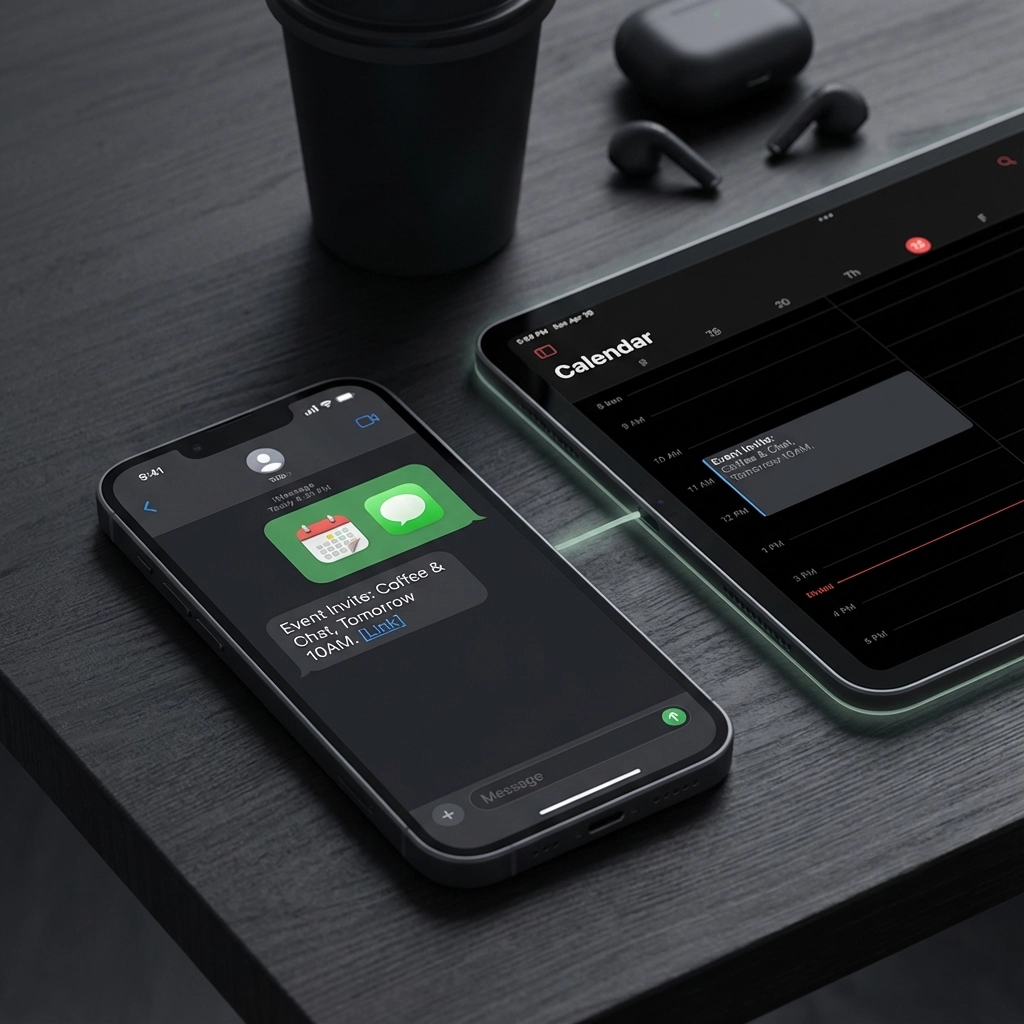
You're trying to coordinate a team meeting, but half your colleagues never check their email. Or maybe you're planning a casual dinner with friends who live in their text messages. The question hits you: can you actually send a calendar invite via text message?
The short answer is yes – and it's often more effective than traditional email invites.
Text messages have a 98% open rate compared to email's measly 20-30%. When you need people to actually see and respond to your calendar invite, SMS might be your secret weapon.
Why Text-Based Calendar Invites Work Better
Your email inbox is a battlefield. Calendar invites get buried under newsletters, work updates, and spam. Text messages, on the other hand, land directly on someone's lock screen with an immediate notification.
Here's what makes text-based calendar invites particularly powerful:
- Immediate delivery and visibility – No waiting for email checks
- Higher engagement rates – People respond to texts within minutes, not hours
- Works across all devices – iOS, Android, flip phones – doesn't matter
- Perfect for urgent changes – Last-minute location updates or cancellations
- Ideal for casual events – Birthday parties, coffee meetups, informal gatherings
But how exactly do you send these invites? Let's break down your options.
Method 1: Native Calendar App Integration
Most smartphones now support sending calendar invites directly through text messages. Here's how it works on different platforms:
iPhone Users:
- Open your Calendar app
- Create a new event or select an existing one
- Tap "Add Invitees"
- Enter the recipient's phone number instead of email
- Tap "Done" and "Send"
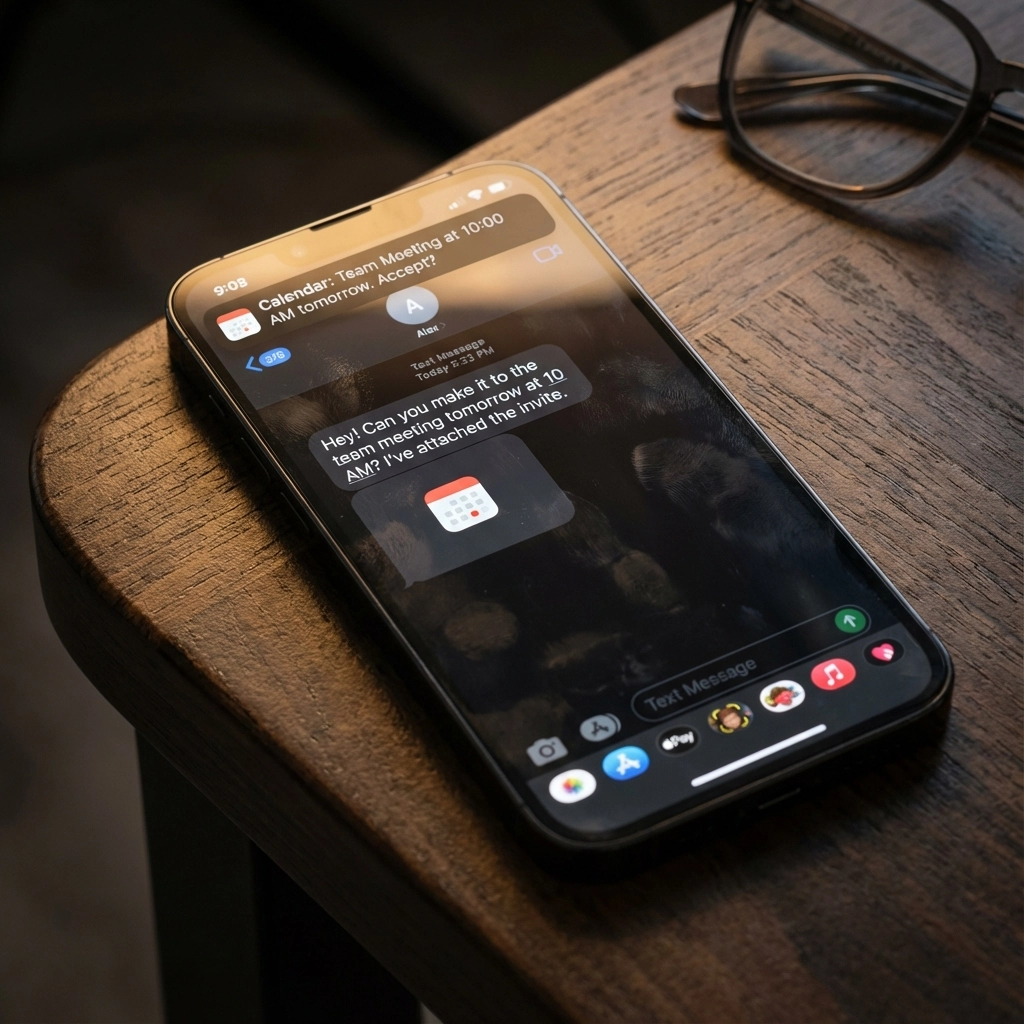
The system automatically generates a text message with event details and an attachment that recipients can tap to add to their calendar.
Android Users:
- Open Google Calendar
- Create your event
- Add guests using phone numbers
- Google automatically sends SMS notifications with calendar links
The beauty of this method is its simplicity. No additional apps, no complicated processes – just your existing calendar working smarter.
Method 2: ICS File Attachments
ICS files are the universal language of calendars. Think of them as small data packets that contain all your event information – date, time, location, description – in a format every calendar application understands.
Here's how to use ICS files for text-based invites:
- Create your event in any calendar app (Google Calendar, Outlook, Apple Calendar)
- Export as ICS file – usually found in sharing or export options
- Attach to text message – use your phone's attachment feature
- Send – recipients tap the file to automatically add the event
When someone receives your text with an ICS attachment, they tap once and the event appears in their calendar with all details pre-filled. No typing, no manual entry, no mistakes.
This method works particularly well for complex events with multiple details or recurring meetings.
Method 3: Calendar Link Sharing
Google Calendar and other services generate shareable links for events. These links work perfectly in text messages:
- Create your event in Google Calendar
- Click "More Options"
- Copy the event link
- Paste into a text message
- Add context about what the link is for
Recipients click the link, which opens their default calendar app or a web browser where they can add the event with one click.
Pro tip: Include a brief description in your text like "Baby shower details – tap to add to calendar" so recipients know what they're clicking.
Method 4: Business SMS Platforms
For organizations sending calendar invites to multiple people, business SMS platforms offer bulk capabilities:
- SimpleTexting – Upload contact lists, attach ICS files
- Twilio – API integration for automated invite sending
- EZ Texting – Template-based calendar invite campaigns
- PowerTextor – Advanced scheduling and tracking features
These platforms let you send hundreds of calendar invites simultaneously while tracking delivery and engagement rates.
When Text Beats Email for Calendar Invites
Text-based calendar invites aren't always the right choice. Understanding when to use them helps you pick the most effective method:
Use text for:
- Casual social events
- Last-minute changes or urgent updates
- Small group coordination (under 20 people)
- Recipients who rarely check email
- Time-sensitive events requiring immediate response
- Informal work meetings or quick check-ins
Stick with email for:
- Formal business meetings
- Large group events (50+ attendees)
- Events requiring detailed agendas or attachments
- Corporate environments with established email protocols
- Professional conferences or client meetings
The key is matching your method to your audience and event type.

Technical Considerations and Limitations
While text-based calendar invites are powerful, they come with some technical quirks you should know about:
Character limits: Standard SMS messages cap at 160 characters. Rich event details might require MMS or multiple messages.
Cross-platform compatibility: iPhone-to-Android invite sharing sometimes requires workarounds. Test with your specific audience first.
Network reliability: Text delivery depends on cellular service. Poor coverage areas might delay invite delivery.
Cost considerations: MMS messages (with attachments) cost more than standard texts. Factor this into bulk sending decisions.
Spam filtering: Some carriers filter messages with attachments. Include clear context about what you're sending.
Making Your Text Invites More Effective
The best text-based calendar invites follow specific patterns that maximize acceptance and reduce confusion:
Include essential information upfront:
- Event name and purpose
- Date and time
- Location (with address if needed)
- What action you want them to take
Example good text:
"Sarah's Birthday Party – Saturday Oct 15, 7 PM at Mario's Pizza (123 Main St). Tap attached file to add to your calendar. RSVP by Thursday!"
Keep it conversational but clear:
- Use natural language
- Include context about why they're invited
- Make the next step obvious
Add helpful details:
- Parking information
- What to bring
- Dress code
- Contact info for questions
Tools That Streamline the Process
Several tools make text-based calendar invite sending easier and more professional:
Text to Calendar offers AI-powered solutions that convert any text into properly formatted calendar events. Instead of manually creating ICS files, you can convert text to calendar events fast using natural language processing.
Calendly integrates with SMS platforms to automatically send confirmation texts with calendar attachments.
When2meet generates shareable links that work well in text messages for scheduling coordination.
Doodle offers SMS notification features for poll-based event planning.
These tools handle the technical complexity while you focus on clear communication.
Best Practices for Response Management
Sending the invite is only half the battle. Managing responses effectively keeps your event organized:
Set response expectations:
- Include RSVP deadline in your message
- Specify how they should respond (text back, call, etc.)
- Provide alternative contact methods
Follow up strategically:
- Send reminder texts 24-48 hours before the event
- Include any last-minute updates or changes
- Share important details like parking or entrance instructions
Track engagement:
- Note who opens attachments vs. who doesn't respond
- Follow up with non-responders using their preferred communication method
- Keep backup contact information for critical attendees
The goal is making calendar coordination feel effortless for everyone involved.
Troubleshooting Common Issues
Even with the best planning, text-based calendar invites sometimes hit snags. Here's how to handle the most common problems:
Attachment won't open: Some older phones struggle with ICS files. Send a follow-up text with event details in plain text as backup.
Wrong time zone: Always specify time zones in your event details, especially for virtual meetings or when inviting people from multiple locations.
Duplicate events: Recipients might accidentally add the same event twice. Include instructions like "Check your calendar first – this might duplicate an existing entry."
No response: After 24-48 hours, follow up with a different method. Some people prefer phone calls or email for event confirmation.
Text-based calendar invites work best when you have contingency plans for technical hiccups.
Text messaging transforms calendar invite delivery from a hoping-they-check-email situation into guaranteed immediate visibility. Whether you're coordinating with friends, managing small team meetings, or handling event logistics, SMS puts your calendar invite directly in front of the people who need to see it.
The key is choosing the right method for your situation, crafting clear messages, and having backup plans for technical issues. When done well, text-based calendar invites dramatically improve response rates and reduce the back-and-forth typically required for event coordination.
Ready to streamline your calendar invite process? Try Text to Calendar's tools to automatically generate professional calendar events from any text description.
Leave a Reply