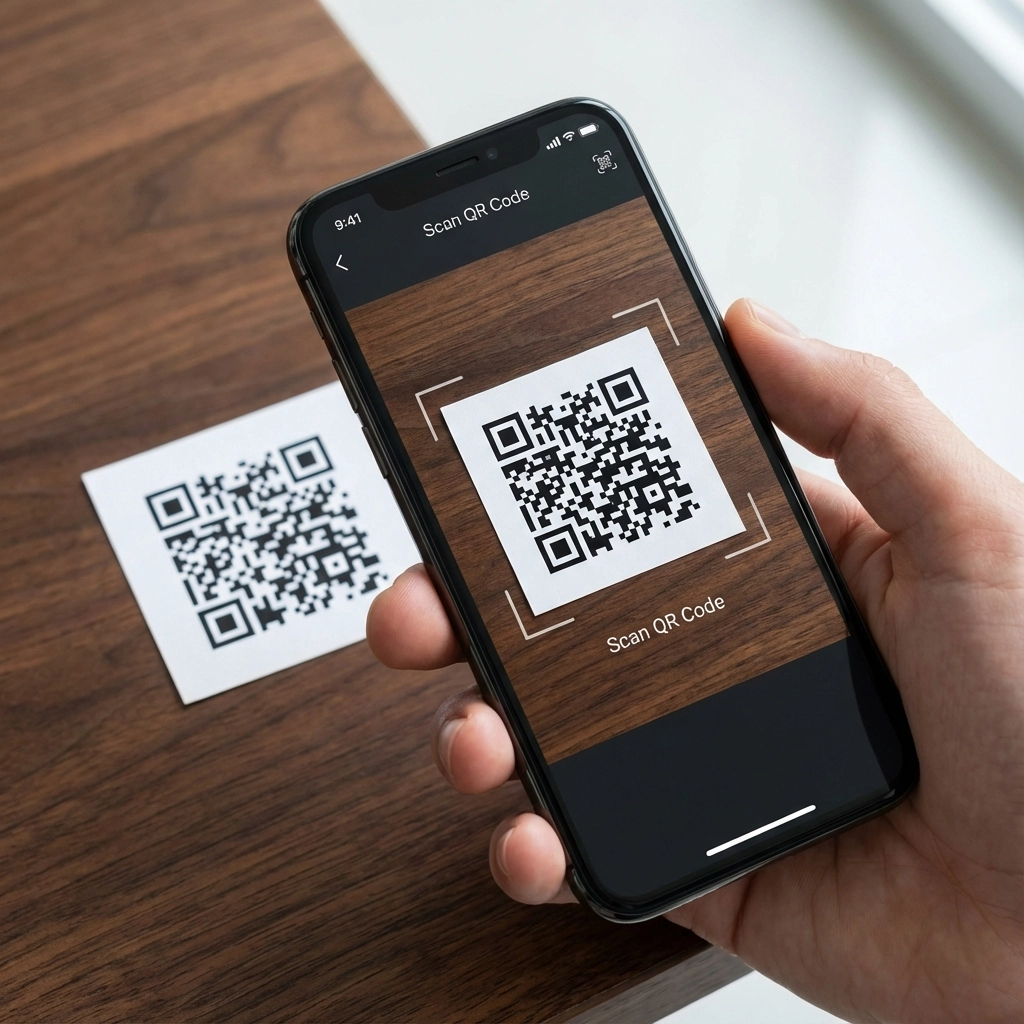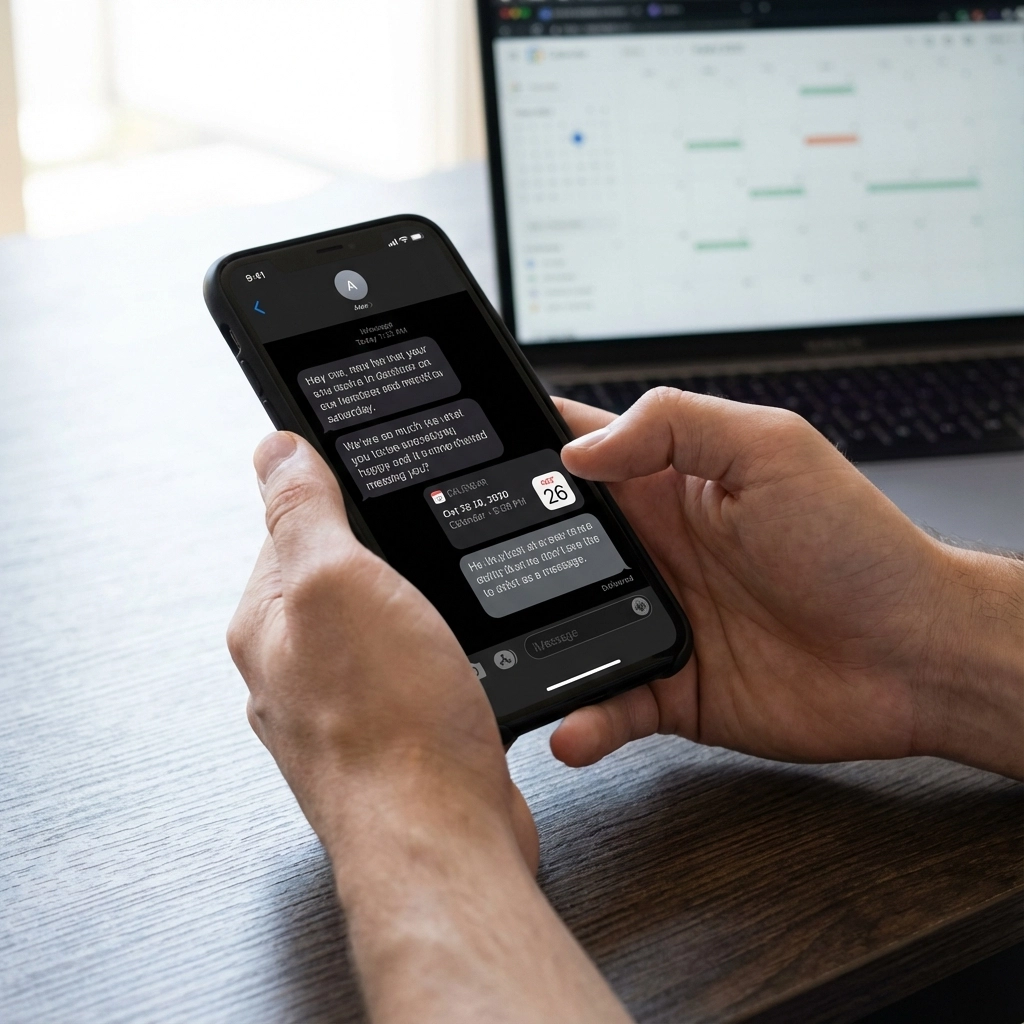
Category: Event Creation

  • SaneBox Review 2026

    SaneBox Review 2026

    After six months of using SaneBox in my business inbox, I’ve developed a clear opinion: it doesn’t fix every email problem, but it does reclaim time and reduce distraction in a way manual filters rarely do. If your inbox constantly pulls you into low-value tasks, SaneBox can become the system that protects your focus.

    Who SaneBox is for

    SaneBox is designed for people who are overwhelmed by quantity and variety of messages—newsletters, status updates, promotional mail, and the important human conversations that actually move work forward. If you regularly lose track of critical emails because you get pulled into admin tasks or promotional threads, this tool is worth considering.

    How it works and setup

    SaneBox runs on the server side and integrates with major providers like Gmail, Outlook, and iCloud. There’s no special app to install and no new email client to learn. You grant permissions, and SaneBox starts organizing your inbox across all devices automatically.

    Quick setup benefits

    • No plugins or separate apps—works in the email client you already use.
    • Automatic filtering begins immediately; I saw almost 2,000 messages moved out of my inbox right away.
    • Works across devices without additional syncing—because it operates at the server level.

    Key features that actually help

    The features below are the ones I use most often and that deliver measurable time savings.

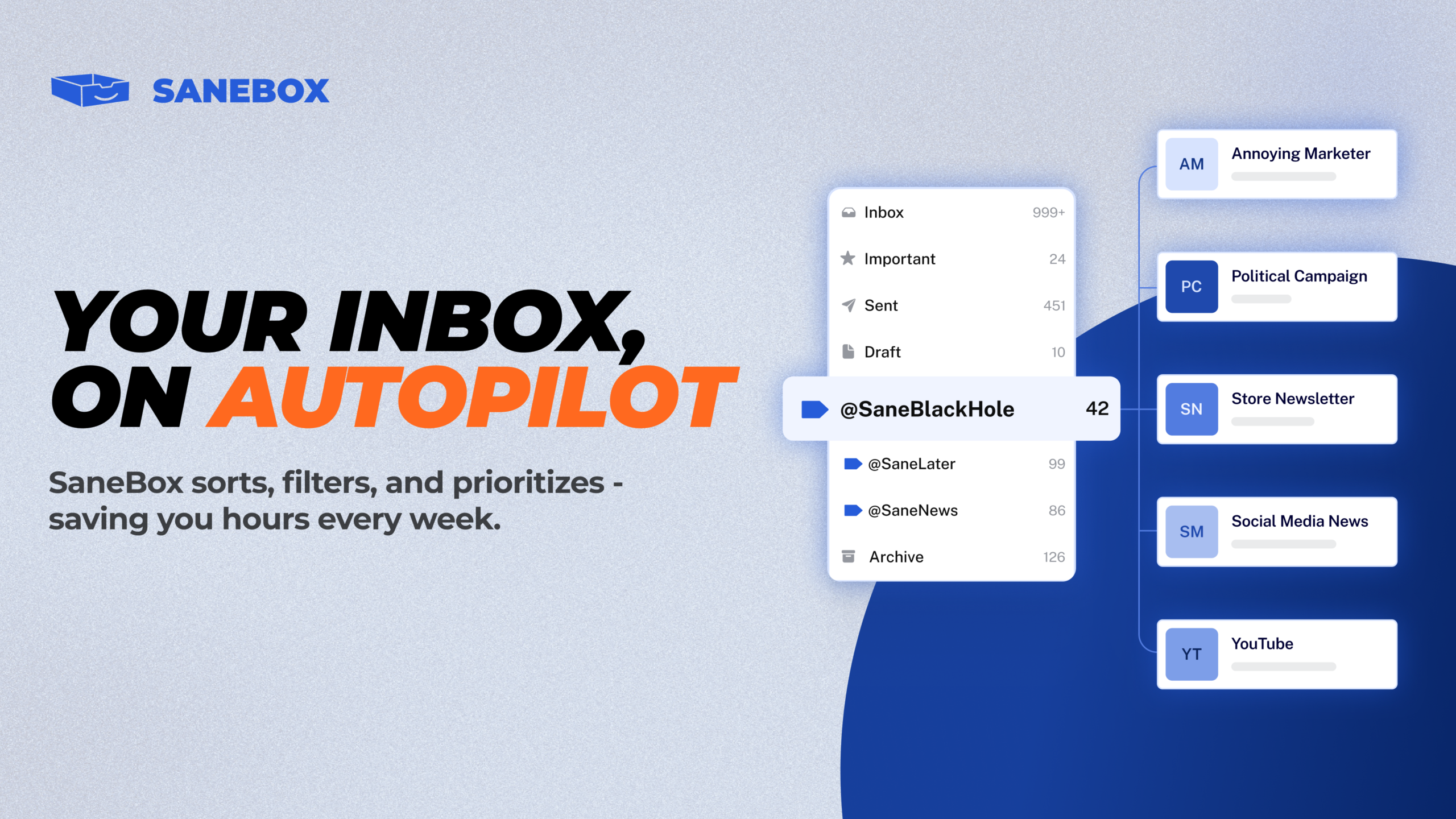
    • SaneNews: Collects newsletters and promotional content into a single folder for later skimming instead of interrupting your day.
    • SaneLater: Moves automated status updates and non-personal messages out of your inbox so you only see the human conversations first.
    • Custom Smart Folders: Create filters like Receipts or Reports to automatically gather recurring types of emails. I added a receipts folder and a reports folder and now those messages never clutter my main inbox.
    • Snooze Folders: Drag an email to SaneTomorrow, SaneNextWeek, SaneNextMonth, or a custom snooze to defer follow-up until a time you choose. The message returns to your inbox automatically when it’s time to act.
    • NoReplies: Tracks sent emails that haven’t received replies so you can follow up without manually hunting for threads.
    • SaneBlackHole: Drag a persistent spammer into this folder and you never hear from that sender again. It’s stronger than unsubscribing or marking as spam for problem senders.
    • Email deep clean: If you need to clear space or declutter, you can delete a range of old messages quickly.

    Limitations and important considerations

    SaneBox is powerful, but it isn’t magic. Here are the things to expect so you don’t get surprised.

    • Initial accuracy is around 80–85%. The first few weeks require attention. You’ll need to train the system by moving misfiled emails back into the inbox or into the correct folder. Training is easy and the system improves quickly.
    • Not an AI reader or summarizer. SaneBox learns from behavior and patterns rather than reading and summarizing content. It won’t scan your inbox and give theme-based summaries or mark priority threads based on conversation depth. That said, a daily digest shows what was moved and why, which helps you monitor the system’s decisions.
    • Adds labels or folders to your email client. If your Gmail sidebar is already crowded with labels, SaneBox will add more. It’s a tradeoff: a few extra labels versus a cleaner inbox.
    • Feature gaps compared to a hypothetical ideal. I’d love a system that automatically flags priority threads based on interaction history. SaneBox doesn’t do that today, and few systems do it well yet.

    How I set it up (practical tips you can copy)

    1. Connect SaneBox to your email provider and let it do the initial sort. Expect a large initial movement of messages into SaneNews and SaneLater.
    2. Check the daily digest each morning for the first 1–2 weeks. Use it to spot anything that was moved incorrectly.
    3. Create custom smart folders for recurring, low-priority emails you still want to keep—examples: Receipts, Reports, Invoices.
    4. Train by dragging a misfiled conversation back into your inbox. SaneBox learns from those corrections and improves quickly.
    5. Use SaneBlackHole for senders you never want to hear from again. It’s faster and more effective than fighting unsubscribe links.
    6. Use NoReplies to follow up on stalled conversations without manual tracking.
    7. Run a deep clean if you need to free up mailbox space or remove decades of old messages in one pass.

    How much time does it save?

    In my experience SaneBox shaved off a couple of hours each week. That’s time I used for higher-value work. The exact savings depend on how noisy your inbox is and how disciplined you are about using the system, but the recurring benefit is consistency: fewer interruptions and fewer opportunities to miss important messages.

    Bottom line

    If you are already extremely disciplined and enjoy building manual filters, you might replicate some of SaneBox’s behavior yourself. For most of us, automation is about consistency and scale—doing the organizing reliably without thinking about it. For that reason, I kept using SaneBox after six months and wouldn’t want to go back to sorting everything manually.

    If you’re curious, there’s often a trial or credit available that makes testing the tool low risk. Try it for a month or two, keep an eye on the SaneNews and SaneLater folders during the first weeks, and you’ll quickly see whether it saves you enough time to justify the cost.

    You can use this link to claim your free $15 credits.

  • Marblism Honest Review – 2026

    Marblism Honest Review – 2026

    Marblism turns the idea of virtual assistants into real, role-trained AI employees you can plug into a small business and get immediate output. Think beyond a single chatbot: email management, social posting, WordPress publishing, sales outreach, support tickets, legal docs, and even a receptionist phone line, all inside one dashboard with review-before-send guardrails.

    What Marblism provides – role-by-role

    Marblism ships with distinct, pre-trained AI roles so onboarding is fast and results are tangible quickly. Key roles I tested:

    • Eva (Executive Assistant) Connect Gmail and Google Calendar, auto-organize your inbox, draft outreach and replies, take meeting notes and use them for context. Nothing is sent without your approval.
    • Sonny (Social Media Manager) Plans content, enhances images, schedules and publishes to Instagram (and other socials), runs daily standups to propose ideas.
    • Penny (Writer) Drafts blog posts and can publish them directly to WordPress after you grant editor access.
    • Stan (Sales) Builds outreach funnels, schedules follow-ups (configurable, e.g., 7 and 10 days), manages your leads and drafts templates for your approval.
    • Cara (Customer Support) Handles tickets, looks up your knowledge base, and threads responses in customer email conversations.
    • Linda (Legal Advisor) Drafts and stores legal documents like basic Terms of Service in a legal folder for future reference.
    • Rachel (Receptionist) Provides a U.S. phone number, answers calls with scripted guidance, and logs notes from conversations.

    How setup and workflow feel in real use

    Onboarding is surprisingly lightweight. Typical flow:

    1. Register and pick the AI roles you need.
    2. Connect integrations (Gmail, Calendar, Instagram, WordPress, phone line).
    3. Set simple rules and preferences (email labels, content tone, posting cadence).
    4. Review drafts and templates before anything is sent or published.

    Examples from a real run-through:

    • Inbox organization: Eva sorted an unread Gmail inbox into categories within minutes. From there she prepared sponsor outreach drafts tailored to the tone I asked for.
    • Social publishing: Sonny suggested content, refined a caption after feedback, enhanced the image, removed emojis on request, added an AI tag, and published the post to Instagram.
    • Publishing to WordPress: Penny created a draft article, connected via an editor account, and published it directly to my site.
    • Sales funnel: Stan proposed a cadence, scheduled follow-ups (7 and 10 days), and queued outreach templates that I could edit before any message was sent.
    • Receptionist line: Rachel provided a Florida number, answered a live call naturally, and recorded call notes for review.

    While everyone’s chasing the next big tech trend, the smartest innovations are quietly building tomorrow around one simple question. What world are we leaving our kids?

    Why this works for small businesses and creators

    • Low setup effort: The pre-trained roles mean you spend minutes configuring instead of weeks training.
    • Owner control: All drafts and templates stay under your control—nothing goes public until you approve.
    • Single dashboard: Email, calendar, socials, WordPress, phone and legal documents live in one place.
    • Cost and scale: It’s far cheaper than hiring a suite of human employees for basic outreach, content, and support tasks.
    • Practical outputs: You get usable emails, published posts, WordPress articles, and logged calls—real work done, not just suggestions.

    Practical tips for getting the most out of Marblism

    • Start small: Give one assistant access at a time (for example, begin with Eva for inbox triage or Sonny for one social channel).
    • Least-privilege access: Use dedicated accounts or editor-level permissions rather than full admin when possible.
    • Review templates: Always approve outreach and legal drafts before they’re sent or published. Marblism enforces this model, which keeps things safe.
    • Set cadences and standups: Configure daily standups for content and a clear follow-up schedule for sales (example: lead check at 11:00 a.m., follow-ups at 7 and 10 days).
    • Test the receptionist: Place a few test calls and verify call notes and responses before promoting the number publicly.
    • Keep legal oversight: Use Linda to draft baseline documents, then have a human attorney review critical contracts or terms when necessary.

    Limits and cost notes

    Some features have sensible guardrails or add-ons. For example, standard lead quotas are included but higher volume lead capture is an add-on. Many features are intentionally review-first so nothing is automated without approval.

    Verdict

    Marblism is the most practical all-in-one platform I’ve used for role-based AI employees. It delivers immediate, reviewable outputs across email, social, publishing, sales, support, legal, and reception without heavy engineering or long setup times. For solo founders, creators, and small teams that need to scale reliable operations without adding headcount, this is a rare, useful tool.

    Quick action tip: Try connecting one role and a single integration first (eg, Eva with Gmail and Calendar) so you can confirm the tone, labels, and approval flow before widening access.

    To explore Marblism, visit marblism.com and use coupon “ATES” for a discount.

  • ICS File Generator vs Manual Calendar Entry: Which Saves You More Time in 2025?

    ICS File Generator vs Manual Calendar Entry: Which Saves You More Time in 2025?

    You're staring at your screen, trying to coordinate a team meeting for next week. You've got eight people to invite, three different time zones to consider, and that nagging feeling you're about to spend the next 20 minutes typing the same event details into everyone's calendar. Sound familiar?

    The choice between using an ICS file generator and manually entering calendar information isn't just about preference anymore. It's about whether you want to spend your time on productive work or calendar housekeeping.

    What Exactly Is an ICS File Generator?

    An ICS file generator creates universal calendar files that work with virtually any calendar application you can think of. Google Calendar, Outlook, Apple Calendar, even obscure calendar apps your colleague insists on using – they all speak ICS.

    Here's how it works: You fill out a simple form with your event details, click generate, and receive a file that contains all the scheduling information. Anyone who receives this file can import it directly into their calendar with just a few clicks.

    image_1

    The beauty lies in the universality. Unlike platform-specific calendar invites that sometimes fail or look broken across different systems, ICS files maintain their formatting and functionality everywhere.

    The Manual Entry Reality Check

    Manual calendar entry means exactly what it sounds like. You open your calendar app, create a new event, and type in all the details by hand. Then you repeat this process for every person who needs the information.

    For a simple personal reminder, manual entry feels natural. Need to remember your dentist appointment next Tuesday? Manual entry works perfectly.

    But the moment you need to share that information with others, you're looking at a time multiplication problem. Each person requires individual attention, separate explanations, and often follow-up clarification when they inevitably enter something incorrectly.

    Breaking Down the Time Investment

    Let's get specific about where your time actually goes with each approach.

    ICS File Generator Process

    Time investment: 3-5 minutes regardless of attendee count

    1. Fill out the event form (1-2 minutes)
    2. Generate the file (30 seconds)
    3. Share via email or download link (1-2 minutes)

    That's it. Whether you're inviting 2 people or 20 people, your time commitment stays roughly the same.

    Manual Entry Process

    Time investment: 5-15 minutes per person

    1. Create the event in your calendar (2-3 minutes)
    2. Send event details via email or message (2-3 minutes)
    3. Answer clarification questions about time zones, locations, or agenda items (3-5 minutes per person)
    4. Follow up when someone enters the wrong time or date (2-4 minutes per mistake)

    image_2

    The Real-World Time Comparison

    Scenario ICS File Generator Manual Entry
    Personal reminder 2-3 minutes 1-2 minutes
    Single colleague invite 3-4 minutes 8-12 minutes
    Team of 5 people 4-6 minutes 40-60 minutes
    Department meeting (15 people) 5-8 minutes 120-180 minutes
    Cross-timezone event 4-5 minutes 15-25 minutes per person

    The efficiency gap becomes obvious once you move beyond personal scheduling. For any event involving multiple attendees or complex timing, ICS file generators eliminate the repetitive work that manual entry demands.

    Where ICS File Generators Excel

    Multi-attendee events become effortless. Instead of explaining the same meeting details eight different ways to eight different people, you send one file that imports perfectly into everyone's calendar.

    Timezone accuracy happens automatically. The generator handles timezone conversions correctly every time. No more "Wait, is that 3 PM your time or my time?" confusion that manual sharing creates.

    Recurring events work seamlessly. Setting up a weekly team standup with manual entry means coordinating the same information repeatedly. An ICS file handles the entire series in one shot.

    image_3

    Updates become manageable. When meeting details change, you generate a new file rather than individually contacting every attendee to explain the modifications.

    When Manual Entry Still Makes Sense

    Manual entry isn't obsolete. It works best for:

    Quick personal reminders where sharing isn't involved. Blocking time for focused work or remembering personal appointments doesn't require file generation.

    Immediate calendar updates when you need the event in your calendar right now and can't wait for file downloads or imports.

    Simple one-on-one coordination with people you work with constantly, where informal scheduling conversations work better than formal file sharing.

    The Hidden Costs of Manual Entry

    Beyond the obvious time investment, manual entry carries hidden productivity costs that many people overlook.

    Error multiplication. Every person who manually enters event details creates another opportunity for mistakes. Wrong dates, incorrect times, missing location details – these errors compound across your team.

    Follow-up overhead. Manual entry often requires clarification emails, correction messages, and confirmation rounds that wouldn't exist with standardized file sharing.

    Cognitive load. Remembering to send the same information to different people in different formats drains mental energy you could use for actual work.

    image_4

    Making the Right Choice for Your Workflow

    Choose ICS file generators when you're dealing with:

    • More than two attendees
    • Cross-timezone coordination
    • Recurring events
    • Formal meetings requiring documentation
    • Events with complex details (multiple locations, agenda items, preparation requirements)

    Stick with manual entry for:

    • Personal scheduling
    • Informal one-on-one coordination
    • Quick calendar blocking
    • Events that change frequently and informally

    The 2025 Reality

    Calendar technology has evolved to make file sharing more seamless than ever. Most calendar applications now handle ICS imports with just a few clicks, and email systems preview calendar files automatically.

    The time savings become even more pronounced when you consider how distributed modern teams have become. When your colleagues span multiple time zones and calendar platforms, standardized file sharing eliminates the coordination complexity that manual methods create.

    For teams and professionals managing multiple stakeholders, ICS file generators have moved from convenient to essential. The time you save on calendar coordination translates directly into time available for meaningful work.

    If you're ready to eliminate calendar coordination bottlenecks, Text to Calendar's tool transforms any text into properly formatted calendar events, handling the technical details so you can focus on what matters most.

  • 7 Mistakes You're Making with Online Calendar Creators (and How AI Fixes Them)

    7 Mistakes You're Making with Online Calendar Creators (and How AI Fixes Them)

    You're probably losing hours every week to calendar chaos. Whether you're manually typing event details, wrestling with formatting inconsistencies, or dealing with duplicate appointments, traditional online calendar creators make simple scheduling feel like rocket science.

    The good news? AI is changing everything. Instead of fighting with clunky interfaces and repetitive data entry, smart tools can now extract event information from your existing text, emails, and documents in seconds.

    Let's dive into the seven biggest mistakes people make with online calendar creators: and how AI-powered solutions fix them automatically.

    Mistake #1: Manual Data Entry for Every Single Event

    The Problem: You're typing out event titles, dates, times, locations, and descriptions by hand. Every. Single. Time.

    This approach turns a 30-second scheduling task into a 5-minute ordeal. Multiply that across dozens of weekly events, and you're spending hours on mindless data entry instead of actual work.

    How AI Fixes It: AI-powered calendar tools can extract event information directly from your text. Copy and paste an email, meeting notes, or even a casual message, and the AI identifies dates, times, locations, and relevant details automatically.

    For example, instead of manually entering "Marketing team meeting on Tuesday, December 23rd at 3 PM in Conference Room B to discuss Q1 strategy," you simply paste that text. The AI creates the calendar event instantly with all the correct details.

    image_1

    Pro Tip: Look for tools that can handle various date formats (December 23, 12/23, next Tuesday) and time expressions (3 PM, 15:00, afternoon) without requiring specific formatting.

    Mistake #2: Inconsistent Event Formatting Across Your Calendar

    The Problem: Your calendar looks like a digital mess. Some events have detailed descriptions, others just have cryptic titles. Location formats vary wildly. Time zones are all over the place.

    This inconsistency makes it impossible to quickly scan your schedule and understand what's happening when.

    How AI Fixes It: Smart calendar creators apply consistent formatting rules automatically. They standardize how titles appear, ensure locations follow the same format, and maintain uniform description structures.

    AI tools also learn your preferences over time. If you prefer "Client Call – ABC Corp" over "ABC Corp Call," the system adapts to match your style across all future events.

    Mistake #3: Time Zone Confusion Leading to Missed Meetings

    The Problem: You're scheduling a call with someone in a different time zone, but your online calendar creator doesn't handle the conversion properly. You end up showing up an hour early or missing the meeting entirely.

    This becomes especially problematic when dealing with multiple time zones in a single day or when daylight saving time changes kick in.

    How AI Fixes It: AI-powered tools automatically detect time zone references in your text and convert them to your local time. When someone mentions "3 PM EST" in an email, the AI creates the event at the correct time in your time zone.

    image_2

    Advanced AI systems also account for daylight saving time changes and can handle complex scenarios like "next week's call with the London team" by calculating the appropriate time zone offset.

    Mistake #4: Creating Duplicate Events Without Realizing It

    The Problem: You receive multiple emails about the same meeting, or someone forwards you calendar information you've already entered. Without realizing it, you create duplicate events that clutter your schedule.

    These duplicates create confusion about which event has the correct details and can lead to showing up twice or missing important updates.

    How AI Fixes It: Intelligent calendar systems can detect potential duplicates by analyzing event details like titles, times, dates, and participants. When you try to create an event that looks similar to an existing one, the AI flags it for review.

    Some advanced systems automatically merge duplicate information, keeping the most complete version while discarding redundancies.

    Mistake #5: Missing Important Context and Details

    The Problem: You create calendar events with minimal information: just a title and time. Later, you can't remember what the meeting is about, who's attending, or what you need to prepare.

    This lack of context forces you to dig through emails or documents to understand what each event actually involves.

    How AI Fixes It: AI tools extract comprehensive context from your source material. When you create an event from an email thread, the AI pulls in participant information, meeting agendas, preparation requirements, and relevant background details.

    image_3

    The result is calendar events that contain everything you need to know, reducing the mental load of remembering context for each appointment.

    Mistake #6: Poor Integration with Your Existing Tools

    The Problem: Your online calendar creator exists in isolation. It doesn't talk to your email, project management tools, or other productivity apps. You end up maintaining duplicate information across multiple systems.

    This fragmentation makes it nearly impossible to get a complete picture of your commitments and deadlines.

    How AI Fixes It: Modern AI-powered calendar tools integrate seamlessly with your existing workflow. They can extract events from email automatically, sync with project management platforms, and even pull information from documents and notes.

    The AI acts as a bridge between different tools, ensuring your calendar reflects commitments made across all your platforms.

    Mistake #7: Overwhelming Setup and Configuration Complexity

    The Problem: Traditional online calendar creators require extensive setup. You need to configure recurring event rules, set up notification preferences, choose sharing settings, and navigate complex menu systems.

    This complexity creates a barrier to entry that keeps you stuck with inefficient manual methods.

    How AI Fixes It: AI-powered solutions minimize configuration requirements by learning from your behavior and making intelligent defaults. Instead of setting up complex rules, you simply use the tool naturally, and it adapts to your preferences.

    image_4

    For instance, if you consistently create 30-minute meetings with 15-minute buffers, the AI starts suggesting these settings automatically. If you always invite the same team to weekly standup meetings, it pre-populates the participant list.

    The Simple Solution: Let AI Handle Your Calendar Creation

    The pattern here is clear: traditional online calendar creators force you to do work that computers can handle automatically. Manual data entry, formatting inconsistencies, time zone calculations, duplicate detection, context extraction, integration management, and complex setup: these are all problems that AI solves elegantly.

    Purple Calendar Automation Icon

    Instead of fighting with clunky interfaces, try AI-powered calendar creation that handles the heavy lifting automatically. You provide the information in whatever format is convenient: email text, meeting notes, document snippets: and get back perfectly formatted calendar events.

    The time savings add up quickly. What used to take 5 minutes per event now takes 30 seconds. More importantly, you eliminate the friction that keeps you from maintaining an organized, comprehensive calendar in the first place.

    Your calendar should work for you, not against you. With AI handling the tedious parts, you can focus on the meetings themselves instead of the process of scheduling them.

  • Can You Really Share Calendar Events Through Text? Everything You Need to Know

    Can You Really Share Calendar Events Through Text? Everything You Need to Know

    You've probably been there. You're trying to share event details with someone, and texting seems like the obvious choice. But then you wonder – can you actually send a proper calendar invite through a text message? Will it work like email invites do?

    The internet is full of conflicting answers about this. Some people swear it's impossible. Others claim it works perfectly. The truth? It's complicated, but absolutely doable once you know the right approach.

    The Big Myth: "Text Messages Can't Handle Calendar Files"

    Let's bust the biggest misconception right away. You absolutely can share calendar events via text message. But here's where people get confused – it doesn't work the same way as email invites.

    Most people expect to attach an .ics file to a text message like they would to an email. That's not how SMS works. Text messages have severe limitations on file attachments, and many carriers simply don't support them at all.

    But that doesn't mean you're stuck. There are several workarounds that actually work better than traditional email invites in many cases.

    What Actually Works (And What Doesn't)

    What Doesn't Work:

    • Direct .ics file attachments via SMS
    • Calendar app "share via text" features on most phones
    • Expecting the same functionality as email calendar invites

    What Does Work:

    • Sharing calendar links through text
    • Using cloud storage links for .ics files
    • Third-party apps designed for text-based calendar sharing
    • Modern messaging apps with rich media support

    image_1

    The key is understanding that you're not actually sending the calendar file through SMS – you're sending a link that opens the calendar information.

    Tech Requirements: What You Need

    Before diving into the how-to, let's cover what you'll need:

    For the Sender:

    • A smartphone with calendar access
    • Internet connection
    • Either a cloud storage account (Google Drive, iCloud, Dropbox) or access to your calendar's sharing features

    For the Recipient:

    • Smartphone with a calendar app
    • Internet connection
    • Ability to download files or access web links

    Compatibility Notes:

    • Works between iOS and Android
    • Requires recipient to have a calendar app that supports .ics files (most do)
    • Some features work better with newer phone models

    Step-by-Step: iOS Users

    Method 1: Using iCloud Calendar Links

    1. Create your event in the Calendar app
    2. Tap the event to open details
    3. Select "Edit" at the top right
    4. Scroll down and tap "Add Invitees"
    5. Add a dummy email address (this creates a shareable version)
    6. Tap "Done" to save
    7. Go to icloud.com on your computer
    8. Open Calendar and find your event
    9. Click the event and select "Share Event"
    10. Copy the public link
    11. Text this link to your recipient

    Method 2: iCloud Drive File Sharing

    1. Export the event from Calendar (use third-party apps like "Calendar Export" if needed)
    2. Save the .ics file to iCloud Drive
    3. Open iCloud Drive app
    4. Long-press the file and select "Share"
    5. Choose "Copy Link"
    6. Send the link via text message

    image_2

    Method 3: Using Shortcuts App (iOS 13+)

    Apple's Shortcuts app can automate this process:

    1. Download a calendar-sharing shortcut from the Shortcuts Gallery
    2. Run the shortcut with your event details
    3. The shortcut generates a shareable link automatically
    4. Copy and text the link to your recipient

    Step-by-Step: Android Users

    Method 1: Google Calendar Public Links

    1. Create your event in Google Calendar
    2. Tap the event to open it
    3. Tap the edit icon (pencil)
    4. Scroll to "Add guests"
    5. Add yourself as a guest and save
    6. Open Gmail and find the calendar invite email
    7. Tap "More details" in the email
    8. Copy the calendar URL from your browser
    9. Send this URL via text message

    Method 2: Google Drive File Sharing

    1. Export the event as an .ics file using a calendar export app
    2. Upload to Google Drive
    3. Set sharing permissions to "Anyone with the link"
    4. Copy the shareable link
    5. Text the link to your recipient

    Method 3: Third-Party Apps

    Several Android apps specialize in calendar sharing:

    • CalenMob – Creates shareable calendar links
    • ICS Export – Exports events to various formats
    • Business Calendar 2 – Built-in sharing features

    image_3

    Common Problems and Solutions

    "The Link Doesn't Open My Calendar App"

    This happens when the recipient's phone doesn't recognize the link format. Solutions:

    • Ask them to copy the link and paste it into their browser
    • Include instructions like "tap and hold, then select 'Open in Calendar'"
    • Use a URL shortener like bit.ly to make the link more mobile-friendly

    "The Event Shows Wrong Time Zone"

    Calendar sharing can mess up time zones. Fix this by:

    • Including time zone info in your text message
    • Using UTC time in the calendar event
    • Asking recipients to double-check the time when they add it

    "The File Won't Download"

    When using cloud storage links:

    • Check sharing permissions are set to public
    • Verify the recipient has internet connection
    • Try a different cloud service if one isn't working

    Modern Alternatives That Work Better

    Honestly? Traditional calendar sharing via text is clunky. Here are better options:

    AI Calendar Tools

    Modern tools like Text to Calendar let you convert plain text into calendar events instantly. Instead of fumbling with file exports, you can:

    1. Type your event details in natural language
    2. Generate a calendar file automatically
    3. Share the download link via text

    This eliminates most technical hurdles and works across all devices.

    Messaging Apps with Rich Features

    Consider using:

    • WhatsApp – Better file sharing support
    • Telegram – Handles calendar files natively
    • Facebook Messenger – Rich media support

    QR Codes for Events

    Generate a QR code for your calendar event:

    1. Create the event in your preferred calendar
    2. Use a QR generator for calendar events
    3. Text the QR image to your recipient
    4. They scan it to add the event

    image_4

    When to Use Text vs. Email for Calendar Invites

    Use text when:

    • You need immediate attention
    • The recipient checks texts more often than email
    • You're sharing with someone who doesn't use email regularly
    • You want higher open rates

    Stick with email when:

    • You need detailed event descriptions
    • You're inviting multiple people
    • You need RSVP tracking
    • The event has complex details or attachments

    Pro Tips for Better Calendar Sharing

    Include Context in Your Message:
    Instead of just sending a link, write: "Here's the calendar invite for tomorrow's meeting – tap the link to add it to your calendar"

    Test Before Sending:
    Always test your sharing method with a friend first. Different carriers and phone models can behave differently.

    Provide Backup Details:
    Include key event info (date, time, location) in your text message in case the calendar link doesn't work.

    Follow Up:
    Ask if they successfully added the event to their calendar. Don't assume it worked.

    The Bottom Line

    Yes, you can absolutely share calendar events through text messages. It just requires a different approach than email invites. The key is using shareable links instead of trying to attach files directly.

    While the process involves a few extra steps, it's often worth it for the higher engagement rates and immediate attention that text messages provide. For regular calendar sharing, consider switching to dedicated tools that streamline the entire process.

    The myths around text-based calendar sharing mostly stem from people expecting it to work exactly like email. Once you understand the technical limitations and use the right workarounds, sharing calendar events via text becomes straightforward and reliable.

  • SMS vs Email: What's the Best Way to Share Calendar Invites?

    SMS vs Email: What's the Best Way to Share Calendar Invites?

    You've probably been there. You send out a calendar invite for an important meeting, and half your attendees either miss it entirely or show up confused about the details. Or maybe you're on the receiving end, digging through your email to find that event info while running late.

    The question isn't whether to use digital invites: that ship has sailed. The real question is which method actually gets people to show up: SMS or email? And spoiler alert: the answer might surprise you.

    The Calendar Invite Dilemma

    Most people default to email for calendar invites because that's how we've always done it. But email inboxes are increasingly cluttered. The average office worker receives 121 emails per day, and your carefully crafted calendar invite often gets buried under promotional emails and meeting requests.

    SMS, on the other hand, has a 98% open rate. People read text messages within minutes of receiving them. So why isn't everyone sending calendar invites via text?

    image_1

    Email vs SMS: The Technical Reality

    Here's the thing about calendar invites: they're not just messages. They're functional files that need to integrate with calendar applications. When you send a proper calendar invite, you're actually sending an ICS file that recipients can click to automatically add the event to their Google Calendar, Outlook, or Apple Calendar.

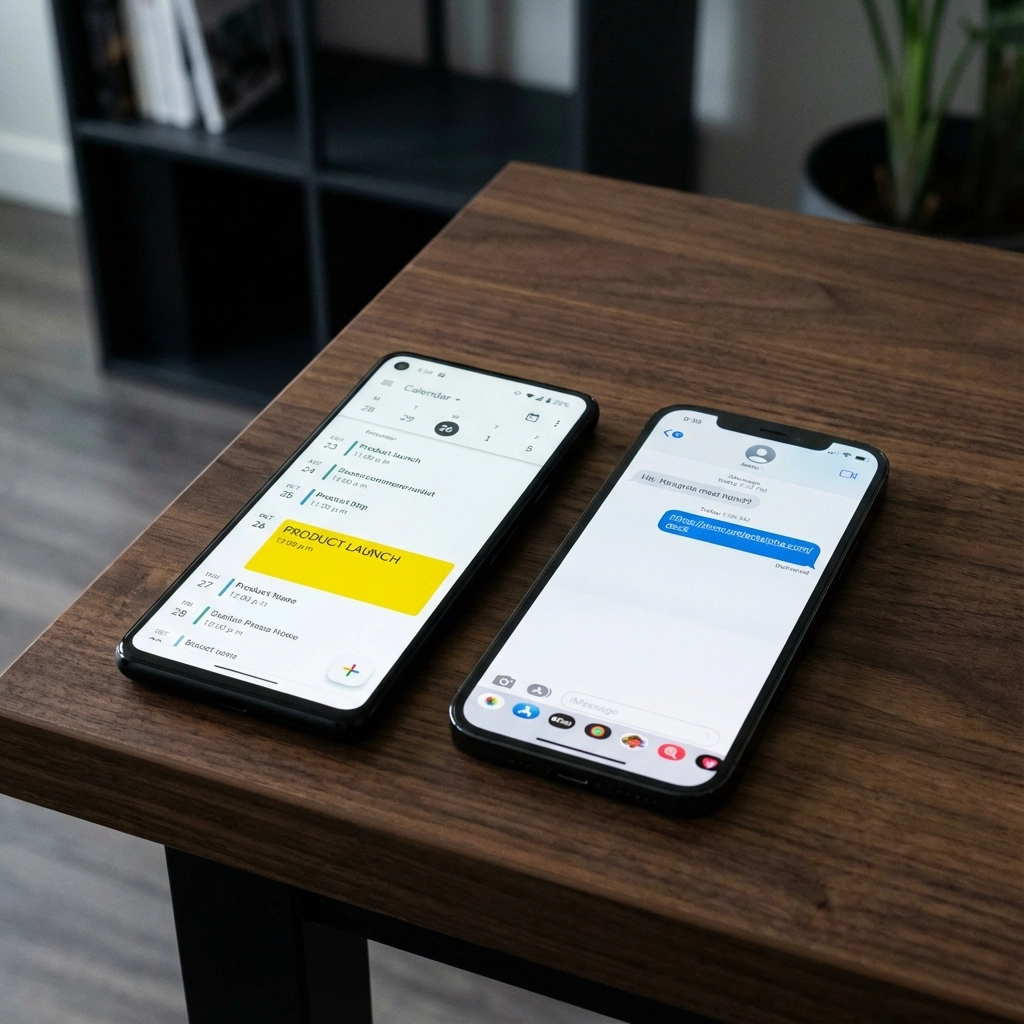
    SMS can't handle file attachments. You can text someone "Meeting tomorrow at 2 PM in Conference Room B," but they have to manually create the calendar entry themselves. That extra friction is where things fall apart.

    What Email Does Better

    Email excels at delivering comprehensive event information:

    • Calendar file attachments that auto-populate recipient calendars
    • Detailed event descriptions with formatting and links
    • Multiple time zone support for remote teams
    • Location details including maps and parking instructions
    • Agenda attachments and meeting materials
    • RSVP tracking to monitor attendance

    When someone receives an email calendar invite, they click one button and the event appears in their calendar with all the relevant details. No manual entry required.

    What SMS Does Better

    SMS dominates in different areas:

    • Immediate visibility with 90% of messages read within 30 minutes
    • High engagement rates with most people responding quickly
    • Universal accessibility since everyone has text messaging
    • Brevity that forces you to communicate essential information only
    • Urgency that makes people pay attention

    The 160-character limit forces clarity. You can't ramble in a text message.

    The Optimal Strategy: Use Both Channels

    The most effective approach isn't choosing between SMS and email: it's using them strategically together. Here's the workflow that actually gets results:

    Step 1: Send the Calendar Invite via Email

    Use email to deliver the official calendar invite 1-2 weeks before the event. Include:

    • The ICS calendar file attachment
    • Complete event details (time, location, agenda)
    • Any necessary background materials
    • Clear RSVP instructions

    This gives people time to review the information, ask questions, and properly add the event to their calendar system.

    Step 2: Send SMS Reminders

    Follow up with text message reminders at strategic intervals:

    • 24 hours before: "Reminder: Marketing strategy meeting tomorrow at 2 PM in Conference Room B. See email for agenda."
    • 1 hour before: "Meeting starts in 1 hour – Conference Room B, 2nd floor."

    Keep these messages short and include only essential information. The goal is to prompt people to check their calendar, not replace the detailed email.

    image_2

    Real-World Results

    Companies using this combined approach see significant improvements:

    • 35% decrease in no-show rates compared to email-only invites
    • 20% increase in overall attendance at scheduled events
    • Faster response times for meeting confirmations and schedule changes

    The key insight: email provides the technical infrastructure for calendar integration, while SMS provides the behavioral nudge that ensures attendance.

    Best Tools for Implementation

    Email Calendar Tools

    Most email platforms handle calendar invites well, but some stand out:

    • Google Workspace: Seamless integration with Google Calendar and excellent mobile support
    • Microsoft 365: Robust Outlook calendar features with Teams integration
    • Text to Calendar: AI-powered tool that converts any text into properly formatted calendar invites

    SMS Reminder Services

    For text message follow-ups, consider:

    • Twilio: Developer-friendly API for custom integrations
    • SimpleTexting: User-friendly interface for small businesses
    • Calendly: Built-in SMS reminder features for scheduled appointments

    Implementation Best Practices

    Email Calendar Invite Checklist

    ✓ Include all essential details in the subject line
    ✓ Add the event to your own calendar first to generate the ICS file
    ✓ Test the calendar file on different platforms (Gmail, Outlook, Apple Mail)
    ✓ Include a clear call-to-action for RSVPs
    ✓ Set up automatic reminder emails 3 days and 1 day before

    SMS Reminder Guidelines

    ✓ Keep messages under 160 characters when possible
    ✓ Include only the most critical information (time, location)
    ✓ Send reminders during business hours (9 AM – 6 PM)
    ✓ Always include an opt-out mechanism
    ✓ Reference the original email for complete details

    image_3

    Common Mistakes to Avoid

    Email Mistakes

    Sending calendar invites without ICS files: If recipients can't click to add the event to their calendar, you're making them do extra work.

    Information overload: Don't put your entire agenda in the email subject line. Use the body text for detailed information.

    Last-minute invites: Sending calendar invites less than 24 hours before an event significantly reduces attendance rates.

    SMS Mistakes

    Including too much information: Text messages should prompt action, not replace detailed communication.

    Sending too many reminders: More than two SMS reminders feels spammy and reduces effectiveness.

    Forgetting time zones: Always specify time zones in your text reminders, especially for remote teams.

    Accessibility Considerations

    Some recipients may not have smartphones or prefer one communication method over another. Always:

    • Provide calendar information through multiple channels
    • Use clear, simple language in both emails and texts
    • Ensure your calendar invites work across different platforms and devices
    • Offer alternative ways to access event information

    The Bottom Line

    Email wins for calendar invites because it handles the technical requirements that make scheduling actually work. SMS wins for reminders because it cuts through the noise when you need immediate attention.

    The companies that get the best results use both channels strategically. Email delivers the comprehensive invite with all the technical functionality people need. SMS delivers the behavioral nudge that ensures people actually show up.

    Stop trying to force one channel to do everything. Use email for the invitation and SMS for the reminder. Your attendance rates will thank you.

    Looking to streamline your calendar invite process? Text to Calendar can help you quickly convert any text into properly formatted calendar events, making it easier to create those detailed email invites that actually work.

  • How to Send Calendar Invites with a Simple Text Message

    How to Send Calendar Invites with a Simple Text Message

    You're coordinating a team meeting, planning a family gathering, or organizing a client appointment. You have everyone's phone number, but getting calendar invites to actually reach people feels unnecessarily complicated. Email gets buried. Apps require downloads. Traditional calendar sharing involves multiple steps that half your recipients won't complete.

    Text messages get read. They're immediate, direct, and work on every phone. But can you actually send functional calendar invites through SMS?

    Yes. And it's simpler than you think.

    The Direct Approach: ICS Files via Text

    The most reliable method involves ICS files – the universal calendar format that works across all platforms. Every major calendar application can read these files, making them your best bet for compatibility.

    Here's how it works. Create your event in any calendar app: Google Calendar, Apple Calendar, Outlook, or even Text to Calendar for quick event generation. Export or download the event as an ICS file. Most calendar apps include this option in their sharing or export menus.

    Once you have the ICS file, attach it to a text message using your phone's attachment feature. Recipients tap the file, and their phone automatically prompts them to add the event to their calendar. All details transfer perfectly – date, time, location, description, even reminders.

    Pros:

    • Works on virtually every device
    • Preserves all event details
    • No app downloads required
    • Recipients can modify the event for their needs

    Cons:

    • Requires creating the ICS file first
    • Some older phones handle attachments poorly
    • File size limits on certain messaging platforms

    image_1

    Shareable Links: One Click, Done

    Modern calendar applications generate shareable links that bypass file attachments entirely. Google Calendar excels at this approach.

    Create your event in Google Calendar. Click the three dots menu and select "Publish event" or look for sharing options. Copy the generated link and paste it into your text message with a clear call to action: "Tap to add this meeting to your calendar."

    Recipients click the link, which opens in their browser and displays event details. Most browsers then offer direct calendar integration, allowing one-click event addition.

    This method works particularly well for public events or meetings where you want recipients to see details before committing.

    Real scenario: You're organizing a neighborhood block party. Send the Google Calendar link via text to your contact list. Everyone can preview the event details and add it to their calendar without any file downloads.

    Native Calendar App Sharing

    Your phone's built-in calendar app likely includes direct SMS sharing. This method feels most natural because it uses your existing workflow.

    Open your event in your phone's calendar app. Look for share, invite, or send options (usually represented by an arrow or share icon). Select text message from the sharing menu. Your phone generates either an ICS attachment or a link, depending on your device and settings.

    iPhone users get particularly clean integration here. The Calendar app creates formatted messages that recipients can tap to add events directly.

    Pros:

    • Seamless integration with your existing calendar
    • No third-party tools required
    • Maintains your familiar workflow

    Cons:

    • Feature availability varies by device
    • Less control over formatting
    • May not work cross-platform (iPhone to Android issues)

    Business-Grade Solutions: SMS Platforms

    If you regularly send calendar invites to groups, dedicated SMS platforms offer automation and tracking that consumer methods can't match. Services like SimpleTexting, Sakari, or Quo let you upload contact lists and send calendar invites at scale.

    These platforms handle the technical details. Upload your ICS file or paste your calendar link. Compose your message. Select your contact groups. Schedule delivery. The platform manages delivery, tracks open rates, and handles bounced messages.

    Best for:

    • Business meetings with multiple attendees
    • Event promotion and RSVP tracking
    • Recurring meeting reminders
    • Professional communication that requires delivery confirmation

    Considerations:

    • Monthly subscription costs
    • Learning curve for platform features
    • Overkill for personal use
    • May require recipient opt-in for compliance

    image_2

    Text-Based Calendar Creation

    Sometimes you don't have a pre-existing calendar event. You're coordinating on the fly via text and need to create the invitation in real-time.

    Tools like Text to Calendar let you convert plain text descriptions into proper calendar events. Type "Team meeting tomorrow at 2 PM in Conference Room B" and get a properly formatted ICS file or calendar link.

    This approach works well when you're already texting about plans and want to formalize them into calendar events without switching apps.

    Example workflow:

    1. Group text discussing dinner plans
    2. Someone says "Friday 7 PM at Mario's Restaurant"
    3. You quickly convert that text to a calendar event
    4. Share the resulting ICS file or link with the group

    Common Scenarios and Best Practices

    Family Coordination

    For family events, use Google Calendar links. Most family members already use Google services, and the preview feature helps with planning. Include location details and any special instructions in the event description.

    Professional Meetings

    Stick with ICS files for business meetings. They integrate cleanly with corporate calendar systems and don't require recipients to have specific apps or accounts. Include dial-in information and agenda details.

    Event Planning

    For larger gatherings, combine methods. Send initial invites via ICS files for calendar integration, then use follow-up texts with Google Calendar links for updates or changes.

    Troubleshooting Common Issues

    Recipients can't open ICS files: Some Android phones require specific apps to handle ICS files. Include alternative sharing methods or suggest they save the file and import it manually into their calendar app.

    Links don't work properly: Test your calendar links across different devices before sending. Some corporate networks block external calendar links for security reasons.

    Time zone confusion: Always specify time zones in your event details, especially for remote meetings or when coordinating across regions.

    Missing details: Text messages have character limits. Keep your accompanying message brief and put detailed information in the calendar event itself.

    image_3

    Security and Privacy Considerations

    Calendar invites sent via text inherit SMS security limitations. Avoid including sensitive information in event titles or descriptions when using public messaging platforms.

    For confidential meetings, consider using encrypted messaging apps that support calendar attachments, or stick to traditional email invites with calendar attachments.

    Business users should verify their SMS platform's data handling policies, especially when sending invites containing client information or internal meeting details.

    Making It Stick: Implementation Tips

    Start simple. Pick one method that fits your primary use case and master it before trying others. Most people find either ICS files or Google Calendar links work for 90% of their needs.

    Create templates for recurring event types. Save standard ICS files or bookmark frequently used calendar links. This saves time and ensures consistency.

    Test with a small group first. Send yourself and a colleague test invites to verify everything works as expected before rolling out to larger groups.

    Keep backup methods ready. Technology fails. Always have a way to send traditional text reminders if calendar integration doesn't work for specific recipients.

    The Bottom Line

    Sending calendar invites via text message bridges the gap between immediate communication and organized scheduling. Whether you choose ICS files for maximum compatibility, shareable links for simplicity, or automated platforms for scale, text-based calendar invites get your events into people's actual calendars.

    The key is matching your method to your audience and use case. Family coordination benefits from easy-to-use links. Business meetings need reliable file attachments. Large events require tracking and automation.

    Start with the method that feels most natural for your current workflow. Once you've streamlined calendar sharing through text, you'll wonder why anyone still relies on email invites that disappear into digital black holes.

    Your recipients will thank you for making their scheduling simpler. And you'll spend less time coordinating and more time focusing on what actually matters in those meetings.

  • Can You Send a Calendar Invite via Text?

    Can You Send a Calendar Invite via Text?

    You're trying to coordinate a team meeting, but half your colleagues never check their email. Or maybe you're planning a casual dinner with friends who live in their text messages. The question hits you: can you actually send a calendar invite via text message?

    The short answer is yes – and it's often more effective than traditional email invites.

    Text messages have a 98% open rate compared to email's measly 20-30%. When you need people to actually see and respond to your calendar invite, SMS might be your secret weapon.

    Why Text-Based Calendar Invites Work Better

    Your email inbox is a battlefield. Calendar invites get buried under newsletters, work updates, and spam. Text messages, on the other hand, land directly on someone's lock screen with an immediate notification.

    Here's what makes text-based calendar invites particularly powerful:

    • Immediate delivery and visibility – No waiting for email checks
    • Higher engagement rates – People respond to texts within minutes, not hours
    • Works across all devices – iOS, Android, flip phones – doesn't matter
    • Perfect for urgent changes – Last-minute location updates or cancellations
    • Ideal for casual events – Birthday parties, coffee meetups, informal gatherings

    But how exactly do you send these invites? Let's break down your options.

    Method 1: Native Calendar App Integration

    Most smartphones now support sending calendar invites directly through text messages. Here's how it works on different platforms:

    iPhone Users:

    1. Open your Calendar app
    2. Create a new event or select an existing one
    3. Tap "Add Invitees"
    4. Enter the recipient's phone number instead of email
    5. Tap "Done" and "Send"

    The system automatically generates a text message with event details and an attachment that recipients can tap to add to their calendar.

    Android Users:

    1. Open Google Calendar
    2. Create your event
    3. Add guests using phone numbers
    4. Google automatically sends SMS notifications with calendar links

    The beauty of this method is its simplicity. No additional apps, no complicated processes – just your existing calendar working smarter.

    image_1

    Method 2: ICS File Attachments

    ICS files are the universal language of calendars. Think of them as small data packets that contain all your event information – date, time, location, description – in a format every calendar application understands.

    Here's how to use ICS files for text-based invites:

    1. Create your event in any calendar app (Google Calendar, Outlook, Apple Calendar)
    2. Export as ICS file – usually found in sharing or export options
    3. Attach to text message – use your phone's attachment feature
    4. Send – recipients tap the file to automatically add the event

    When someone receives your text with an ICS attachment, they tap once and the event appears in their calendar with all details pre-filled. No typing, no manual entry, no mistakes.

    This method works particularly well for complex events with multiple details or recurring meetings.

    Method 3: Calendar Link Sharing

    Google Calendar and other services generate shareable links for events. These links work perfectly in text messages:

    1. Create your event in Google Calendar
    2. Click "More Options"
    3. Copy the event link
    4. Paste into a text message
    5. Add context about what the link is for

    Recipients click the link, which opens their default calendar app or a web browser where they can add the event with one click.

    Pro tip: Include a brief description in your text like "Baby shower details – tap to add to calendar" so recipients know what they're clicking.

    Method 4: Business SMS Platforms

    For organizations sending calendar invites to multiple people, business SMS platforms offer bulk capabilities:

    • SimpleTexting – Upload contact lists, attach ICS files
    • Twilio – API integration for automated invite sending
    • EZ Texting – Template-based calendar invite campaigns
    • PowerTextor – Advanced scheduling and tracking features

    These platforms let you send hundreds of calendar invites simultaneously while tracking delivery and engagement rates.

    When Text Beats Email for Calendar Invites

    Text-based calendar invites aren't always the right choice. Understanding when to use them helps you pick the most effective method:

    Use text for:

    • Casual social events
    • Last-minute changes or urgent updates
    • Small group coordination (under 20 people)
    • Recipients who rarely check email
    • Time-sensitive events requiring immediate response
    • Informal work meetings or quick check-ins

    Stick with email for:

    • Formal business meetings
    • Large group events (50+ attendees)
    • Events requiring detailed agendas or attachments
    • Corporate environments with established email protocols
    • Professional conferences or client meetings

    The key is matching your method to your audience and event type.

    image_2

    Technical Considerations and Limitations

    While text-based calendar invites are powerful, they come with some technical quirks you should know about:

    Character limits: Standard SMS messages cap at 160 characters. Rich event details might require MMS or multiple messages.

    Cross-platform compatibility: iPhone-to-Android invite sharing sometimes requires workarounds. Test with your specific audience first.

    Network reliability: Text delivery depends on cellular service. Poor coverage areas might delay invite delivery.

    Cost considerations: MMS messages (with attachments) cost more than standard texts. Factor this into bulk sending decisions.

    Spam filtering: Some carriers filter messages with attachments. Include clear context about what you're sending.

    Making Your Text Invites More Effective

    The best text-based calendar invites follow specific patterns that maximize acceptance and reduce confusion:

    Include essential information upfront:

    • Event name and purpose
    • Date and time
    • Location (with address if needed)
    • What action you want them to take

    Example good text:
    "Sarah's Birthday Party – Saturday Oct 15, 7 PM at Mario's Pizza (123 Main St). Tap attached file to add to your calendar. RSVP by Thursday!"

    Keep it conversational but clear:

    • Use natural language
    • Include context about why they're invited
    • Make the next step obvious

    Add helpful details:

    • Parking information
    • What to bring
    • Dress code
    • Contact info for questions

    Tools That Streamline the Process

    Several tools make text-based calendar invite sending easier and more professional:

    Text to Calendar offers AI-powered solutions that convert any text into properly formatted calendar events. Instead of manually creating ICS files, you can convert text to calendar events fast using natural language processing.

    Calendly integrates with SMS platforms to automatically send confirmation texts with calendar attachments.

    When2meet generates shareable links that work well in text messages for scheduling coordination.

    Doodle offers SMS notification features for poll-based event planning.

    These tools handle the technical complexity while you focus on clear communication.

    Best Practices for Response Management

    Sending the invite is only half the battle. Managing responses effectively keeps your event organized:

    Set response expectations:

    • Include RSVP deadline in your message
    • Specify how they should respond (text back, call, etc.)
    • Provide alternative contact methods

    Follow up strategically:

    • Send reminder texts 24-48 hours before the event
    • Include any last-minute updates or changes
    • Share important details like parking or entrance instructions

    Track engagement:

    • Note who opens attachments vs. who doesn't respond
    • Follow up with non-responders using their preferred communication method
    • Keep backup contact information for critical attendees

    The goal is making calendar coordination feel effortless for everyone involved.

    Troubleshooting Common Issues

    Even with the best planning, text-based calendar invites sometimes hit snags. Here's how to handle the most common problems:

    Attachment won't open: Some older phones struggle with ICS files. Send a follow-up text with event details in plain text as backup.

    Wrong time zone: Always specify time zones in your event details, especially for virtual meetings or when inviting people from multiple locations.

    Duplicate events: Recipients might accidentally add the same event twice. Include instructions like "Check your calendar first – this might duplicate an existing entry."

    No response: After 24-48 hours, follow up with a different method. Some people prefer phone calls or email for event confirmation.

    Text-based calendar invites work best when you have contingency plans for technical hiccups.


    Text messaging transforms calendar invite delivery from a hoping-they-check-email situation into guaranteed immediate visibility. Whether you're coordinating with friends, managing small team meetings, or handling event logistics, SMS puts your calendar invite directly in front of the people who need to see it.

    The key is choosing the right method for your situation, crafting clear messages, and having backup plans for technical issues. When done well, text-based calendar invites dramatically improve response rates and reduce the back-and-forth typically required for event coordination.

    Ready to streamline your calendar invite process? Try Text to Calendar's tools to automatically generate professional calendar events from any text description.

  • Text to Calendar vs ECAL: Personal vs Enterprise-Scale Calendar Tools

    Text to Calendar vs ECAL: Personal vs Enterprise-Scale Calendar Tools

    You're drowning in emails, meeting notes, and random text messages that mention dates and times. Sound familiar? Every day, you manually type event details into your calendar, double-check times, and hope you didn't miss anything important. Meanwhile, your calendar stays empty while your actual commitments pile up in texts, PDFs, and scattered notes.

    This is where AI-powered calendar tools step in. But here's the thing – not all calendar automation works the same way. Some tools like Text to Calendar focus on helping individuals and small teams quickly convert any text into calendar events. Others like ECAL target large organizations that need to deliver events to thousands of users at once.

    Let's break down exactly how these two approaches differ and which one actually solves your specific calendar chaos.

    What Is Text to Calendar?

    Text to Calendar is an AI-powered tool that extracts dates, times, and event details from any text you throw at it. You can paste meeting notes, upload a PDF agenda, or even send screenshots of event flyers. The AI reads everything, identifies the important details, and creates properly formatted calendar events in seconds.

    The tool focuses on speed and simplicity. You don't need training sessions or complex setups. Just paste your text, review the extracted events, and export them to your preferred calendar app. It handles messy formats, unclear time zones, and even handwritten notes in images.

    Text to Calendar targets individuals, small business owners, students, and teams who deal with scattered event information on a daily basis. Think freelancers managing client meetings, students tracking assignment deadlines, or small teams coordinating project timelines.

    What Is ECAL?

    ECAL operates in a completely different space. It's an enterprise-focused platform that helps organizations deliver calendar events to their customers, members, or employees at scale. Instead of helping you create events for yourself, ECAL helps businesses push events into other people's calendars.

    The platform works through "Sync to Calendar" buttons and widgets that companies embed in their websites, emails, or marketing materials. When someone clicks these buttons, the event automatically appears in their personal calendar with live updates. If the organization changes the event details, those updates sync to everyone who added the event.

    ECAL targets marketing teams, event organizers, educational institutions, and enterprises that need to distribute calendar information to large audiences. Think conference organizers, corporate training departments, or marketing agencies running webinar campaigns.

    image_1

    Feature Comparison: Individual vs Enterprise Focus

    Text Input and Processing

    Text to Calendar excels at understanding messy, unstructured text. You can paste an entire email thread, upload a PDF with multiple events, or send a photo of handwritten notes. The AI identifies relevant information even when it's buried in paragraphs of other content.

    ECAL doesn't focus on text extraction. Instead, it assumes you already have clean event details and helps you distribute them. Organizations input event information through structured forms and templates rather than raw text processing.

    Event Creation Speed

    Text to Calendar prioritizes instant results. You get extracted events in under 30 seconds, ready to review and export. The tool handles multiple events simultaneously and maintains accuracy even with complex scheduling patterns.

    ECAL focuses on distribution speed rather than creation speed. Once an event is set up in their system, it can be delivered to thousands of calendars instantly through embedded buttons and links.

    Calendar Integration

    Text to Calendar generates standard ICS files that work with any calendar application – Google Calendar, Outlook, Apple Calendar, or any other system that supports calendar imports. You control where your events go and how they're organized.

    ECAL integrates directly with major calendar platforms through their API connections. Users who click ECAL buttons get events delivered straight to their connected calendars without needing to download or import files.

    Customization and Branding

    Text to Calendar keeps customization simple. You can adjust event titles, descriptions, and timing before exporting. The focus stays on accuracy and speed rather than visual customization.

    ECAL offers extensive branding options since it serves customer-facing use cases. Organizations can customize button designs, event display formats, and integration aesthetics to match their brand guidelines.

    Use Case Scenarios: When Each Tool Makes Sense

    Perfect for Text to Calendar

    Individual professionals who receive event information in emails, meeting notes, or document attachments. You need events in your personal calendar quickly without manual typing.

    Small teams coordinating project timelines from scattered sources. Team members can extract events from client emails, proposal documents, or planning sessions and share standardized calendar files.

    Students and academics managing course schedules, assignment deadlines, and conference information from syllabi, PDFs, and academic emails.

    Freelancers and consultants tracking client meetings, project deadlines, and administrative tasks mentioned in various communications.

    Perfect for ECAL

    Event organizers running conferences, workshops, or training sessions who need attendees to easily add sessions to their personal calendars.

    Marketing teams promoting webinars, product launches, or customer events where calendar integration improves attendance rates.

    Educational institutions distributing class schedules, exam dates, and academic calendar information to students and faculty.

    Corporate organizations sharing company meetings, training sessions, and deadlines with employees or external partners.

    Pricing and Accessibility

    Text to Calendar Pricing

    Text to Calendar follows a freemium model designed for individual users and small teams. The free tier handles basic text extraction for personal use, while paid plans add features like bulk processing, team sharing, and priority support. Pricing starts at accessible levels for individuals and scales reasonably for small business needs.

    The tool focuses on immediate value – you can try the service right away without signing up for enterprise sales calls or lengthy onboarding processes.

    ECAL Pricing

    ECAL operates on enterprise pricing starting at $99 per month. This reflects their focus on organizations that need advanced features like live event updates, detailed analytics, custom integrations, and dedicated support.

    The pricing model assumes organizations will generate value by improving event attendance, reducing manual calendar coordination, and collecting user data through calendar interactions.

    Technical Capabilities and Limitations

    Text to Calendar Strengths

    • Handles multiple languages and time zone variations
    • Processes various file formats including PDFs, images, and plain text
    • Works offline after initial processing
    • No vendor lock-in – generates standard calendar files
    • Fast processing with minimal setup requirements

    Text to Calendar Limitations

    • Focuses on event extraction rather than event distribution
    • Limited branding customization options
    • Designed for smaller scale use cases
    • No built-in audience analytics or tracking

    ECAL Strengths

    • Scales to handle thousands of users simultaneously
    • Provides detailed analytics on calendar adoption and engagement
    • Offers live event updates that sync across all user calendars
    • Extensive customization and branding options
    • Direct calendar platform integrations

    ECAL Limitations

    • Requires significant setup and configuration
    • Higher cost barrier for individuals or small teams
    • Complex feature set may be overwhelming for simple use cases
    • Focuses on distribution rather than event creation efficiency

    Making the Right Choice for Your Situation

    Choose Text to Calendar when you need to quickly convert scattered text information into organized calendar events for yourself or a small team. This tool solves the daily frustration of manually creating events from emails, documents, and notes. It's perfect for personal productivity, small team coordination, and situations where you control your own calendar management.

    Choose ECAL when your organization needs to deliver calendar events to customers, members, or large employee groups. This platform solves the challenge of getting important dates into other people's calendars at scale. It's ideal for marketing campaigns, event organization, and corporate communication where calendar adoption rates matter.

    The Bottom Line

    These tools solve different problems in the calendar management space. Text to Calendar addresses the individual challenge of converting information into personal calendar events quickly and accurately. ECAL tackles the organizational challenge of distributing calendar information to large audiences effectively.

    For most individuals and small teams dealing with scattered event information, Text to Calendar provides the fastest path from chaos to organized calendars. The AI handles the heavy lifting of text extraction while you maintain full control over your calendar events.

    For organizations that need to get their events into customer or employee calendars at scale, ECAL offers the infrastructure and features necessary for enterprise-level calendar distribution.

    The choice comes down to whether you need better input processing for personal use or better output distribution for organizational use. Both approaches have their place, but they serve fundamentally different calendar management challenges.

  • Text to Calendar vs Alleo.ai: Streamlining AI Task and Event Management

    Text to Calendar vs Alleo.ai: Streamlining AI Task and Event Management

    You're drowning in scattered meeting notes, email threads with buried deadlines, and random text messages containing important dates. Sound familiar? You copy-paste event details manually, miss follow-ups, and spend way too much time just organizing your schedule instead of actually getting work done.

    The AI-powered productivity space has exploded with solutions promising to automate task and event management. Two tools getting attention are Text to Calendar and Alleo.ai. Both aim to streamline how you handle events and tasks, but they take different approaches to solving your scheduling chaos.

    Let's break down what each offers and help you figure out which fits your workflow better.

    The Core Problem: Event Extraction vs Task Automation

    Most productivity tools force you to choose between calendar management or task management. You end up juggling multiple apps, manually transferring information, and dealing with sync issues that create more problems than they solve.

    Text to Calendar focuses specifically on event extraction – taking unstructured text, emails, PDFs, and images, then automatically creating properly formatted calendar entries. Think of it as your specialized converter that turns any mention of a date, time, or meeting into an actual calendar event.

    Alleo.ai takes a broader task automation approach. It combines calendar scheduling with comprehensive task management, using AI chat interfaces to help you manage both events and action items from a single platform.

    image_1

    Event Extraction: Speed vs Scope

    Text to Calendar's Approach

    Text to Calendar excels at rapid event extraction from multiple input types:

    • Text processing: Paste any text containing dates, times, locations
    • Email integration: Extract events directly from email threads
    • PDF scanning: Pull events from documents, agendas, itineraries
    • Image recognition: Extract text from screenshots or photos containing event details
    • ICS file generation: Create standard calendar files for universal compatibility

    The tool focuses on doing one thing exceptionally well: converting unstructured information into structured calendar events fast. You get clean, properly formatted events without manual data entry.

    What This Means for Your Workflow

    When you receive a complex email with multiple meeting times, project deadlines, and conference details, Text to Calendar can process the entire message and create separate calendar entries for each event. The extraction happens in seconds, not minutes of manual copying.

    For teams handling client communications, conference planning, or project coordination, this specialized focus means fewer errors and faster turnaround times.

    Task Automation: Integration vs Specialization

    Alleo.ai's Broader Scope

    Alleo.ai positions itself as a comprehensive productivity platform that handles both calendar scheduling and task management through AI-powered chat interfaces. The platform aims to be your single source for:

    • Calendar event creation and management
    • Task tracking and automation
    • Context-aware AI assistance
    • Integrated workflow management

    This approach appeals to users who want everything in one place – calendar, tasks, and AI assistance working together seamlessly.

    The Trade-off Question

    Broader scope often means compromises in specialized functionality. While Alleo.ai offers more comprehensive productivity features, Text to Calendar's focused approach typically delivers faster, more accurate event extraction from complex sources like PDFs and images.

    image_2

    Platform Support and Integration

    Text to Calendar Compatibility

    Text to Calendar generates standard ICS files that work with:

    • Google Calendar
    • Outlook (all versions)
    • Apple Calendar
    • Any calendar app supporting ICS import

    This universal compatibility means you're not locked into specific platforms. The tool works with your existing calendar setup instead of forcing you to switch ecosystems.

    Integration Considerations

    When evaluating either tool, consider your current tech stack:

    • Email systems: How well does each integrate with your email platform?
    • File sharing: Can you process documents from Dropbox, Google Drive, SharePoint?
    • Team collaboration: Do you need shared calendars or individual extraction?
    • Mobile access: How important is smartphone functionality for your workflow?

    Speed and Accuracy Comparison

    Processing Complex Documents

    Both tools claim AI-powered processing, but speed and accuracy vary significantly with document complexity:

    Simple text extraction: Both handle basic "meeting at 2pm Friday" scenarios well

    Complex documents: Text to Calendar specializes in processing multi-page PDFs, conference agendas, and image files with varying text quality

    Bulk processing: For handling multiple documents or long email threads, specialized extraction tools typically outperform general-purpose platforms

    Real-World Performance

    Consider your typical use cases:

    • Processing single emails vs. bulk document conversion
    • Simple meeting scheduling vs. complex event extraction
    • Individual use vs. team coordination needs

    image_3

    Pricing and Value Considerations

    Specialized Tool Economics

    Text to Calendar's focused approach often means:

    • Lower per-feature costs
    • Pay-per-use or tiered pricing based on extraction volume
    • No paying for features you don't need

    Comprehensive Platform Pricing

    Broader platforms like Alleo.ai typically offer:

    • Subscription models covering multiple features
    • Higher overall costs but potentially better value if you use all features
    • More complex pricing tiers

    Cost-Benefit Analysis Framework

    Calculate your actual needs:

    1. Volume: How many events do you extract monthly?
    2. Complexity: Simple text vs. PDFs vs. images?
    3. Integration: Standalone tool vs. platform ecosystem?
    4. Team size: Individual vs. organization-wide deployment?

    Making Your Choice: Questions to Ask

    For Event-Heavy Workflows

    If your primary need is converting various document types into calendar events:

    • How often do you process PDFs, emails, or images containing event information?
    • Do you need bulk processing capabilities?
    • Is speed of extraction more important than comprehensive task management?

    For Comprehensive Productivity

    If you want unified task and calendar management:

    • Are you willing to potentially sacrifice extraction speed for broader functionality?
    • Do you prefer single-platform solutions over specialized tools?
    • How important is AI chat assistance for your productivity workflow?

    The Bottom Line

    Text to Calendar excels when you need fast, accurate event extraction from diverse sources. It's the specialist tool for teams and individuals who handle lots of document-based scheduling information.

    Alleo.ai works better when you want comprehensive productivity management with calendar functionality as one component of a broader workflow solution.

    Your choice depends on whether you need a surgical tool for specific event extraction tasks or a Swiss Army knife for general productivity management.

    Consider starting with whichever tool addresses your most frequent pain point. You can always add complementary tools later as your workflow evolves.

    The key is matching tool capabilities to your actual daily tasks, not just the features that sound impressive in marketing materials.