Category: Event Creation

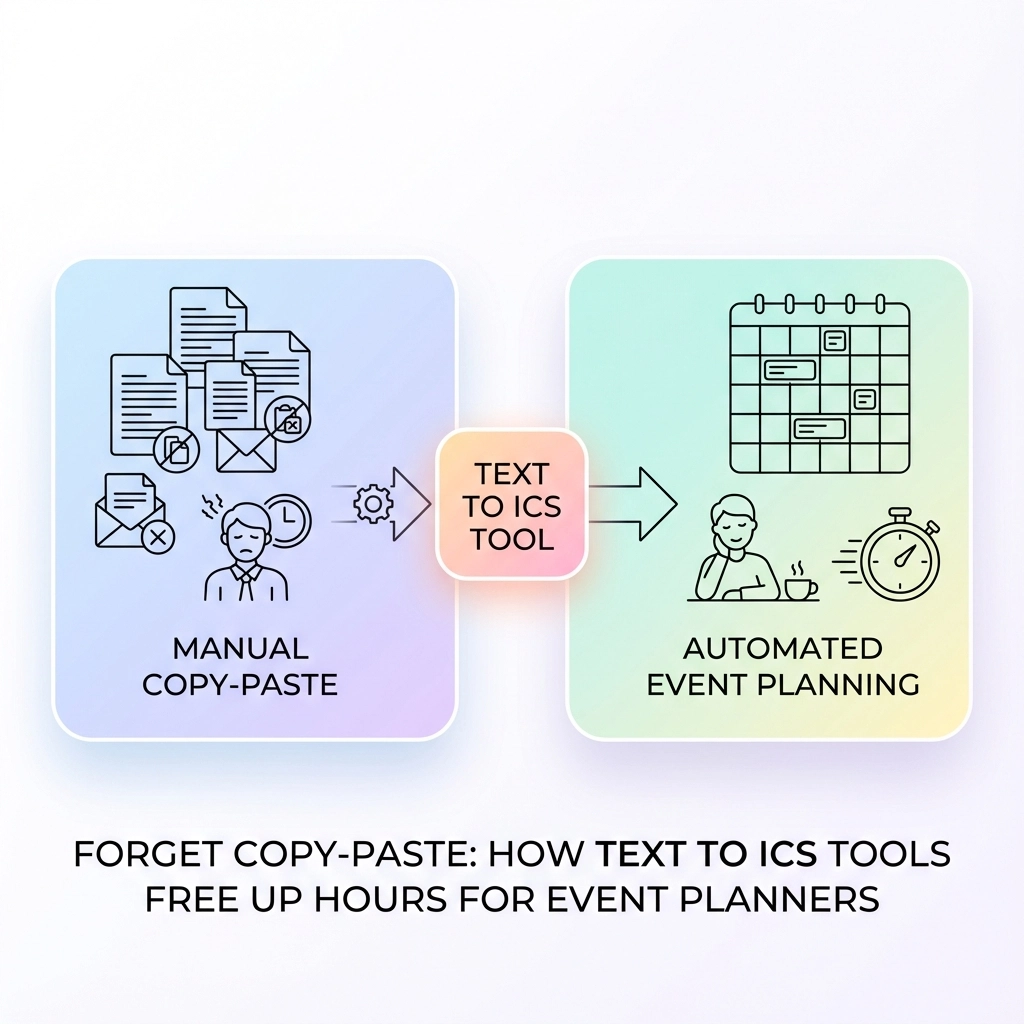
  • Forget Copy-Paste: How Text to ICS Tools Free Up Hours for Event Planners

    Forget Copy-Paste: How Text to ICS Tools Free Up Hours for Event Planners

    You're staring at an email with seventeen different event details scattered across three paragraphs. Meeting times buried between pleasantries. Venue addresses mixed with parking instructions. Conference dates hidden in marketing copy.

    And you know what comes next. The dreaded copy-paste dance.

    Open your calendar. Create new event. Copy the title. Switch back to email. Find the date. Switch to calendar. Type the date. Back to email for the time. Calendar again. Copy the location. Format the description.

    Multiply this by every event notification, every client email, every conference announcement that hits your inbox. Event planners waste hours each week on this mind-numbing process.

    There's a better way.

    The Hidden Time Drain in Event Planning

    Event planning involves juggling information from everywhere. Clients send meeting details via email. Venues share availability through PDFs. Speakers confirm sessions through text messages. Social media posts announce last-minute schedule changes.

    Each piece of information requires manual translation into your calendar system. You're not just copying text: you're interpreting dates, converting time zones, formatting addresses, and ensuring nothing gets lost in translation.

    image_1

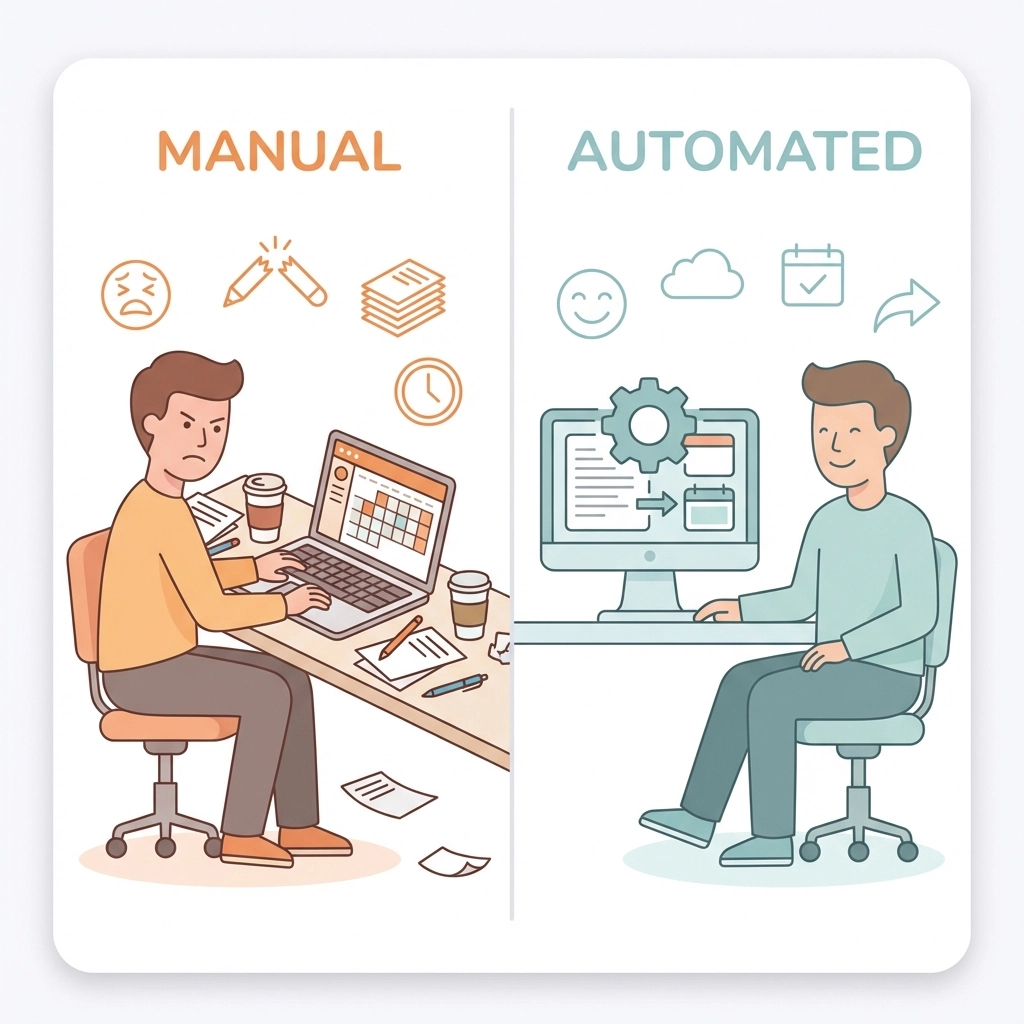
    The average event planner spends 2-3 hours per week just on manual calendar entry. That's 150 hours annually. Nearly four full work weeks dedicated to copy-paste operations instead of actual event planning.

    Real-World Scenarios Where Manual Entry Kills Productivity

    Scenario 1: Conference Planning
    You receive speaker confirmations from twelve different presenters. Each email contains session times, room preferences, and A/V requirements formatted differently. Sarah writes "next Tuesday at 2 PM in Conference Room A." Michael sends "1400 hours on 03/15 in the Blue Room." Jennifer texts "Mar 15th – 2:00p – need projector – main hall."

    Manual process: 45 minutes to decode, enter, and cross-reference all sessions.

    Scenario 2: Client Meeting Coordination
    A client forwards you a chain of emails about a project kickoff. The actual meeting details are buried in the fourth message: "Let's meet Thursday, March 20th at 10:30 AM at our downtown office (1234 Main Street, Suite 400) to discuss the Q2 campaign launch."

    Manual process: 8 minutes to extract date, time, location, and purpose into calendar format.

    Scenario 3: Vendor Schedule Integration
    Your catering partner sends availability via PDF. Florist confirms delivery windows through WhatsApp. Musicians share sound check requirements in a Google Doc. Each vendor uses different date formats and terminology.

    Manual process: 25 minutes to consolidate and enter all vendor schedules without conflicts.

    How Text to ICS Tools Eliminate the Copy-Paste Nightmare

    Text to ICS conversion tools use natural language processing to automatically detect and extract event information from any text source. Instead of manually parsing dates, times, and locations, these tools do the heavy lifting instantly.

    The process works like this:

    1. Text Recognition: The tool scans your input for date patterns, time expressions, and location indicators
    2. Information Extraction: Advanced algorithms identify event components even when formatted inconsistently
    3. Calendar Formatting: Extracted data gets structured into standard calendar format
    4. ICS Generation: The tool creates a downloadable calendar file compatible with any calendar application
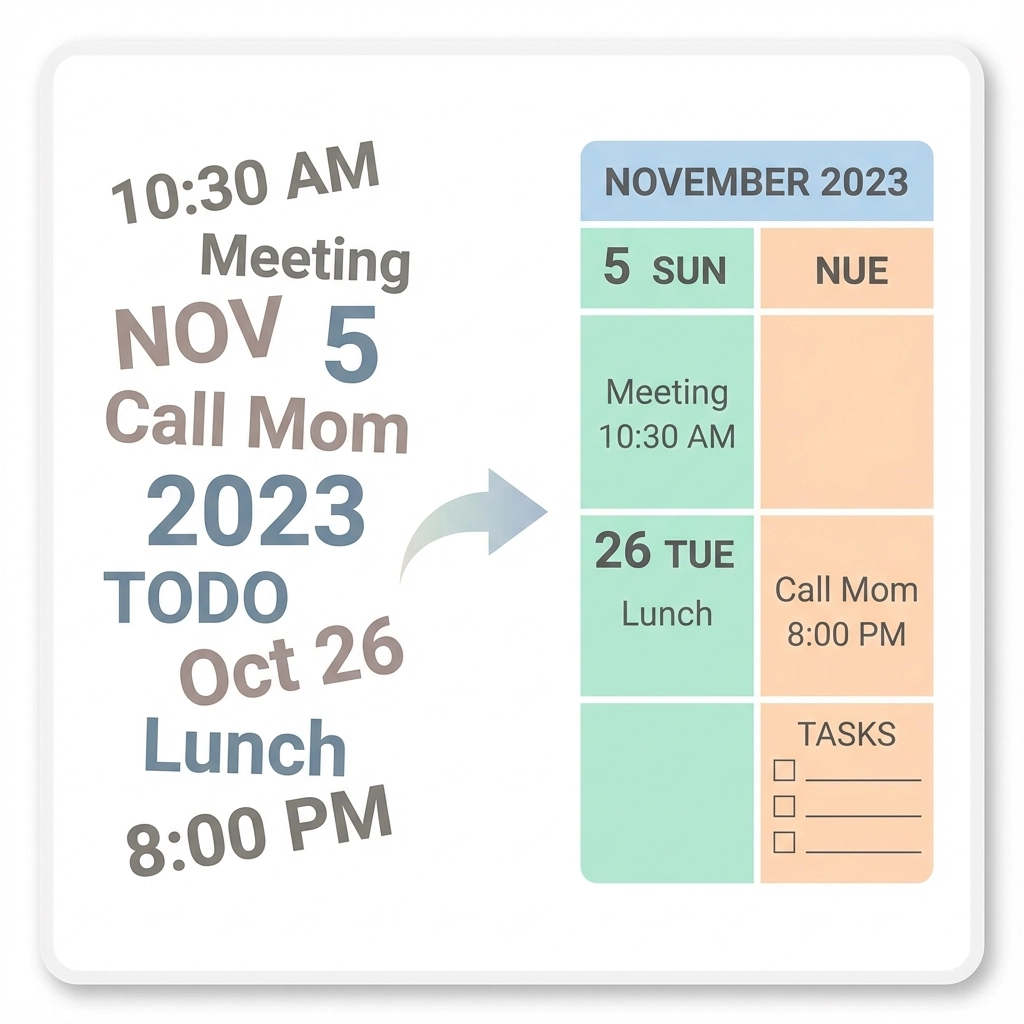
    image_2

    Step-by-Step: From Chaos to Calendar in 30 Seconds

    Let's walk through converting that messy client email into a calendar event:

    Step 1: Copy the Text
    Grab everything from the email: "Let's meet Thursday, March 20th at 10:30 AM at our downtown office (1234 Main Street, Suite 400) to discuss the Q2 campaign launch."

    Step 2: Paste into Text to ICS Tool
    Visit a text to calendar conversion tool and paste your text.

    Step 3: Review Extracted Data
    The tool automatically identifies:

    • Date: March 20th (current year assumed)
    • Time: 10:30 AM
    • Location: 1234 Main Street, Suite 400
    • Title: Q2 campaign launch meeting

    Step 4: Download ICS File
    Click generate and download your calendar-ready file.

    Step 5: Import to Any Calendar
    Double-click the ICS file or import it directly into Google Calendar, Outlook, Apple Calendar, or any other calendar application.

    Total time: 30 seconds instead of 8 minutes.

    Specific Time Savings Across Common Tasks

    Email-to-Calendar Conversion

    • Manual method: 5-8 minutes per email
    • Text to ICS: 30 seconds per email
    • Time saved: 4-7 minutes per event

    Bulk Event Processing

    • Manual method: 45 minutes for 10 events
    • Text to ICS with batch processing: 5 minutes for 10 events
    • Time saved: 40 minutes per batch

    Cross-Platform Scheduling

    • Manual method: 15 minutes to enter same event across three calendar systems
    • Text to ICS: 30 seconds to generate one file that imports everywhere
    • Time saved: 14.5 minutes per multi-platform event

    image_3

    Beyond Time Saving: Error Reduction and Accuracy

    Manual entry introduces transcription errors. You misread "3 PM" as "2 PM." You forget the time zone. You transpose the venue address. These mistakes cascade into scheduling conflicts, missed meetings, and client frustration.

    Text to ICS tools eliminate human error in several ways:

    Date Pattern Recognition: Tools distinguish between different date formats automatically. Whether someone writes "March 15," "3/15," or "Mar 15th," the tool interprets correctly.

    Time Zone Handling: Advanced tools detect and preserve time zone information, preventing the common mistake of scheduling meetings in the wrong zone.

    Location Standardization: Address recognition ensures venue information stays consistent and searchable across all calendar entries.

    Integration Benefits for Modern Event Planning

    Modern event planning happens across multiple platforms. You use Google Calendar for personal scheduling, Outlook for corporate events, and Apple Calendar for quick mobile entry. Text to ICS tools generate universal calendar files that work everywhere.

    Cross-Platform Compatibility
    ICS files import cleanly into:

    • Google Calendar
    • Microsoft Outlook
    • Apple Calendar
    • Mozilla Thunderbird
    • Yahoo Calendar
    • Any calendar application supporting the iCalendar standard

    Team Collaboration
    Generate one ICS file and share it with your entire team. Everyone imports the same accurate event information without individual manual entry.

    Client Communication
    Send calendar files directly to clients instead of expecting them to manually add events from your emails. Professional and convenient.
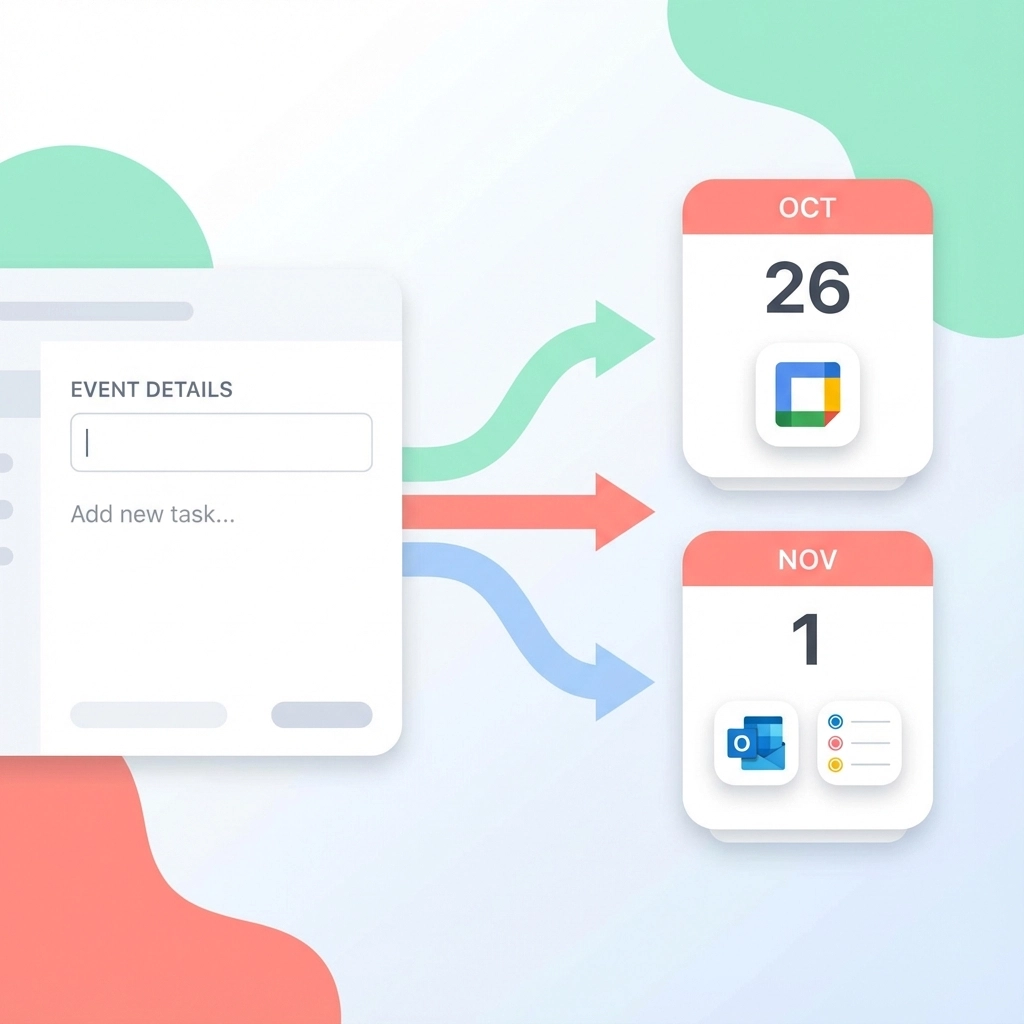
    image_4

    Advanced Features That Multiply Productivity

    Bulk Processing
    Process entire email chains or documents containing multiple events. Some tools can extract dozens of events from conference agendas or event schedules in one operation.

    Smart Interpretation
    Modern tools understand context. "Next Tuesday" gets converted to the actual date. "Lunch meeting" automatically suggests 12:00 PM if no time is specified.

    Custom Field Mapping
    Map specific text patterns to calendar fields. If your organization always puts room numbers in parentheses, the tool learns this pattern.

    Recurring Event Detection
    Tools can identify recurring patterns and create repeating calendar entries automatically.

    Pro Tips for Maximum Efficiency

    Tip 1: Standardize Your Text Sources
    Encourage clients and vendors to use consistent formats when sending event information. Create email templates with clear date/time/location sections.

    Tip 2: Batch Similar Tasks
    Process all venue confirmations together. Handle speaker schedules in one session. Grouping similar conversion tasks improves focus and speed.

    Tip 3: Review Before Importing
    Always verify extracted information before importing to your main calendar. Tools are accurate but not perfect: especially with ambiguous dates or unusual formatting.

    Tip 4: Create Template Events
    Use converted events as templates for similar future events. Modify dates and details rather than starting from scratch.

    When Manual Entry Still Makes Sense

    Text to ICS tools handle 90% of event planning scenarios, but some situations still require manual approach:

    • Complex multi-day events with varying daily schedules
    • Events with extensive custom fields specific to your organization
    • Highly sensitive information requiring manual verification
    • Integration with specialized event management software requiring specific formatting
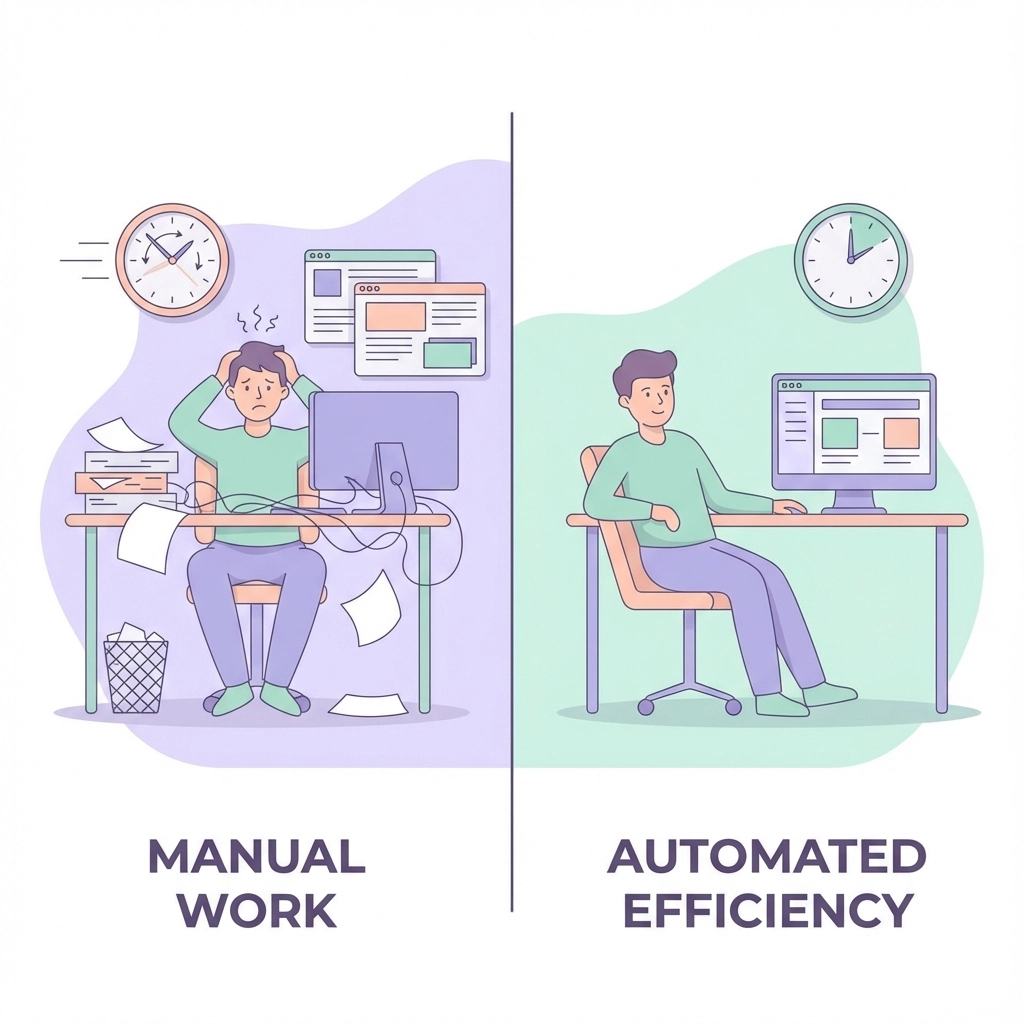
    image_5

    Getting Started: Your First Text to ICS Conversion

    Ready to reclaim those lost hours? Start with one email containing event details.

    Copy the relevant text. Visit Text to Calendar and paste your information. Review the extracted details. Generate your ICS file. Import to your calendar.

    Time it. Compare to your usual manual process.

    That time difference? Multiply it by every event you process weekly. Those are the hours you can redirect toward actual event planning instead of administrative copy-paste work.

    Your calendar management doesn't have to be a time sink. Tools exist to handle the tedious parts automatically. Use them.

  • Text to ICS: The Fastest Way to Create Calendar Events from Plain Text

    Text to ICS: The Fastest Way to Create Calendar Events from Plain Text

    You're staring at another email with event details buried in paragraphs of text. The meeting is next week, but extracting the date, time, and location means manually copying and pasting into your calendar app. Again.

    Sound familiar? You're not alone.

    Every day, professionals waste precious minutes manually entering calendar events from emails, meeting notes, PDFs, and text messages. One missed detail or typo can mean showing up at the wrong time or place.

    There's a better way: converting text directly to ICS files.

    What Is Text to ICS Conversion?

    ICS (iCalendar) files are the universal standard for calendar events. Think of them as digital event tickets that work with every major calendar platform, Google Calendar, Outlook, Apple Calendar, and more.

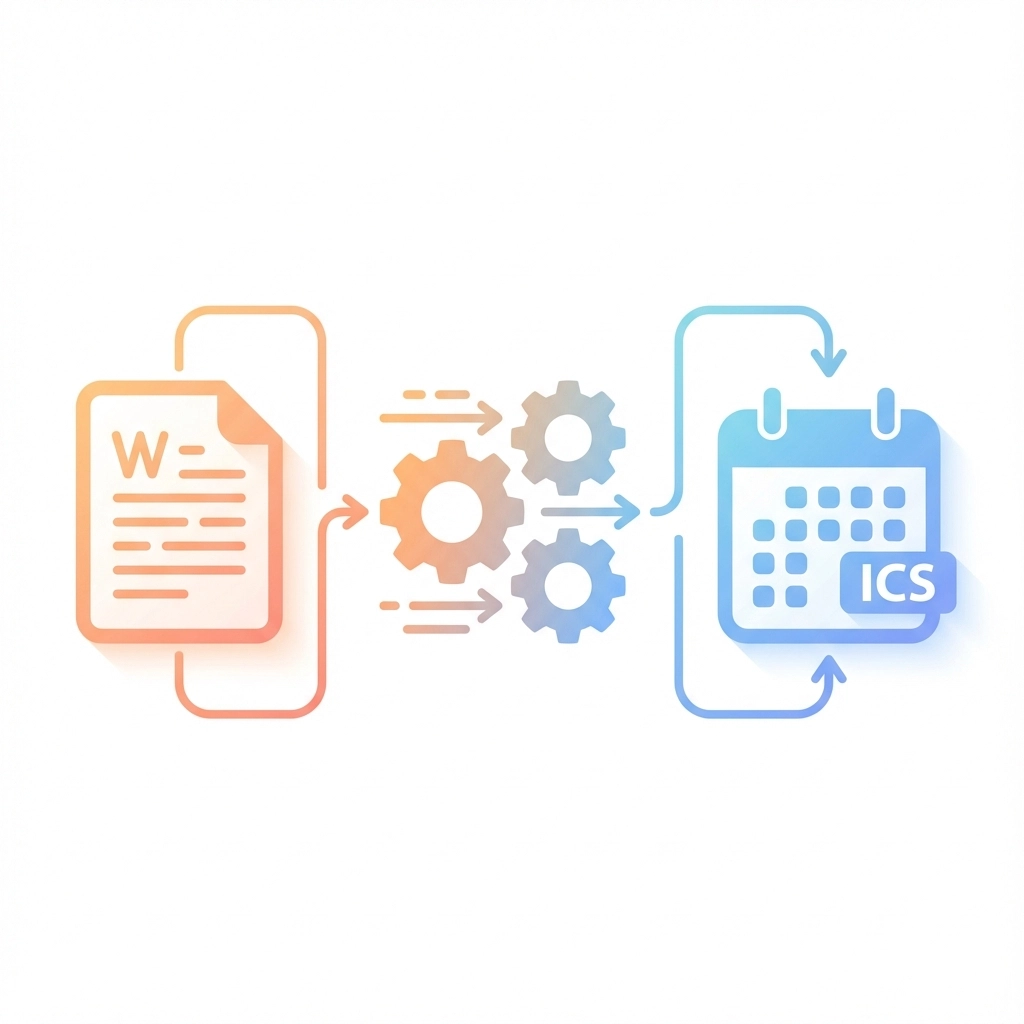
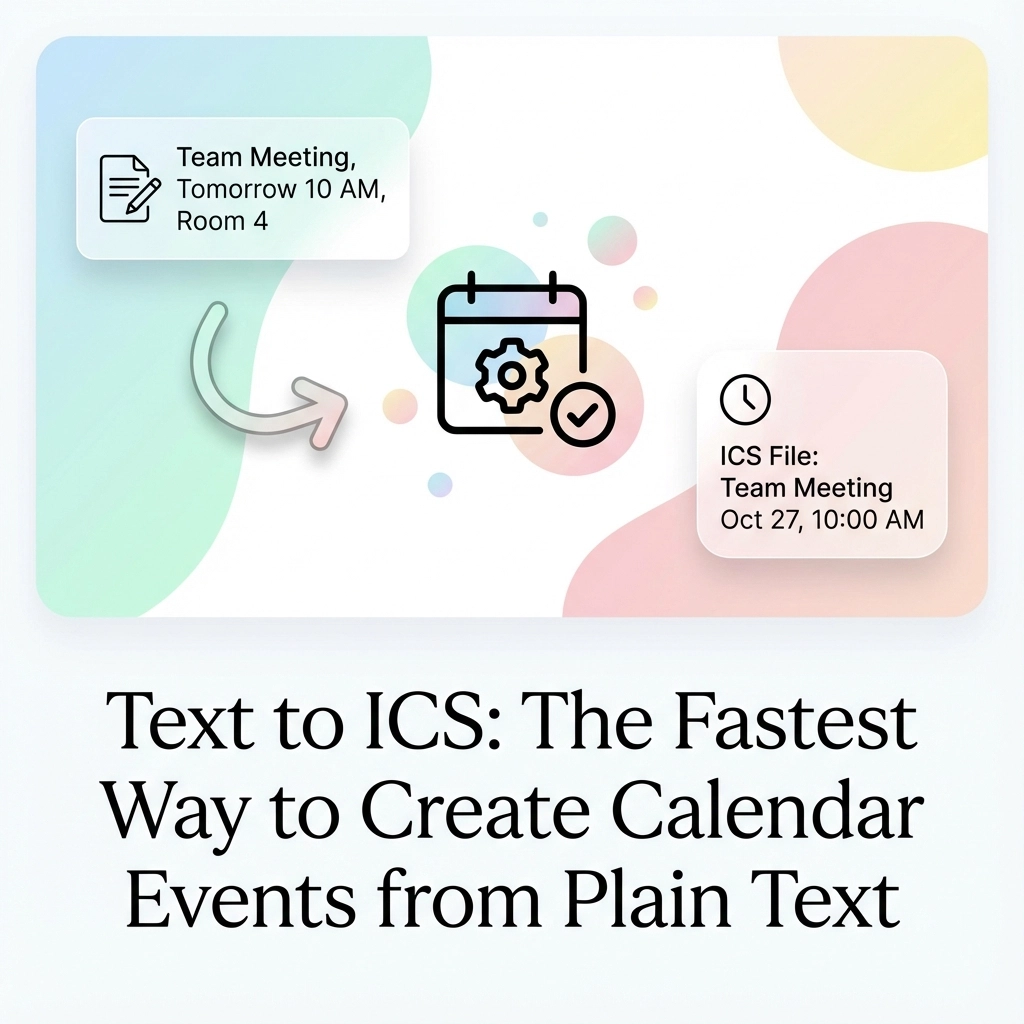
    Text to ICS conversion transforms plain text containing event information into these standardized calendar files. Instead of manual entry, you paste your text, and the system extracts dates, times, locations, and descriptions automatically.

    The result? Instant, downloadable calendar events ready for any platform.

    Why Event Managers Need This

    Event managers juggle dozens of events, venues, and scheduling details daily. Manual calendar entry isn't just tedious, it's error-prone.

    Consider these common scenarios:

    Conference Planning: You receive vendor emails with setup times, speaker schedules, and venue details scattered across multiple messages. Converting each email thread to calendar events manually takes hours.

    Client Meetings: Meeting notes from calls contain follow-up appointments, deadlines, and check-in dates. Extracting these into actionable calendar items requires careful parsing and multiple app switches.

    Event Promotion: Social media posts, flyers, and registration confirmations contain event details your team needs in their calendars. Recreating this information repeatedly wastes time.

    Vendor Coordination: Supplier communications include delivery schedules, setup appointments, and inspection times that must sync across your entire team's calendars.

    image_1

    How Text to ICS Conversion Works

    The process involves three main steps: text parsing, event extraction, and ICS generation.

    Text Parsing: The system analyzes your input text using natural language processing. It identifies patterns that indicate dates, times, locations, and event descriptions.

    Event Extraction: Once patterns are identified, the system extracts specific details:

    • Event titles and descriptions
    • Start and end dates/times
    • Location information
    • Additional notes or attendees

    ICS Generation: Finally, the extracted information gets formatted into a standard .ics file that any calendar application can import.

    Different Conversion Methods Available

    Browser Extensions

    Chrome extensions like "Text to iCal" offer one-click conversion directly from web pages. Highlight text containing event details, click the extension, and download the ICS file immediately.

    Pros: Quick access, works on any webpage
    Cons: Limited customization, may struggle with complex formats

    Web-Based Tools

    Online platforms provide more robust conversion capabilities. You paste text into a form, review extracted details, make edits if needed, and download the result.

    Tools like Text to Calendar offer enhanced accuracy and customization options for professional use.

    Pros: No installation required, better accuracy, editing capabilities
    Cons: Requires internet connection

    AI-Powered Solutions

    Advanced tools use artificial intelligence to understand context and handle complex text formats. These systems excel at interpreting natural language and extracting nuanced event details.

    Pros: Handles complex formats, understands context, high accuracy
    Cons: May require API keys or subscriptions

    Step-by-Step Conversion Process

    Here's how to convert text to ICS efficiently:

    1. Identify Your Text Source: Gather the text containing event information, emails, PDFs, meeting notes, or messages.

    2. Choose Your Tool: Select based on your needs. For quick, simple conversions, use browser extensions. For professional use with multiple events, choose web-based or AI-powered tools.

    3. Input Your Text: Copy and paste the relevant text into your chosen conversion tool.

    4. Review Extracted Details: Most tools show a preview of extracted event information. Check dates, times, and locations for accuracy.

    5. Make Adjustments: Edit any details that weren't parsed correctly. Add attendees, adjust time zones, or modify descriptions as needed.

    6. Generate and Download: Create the .ics file and save it to your device.

    7. Import to Calendar: Open the .ics file with your preferred calendar application to add the event automatically.

    image_2

    Key Benefits for Busy Professionals

    Time Savings

    Manual calendar entry averages 2-3 minutes per event. For event managers handling dozens of events weekly, text to ICS conversion saves hours monthly.

    Accuracy Improvement

    Automated extraction eliminates typos and transcription errors. Dates, times, and locations transfer exactly as written in the source text.

    Universal Compatibility

    ICS files work with all major calendar platforms. Create once, use everywhere, no platform-specific reformatting required.

    Bulk Processing

    Many tools handle multiple events simultaneously. Convert entire email threads or document sections into multiple calendar entries at once.

    Consistent Formatting

    Automated conversion ensures consistent event formatting across your calendar system. No more variation in how different team members enter event details.

    Common Use Cases and Examples

    Email Invitations:
    "Please join us for the quarterly review meeting on March 15th at 2:00 PM in Conference Room B. We'll discuss Q4 results and 2024 planning."

    Converts to: Event titled "Quarterly Review Meeting" on March 15, 2:00 PM, location "Conference Room B" with description about Q4 results and planning.

    Event Flyers:
    "Summer Networking Event – July 20, 2024, 6:30 PM – 9:00 PM at Downtown Convention Center, 123 Main Street. Cocktails and appetizers provided."

    Becomes: Complete calendar event with correct date range, venue address, and event details.

    Meeting Notes:
    "Follow-up meeting scheduled for next Tuesday at 10 AM via Zoom. Action items due Wednesday."

    Creates: Meeting event for the correct Tuesday with Zoom location and related deadline reminder.

    Privacy and Security Considerations

    When handling sensitive event information, privacy matters. Here's what to consider:

    Local Processing: Tools that process text locally on your device provide maximum privacy. Your event details never leave your computer.

    Secure Transmission: Web-based tools should use encrypted connections (HTTPS) when handling your data.

    Data Retention: Check whether tools store your text or event details after conversion. Many reputable services don't retain user data.

    AI Provider Policies: AI-powered tools may send text to external providers like OpenAI or Google. Review their privacy policies for sensitive information.

    For maximum security, choose tools that emphasize privacy protection and local processing when possible.

    Pro Tips for Better Results

    Use Clear Date Formats: Write dates consistently (March 15, 2024 instead of 3/15/24) for better parsing accuracy.

    Include Time Zones: Specify time zones for events involving remote participants or multiple locations.

    Separate Multiple Events: Use line breaks or clear separation between different events in your text.

    Add Context: Include relevant keywords like "meeting," "conference," or "deadline" to help tools categorize events correctly.

    Review Before Importing: Always check extracted details before adding to your calendar. Automated systems aren't perfect.

    Test with Sample Text: Try your conversion tool with known event details first to understand its accuracy and limitations.

    image_3

    Troubleshooting Common Issues

    Incorrect Date Parsing: If dates are wrong, try different formats or add more context words around dates.

    Missing Time Information: When times aren't detected, ensure they're clearly formatted (2:00 PM, 14:00, etc.).

    Location Problems: Add specific location keywords like "at," "in," or "venue:" before addresses.

    Multiple Events Merging: Use clear separators between different events in your source text.

    Getting Started Today

    Ready to stop wasting time on manual calendar entry?

    Start with a simple test. Find an email or document with event details and try converting it to calendar events using a text to ICS tool.

    Most professionals see immediate time savings on their first use. Event managers handling multiple events weekly can reclaim hours of productive time monthly.

    The technology exists. The tools are ready. Your calendar chaos has a solution.

    Stop copying and pasting. Start converting text to ICS files automatically, and focus your energy on what really matters: running great events and managing your time effectively.