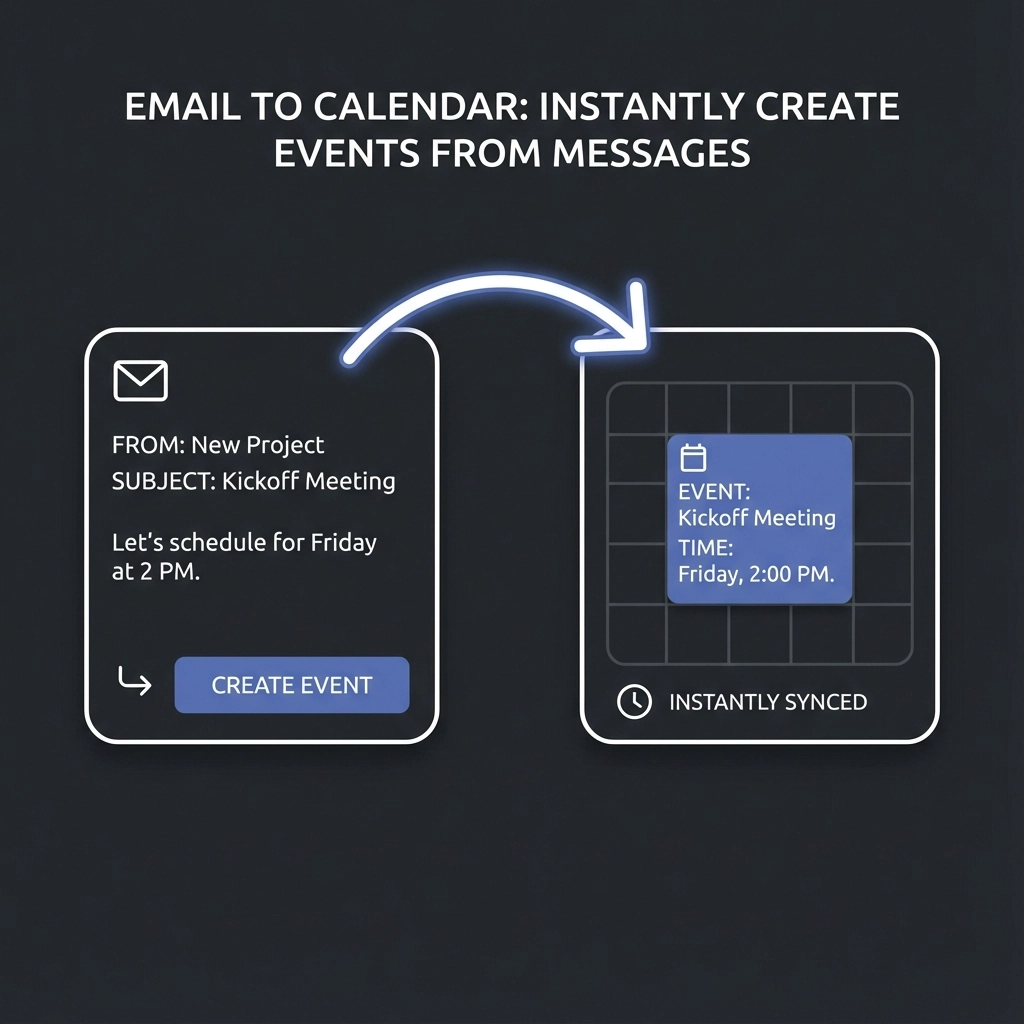
You're drowning in emails. Meeting requests, conference invites, client appointments, deadline reminders: all buried in your inbox while you manually type each one into your calendar. One missed detail means double-booked meetings. One forgotten event means missed opportunities.
Office admins handle dozens of scheduling requests daily. Event managers juggle multiple stakeholders across different time zones. The constant switching between email and calendar apps kills productivity and introduces errors.
There's a better way. Auto-create calendar events directly from your emails. No more manual entry. No more missed details. Just instant, accurate scheduling that works while you focus on what matters.
Why Email-to-Calendar Automation Changes Everything
Manual calendar entry isn't just inefficient: it's a business risk. When you're copying meeting details from emails, you're introducing multiple failure points. Wrong times get entered. Attendee lists get missed. Location details disappear.
Office admins know this pain intimately. You receive a meeting request via email, open your calendar app, create a new event, copy-paste the subject line, manually enter the date and time, add attendees one by one, include the meeting link, and save. Multiply that by 20-30 emails per day.
Event managers face even greater complexity. Client emails mention "next Tuesday" without specifying which Tuesday. Stakeholder messages include multiple meeting options. Venue confirmations arrive with detailed logistics that need accurate calendar entries.
Automation eliminates these problems entirely. The right tools extract meeting information automatically, create properly formatted calendar events, and sync everything across platforms without your intervention.

Gmail's Built-In Smart Features
Google already built email-to-calendar automation into Gmail. The system automatically identifies dates, times, and meeting references in your emails. When someone writes "Let's meet Thursday at 2 PM," Gmail underlines that text.
Hover over the underlined portion and click "Add to Calendar." Gmail instantly creates a Google Calendar event with the correct date, time, and email subject as the event title. The original email gets attached as context.
This works best for straightforward meeting mentions. "Conference call tomorrow at 10 AM" gets recognized perfectly. "Let's sync up sometime next week" requires manual interpretation.
Pro tip: Enable Smart Features in Gmail settings to activate this functionality. Navigate to Settings > General > Smart Features and Personalization, then check "Enable Smart Features."
The limitation? Gmail's recognition works for obvious date-time patterns but struggles with complex scheduling language or multiple meeting options in the same email.
AI-Powered Email Processing
Advanced AI tools go beyond simple pattern recognition. They understand context, extract multiple meeting details, and handle complex scheduling scenarios that trip up basic automation.
Google Gemini Integration
Gemini integrates directly with Gmail and Google Workspace. Open any email containing meeting information, highlight relevant text, and access the Gemini side panel. Request "Create a calendar event from this email."
Gemini analyzes the entire context. It identifies all attendees, extracts meeting purposes, recognizes location details (physical addresses or video links), and creates comprehensive calendar events with proper descriptions.
This approach works particularly well for office admins managing executive calendars. Forward a client meeting request to Gemini, and it generates a complete calendar entry including prep time buffers and travel considerations.
Reclaim AI: Full Automation
Reclaim AI represents the pinnacle of email-to-calendar automation. It continuously scans your inbox, identifies meeting mentions automatically, and creates calendar events without any manual intervention.
The system learns your scheduling patterns. It recognizes your meeting types, understands your availability preferences, and even reschedules conflicting events automatically. Reclaim integrates with Google Calendar and Outlook, starting free with basic features.
Event managers benefit enormously from Reclaim's advanced capabilities. It handles complex multi-stakeholder scheduling, manages different types of events (client calls vs. internal meetings), and maintains your calendar organization standards automatically.
Integration Platform Solutions
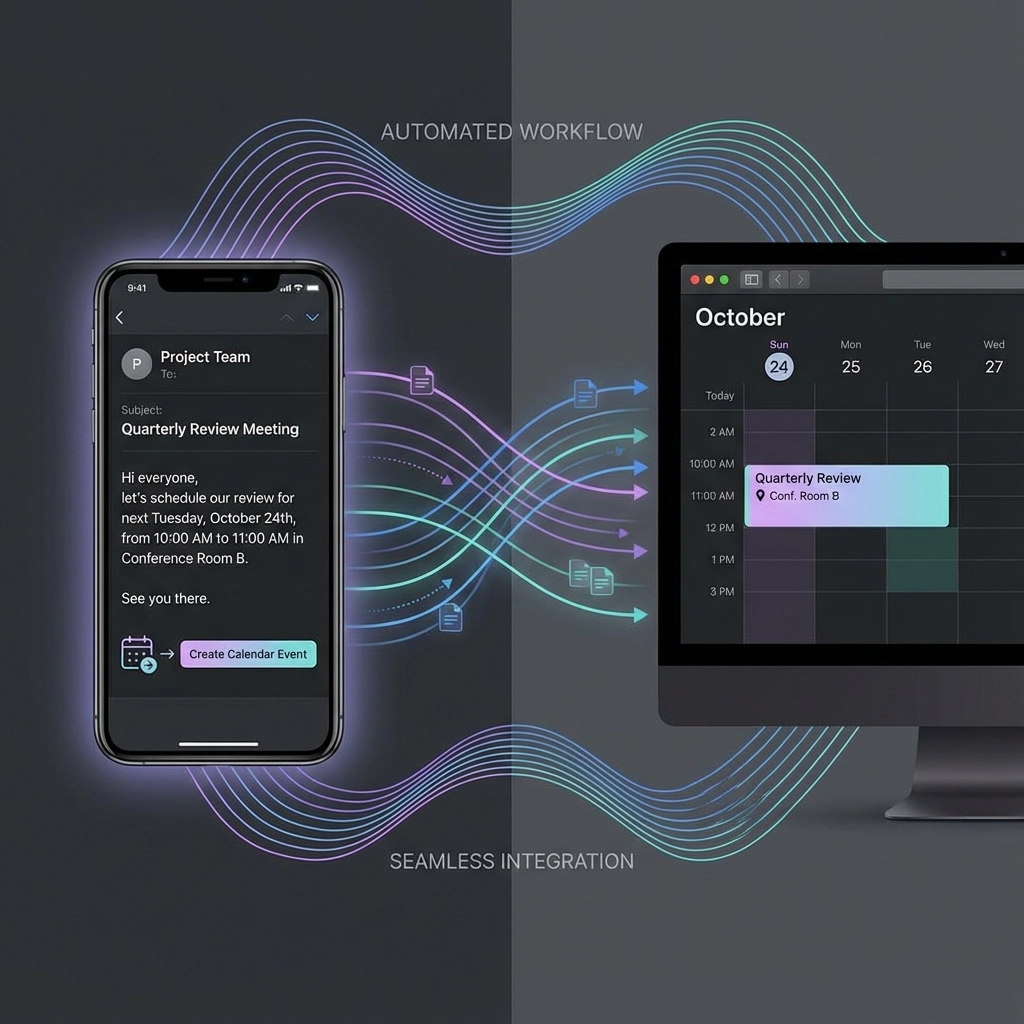
Sometimes you need custom automation that connects email platforms with specific calendar systems. Integration platforms provide flexible solutions for unique organizational requirements.
Zapier Email-Calendar Workflows
Zapier connects virtually any email platform with any calendar system. Popular automation templates include:
- Create Google Calendar events from specific email senders
- Generate calendar reminders before important email-mentioned deadlines
- Send email notifications when new calendar events get created
- Sync email attachments (meeting agendas, location maps) to calendar event descriptions
Office admins often use Zapier to automate vendor scheduling. Set up workflows that automatically create calendar events when specific suppliers send meeting requests, complete with vendor contact information and purchase order references.
Event managers leverage Zapier for complex stakeholder coordination. Configure workflows that create calendar events from client emails while simultaneously notifying internal teams and updating project management systems.
Nutshell CRM Calendar Sync
Nutshell offers sophisticated email-calendar integration specifically designed for customer relationship management. When you share emails with your team, Nutshell automatically creates contact records for new senders and recipients.
The system tracks all calendar activities within your CRM. Meeting outcomes, follow-up requirements, and client interaction histories get automatically linked to calendar events generated from emails.
This approach particularly benefits event managers working with recurring clients. Email-generated calendar events automatically include client history, previous meeting notes, and relationship context.
Specialized Professional Tools
Dedicated email-to-calendar tools provide features specifically designed for high-volume scheduling professionals.
MailTracker Enhanced Processing
MailTracker focuses specifically on Gmail-to-calendar conversion with enhanced accuracy. The tool recognizes complex scheduling language, handles timezone conversions automatically, and manages recurring meeting setups from email instructions.
The system excels at processing emails with multiple meeting options. When clients send "Are you available Tuesday at 3 PM or Wednesday at 10 AM?", MailTracker creates tentative events for both options while flagging the need for confirmation.
Calendly Email Integration
While primarily a scheduling platform, Calendly provides email-to-calendar features through its email parsing capabilities. Forward meeting request emails to your dedicated Calendly address, and the system creates appropriately formatted calendar events with booking links for easy rescheduling.
This works exceptionally well for office admins managing external meeting requests. Clients can easily reschedule through Calendly interfaces rather than generating new email threads.
Choosing Your Automation Strategy
Your optimal email-to-calendar solution depends on your specific role, email volume, and organizational requirements.
Start with Gmail's built-in features if you primarily use Google Workspace and handle straightforward meeting requests. The native integration requires zero setup and works immediately for clearly formatted scheduling emails.
Upgrade to Reclaim AI when you need comprehensive automation across multiple email accounts and calendar systems. The investment ($10/month for premium features) pays off quickly for professionals handling 10+ scheduling emails daily.
Consider Zapier for custom organizational workflows. If you need email-to-calendar automation that connects with specific CRM systems, project management tools, or unique calendar requirements, Zapier's flexibility justifies the learning curve.
Choose specialized tools for specific professional needs. Event managers coordinating complex stakeholder schedules benefit from dedicated platforms with advanced timezone handling and conflict resolution features.
Implementation Best Practices
Successful email-to-calendar automation requires strategic setup and ongoing optimization.
Email Organization Strategy
Structure your email handling to support automation. Create dedicated folders for different meeting types. Use consistent email subject line formats when sending meeting requests to others. Train your team to include complete meeting details (date, time, duration, location, attendees) in initial emails rather than fragmented follow-ups.
Calendar Standardization
Establish consistent calendar organization standards before implementing automation. Define standard meeting durations, location formats, and description templates. Automated tools work more effectively when they have clear patterns to follow.
Testing and Refinement
Start automation with non-critical scheduling first. Test email-to-calendar tools with internal team meetings before using them for important client interactions. Monitor accuracy for two weeks, identifying common errors or missed details.
Advanced Automation Features
Modern email-to-calendar tools provide sophisticated features beyond basic event creation.
Intelligent Conflict Resolution
Advanced systems automatically identify scheduling conflicts and suggest alternative times. When automated email processing creates events that overlap with existing calendar entries, the system flags conflicts and provides resolution options.
Multi-Platform Synchronization
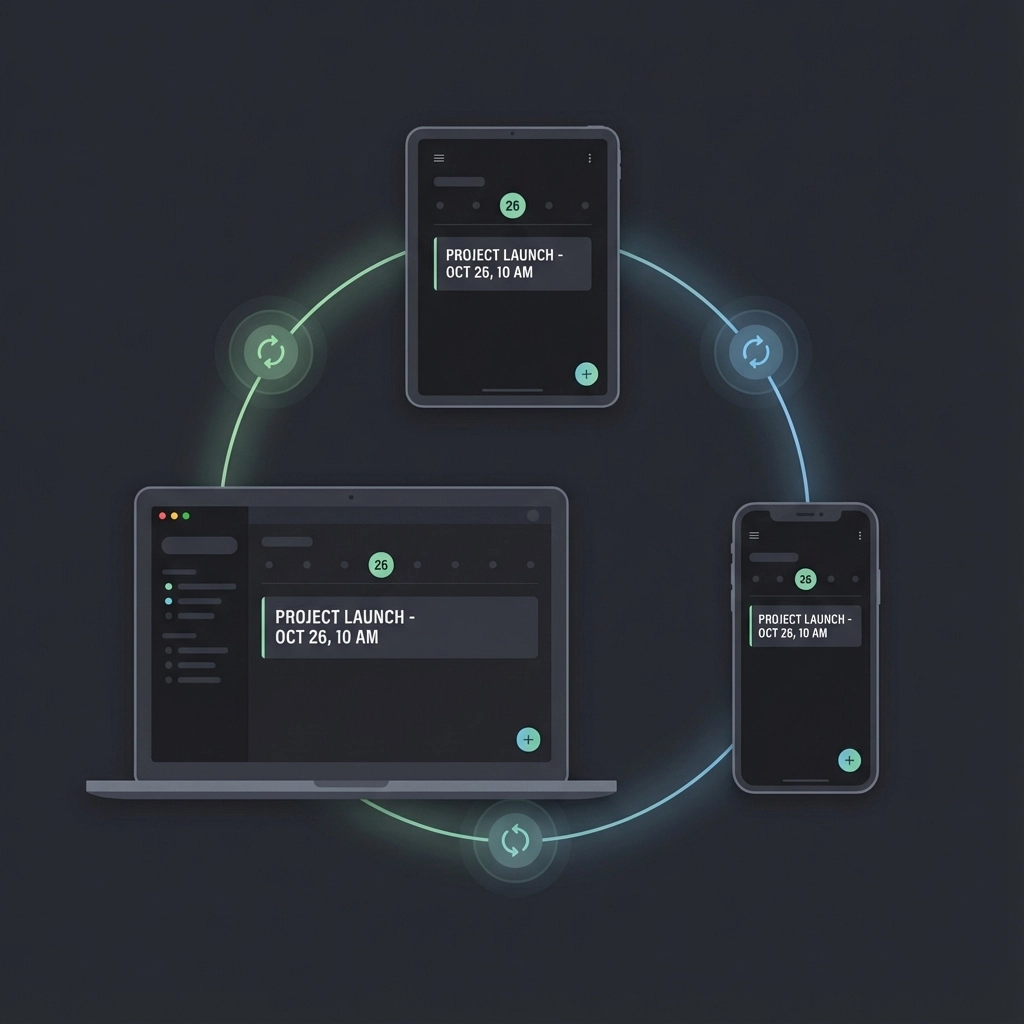
Enterprise-grade solutions synchronize email-generated calendar events across multiple platforms simultaneously. Create an event from Gmail, and it appears in Outlook, Apple Calendar, and team scheduling systems automatically.
Smart Attendee Management
Sophisticated tools analyze email recipient lists and automatically invite appropriate attendees to calendar events. The system learns your meeting patterns and suggests additional stakeholders who typically participate in similar meetings.
Measuring Automation Success
Track specific metrics to quantify your email-to-calendar automation benefits:
- Time savings: Measure daily minutes spent on manual calendar entry before and after automation
- Error reduction: Count scheduling mistakes, missed meetings, and double-bookings
- Response speed: Track how quickly you can confirm meeting requests when automation handles calendar creation
Office admins typically see 60-90 minutes of daily time savings. Event managers report 40% fewer scheduling errors and significantly faster client response times.
The transformation from manual email-to-calendar entry to intelligent automation isn't just about efficiency: it's about reclaiming your professional focus. When scheduling becomes automatic, you can concentrate on the conversations, relationships, and outcomes that actually matter.
Start with one automation tool that matches your current email platform and calendar system. Test it with low-stakes internal scheduling. Gradually expand to more complex scenarios as you build confidence in the system's accuracy.
Your inbox will always be full of meeting requests. But with proper automation, those emails become seamless calendar entries instead of manual data entry tasks. The future of scheduling is automatic, accurate, and effortless.
Leave a Reply