
You're coordinating a team meeting, planning a family gathering, or organizing a client appointment. You have everyone's phone number, but getting calendar invites to actually reach people feels unnecessarily complicated. Email gets buried. Apps require downloads. Traditional calendar sharing involves multiple steps that half your recipients won't complete.
Text messages get read. They're immediate, direct, and work on every phone. But can you actually send functional calendar invites through SMS?
Yes. And it's simpler than you think.
The Direct Approach: ICS Files via Text
The most reliable method involves ICS files – the universal calendar format that works across all platforms. Every major calendar application can read these files, making them your best bet for compatibility.
Here's how it works. Create your event in any calendar app: Google Calendar, Apple Calendar, Outlook, or even Text to Calendar for quick event generation. Export or download the event as an ICS file. Most calendar apps include this option in their sharing or export menus.
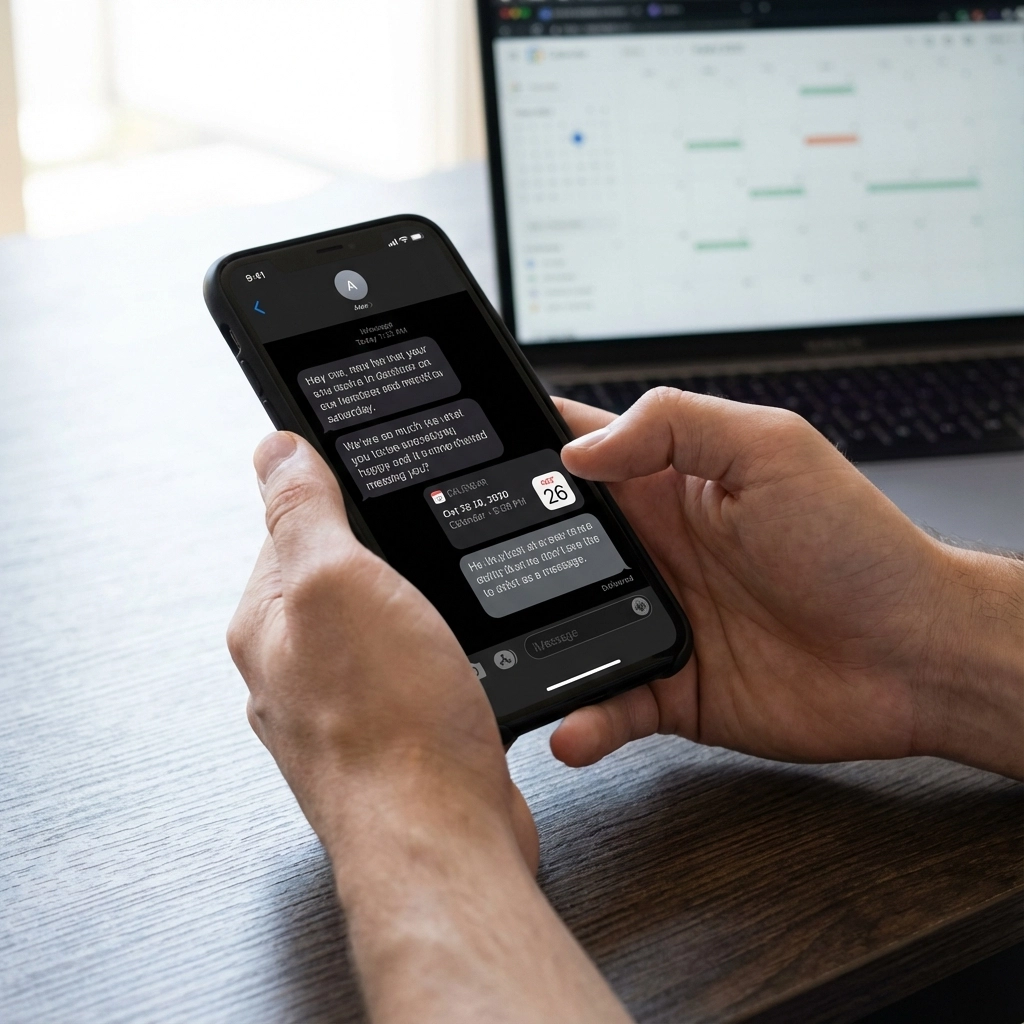
Once you have the ICS file, attach it to a text message using your phone's attachment feature. Recipients tap the file, and their phone automatically prompts them to add the event to their calendar. All details transfer perfectly – date, time, location, description, even reminders.
Pros:
- Works on virtually every device
- Preserves all event details
- No app downloads required
- Recipients can modify the event for their needs
Cons:
- Requires creating the ICS file first
- Some older phones handle attachments poorly
- File size limits on certain messaging platforms
Shareable Links: One Click, Done
Modern calendar applications generate shareable links that bypass file attachments entirely. Google Calendar excels at this approach.
Create your event in Google Calendar. Click the three dots menu and select "Publish event" or look for sharing options. Copy the generated link and paste it into your text message with a clear call to action: "Tap to add this meeting to your calendar."
Recipients click the link, which opens in their browser and displays event details. Most browsers then offer direct calendar integration, allowing one-click event addition.
This method works particularly well for public events or meetings where you want recipients to see details before committing.
Real scenario: You're organizing a neighborhood block party. Send the Google Calendar link via text to your contact list. Everyone can preview the event details and add it to their calendar without any file downloads.
Native Calendar App Sharing
Your phone's built-in calendar app likely includes direct SMS sharing. This method feels most natural because it uses your existing workflow.
Open your event in your phone's calendar app. Look for share, invite, or send options (usually represented by an arrow or share icon). Select text message from the sharing menu. Your phone generates either an ICS attachment or a link, depending on your device and settings.
iPhone users get particularly clean integration here. The Calendar app creates formatted messages that recipients can tap to add events directly.
Pros:
- Seamless integration with your existing calendar
- No third-party tools required
- Maintains your familiar workflow
Cons:
- Feature availability varies by device
- Less control over formatting
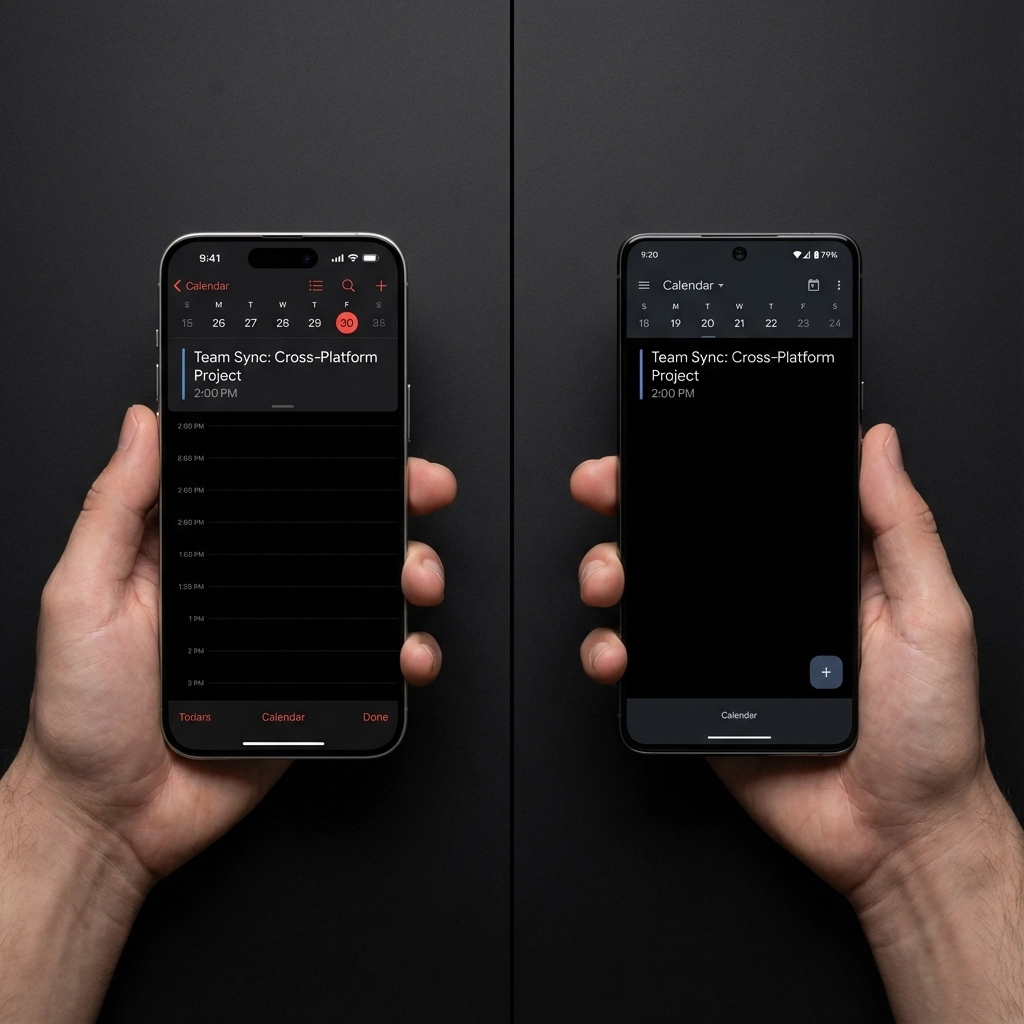
- May not work cross-platform (iPhone to Android issues)
Business-Grade Solutions: SMS Platforms
If you regularly send calendar invites to groups, dedicated SMS platforms offer automation and tracking that consumer methods can't match. Services like SimpleTexting, Sakari, or Quo let you upload contact lists and send calendar invites at scale.
These platforms handle the technical details. Upload your ICS file or paste your calendar link. Compose your message. Select your contact groups. Schedule delivery. The platform manages delivery, tracks open rates, and handles bounced messages.
Best for:
- Business meetings with multiple attendees
- Event promotion and RSVP tracking
- Recurring meeting reminders
- Professional communication that requires delivery confirmation
Considerations:
- Monthly subscription costs
- Learning curve for platform features
- Overkill for personal use
- May require recipient opt-in for compliance

Text-Based Calendar Creation
Sometimes you don't have a pre-existing calendar event. You're coordinating on the fly via text and need to create the invitation in real-time.
Tools like Text to Calendar let you convert plain text descriptions into proper calendar events. Type "Team meeting tomorrow at 2 PM in Conference Room B" and get a properly formatted ICS file or calendar link.
This approach works well when you're already texting about plans and want to formalize them into calendar events without switching apps.
Example workflow:
- Group text discussing dinner plans
- Someone says "Friday 7 PM at Mario's Restaurant"
- You quickly convert that text to a calendar event
- Share the resulting ICS file or link with the group
Common Scenarios and Best Practices
Family Coordination
For family events, use Google Calendar links. Most family members already use Google services, and the preview feature helps with planning. Include location details and any special instructions in the event description.
Professional Meetings
Stick with ICS files for business meetings. They integrate cleanly with corporate calendar systems and don't require recipients to have specific apps or accounts. Include dial-in information and agenda details.
Event Planning
For larger gatherings, combine methods. Send initial invites via ICS files for calendar integration, then use follow-up texts with Google Calendar links for updates or changes.
Troubleshooting Common Issues
Recipients can't open ICS files: Some Android phones require specific apps to handle ICS files. Include alternative sharing methods or suggest they save the file and import it manually into their calendar app.
Links don't work properly: Test your calendar links across different devices before sending. Some corporate networks block external calendar links for security reasons.
Time zone confusion: Always specify time zones in your event details, especially for remote meetings or when coordinating across regions.
Missing details: Text messages have character limits. Keep your accompanying message brief and put detailed information in the calendar event itself.
Security and Privacy Considerations
Calendar invites sent via text inherit SMS security limitations. Avoid including sensitive information in event titles or descriptions when using public messaging platforms.
For confidential meetings, consider using encrypted messaging apps that support calendar attachments, or stick to traditional email invites with calendar attachments.
Business users should verify their SMS platform's data handling policies, especially when sending invites containing client information or internal meeting details.
Making It Stick: Implementation Tips
Start simple. Pick one method that fits your primary use case and master it before trying others. Most people find either ICS files or Google Calendar links work for 90% of their needs.
Create templates for recurring event types. Save standard ICS files or bookmark frequently used calendar links. This saves time and ensures consistency.
Test with a small group first. Send yourself and a colleague test invites to verify everything works as expected before rolling out to larger groups.
Keep backup methods ready. Technology fails. Always have a way to send traditional text reminders if calendar integration doesn't work for specific recipients.
The Bottom Line
Sending calendar invites via text message bridges the gap between immediate communication and organized scheduling. Whether you choose ICS files for maximum compatibility, shareable links for simplicity, or automated platforms for scale, text-based calendar invites get your events into people's actual calendars.
The key is matching your method to your audience and use case. Family coordination benefits from easy-to-use links. Business meetings need reliable file attachments. Large events require tracking and automation.
Start with the method that feels most natural for your current workflow. Once you've streamlined calendar sharing through text, you'll wonder why anyone still relies on email invites that disappear into digital black holes.
Your recipients will thank you for making their scheduling simpler. And you'll spend less time coordinating and more time focusing on what actually matters in those meetings.
Leave a Reply