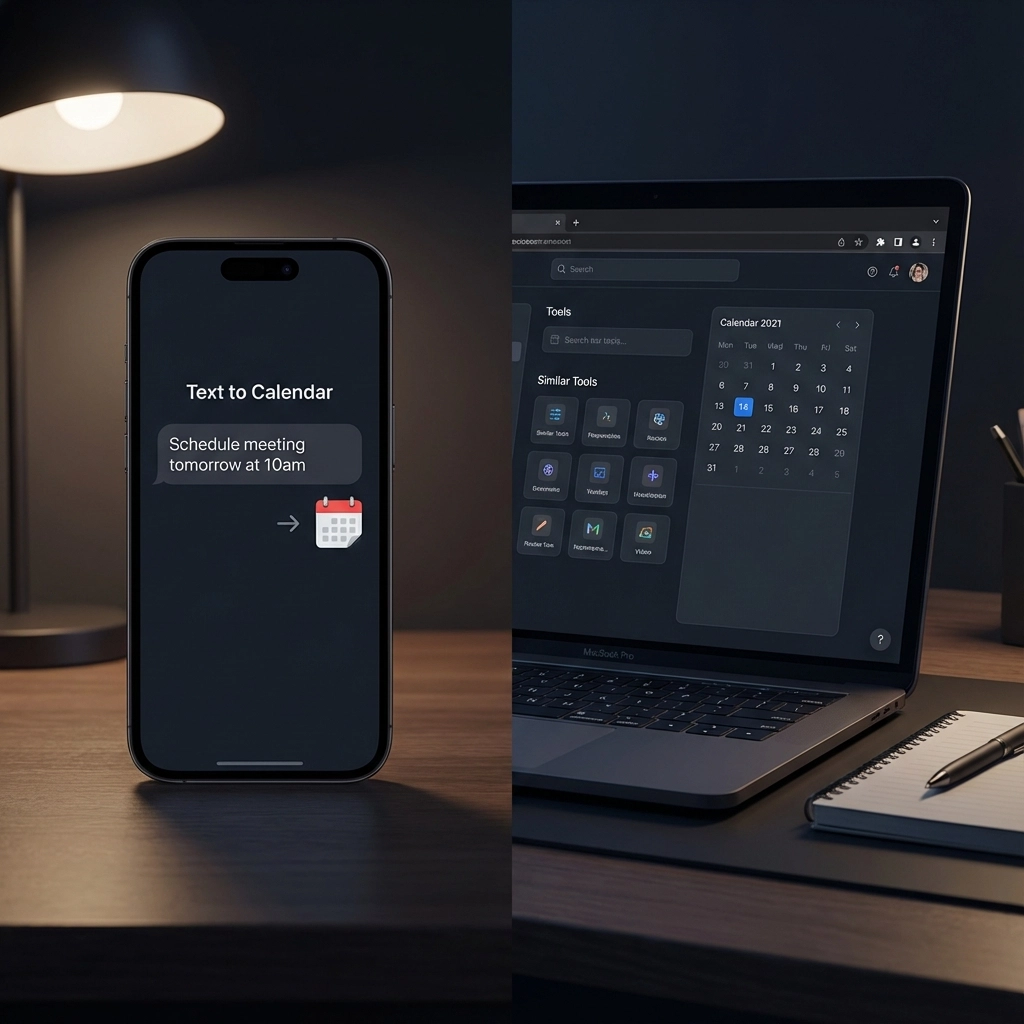
You're drowning in emails, text messages, and meeting notes scattered across different platforms. Every day, you manually copy event details into your calendar: dates, times, locations, attendees. It's tedious, error-prone, and honestly? A massive waste of your time.
The good news? AI-powered event extraction tools can automate this entire process. But with so many options available, which one actually delivers on its promises?
Let's break down how Text to Calendar stacks up against similar tools, so you can choose the right solution for your scheduling chaos.
What Text to Calendar Actually Does

Text to Calendar uses AI to automatically extract event details from any text source and convert them into properly formatted calendar events. You paste in an email, upload a document, or type in meeting notes, and it instantly identifies dates, times, locations, and attendees.
The tool then generates downloadable ICS files that work with Google Calendar, Outlook, Apple Calendar, and virtually any calendar application you use.
No more manual typing. No more missed details. No more scheduling mistakes.
Speed: How Fast Can You Create Events?
Text to Calendar: 15-30 seconds per event
- Paste text → AI processes → Download ICS file
- Bulk processing for multiple events simultaneously
- Instant recognition of complex date formats
Google Calendar's Quick Add: 45-60 seconds per event
- Type event details manually
- Limited natural language processing
- One event at a time only
Outlook's scheduling assistant: 60-90 seconds per event
- Navigate through multiple screens
- Manual input for all fields
- Time zone conflicts require additional steps
Calendly-style booking tools: Not applicable
- These tools create booking pages, not extract existing event data
- Different use case entirely
When you're processing multiple events from a long email thread or meeting notes, Text to Calendar's bulk processing capability becomes a game-changer. You can handle 10 events in the time it takes to manually create 2.
Usability: Which Tool Works Best for Real Users?

Text to Calendar:
- Copy-paste interface anyone can understand
- Works with emails, documents, handwritten notes (via photo)
- No learning curve required
- Mobile-friendly for on-the-go processing
Manual calendar entry:
- Familiar interface but time-consuming
- High error rate with complex scheduling details
- Requires switching between multiple apps
Email-to-calendar plugins:
- Often miss context and formatting nuances
- Require specific email client integrations
- Limited customization options
Zapier/IFTTT automation:
- Powerful but requires technical setup
- Monthly subscription costs
- Breaking changes when services update APIs
The winner here depends on your technical comfort level. If you want something that works immediately without setup, Text to Calendar takes the lead. If you're comfortable with automation workflows and have specific integration needs, Zapier might work better.
Security: Protecting Your Sensitive Meeting Data
Text to Calendar:
- Processes data locally when possible
- No permanent storage of your event details
- SOC 2 compliance for enterprise users
- End-to-end encryption for file uploads
Cloud-based automation tools:
- Store your data on their servers indefinitely
- Third-party access for troubleshooting
- Varying security standards across providers
Manual entry:
- Most secure option (no third-party processing)
- But higher risk of human error and data loss
Email plugins:
- Access to your entire email account required
- Potential privacy concerns with email scanning
For sensitive business meetings or personal events, Text to Calendar's minimal data retention approach offers a good balance between convenience and security.
Supported Formats: What Can Each Tool Handle?

| Format Type | Text to Calendar | Google Quick Add | Outlook | Email Plugins |
|---|---|---|---|---|
| Plain text | ✅ | ✅ | ✅ | ✅ |
| Email threads | ✅ | ❌ | ❌ | ✅ |
| PDF documents | ✅ | ❌ | ❌ | ❌ |
| Images/Screenshots | ✅ | ❌ | ❌ | ❌ |
| Multiple time zones | ✅ | ⚠️ | ✅ | ⚠️ |
| Recurring events | ✅ | ⚠️ | ✅ | ⚠️ |
| Attendee lists | ✅ | ❌ | ✅ | ✅ |
Text to Calendar handles the widest range of input formats, making it useful when event details come from various sources. This is particularly valuable for event organizers who receive information via multiple channels.
Export Options: Getting Events Into Your Calendar
Text to Calendar:
- Standard ICS files (universal compatibility)
- Direct Google Calendar integration
- Outlook-compatible formatting
- Apple Calendar optimization
- Bulk export for multiple events
Other tools:
- Usually limited to their native platform
- Export features often require premium subscriptions
- Formatting issues when switching between calendar apps
The ICS file format is your friend here. It's the universal language that every major calendar application understands, which is why Text to Calendar's focus on generating clean, properly formatted ICS files matters.
Cost Comparison: What You Actually Pay

Text to Calendar: Free tier + paid plans starting at reasonable monthly rates
Manual entry: Free but costs you time (calculate your hourly rate)
Zapier automation: $20-50+ per month depending on usage
Premium calendar apps: $5-15 per month per user
When you factor in the time saved, Text to Calendar typically pays for itself within the first week for busy professionals processing multiple events regularly.
Who Should Use What?
Choose Text to Calendar if you:
- Process 5+ events per week from various sources
- Work with complex scheduling details
- Need universal calendar compatibility
- Value security and privacy
- Want something that works immediately
Stick with manual entry if you:
- Create fewer than 3 events per week
- Have very simple scheduling needs
- Prefer maximum control over every detail
- Don't mind the time investment
Consider automation tools if you:
- Have highly specific workflow requirements
- Need complex multi-app integrations
- Have technical resources for setup and maintenance
The Bottom Line
Text to Calendar wins on speed, format support, and universal compatibility. Manual entry wins on security and control. Automation tools win on customization but require significant setup.
For most busy professionals and event organizers, the time savings and reduced errors from AI-powered event extraction make Text to Calendar the practical choice. You can try it yourself and see how much time it saves in your actual workflow.
The question isn't whether AI can extract events from text: it's whether you're ready to stop doing manually what technology can handle automatically.
Leave a Reply