You're staring at a PDF meeting agenda with twelve different session times, or scrolling through a long email chain trying to figure out when everyone agreed to meet. Sound familiar?
Manual calendar entry is one of those productivity killers that sneaks up on you. Five minutes here, ten minutes there, plus the inevitable typos and missed details. By the end of the week, you've burned hours on something that should take seconds.
That's where a calendar event extractor comes in. And now that Text to Calendar supports direct export to Google Calendar and Outlook, the whole process just got ridiculously simple.
What Is a Calendar Event Extractor?
A calendar event extractor is a tool that automatically identifies dates, times, and event details from various sources: text documents, images, PDFs, emails: and converts them into proper calendar entries.
Think of it as smart copy-paste for your schedule. Instead of manually reading through content and typing each event, the tool does the heavy lifting. It finds the relevant information and formats it correctly for your calendar app.
The key difference with modern extractors is direct integration. Rather than giving you a file to manually import, tools like Text to Calendar can push events straight into your Google Calendar or Outlook with one click.

Why Direct Export to Google and Outlook Matters
Here's the thing about calendar workflows: friction kills adoption.
Traditional calendar tools often require you to download an ICS file, then remember to import it, then deal with duplicate events or formatting issues. Most people give up halfway through and just type everything manually anyway.
Direct export changes this completely. You extract the events, review them quickly, then click "Add to Google Calendar" or "Export to Outlook." Done. The events appear in your calendar immediately, properly formatted and integrated with your existing schedule.
This matters especially when you're dealing with:
- Meeting agendas with multiple time slots
- Conference schedules spanning several days
- Email threads with changing meeting times
- PDF documents with embedded event information
- Images of schedules or announcements
How Text to Calendar Works Across Formats
Text to Calendar handles three main input types, each with its own advantages:
Text Input
Paste any text containing dates and times. The AI identifies patterns like "Meeting on March 15th at 2 PM" or "Workshop series: Mondays 10-11 AM starting Feb 5th."
Common sources:
- Email content
- Meeting notes
- Slack messages
- Document excerpts
- Website text
Image Processing
Upload screenshots, photos, or graphics containing calendar information. This works for:
- Social media event announcements
- Printed flyers or posters
- Whiteboard photos from planning sessions
- Screenshots of other calendar apps
- Digital announcements with embedded text
PDF Extraction
Upload PDF files and the tool pulls out all date and time information automatically. Particularly useful for:
- Conference programs
- Meeting agendas
- Course schedules
- Event itineraries
- Training materials
Step-by-Step Process
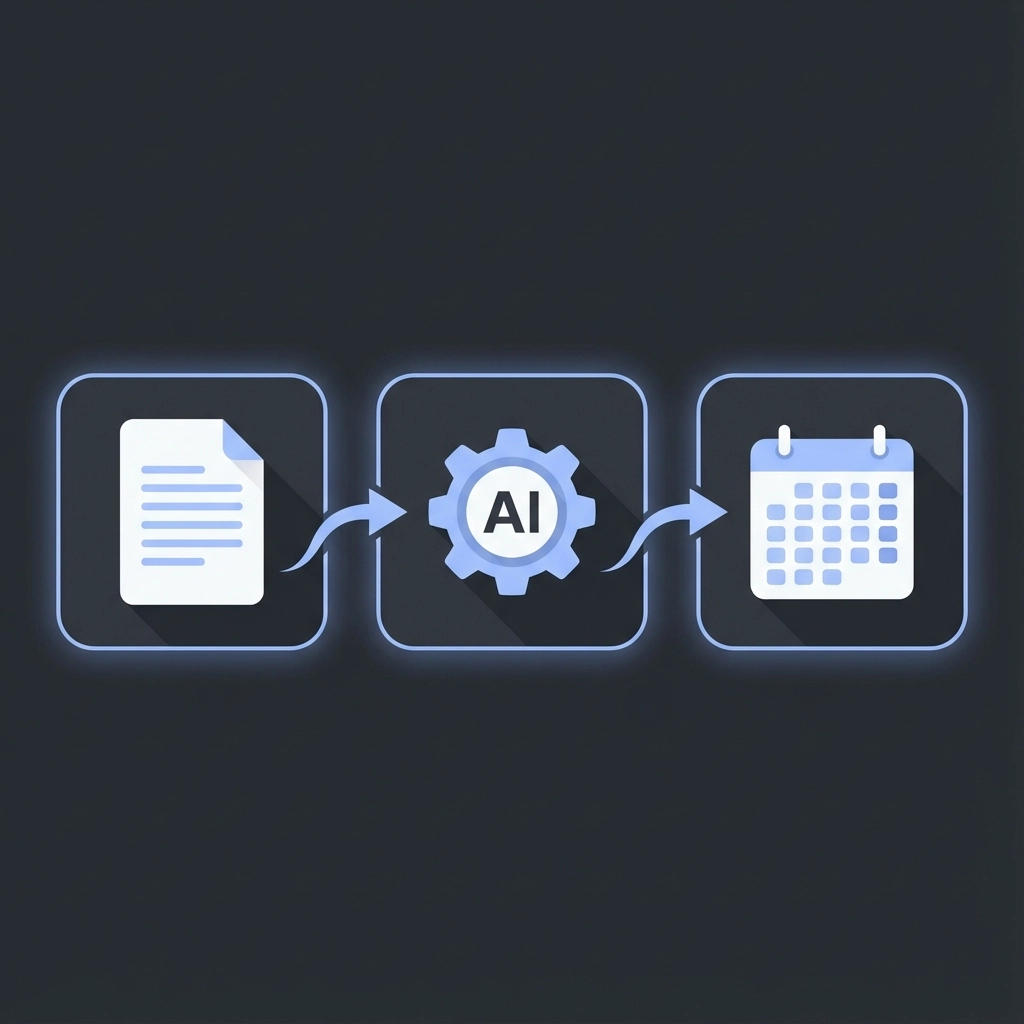
Getting your events into Google Calendar or Outlook takes just a few clicks:
1. Upload Your Content
Visit Text to Calendar and choose your input method. Paste text, upload an image, or drag in a PDF file.
2. AI Processing
The tool scans your content and identifies all date and time information. This usually takes 5-10 seconds, depending on content size.
3. Review Extracted Events
You'll see a list of all detected events with dates, times, and descriptions. Check for accuracy and make any needed adjustments.
4. Choose Export Option
Select either "Export to Google Calendar" or "Export to Outlook" depending on your preferred platform.
5. Automatic Integration
Events are added directly to your calendar with proper formatting, time zones, and descriptions.
The entire process typically takes under two minutes, regardless of how many events you're adding.
Google Calendar Integration Benefits
Direct Google Calendar export offers several advantages:
Instant Synchronization: Events appear immediately across all your devices: phone, tablet, desktop: without manual syncing.
Proper Time Zone Handling: The tool respects your calendar's default time zone settings, preventing confusion with multi-timezone events.
Smart Conflict Detection: Google Calendar will flag any scheduling conflicts, helping you spot issues before they become problems.
Automatic Reminders: Events include default reminder settings based on your Google Calendar preferences.
Easy Sharing: Once events are in Google Calendar, you can easily share them with colleagues or add attendees.

Outlook Integration Advantages
For Outlook users, direct export provides:
Enterprise Integration: Events sync with your organization's Exchange server, making them visible to colleagues checking your availability.
Meeting Invitation Compatibility: Events can be easily converted to meeting invitations with proper formatting.
Category and Priority Support: Outlook's organizational features work seamlessly with imported events.
Desktop and Mobile Sync: Events appear in Outlook desktop, web, and mobile apps automatically.
Cross-Platform Access: Works with Outlook.com, Office 365, and Exchange-hosted accounts.
Common Use Cases
Event Planners
Conference schedules often come as PDF documents with dozens of sessions. Rather than manually entering each session, upload the PDF and export all events at once. Attendees can then access detailed schedules through calendar sharing.
Project Managers
Meeting notes frequently contain multiple follow-up dates and deadlines. Extract these automatically and push them to your team calendar, ensuring nothing falls through the cracks.
Students and Educators
Course syllabi typically list assignment due dates, exam schedules, and project milestones. Convert the entire semester schedule in minutes rather than hours.
Sales Professionals
Client emails often mention multiple potential meeting times or follow-up dates. Extract all possibilities and add them to your calendar for easy reference during scheduling calls.
Executive Assistants
Managing complex schedules across multiple time zones becomes much simpler when you can batch-process travel itineraries, conference agendas, and meeting requests.

Tips for Best Results
Be Specific with Source Material: The more detailed your input, the better the extraction. "Marketing meeting Tuesday 2 PM" works better than "meeting Tuesday."
Double-Check Time Zones: While the tool handles time zones well, verify important events: especially for cross-timezone meetings or travel.
Use Consistent Date Formats: If possible, stick to standard date formats (MM/DD/YYYY or DD/MM/YYYY) for most reliable parsing.
Review Before Exporting: Always scan the extracted events list before pushing to your calendar. AI is very good but not perfect.
Batch Similar Content: Process multiple related documents at once rather than one-by-one for efficiency.
Comparing Export Options
| Feature | Google Calendar | Outlook |
|---|---|---|
| Mobile sync | Instant | Instant |
| Enterprise features | Basic | Advanced |
| Sharing options | Excellent | Good |
| Time zone handling | Automatic | Automatic |
| Reminder customization | High | Medium |
| Third-party integrations | Extensive | Limited |
Choose based on your existing ecosystem and collaboration needs.
Getting Started
Ready to stop manually typing calendar events? Try Text to Calendar with your next meeting agenda, email thread, or conference schedule.
The tool handles everything from simple text notes to complex PDF documents, then pushes results directly to your preferred calendar platform. No file downloads, no manual imports: just clean, accurate calendar entries in seconds.
For more calendar automation tips, check out our guide on converting text to calendar events or learn how to extract events from emails.
Your future self will thank you for those extra hours back.
Leave a Reply